







Basket Guard: Basket Position Management for MT4/MT5
Info
The Basket Guard: Basket Position Management for MT4/MT5 is a Expert Advisor for MetaTrader 5 that basket guard: basket position managementmany expert advisors, such as grid, averaging, or multi-symbol systems, often lack a universal stop loss for all their open positions. While individual trades might appear manageable, collectively they can consume a significant portion of your trading capital.
Usage
This tool is typically used for automated trading on major forex pairs and gold.
Platform
This Expert Advisor works exclusively on MetaTrader 5 (both build 600+ and newer versions).
Setup
Place the downloaded file in MQL5/Experts folder via File ? Open Data Folder in MetaTrader 5.
How to Install and Use Basket Guard: Basket Position Management for MT4/MT5
1. Installation: Open the "File" menu, select "Open Data Folder," navigate to MQL/Experts, paste your file, and restart the terminal.
2. Activation: Drag the EA from the Navigator onto a chart, ensure "Allow live trading" is checked in the Common tab, and verify the AutoTrading button is green.
3. Optimization: Right-click your chart, choose "Expert List," click "Properties" to adjust inputs, and save your preferred setup as a set file for future use.
4. Maintenance: Regularly check the "Experts" tab in the terminal window to monitor trade logs and potential execution errors.
Frequently Asked Questions
Q: Why is my EA not opening trades? A: Check the "AutoTrading" button, ensure "Allow live trading" is enabled, and verify your broker allows automated trading on your account type.
Q: Can I run multiple EAs on one chart? A: No, each chart can only host one active EA; however, you can open multiple charts for different currency pairs to run several EAs.
Q: What does the "smiley face" icon mean? A: A smiley face in the top-right corner of the chart indicates the EA is successfully running; a frowny face means it is disabled.
What this tool does
Basket Guard: Basket Position ManagementMany Expert Advisors, such as grid, averaging, or multi-symbol systems, often lack a universal stop loss for all their open positions.
Typical Use Case
This Expert Advisor excels in automated trading and technical analysis on MetaTrader 5.
Compatible Platform & Setup
This Expert Advisor works on MetaTrader 5. Place the file in the MQL5/Experts folder and restart the terminal.
Description & Settings
Related: Prop Firm Equity Guard: Daily and Maximum Drawdown Protection - another powerful expert for MetaTrader 5 traders.
Basket Guard: Basket Position ManagementAlso recommended: Prop Risk Guard: Comprehensive Account Protection - similar expert with strong performance on MetaTrader 5.
Many Expert Advisors, such as grid, averaging, or multi-symbol systems, often lack a universal stop loss for all their open positions. While individual trades might appear manageable, collectively they can consume a significant portion of your trading capital. Basket Guard addresses this by monitoring a group of positions and automatically closing them once the total floating profit or loss reaches a predetermined percentage of your account balance.
To utilize Basket Guard, simply attach it to any chart on the same trading account where your primary Expert Advisor operates and ensure algorithmic trading is enabled. A single instance of Basket Guard can effectively manage positions across all symbols. It is compatible with both hedging and netting account types and does not initiate any trades itself.
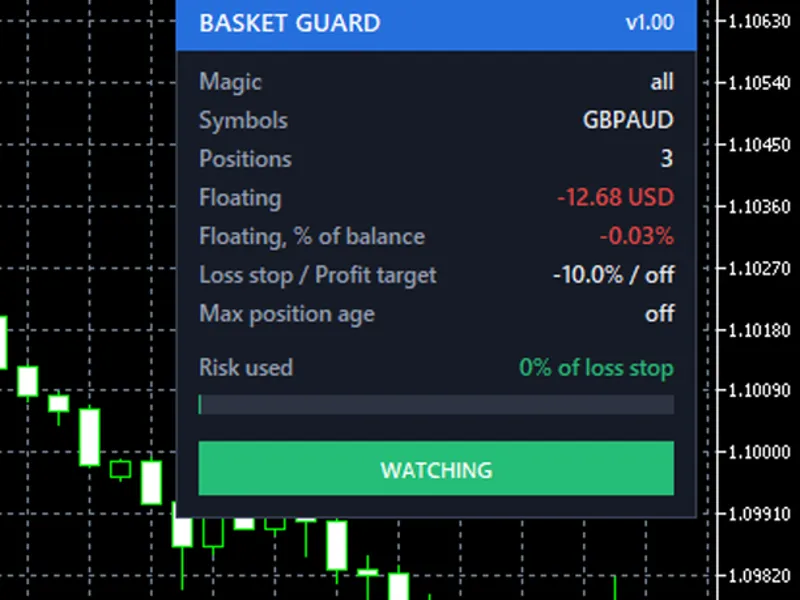
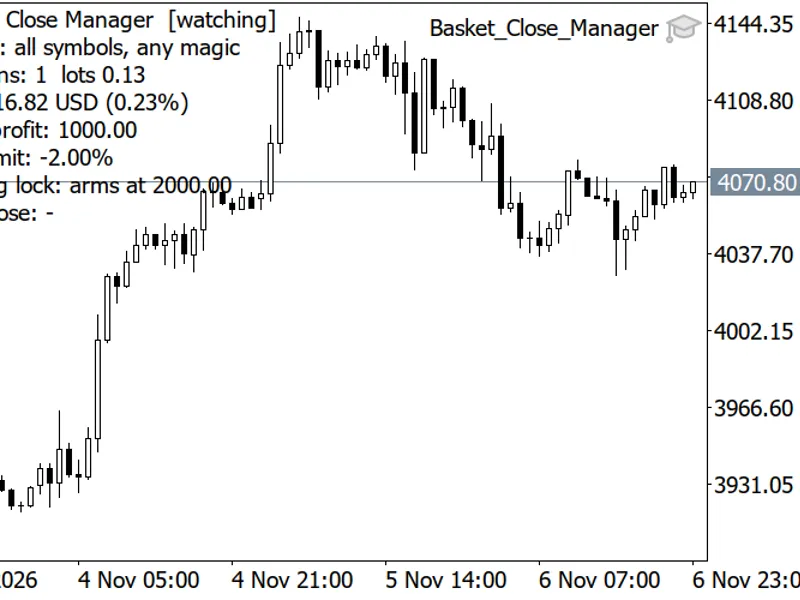
Basket Guard User Interface on Chart
Key Features
- Basket Stop Loss: Closes all positions when the total floating loss reaches a specified percentage of your account balance.
- Optional Profit Target: Allows setting a target for the total floating profit as a percentage of your account balance.
- Time-Based Closure: Option to close positions that have been open for a specified number of days.
- Loss Lock: After a loss stop is triggered, new positions opened within the basket will be automatically closed until the next trading day.
- Filtering: Ability to filter positions based on Magic Number and a specific list of symbols.
- On-Chart Panel: Provides real-time information including floating profit/loss, a risk bar indicating proximity to the loss stop, and the current status.
Configuration Options
- Magic Number: Specify the Magic Number for the positions to monitor (-1 to monitor all positions).
- Symbols to Watch: List the symbols to monitor, separated by semicolons (leave blank to monitor all symbols).
- Close Basket at Loss (% of Balance): Set the percentage of account balance for the loss stop (0 to disable). Default is 10%.
- Close Basket at Profit (% of Balance): Set the percentage of account balance for the profit target (0 to disable).
- Close Positions Older Than (Days): Set the number of days after which positions should be closed (0 to disable).
- Lock New Positions After Loss Stop: Enable or disable the feature to close new positions until the next day after a loss stop is triggered.
- Max Price Deviation (Points): Set the maximum acceptable price deviation during trade closure.
- Panel Display Options: Customize the visibility, accent color, corner, and offset (X/Y) of the information panel.
Important Note:
Positions are closed at the current market price. Therefore, in volatile market conditions, the final execution price might differ slightly from the target percentage. The closing process is designed to handle requotes, potentially occurring in up to three passes to ensure execution.
You may also like: Basket Close Manager: Unified Trade Group Exits - excellent alternative for expert users on MetaTrader 5.
Source Code
#property copyright "RobotFX"
#property link "https://robotfx.org"
#property version   "1.00"
#property description "This code is educational. Feel free to use, modify and upgrade as you wish. Visit ROBOTFX.ORG for professional trading tools"
#include <Trade\Trade.mqh>
input long   InpMagic         = -1;
input string InpSymbols       = "";
input double InpLossPercent   = 10.0;
input double InpProfitPercent = 0.0;
input int    InpMaxAgeDays    = 0;
.......
⚠ Limitations & Risk Warning
- This tool is provided for educational and testing purposes only.
- Past performance does not guarantee future results.
- Trading involves substantial risk of loss. Use on a demo account first.
- Results may vary depending on market conditions, broker, and settings.
- We recommend thorough backtesting and forward testing before using with real funds.