



Basket Close Manager: Unified Trade Group Exits
Info
The Basket Close Manager: Unified Trade Group Exits is a Expert Advisor for MetaTrader 5 that many traders and expert advisors (eas) open multiple positions simultaneously, such as grids, multi-symbol baskets, or manual scaling. The overall performance of the group, rather than individual trades, is what matters.
Usage
This tool is typically used for automated trading on major forex pairs and gold.
Platform
This Expert Advisor works exclusively on MetaTrader 5 (both build 600+ and newer versions).
Setup
Place the downloaded file in MQL5/Experts folder via File ? Open Data Folder in MetaTrader 5.
How to Install and Use Basket Close Manager: Unified Trade Group Exits
1. Installation: Open the "File" menu, select "Open Data Folder," navigate to MQL/Experts, paste your file, and restart the terminal.
2. Activation: Drag the EA from the Navigator onto a chart, ensure "Allow live trading" is checked in the Common tab, and verify the AutoTrading button is green.
3. Optimization: Right-click your chart, choose "Expert List," click "Properties" to adjust inputs, and save your preferred setup as a set file for future use.
4. Maintenance: Regularly check the "Experts" tab in the terminal window to monitor trade logs and potential execution errors.
Frequently Asked Questions
Q: Why is my EA not opening trades? A: Check the "AutoTrading" button, ensure "Allow live trading" is enabled, and verify your broker allows automated trading on your account type.
Q: Can I run multiple EAs on one chart? A: No, each chart can only host one active EA; however, you can open multiple charts for different currency pairs to run several EAs.
Q: What does the "smiley face" icon mean? A: A smiley face in the top-right corner of the chart indicates the EA is successfully running; a frowny face means it is disabled.
What this tool does
Many traders and Expert Advisors (EAs) open multiple positions simultaneously, such as grids, multi-symbol baskets, or manual scaling.
Typical Use Case
This Expert Advisor excels in automated trading and technical analysis on MetaTrader 5.
Compatible Platform & Setup
This Expert Advisor works on MetaTrader 5. Place the file in the MQL5/Experts folder and restart the terminal.
Description & Settings
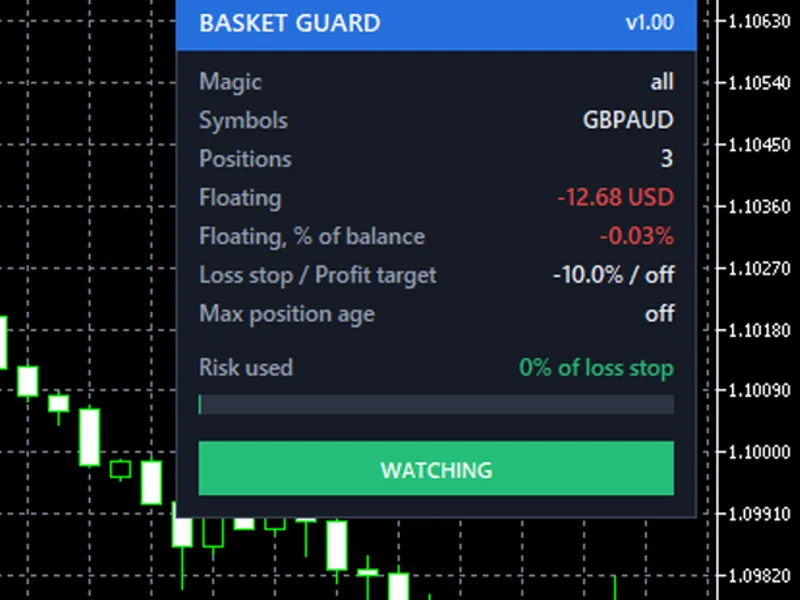
Related: Basket Guard: Basket Position Management for MT4/MT5 - another powerful expert for MetaTrader 5 traders.
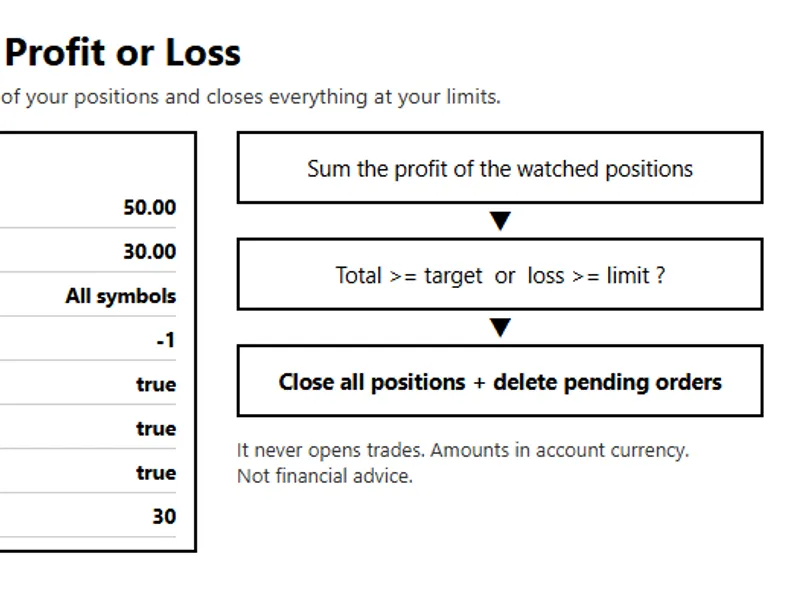
Many traders and Expert Advisors (EAs) open multiple positions simultaneously, such as grids, multi-symbol baskets, or manual scaling. The overall performance of the group, rather than individual trades, is what matters. Basket Close Manager is a utility EA designed to manage and close these trade groups as a single unit.Also recommended: Close All Trades at Total Profit or Loss Target - similar expert with strong performance on MetaTrader 5.
How it Works
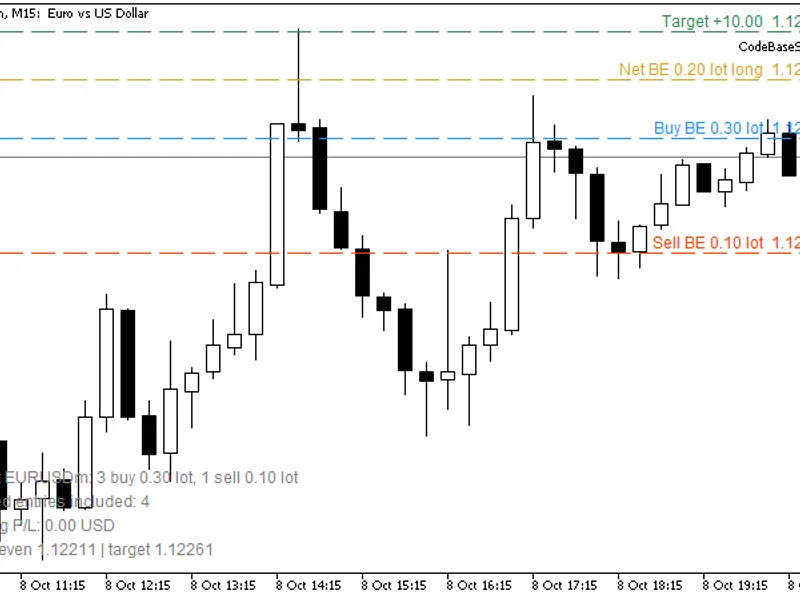
Attach this EA to any chart. It monitors all open positions that match specified criteria, calculating the total profit and swap. On every tick and at least once per second, it checks if any of the defined exit conditions have been met. If an exit condition is triggered, the EA closes all matched positions.
Basket Definition:
- Scope: Can manage trades for the entire account or only for the symbol of the attached chart.
- Magic Number: Configurable to manage trades from a specific magic number, all magic numbers, or manual trades only (magic number 0).
- Commission: An optional setting for commission per lot ensures targets are calculated net of trading costs.
- Pending Orders: The EA can optionally delete pending orders associated with the managed basket when a close occurs.
Exit Conditions (Each can be individually enabled or disabled):
- Take Profit: Set a target profit in account currency or as a percentage of the account balance.
- Loss Limit: Define a maximum acceptable loss in account currency or as a percentage of the account balance. Positive numbers should be used for loss limits.
- Trailing Stop Lock: After the basket reaches a specified profit level (`InpTrailStart`), the EA will trail the profit. If the basket's profit decreases by a defined amount (`InpTrailGive`) from its peak, all trades will be closed.
- Time-Based Exit: Close all trades daily at a specified server time (HHMM) and/or on Fridays at a specified server time (HHMM).
Post-Close Actions:
After a basket is closed, the EA can be configured to:
- Keep Watching: Continue monitoring for new matching trades and close them immediately.
- Pause Until Next Day: Remain inactive until the next server trading day begins. Any new matching trades opened during the pause will be closed instantly.
- Remove EA: Automatically detach the EA from the chart.
Safe Closing Mechanism:
- Market Session Awareness: If a currency pair associated with a trade in the basket is outside its trading session, the EA will delay the close order until the market reopens, preventing potential failed orders.
- Multiple Close Attempts: Each individual trade within the basket is given several attempts to be closed. The EA's panel will display "CLOSING" until all trades in the basket are successfully closed.
- Persistent Trailing Lock: The peak profit level for the trailing stop is stored in a terminal global variable. This ensures that the trailing lock's progress is maintained even if the terminal or VPS restarts.
- Mobile Notifications: An option to send a push notification to the MT5 mobile application upon each successful basket closure.
Limitations:
The EA's trade checking mechanism operates on ticks and at one-second intervals. Rapid market movements or price gaps could potentially cause a target to be missed before the close order is processed. Users should consider this when setting very tight exit levels.
Inputs:
Input Name
Default Value
Description
InpScope
Whole account
Determines if the EA manages trades for the entire account or only for the symbol on the attached chart.
InpMagic
-1
-1: Manages trades with any magic number. 0: Manages manual trades only. Other values: Manages trades with the specified magic number.
InpCommPerLot
0
The round-turn commission cost per lot, which is added to the profit/loss calculation.
InpDelPending
false
If true, matching pending orders will also be deleted when the basket is closed.
InpTPMoney / InpTPPct
0
Take Profit target in account currency (InpTPMoney) or as a percentage of the balance (InpTPPct). 0 disables this feature.
InpSLMoney / InpSLPct
0
Stop Loss limit in account currency (InpSLMoney) or as a percentage of the balance (InpSLPct). Use positive numbers. 0 disables this feature.
InpTrailStart / InpTrailGive
0
Trailing Stop Lock parameters. InpTrailStart is the profit level (in money) at which trailing begins. InpTrailGive is the amount of profit (in money) the basket must give back from its peak to trigger a close. 0 disables this feature.
InpDailyHM / InpFridayHM
0
Time-based exit. Specifies the server time (HHMM) for daily and Friday closes. 0 disables this feature.
InpAfter
Keep watching
Action to take after a basket close: 'Keep watching' (monitor new trades), 'pause until next day', or 'remove EA'.
InpDeviation
50
Maximum allowed slippage in points when sending closing orders.
InpRetries
3
The number of attempts made to close each individual position within the basket.
InpPanel / InpPush
true / false
Controls the display of the EA's information panel on the chart (InpPanel) and whether to send mobile push notifications (InpPush).
InpDemoTrades
false
For Strategy Tester only. If true, the EA will simulate random trades to demonstrate exit functionalities. In live trading, it never opens trades.
Strategy Tester Demonstration:
To test the EA's functionality within the Strategy Tester, set `InpDemoTrades` to `true`. Select desired exit parameters (e.g., `InpTPMoney = 30`, `InpSLMoney = 40`, `InpTrailStart = 15`, `InpTrailGive = 8`) and run the tester in visual mode. The EA will open random trades, allowing you to observe the basket closure process. In normal operation, the EA does not initiate any trades.
Testing Results (MT5 Strategy Tester, XAUUSD H1, Sep–Oct 2026):
The EA was tested using demo trades in the MT5 Strategy Tester. All configured exit conditions, including money and percentage targets, loss limits, trailing stop lock, daily and Friday time-based exits, and the pause-until-next-day functionality, successfully closed the trade baskets without any failed close orders.
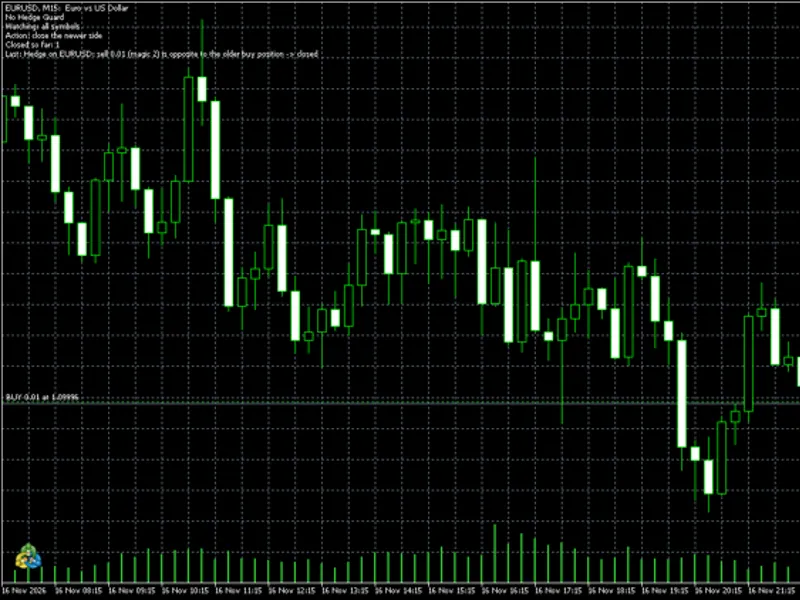
You may also like: No Hedge Guard - Close Newer Opposite Position on Hedging - excellent alternative for expert users on MetaTrader 5.
Source Code
#property copyright "RobotFX"
#property version   "1.00"
#property description "This code is educational. Feel free to use, modify and upgrade as you wish. Visit ROBOTFX.ORG for professional trading tools"
#include <Trade/Trade.mqh>
enum ENUM_SCOPE
  {
   SCOPE_ACCOUNT = 0,
   SCOPE_SYMBOL  = 1
  };
enum ENUM_AFTER
.......
⚠ Limitations & Risk Warning
- This tool is provided for educational and testing purposes only.
- Past performance does not guarantee future results.
- Trading involves substantial risk of loss. Use on a demo account first.
- Results may vary depending on market conditions, broker, and settings.
- We recommend thorough backtesting and forward testing before using with real funds.