
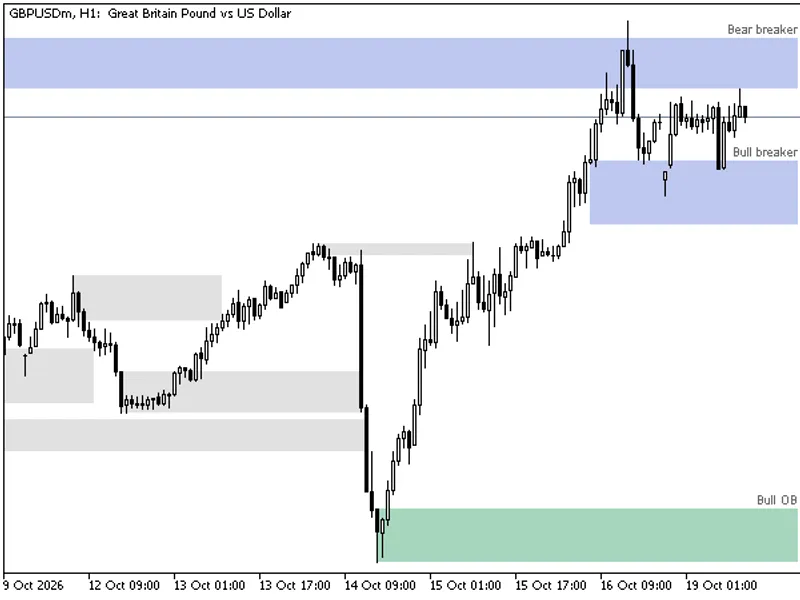
Order Block Marker with Mitigation Tracking
Info
The Order Block Marker with Mitigation Tracking is a Indicator for MetaTrader 5 that order block marker with mitigation trackingthe idea behind itan order block is a popular price-action concept: the last candle against the direction of a strong move. The idea is that this candle shows where larger participants were active before the impulse, and that price often returns to the zone before continuing.
Usage
This tool is typically used for enhancing chart analysis and decision making.
Platform
This Indicator works exclusively on MetaTrader 5 (both build 600+ and newer versions).
Setup
Place the downloaded file in MQL5/Indicators folder via File ? Open Data Folder in MetaTrader 5.
How to Install and Use Order Block Marker with Mitigation Tracking
1. Installation: Place your file in the MQL/Indicators folder via "Open Data Folder" and restart your terminal.
2. Loading: Find the indicator in the Navigator, drag it onto your chart, and configure the input parameters in the popup window.
3. Customization: Press Ctrl+I to open the indicator list, select your tool, and click "Properties" to change colors, levels, or visual styles.
4. Updating: Replace the old file in the Indicators folder with the new version and restart the platform to apply changes.
Frequently Asked Questions
Q: Why is my indicator not showing? A: Verify the file is in the MQL/Indicators folder, or try right-clicking the "Indicators" tree in the Navigator and clicking "Refresh."
Q: Do custom indicators slow down the platform? A: Too many complex indicators can impact performance; remove unused ones via the "Indicator List" (Ctrl+I).
Q: Can I use MT4 indicators on MT5? A: No, MQL4 and MQL5 are distinct languages; ensure the indicator is compiled specifically for your platform version.
What this tool does
Order Block Marker with Mitigation TrackingThe Idea Behind ItAn order block is a popular price-action concept: the last candle against the direction of a strong move.
Typical Use Case
This Indicator excels in automated trading and technical analysis on MetaTrader 5.
Compatible Platform & Setup
This Indicator works on MetaTrader 5. Place the file in the MQL5/Indicators folder and restart the terminal.
Description & Settings
Related: MTF Order Block Zones Indicator for MT4/MT5 - another powerful indicator for MetaTrader 5 traders.
Order Block Marker with Mitigation TrackingAlso recommended: Order Block Zones for Smart Money Concepts - similar indicator with strong performance on MetaTrader 5.
The Idea Behind It
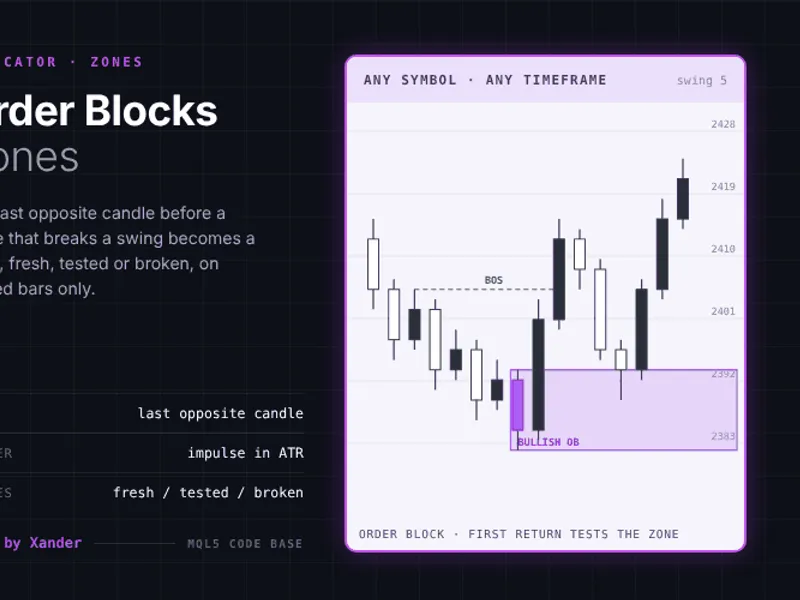
An order block is a popular price-action concept: the last candle against the direction of a strong move. The idea is that this candle shows where larger participants were active before the impulse, and that price often returns to the zone before continuing.
Bullish order block
- The last bearish (down) candle before a strong move up.
Bearish order block
- The last bullish (up) candle before a strong move down.
The indicator needs a clear rule to call a move "strong," so it uses objective conditions (all measured on closed bars):
Candle k has the opposite color of the move.
The next candle is a displacement candle in the other direction and closes beyond the High (or Low) of candle k.
Within InpImpulseBars bars after candle k, price moves away from it by at least InpImpulseMult times the average candle range (calculated over InpAvgPeriod bars).
Before the impulse is confirmed, price has not already returned into the zone or closed through it.
After a block is confirmed, its state is tracked on every new price:
Fresh
- Price has not returned to the zone yet.
Mitigated
- Price returned into the zone (a touch, or the middle of the zone, depending on InpMitigation). The zone stays on the chart with a different style, because many traders watch the first retest.
Broken
- A bar closes beyond the far side of the zone. The block is no longer valid and is removed.
The indicator keeps a list of active zones. At the start, it scans a limited number of bars; after that, each new closed bar is processed once, and each tick only updates the states of the listed zones. The full history is never rescanned.
How to Interpret It
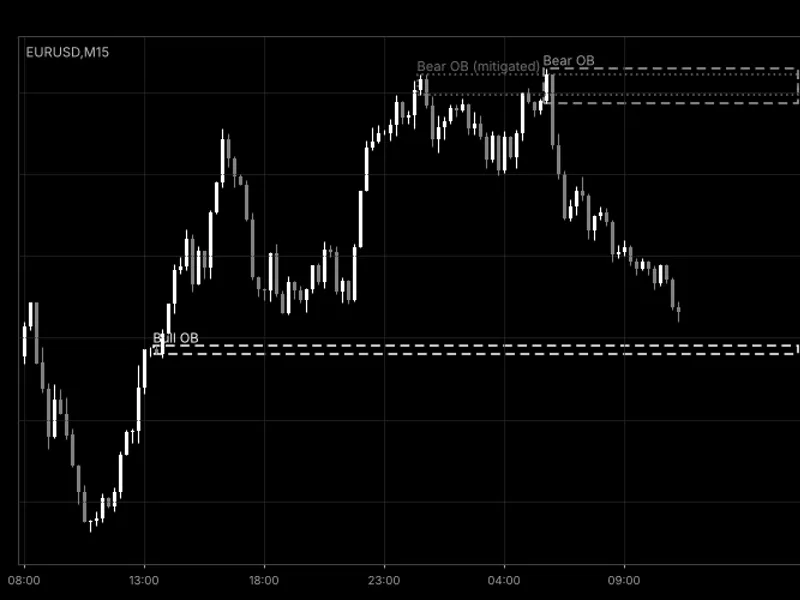
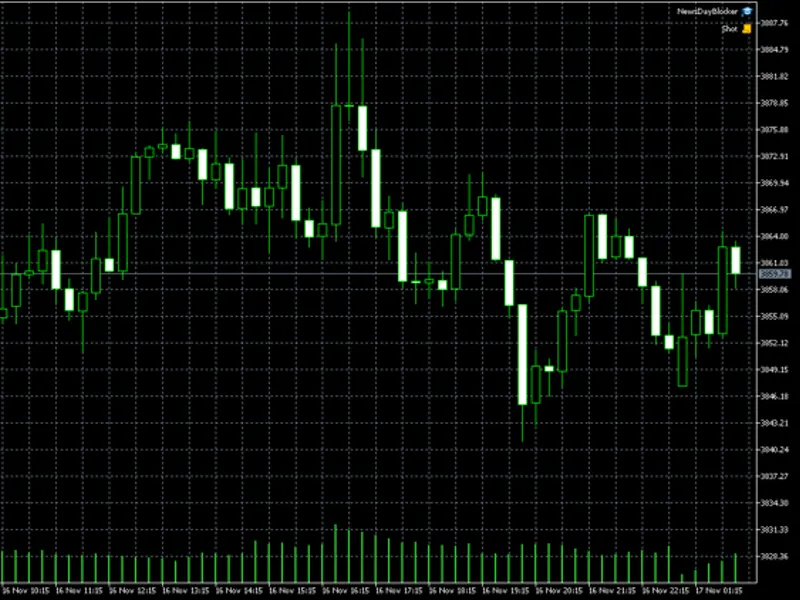
White dashed box (default) - A fresh bullish order block, labeled "Bull OB". Price returning from above is often watched as a possible demand zone.
Gray dashed box (default) - A fresh bearish order block, labeled "Bear OB". Price returning from below is often watched as a possible supply zone.
Dim dotted box - A mitigated block: price has already come back to it. The label becomes "(mitigated)". Such blocks are usually considered weaker than fresh ones.
Disappearing box - A block that was broken by a close beyond it, or a mitigated block when InpShowMitigated is false.
Tooltip - Hover over a box to see its direction and state.
Boxes start at the block candle and extend to the right, so you can see how long a zone has remained untouched.
External Variables (Inputs)
Input
Default
Purpose
Detection
InpImpulseBars
3
Number of bars after the block in which the impulse must appear (2 to 10)
InpImpulseMult
2.0
Minimum impulse size in average candle ranges (0.5 to 10)
InpAvgPeriod
14
Period of the average candle (High-Low) range (2 to 100)
InpZoneMode
OB_ZONE_RANGE
Zone height: OB_ZONE_RANGE (High-Low) or OB_ZONE_BODY (Open-Close)
InpLookbackBars
500
Number of bars scanned when the indicator starts (30 to 5000)
InpMaxZones
20
Maximum number of zones kept; the oldest is dropped first (1 to 200)
Mitigation
InpMitigation
OB_MIT_TOUCH
When a block is mitigated: OB_MIT_TOUCH (price enters the zone) or OB_MIT_HALF (price reaches the middle of the zone)
InpShowMitigated
true
Keep mitigated blocks on the chart; if false, they are deleted at mitigation
InpMitigatedColor
clrDimGray
Color of mitigated blocks
Appearance
InpBullColor
clrWhite
Color of bullish order blocks
InpBearColor
clrGray
Color of bearish order blocks
InpZoneStyle
STYLE_DASH
Border style of fresh blocks
InpZoneWidth
1
Border width (1 to 5)
InpFillZones
false
Fill fresh blocks with color
InpExtendBars
20
Number of bars the zones extend to the right of the last bar (0 to 200)
InpShowLabels
true
Show a text label at the left edge of each block
InpLabelSize
8
Label font size (6 to 20)
Alerts
InpAlertNew
false
Show an alert when a new order block is confirmed
Recommended Use
Works on any symbol and timeframe; M5 to H4 charts of liquid symbols are the most common choice. A block is confirmed only InpImpulseBars bars after its candle, so it appears with a short delay and never changes afterwards.
Raise InpImpulseMult for fewer, stronger blocks and lower it for more blocks. Use OB_ZONE_BODY for tighter zones.
A fresh block is a candidate for attention, not a trade signal. Combine it with trend, market structure, or higher-timeframe levels.
Mitigation is detected with wicks (High and Low), so it is irreversible once price has touched the zone, even on the current bar. A block is broken only by a closed bar, so the forming bar never removes a block.
On the first start, only the last InpLookbackBars bars are scanned. Blocks that were broken within that history are not shown.
When more than InpMaxZones blocks are active, the oldest ones are removed to keep the chart readable.
All objects use the prefix OrdBlk_ and are removed when the indicator is deleted from the chart. Do not attach two copies to the same chart because they would share object names.
It is a chart indicator only and does not trade, so it works the same on netting and hedging accounts.
Fig. 1. OrderBlockMarker on an M15 chart with default settings: two fresh blocks and one mitigated block (black and white image per Code Base guidelines).
You may also like: Order Blocks and Breaker Blocks (SMC) - No Repaint, with Mitigation and Alerts - excellent alternative for indicator users on MetaTrader 5.
Source Code
#property copyright "RobotFX"
#property link "https://robotfx.org"
#property version     "1.00"
#property description "This code is educational. Feel free to use, modify and upgrade as you wish. Visit ROBOTFX.ORG for professional trading tools"
#property indicator_chart_window
#property indicator_plots   0
enum ENUM_OB_ZONE
  {
   OB_ZONE_RANGE,
   OB_ZONE_BODY
.......
⚠ Limitations & Risk Warning
- This tool is provided for educational and testing purposes only.
- Past performance does not guarantee future results.
- Trading involves substantial risk of loss. Use on a demo account first.
- Results may vary depending on market conditions, broker, and settings.
- We recommend thorough backtesting and forward testing before using with real funds.