
Interactive Chart Trading Panel with Risk Management for MT5
Info
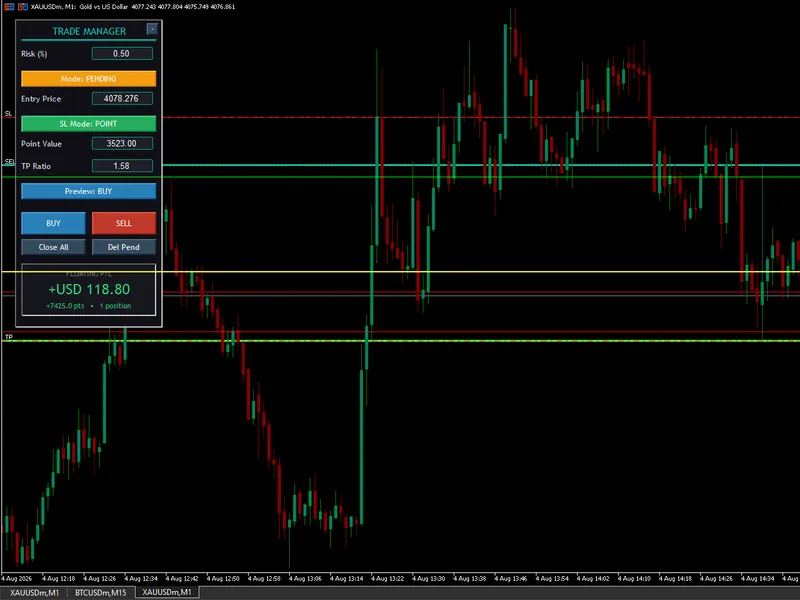
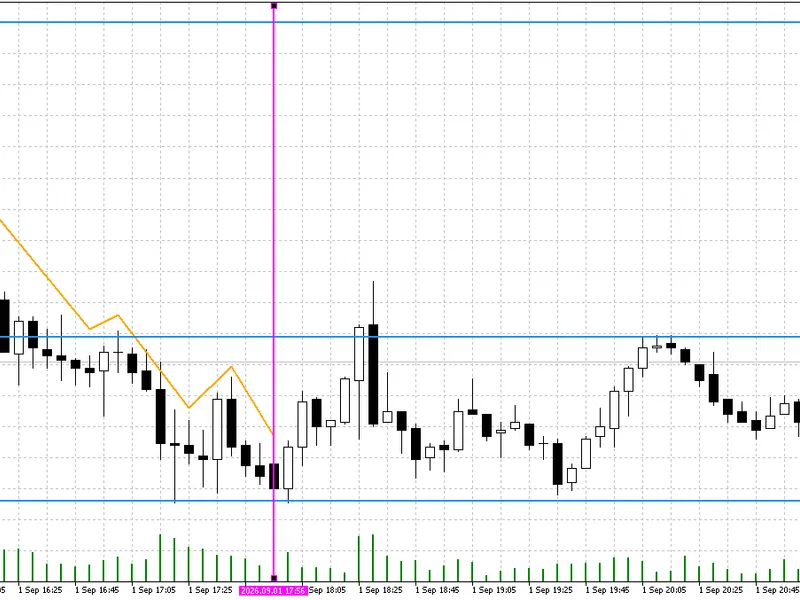
The Interactive Chart Trading Panel with Risk Management for MT5 is a Expert Advisor for MetaTrader 5 that trade manager panel trade manager panel is a straightforward expert advisor (ea) for metatrader 5, developed for traders who require speed and precision, particularly those trading volatile instruments like gold/xauusd. It enhances manual trading strategies by integrating automated risk management, allowing visual control over entries, stop losses, and take profits directly on the trading chart through intuitive draggable lines.
Usage
This tool is typically used for automated trading on major forex pairs and gold.
Platform
This Expert Advisor works exclusively on MetaTrader 5 (both build 600+ and newer versions).
Setup
Place the downloaded file in MQL5/Experts folder via File ? Open Data Folder in MetaTrader 5.
How to Install and Use Interactive Chart Trading Panel with Risk Management for MT5
1. Installation: Open the "File" menu, select "Open Data Folder," navigate to MQL/Experts, paste your file, and restart the terminal.
2. Activation: Drag the EA from the Navigator onto a chart, ensure "Allow live trading" is checked in the Common tab, and verify the AutoTrading button is green.
3. Optimization: Right-click your chart, choose "Expert List," click "Properties" to adjust inputs, and save your preferred setup as a set file for future use.
4. Maintenance: Regularly check the "Experts" tab in the terminal window to monitor trade logs and potential execution errors.
Frequently Asked Questions
Q: Why is my EA not opening trades? A: Check the "AutoTrading" button, ensure "Allow live trading" is enabled, and verify your broker allows automated trading on your account type.
Q: Can I run multiple EAs on one chart? A: No, each chart can only host one active EA; however, you can open multiple charts for different currency pairs to run several EAs.
Q: What does the "smiley face" icon mean? A: A smiley face in the top-right corner of the chart indicates the EA is successfully running; a frowny face means it is disabled.
What this tool does
Trade Manager Panel Trade Manager Panel is a straightforward Expert Advisor (EA) for MetaTrader 5, developed for traders who require speed and precision, particularly those trading volatile instruments like Gold/XAUUSD.
Typical Use Case
This Expert Advisor excels in automated trading and technical analysis on MetaTrader 5.
Compatible Platform & Setup
This Expert Advisor works on MetaTrader 5. Place the file in the MQL5/Experts folder and restart the terminal.
Description & Settings
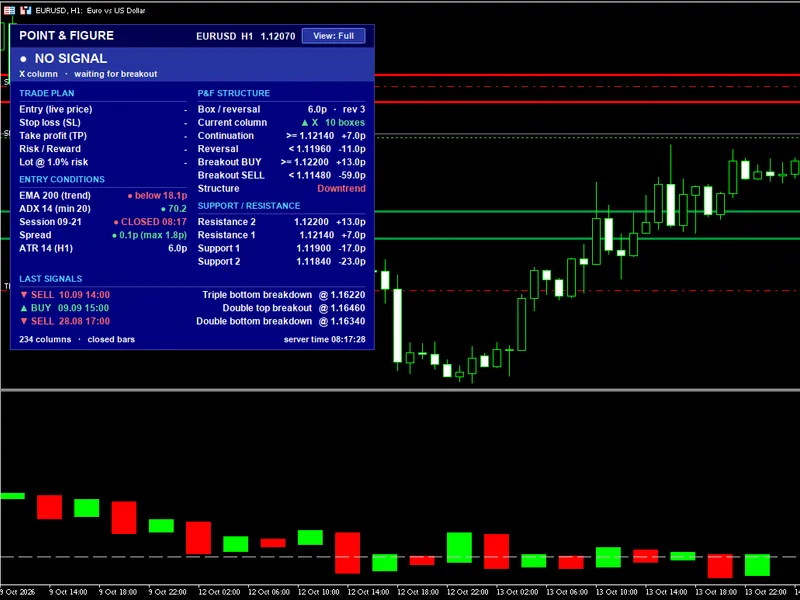
Related: Tick Scalper Helper: Tick Chart and One-Click Trading Panel for MT5 - another powerful expert for MetaTrader 5 traders.
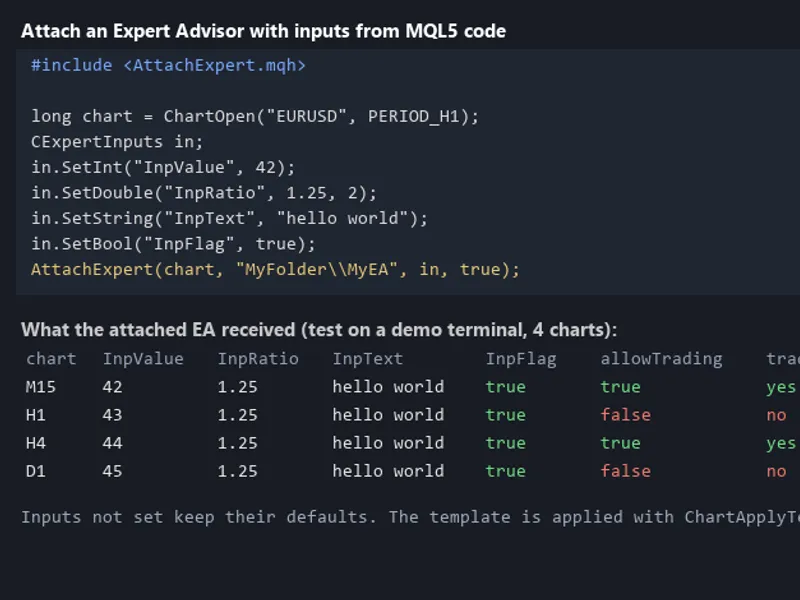
Trade Manager PanelAlso recommended: Programmatically Attach Expert Advisors with Custom Inputs to MetaTrader 5 Charts - similar expert with strong performance on MetaTrader 5.
Trade Manager Panel is a straightforward Expert Advisor (EA) for MetaTrader 5, developed for traders who require speed and precision, particularly those trading volatile instruments like Gold/XAUUSD. It enhances manual trading strategies by integrating automated risk management, allowing visual control over entries, stop losses, and take profits directly on the trading chart through intuitive draggable lines.
Key Features and Functionality
Interactive GUI Panel
This panel is constructed using native MT5 graphical objects. It is fully responsive and features a toggle button for instant minimization or maximization.
Drag & Drop Chart Setup
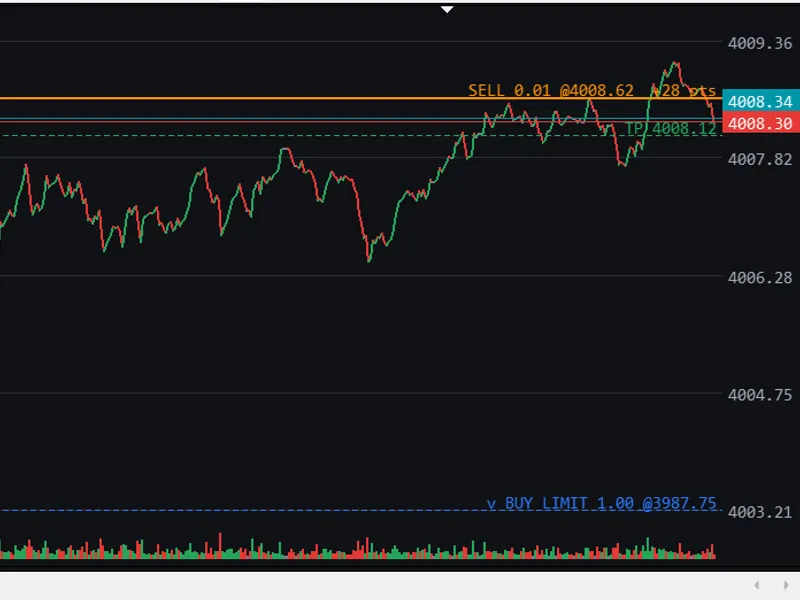
Visualize your trade setup with dedicated lines for entry, stop loss, and take profit directly on the chart. Adjusting these lines in real-time automatically updates the stop loss, take profit ratio, or pending order price.
Dual Mode Execution and Intelligent Pending Orders
The EA supports two primary modes of operation:
Execution Mode (Market Orders): Allows for the immediate placement of Buy or Sell market orders at the prevailing Bid/Ask price.
Pending Order Mode: Facilitates the placement of limit or stop orders. The EA intelligently determines the correct order type (Limit or Stop) based on the position of the SETUP ENTRY line or manual input relative to the current market price.
For BUY Orders: Buy Limit: Placed below the current market price, anticipating a retracement and reversal upwards. Buy Stop: Placed above the current market price, expecting a breakout in the upward direction. For SELL Orders: Sell Limit: Placed above the current market price, expecting a retracement upwards followed by a downward move. Sell Stop: Placed below the current market price, anticipating a breakdown through support levels.
Flexible Stop Loss Engine (Points & ATR)
Choose between two methods for Stop Loss calculation: Fixed Points or ATR Multiplier. The settings for Execution and Pending modes are independent, ensuring that changes in one do not affect the other.
Dynamic Risk-Based Lot Sizing
Automatically calculates the optimal trade size based on a specified risk percentage of your account balance and the defined distance to your Stop Loss. The calculation adheres to broker-specific volume restrictions and limits.
State Persistence and Safety Features
Global Variables: Saves all active inputs and configurations, ensuring they are maintained across different timeframes and after terminal restarts.
Floating P/L Dashboard: Provides real-time tracking of open positions for the current symbol, displaying net profit in account currency and total points gained or lost.
Quick Management Tools: Includes one-click options to Close All open positions and Delete All pending orders.
Usage Instructions
Installation:
Compile the provided .mq5 script in MetaEditor.
Attach the EA to the desired chart symbol and timeframe (e.g., XAUUSD on M1/M5).
Panel Configuration:
Risk (%): Input your desired risk per trade (e.g., 0.5 for 0.5% of account balance).
Mode: Toggle between EXECUTION (Market) and PENDING modes by clicking the mode button.
SL Mode: Select either POINT or ATR for Stop Loss calculation.
SL Value & TP Ratio: Define your risk distance and set your Take Profit target using a multiplier (e.g., a TP Ratio of 2.0 means your Take Profit is twice the distance of your Stop Loss).
Placing Trades:
Select your intended trade direction using the Preview button (BUY or SELL).
For Market Orders: Click the main BUY or SELL buttons.
For Pending Orders: Enter your target price in the Entry Price field or drag the yellow SETUP ENTRY line to your desired price level on the chart, then click BUY or SELL.
Managing Positions:
Active trades are visualized with line markers for entry, stop loss, and take profit on the chart.
Utilize the Close All button to liquidate all open trades for the symbol or the Del Pend button to cancel all pending orders.
Last updated 2026.
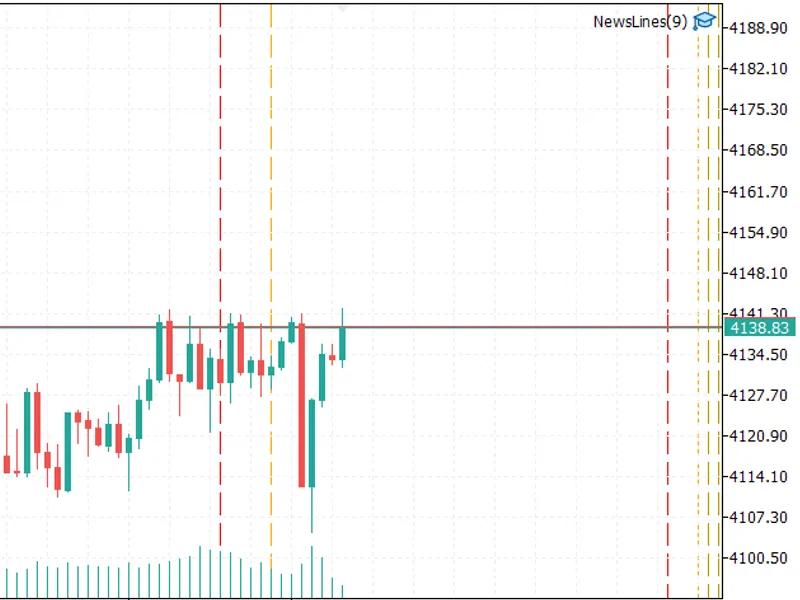
You may also like: News Lines Utility: Economic Calendar On Your Chart - excellent alternative for expert users on MetaTrader 5.
Source Code
#property copyright "RobotFX"
#property link "https://robotfx.org"
#property version   "1.00"
#include <Trade\Trade.mqh>
#define PREFIX "EA_SCALPER_"
CTrade trade;
int    atr_handle;
double atr_buffer[];
double arr_pos_entry[];
double arr_pos_sl[];
.......
⚠ Limitations & Risk Warning
- This tool is provided for educational and testing purposes only.
- Past performance does not guarantee future results.
- Trading involves substantial risk of loss. Use on a demo account first.
- Results may vary depending on market conditions, broker, and settings.
- We recommend thorough backtesting and forward testing before using with real funds.