









Memory Sequence: Synchronize Chart Time Windows
Info
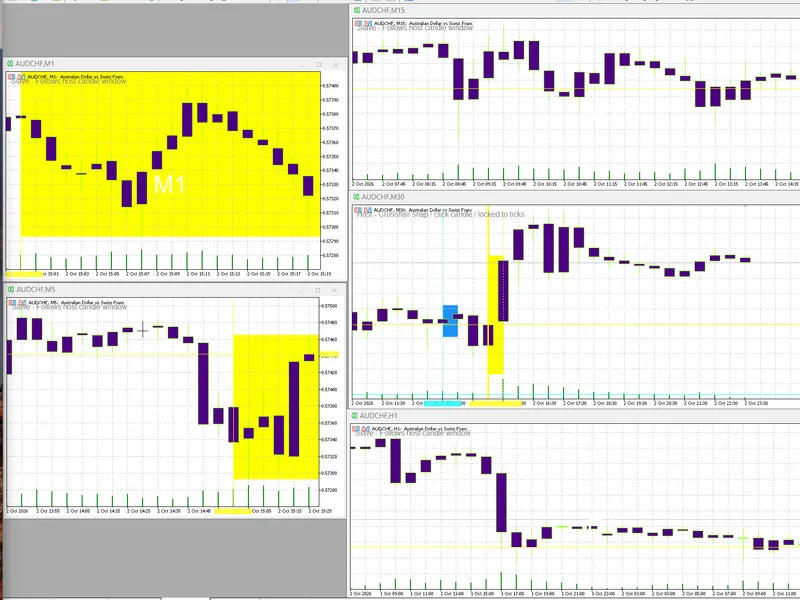
The Memory Sequence: Synchronize Chart Time Windows is a Indicator for MetaTrader 5 that memory sequence is a utility that synchronizes the time window across multiple charts displaying the same symbol. One chart acts as the host, defining a specific candle's open-to-close time.
Usage
This tool is typically used for enhancing chart analysis and decision making.
Platform
This Indicator works exclusively on MetaTrader 5 (both build 600+ and newer versions).
Setup
Place the downloaded file in MQL5/Indicators folder via File ? Open Data Folder in MetaTrader 5.
How to Install and Use Memory Sequence: Synchronize Chart Time Windows
1. Installation: Place your file in the MQL/Indicators folder via "Open Data Folder" and restart your terminal.
2. Loading: Find the indicator in the Navigator, drag it onto your chart, and configure the input parameters in the popup window.
3. Customization: Press Ctrl+I to open the indicator list, select your tool, and click "Properties" to change colors, levels, or visual styles.
4. Updating: Replace the old file in the Indicators folder with the new version and restart the platform to apply changes.
Frequently Asked Questions
Q: Why is my indicator not showing? A: Verify the file is in the MQL/Indicators folder, or try right-clicking the "Indicators" tree in the Navigator and clicking "Refresh."
Q: Do custom indicators slow down the platform? A: Too many complex indicators can impact performance; remove unused ones via the "Indicator List" (Ctrl+I).
Q: Can I use MT4 indicators on MT5? A: No, MQL4 and MQL5 are distinct languages; ensure the indicator is compiled specifically for your platform version.
What this tool does
Memory Sequence is a utility that synchronizes the time window across multiple charts displaying the same symbol.
Typical Use Case
This Indicator excels in automated trading and technical analysis on MetaTrader 5.
Compatible Platform & Setup
This Indicator works on MetaTrader 5. Place the file in the MQL5/Indicators folder and restart the terminal.
Description & Settings
Related: MT5 Memory Meter Panel - another powerful indicator for MetaTrader 5 traders.
Memory Sequence is a utility that synchronizes the time window across multiple charts displaying the same symbol. One chart acts as the host, defining a specific candle's open-to-close time. All other charts of the same symbol act as slaves, displaying and scrolling to this defined window. This indicator does not plot its own series; instead, it controls chart objects, navigation, and candle colors. Communication between charts is facilitated through terminal global variables and custom events. No DLLs are required.Also recommended: Hurst Exponent: Understanding Long-Term Memory in Time Series - similar indicator with strong performance on MetaTrader 5.
This indicator is designed for traders who need to analyze a specific historical moment across various timeframes simultaneously.
Potential areas for improvement:
1. Enhance slave charts to center the hosted periodical candlestick, allowing viewers to easily see the price and time before and after the selected event.
2. Address occasional lag and flickering by optimizing the indicator for smoother and faster analysis.
3. The functionality to display the "host candle window" present in the MT5 version is missing in the .mq4/MT4 version.
Purpose
Utilize this tool when multiple charts of the same symbol are open across different timeframes and you need to mark the identical moment on all of them with a single action.
Typical Setup: Set the H1 chart (or your preferred structure analysis timeframe) as the host. Charts with M1, M5, M15, H4, and D1 timeframes for the same symbol will act as slaves. Clicking on a candle on the host chart will trigger the following on each slave chart:
a solid vertical line at the host candle’s open time
a dotted vertical line at the host candle’s close time
an optional horizontal line at the host candle’s close price
an optional filled rectangle covering the host candle’s time span, with high and low values determined by the bars within that span on each respective slave chart.
On lower timeframes, the box will encompass every bar within the host candle's duration. On higher timeframes, it will align with the bar that contains the host candle's window. This provides a valuable perspective: the host chart defines the trading idea, while the slave charts illustrate how that idea manifests across different levels of price and time granularity.
When the mouse moves over the host chart, a crosshair will snap to the candle under the cursor, and a hover box will be drawn. A click will publish that candle's details and freeze the auto-follow mode until the live candle is clicked again. With the HostLockToLatest and AutoFollowHostBar settings enabled, a selection that is already the live bar will continue to publish each new host candle automatically.
Upon attaching, the indicator initializes at maximum zoom (CHART_SCALE = 5). Subsequent manual zooming out is preserved. The chart mode is forced to candlesticks, with bodies colored indigo and wicks chartreuse.
Crucially, only one chart per symbol should have IsHost set to true. When the host chart is removed, it deletes the shared global variables, causing the slave charts to stop syncing.
Inputs
Input
Default
Role
IsHost
false
Designates the master chart. Only one chart per symbol should be set to true.
HostLockToLatest
true
Keeps the host chart on autoscroll and shift modes. It will not automatically return to the live bar after a historical click.
AutoFollowHostBar
true
When the currently published bar is the live bar, new host candles will be published automatically without requiring an additional click.
WakeAllCharts
true
After updating objects, sends custom event 222 to redraw all same-symbol charts, ensuring background tabs are updated.
ShowHostCrosshair
true
Activates the snapped crosshair and mouse-move tracking on the host chart only.
DrawPriceLine
true
Draws a horizontal line at the published close price on all synchronized charts.
DrawHostCandleBox
true
Draws a filled rectangle over the published time window. The high and low of this box are determined locally for each chart.
RightAlignOnSync
true
Synchronizes slave charts by scrolling the window to stay on screen. The host chart, when locked to the latest bar, will not scroll off the live edge.
ForceCandlesticks
true
Resets the chart mode to CANDLESTICKS if it was previously set to bars or line.
StartMaxZoom
true
On indicator attachment, sets the chart scale to 5. Manual zoom adjustments after this are retained.
DesiredVisibleBars
0
Used only if StartMaxZoom is false. Adjusts the scale to display a number of bars closest to the specified value. A value of 0 skips this setting.
LineColor
yellow
Color for sync lines and the selected box.
CrosshairColor
aqua
Color for the host chart's live crosshair.
HoverBoxColor
dodger blue
Color for the host chart's hover box, displayed before a click.
LineWidthHost
3
Width of the vertical lines on the host chart.
LineWidthSlave
1
Width of the vertical lines on slave charts.
ShowLabels
true
Displays corner labels indicating host/slave status and whether the host is tick-locked.
FontSize
12
Font size for the corner label. The timeframe watermark font size is fixed at 40.
LabelColor
gray
Color for the corner label.
CandleColor
indigo
Color for bull and bear candle bodies.
WickColor
chartreuse
Color for up and down candle wicks and borders.
The shared state variable names follow the pattern SV2MS_<symbol>_Time, _TimeEnd, _Price, _Period, and _Seq. Object names are standardized as SV2MS_VLine, SV2MS_VLineEnd, SV2MS_HLine, SV2MS_SelectBox, SV2MS_HoverBox, SV2MS_XH_V, SV2MS_XH_H, and labels.
Indicator Structure
Initialization (OnInit): The indicator constructs global variable names based on the chart symbol. It forces the chart mode to candlesticks and applies specified colors and zoom levels. It then creates the necessary objects: vertical lines, selection box, crosshair, corner label, and a prominent centered timeframe watermark. The host chart immediately publishes bar 0, and slave charts display whatever the host has already stored. A 200 ms timer is initiated.
Host Publishing (PublishHostPick): The host stores the open time, open time plus one host period, close price, host period, and an incrementing sequence number. It then updates its own chart and iterates through all open charts using ChartFirst and ChartNext, applying the synchronized window to charts matching the symbol.
Chart Synchronization (ApplyWindowToChart): This function, used by both host and slave charts, creates objects if they are missing. It draws the two vertical lines, the price line, and the selection rectangle. The rectangle's high and low are determined by scanning bars within the specified window on each chart, ensuring accuracy even on higher timeframes where the host candle's range might span multiple bars. Chart navigation uses ChartNavigate(CHART_END, …) to position the window's newer edge near the right side of the chart. If the host chart is locked to the latest bar, it bypasses navigation to maintain autoscroll.
Slave Synchronization Methods: Slave charts receive updates through three mechanisms: the 200 ms timer, the OnCalculate function triggered by a new tick, and custom event 222. The ApplySyncState function reads the global variables and avoids unnecessary redrawing if the time, end time, price, period, sequence number, and drawn lines are already consistent.
Host Interaction: Mouse movement on the host chart updates only the crosshair and hover box. Clicking on the host chart resolves the x/y coordinates to a specific bar, clears the live-follow memory, and publishes that bar’s open time and close price. Chart changes (resizing, timeframe switching, mode changes) will restore candle colors, recenter the timeframe label, and reapply synchronization.
Deinitialization (OnDeinit): The timer is terminated, chart objects specific to the current chart are deleted, and, for the host chart only, the five global variables are removed.
Practical Limitations:
Synchronization is limited to charts displaying the same symbol within the same terminal instance. It relies on a single active host chart. If two host charts are active for the same symbol, they will overwrite each other's data. Slave charts opened before any host has published will not display any synchronized information until the host chart is attached or a click occurs.
You may also like: QQE Multi Time Frame - excellent alternative for indicator users on MetaTrader 5.
Source Code
#property copyright "RobotFX"
#property link "https://robotfx.org"
#property version   "1.0"
#property strict
#property indicator_chart_window
#property description "This code is educational. Feel free to use, modify and upgrade as you wish. Visit ROBOTFX.ORG for professional trading tools"
input bool   IsHost             = false;
input bool   LockHostToLatest   = true;
input bool   DrawPriceLine      = true;
input bool   RightAlignOnSync   = true;
.......
⚠ Limitations & Risk Warning
- This tool is provided for educational and testing purposes only.
- Past performance does not guarantee future results.
- Trading involves substantial risk of loss. Use on a demo account first.
- Results may vary depending on market conditions, broker, and settings.
- We recommend thorough backtesting and forward testing before using with real funds.