

News Lines Utility: Economic Calendar On Your Chart
Info
The News Lines Utility: Economic Calendar On Your Chart is a Expert Advisor for MetaTrader 5 that news lines – economic calendar lines & event panelversion 1. 30 • Expert Advisor (utility, does not trade) • MetaTrader 51.
Usage
This tool is typically used for automated trading on major forex pairs and gold.
Platform
This Expert Advisor works exclusively on MetaTrader 5 (both build 600+ and newer versions).
Setup
Place the downloaded file in MQL5/Experts folder via File ? Open Data Folder in MetaTrader 5.
How to Install and Use News Lines Utility: Economic Calendar On Your Chart
1. Installation: Open the "File" menu, select "Open Data Folder," navigate to MQL/Experts, paste your file, and restart the terminal.
2. Activation: Drag the EA from the Navigator onto a chart, ensure "Allow live trading" is checked in the Common tab, and verify the AutoTrading button is green.
3. Optimization: Right-click your chart, choose "Expert List," click "Properties" to adjust inputs, and save your preferred setup as a set file for future use.
4. Maintenance: Regularly check the "Experts" tab in the terminal window to monitor trade logs and potential execution errors.
Frequently Asked Questions
Q: Why is my EA not opening trades? A: Check the "AutoTrading" button, ensure "Allow live trading" is enabled, and verify your broker allows automated trading on your account type.
Q: Can I run multiple EAs on one chart? A: No, each chart can only host one active EA; however, you can open multiple charts for different currency pairs to run several EAs.
Q: What does the "smiley face" icon mean? A: A smiley face in the top-right corner of the chart indicates the EA is successfully running; a frowny face means it is disabled.
What this tool does
News Lines – Economic Calendar Lines & Event PanelVersion 1.
Typical Use Case
This Expert Advisor excels in automated trading and technical analysis on MetaTrader 5.
Compatible Platform & Setup
This Expert Advisor works on MetaTrader 5. Place the file in the MQL5/Experts folder and restart the terminal.
Description & Settings
Related: Calendar News Filter for MT5: Avoid Trading During High-Impact News Events - another powerful expert for MetaTrader 5 traders.
News Lines – Economic Calendar Lines & Event PanelAlso recommended: Strategy Tester News Filter with Corrected Calendar Export - similar expert with strong performance on MetaTrader 5.
Version 1.30 • Expert Advisor (utility, does not trade) • MetaTrader 5
1. Overview
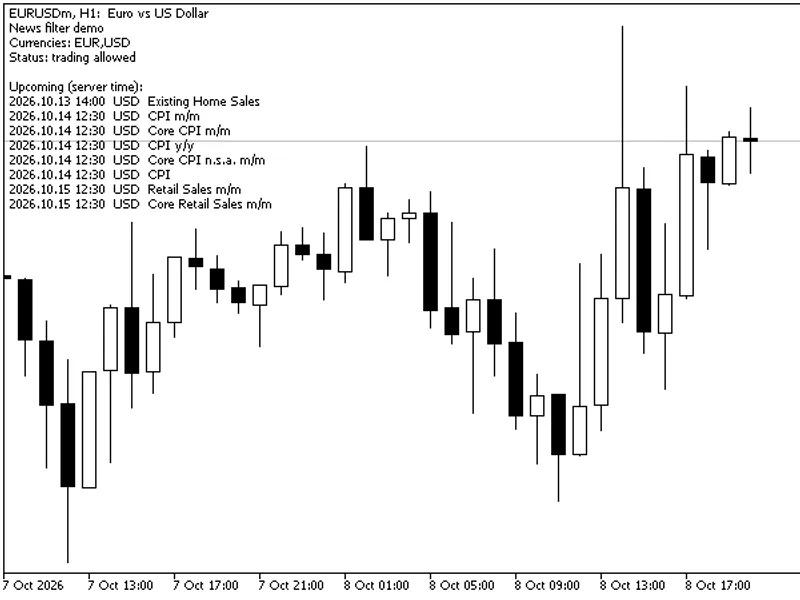
News Lines places the economic calendar directly on your price chart. Scheduled economic releases are displayed as vertical lines at their exact times, color-coded by importance. Hovering over a line reveals event names, forecast, previous, and actual values. A compact, resizable, and collapsible panel lists upcoming and past events, with support for scrolling.
This product is a utility and does not engage in trading activities. It does not open, modify, or close trades and requires no trading permissions.
Key Features
Feature
Description
Color-coded lines
Lines are colored by impact: Red for high, Orange for medium, Dark Yellow for low. Colors are adjustable.
Tooltips
Hover over a line to view time, currency, event title, forecast, previous, and actual values. Events occurring simultaneously share a single line and tooltip.
History and Future Events
Lines are drawn across the entire visible chart, including the empty space to the right of the last bar for scheduled future events.
All Timeframes Supported
Works on all timeframes from M1 to MN1 and any symbol.
Two News Sources
Select between the MT5 built-in Economic Calendar or the Forex Factory weekly JSON feed with a single button click.
Event Panel
Displays upcoming events (default 36 hours) and past events (default 36 hours) with countdown timers.
Draggable and Resizable Panel
Move the panel by dragging its header. Resize it from the bottom-right corner. Collapse it to a title bar. Scroll using the mouse wheel or the draggable scrollbar.
Quick-Filter Buttons
Control labels visibility, impact level filtering (High/All), group cycling, news source switching, and font size (A− / A+).
Instrument Groups
Predefined groups like Gold & Silver, Forex Majors, Indices, and Oil & Gas, each with customizable currency lists and title keywords.
Click-to-Focus
Click an event in the panel to display only that specific event's occurrences on the chart. Click 'Reset' to restore all filters.
Optional Labels
Display rotated text labels next to chart lines, hidden by default and toggled via a button. Labels appear behind the panel.
Strategy Tester Support
Functional in visual mode using custom CSV history or a provided sample schedule. Actual values are masked until release time to prevent look-ahead bias.
Settings Persistence
Remembers panel position, size, font size, and button states across timeframe changes and restarts.
No DLL Required
Does not utilize any DLL imports.
2. How It Works
Step
Action
1
The EA loads events from the selected source (MT5 calendar or Forex Factory feed).
2
Events are filtered based on impact level and the currently active instrument group.
3
Lines are generated for the visible chart range and an additional screen-width on each side, ensuring continuous display during scrolling. The range updates dynamically upon scrolling or zooming.
4
The panel displays events within a configurable time window around the current server time.
5
Data is refreshed automatically (default every 15 minutes) to show updated forecast and actual values.
If the maximum number of lines (default 1000) is exceeded, the lowest-impact lines are removed first.
3. News Sources
MT5 Economic Calendar
Forex Factory Feed
Provider
MetaQuotes calendar integrated within MetaTrader 5.
Free weekly JSON feed (FairEconomy mirror of the Forex Factory calendar).
History
Full history, displaying lines as far back as the chart allows.
Current week and the following week only.
Future
Available for as long as the broker's calendar provides scheduled events (typically several weeks).
Current week and the following week.
Actual Values
Yes.
Not provided by the feed.
Setup
None required.
Add the web address to the WebRequest allowed list (see Section 4).
Tester Compatibility
Not available in the tester (see Section 8).
Not available in the tester (see Section 8).
Notes
Requires a connected terminal; some brokers offer limited calendar data.
The feed is a third-party service. The EA maintains a local copy and uses it as a fallback if download fails. Downloads are limited to once every 5 minutes.
Use the 'Source' button in the panel to switch between sources at any time. The panel and lines update instantly.
4. Installation and Setup
Copy the .ex5 file to the MQL5\Experts folder or install from the Market. Restart or refresh the Navigator window.
Drag 'News Lines' onto a chart. Algorithmic trading permission is not required for display, but the EA must be allowed to run.
For the Forex Factory source only: Navigate to Tools → Options → Expert Advisors. Tick 'Allow WebRequest for listed URL' and add the provided feed address. Without this, the panel footer will indicate the reason for the download failure.
Only one Expert Advisor can run per chart. If you are already using a trading EA on a chart, attach News Lines to a separate chart for the same symbol.
System Requirements
Item
Requirement
Platform
MetaTrader 5 (build with Economic Calendar support).
Account
Any account type (demo/real, hedging/netting).
Symbols / Timeframes
All.
Internet
Required for accessing the calendar and the Forex Factory feed.
DLL Imports
Not required.
Trading Permission
Not required.
5. The Panel
Layout
Area
Content
Header
Title, font size controls (A− / A+), and collapse/expand buttons ( − / + ). Drag the header to reposition the panel.
Toolbar
Buttons for Labels, Impact, Group, Source, and Reset (when an event is focused). May wrap to a second row on narrower panels.
List
UPCOMING section (soonest first) and PAST section (most recent first). Columns include date/time, countdown, currency, and event title. Forecast, previous, and actual values are displayed on the right for wider panels.
Footer
Displays status information (source, event count, errors) and the time zone. Resize the panel by dragging the triangle in the bottom-right corner.
The colored bar on the left of each row indicates impact level. Rows representing events within the next 30 minutes are highlighted.
Buttons and Mouse Actions
Control
Action
Labels: On / Off
Toggles the display of text labels on the chart (hidden by default).
Impact: High / All
Displays only High impact events by default, or all impact levels when set to 'All' (subject to 'Allow' inputs).
Group: …
Cycles through predefined groups: Default → Gold & Silver → Forex Majors → Indices → Oil & Gas.
Source: MT5 / FF
Switches between the MT5 calendar and the Forex Factory feed.
A− / A+
Adjusts the panel font size.
− / +
Collapses the panel to its header or expands it.
Click an event row
Sets the focus to a specific event, displaying all its occurrences on the chart. Click the row again to clear the focus.
Reset
Clears the event focus and restores normal filtering.
Mouse wheel over the list
Scrolls through the event list.
Scrollbar
Drag the thumb or click the track to navigate the list.
Drag header
Moves the entire panel.
Drag bottom-right corner
Resizes the panel.
While the mouse cursor is over the panel, chart scrolling by mouse is temporarily disabled to allow interaction with the panel without affecting chart movement.
Colors
Color
Impact
Red
High
Orange
Medium
Dark Yellow
Low
6. Instrument Groups
A group is defined by a currency list and an optional keyword list. An event is displayed if its currency is in the list AND either the keyword list is empty or the event title contains at least one specified keyword (case-insensitive matching). Events may belong to multiple groups.
Group
Default Currencies
Default Keywords
Default
Set by 'Currency filter' input (chart symbol currencies, all, or custom list).
–
Gold & Silver
USD
non-farm, payroll, employment, unemployment, jobless, cpi, inflation, pce, ppi, retail sales, gdp, fed, fomc, federal funds, interest rate, ism, powell, treasury
Forex Majors
USD, EUR, GBP, JPY, CHF, CAD, AUD, NZD
(empty = all events for these currencies)
Indices
USD, EUR, GBP, JPY
non-farm, payroll, employment, unemployment, cpi, ppi, gdp, retail sales, pmi, ism, fed, fomc, ecb, boe, boj, interest rate, rate decision, consumer confidence, ifo, zew, sentiment
Oil & Gas
USD, CAD
crude, oil, natural gas, eia, api, baker hughes, rig count, gasoline, distillate, cushing, refinery, opec, non-farm, fomc, fed, cpi, gdp
All lists are editable in the input settings and should be separated by commas.
7. Input Parameters
News Source
Parameter
Default
Description
News source
MT5 built-in Economic Calendar
The source used at startup, switchable via the panel button.
FF feed: this week
feed address
Address for the current-week JSON feed.
FF feed: next week
feed address
Address for the next-week JSON feed.
Refresh interval (minutes)
15
Data refresh frequency. The Forex Factory feed is downloaded at most once every 5 minutes.
Startup State
Parameter
Default
Description
Start group
Default
The instrument group active upon startup.
Start showing ALL impact levels
false
false = High impact only.
Start with labels visible
false
Labels are hidden by default.
Ignore remembered state/position
false
Set to true to re-apply these inputs and the initial panel position/size.
Button states are remembered between sessions. Changing a startup input applies the new value on the next startup.
Default Group – Currency Filter
Parameter
Default
Description
Currency filter
Currencies of the chart symbol
Chart symbol currencies / All currencies / Custom list.
Custom currencies
USD,EUR,GBP,JPY
Used when 'Custom list' is selected.
Impact Levels Allowed
Parameter
Default
Description
Allow HIGH impact
true
Master switch for high-impact events.
Allow MEDIUM impact
true
Shown only when the Impact button is set to 'All'.
Allow LOW impact
true
Shown only when the Impact button is set to 'All'.
Group Settings
Parameter
Default
Description
Gold & Silver – currencies / keywords
see Section 6
Edit to fine-tune.
Forex Majors – currencies / keywords
see Section 6
Indices – currencies / keywords
see Section 6
Oil & Gas – currencies / keywords
see Section 6
Chart Lines
Parameter
Default
Description
Draw lines on chart
true
Master switch for displaying lines.
High / Medium / Low color
Red / Orange / dark yellow
Line and label colors.
Line style
Dash
Style of the vertical lines.
Line width
1
Width of the lines.
Label font size
8
Font size for chart labels.
Label max characters
32
Truncates longer labels.
Max lines drawn
1000
Exceeding this limit removes the lowest-impact lines first.
Limit history in days
0
0 means display history as far back as the chart data allows.
Lines selectable
false
Enable if tooltips are not appearing in your build.
Panel
Parameter
Default
Description
Show panel
true
Toggles the visibility of the event panel.
Panel: hours back
36
Defines the window for past events displayed in the panel.
Panel: hours ahead
36
Defines the window for upcoming events displayed in the panel.
Panel time zone
Local PC time
Option to display times in Local PC time or Broker Server time. Chart lines consistently use server time.
Initial X / Y
20 / 40
Initial position of the panel in pixels.
Initial width / height
460 / 400
Initial size of the panel in pixels (minimum width 340).
8. Strategy Tester
The Strategy Tester does not support the calendar or web access. Therefore, the EA utilizes its own tester data.
Mode
Behavior
Non-visual
The EA initializes, logs a single message, and performs no further actions. No lines, panel, or errors are generated.
Visual
Full panel and line display using the tester data described below.
Tester Data
Priority
Data
Notes
1
File NewsLines_history.csv in the Common\Files folder (or MQL5\Files).
Your custom history data. Format is detailed below.
2
Built-in sample schedule.
A recurring pattern of typical economic events (e.g., payrolls, CPI, FOMC, ECB, crude inventories, jobless claims, ISM, sentiment). Event titles end with '(sample)', and the footer indicates 'not real data'.
CSV Format
Events are listed one per line, separated by semicolons. Times are in broker server time. Lines not starting with a digit (headers, comments) are ignored.
Example:
2026.01.10 15:30;USD;High;Non-Farm Payrolls;160K;227K;143K
2026.01.14 15:30;USD;High;CPI m/m;0.3%;0.3%;0.4%
2026.01.15 10:00;EUR;Low;Sentiment Index
Column
Content
1
Date and time in yyyy.mm.dd hh:mm format (server time).
2
Currency code.
3
Impact level: High, Medium, or Low (or 3, 2, 1).
4
Event title.
5–7
Forecast, previous, and actual values (optional).
In the Strategy Tester, actual values are concealed until the event's scheduled time has passed to prevent future data leakage.
9. Frequently Asked Questions
Question
Answer
Does it trade?
No. This tool exclusively displays information.
Why can't I see lines to the right of the last bar?
Enable 'Chart Shift' or scroll the chart to reveal empty space on the right. On higher timeframes, this empty area spans more days.
Lines do not show tooltips.
Set the 'Lines selectable' option to true.
The footer indicates a Forex Factory download failure.
Add the feed address to Tools → Options → Expert Advisors → Allow WebRequest for listed URL. The footer text provides specific error details.
The MT5 calendar shows no data.
Ensure your terminal is connected to the broker. Some brokers provide limited calendar data.
Labels are hidden behind candles.
Labels are rendered in the chart background to ensure the panel remains always visible on top.
Can I use it with a trading EA?
Only one EA is permitted per chart. Attach News Lines to a secondary chart of the same symbol.
Times appear different from my local time.
Chart lines use broker server time. The panel can be configured to display Local or Server time via the 'Panel time zone' input.
How do I reset the panel position?
Set the 'Ignore remembered state/position' option to true.
10. Limitations
Item
Detail
One EA per chart
A restriction imposed by MetaTrader.
Forex Factory feed
Covers only the current and next week; does not include actual values. This is a third-party service, and its availability is not guaranteed by the author.
MT5 calendar
Dependent on data provided by the broker's terminal connection. Values are displayed as plain numbers without units.
Strategy Tester
Real historical news data is accessible only via a custom CSV file; otherwise, the sample schedule is utilized.
High-DPI Screens
Panel text sizing is in pixels; use the 'A−' / 'A+' buttons for adjustment.
11. Disclaimer
This product presents information from third-party sources and serves as a visual aid only. It does not offer trading signals or investment advice. Economic data may be subject to delays, incompleteness, or inaccuracies. Trading involves risk; users are solely responsible for their own decisions.
12. Version History
Version
Changes
1.30
Added Strategy Tester support (CSV history / sample schedule), masking of actual values until release time in the tester, and quiet non-visual mode.
1.20
Introduced Click-to-Focus on events and a Reset button, source switch button, draggable scrollbar, instrument groups, font size buttons, label toggle, and set high-impact-only as the default.
1.00
Initial release.
You may also like: advanced pattern scanner with dom and news integration - excellent alternative for expert users on MetaTrader 5.
Source Code
#property copyright "RobotFX"
#property version   "1.30"
#property description "This code is educational. Feel free to use, modify and upgrade as you wish. Visit ROBOTFX.ORG for professional trading tools"
#include <Canvas\Canvas.mqh>
#include <Generic\HashMap.mqh>
enum ENUM_NEWS_SOURCE { SRC_MT5 = 0,
                        SRC_FF  = 1 };
enum ENUM_CCY_MODE    { CCY_SYMBOL = 0,
                        CCY_ALL    = 1,
                        CCY_CUSTOM = 2 };
.......
⚠ Limitations & Risk Warning
- This tool is provided for educational and testing purposes only.
- Past performance does not guarantee future results.
- Trading involves substantial risk of loss. Use on a demo account first.
- Results may vary depending on market conditions, broker, and settings.
- We recommend thorough backtesting and forward testing before using with real funds.