




Close All Positions Panel: One-Click Trade Management
Info
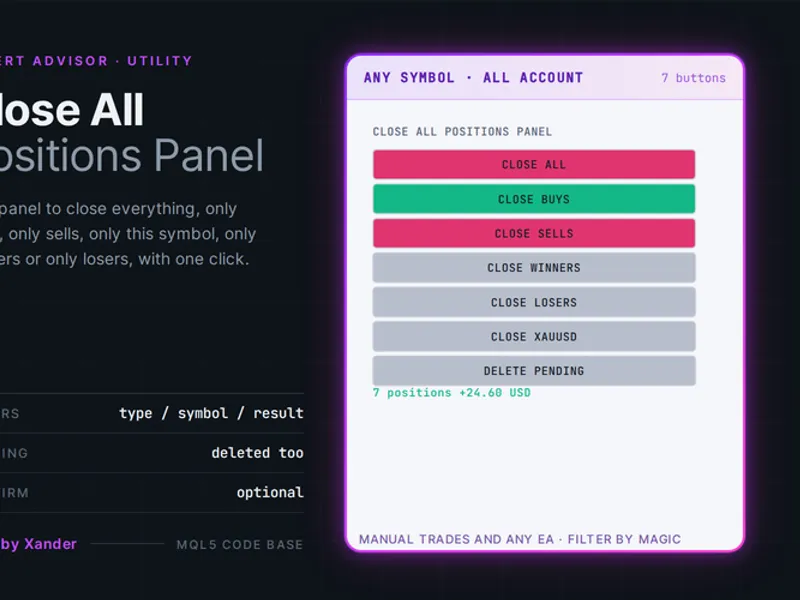
The Close All Positions Panel: One-Click Trade Management is a Expert Advisor for MetaTrader 5 that close all positions panel offers seven buttons on your chart for one-click management of trades across various symbols like gold (xauusd) and eurusd. The panel allows you to perform the following actions:- Close all positions- Close all buy positions- Close all sell positions- Close profitable positions- Close losing positions- Close only positions on the current chart symbol- Delete pending ordersThis tool is effective for both manual trades and positions opened by Expert Advisors (EAs).
Usage
This tool is typically used for automated trading on major forex pairs and gold.
Platform
This Expert Advisor works exclusively on MetaTrader 5 (both build 600+ and newer versions).
Setup
Place the downloaded file in MQL5/Experts folder via File ? Open Data Folder in MetaTrader 5.
How to Install and Use Close All Positions Panel: One-Click Trade Management
1. Installation: Open the "File" menu, select "Open Data Folder," navigate to MQL/Experts, paste your file, and restart the terminal.
2. Activation: Drag the EA from the Navigator onto a chart, ensure "Allow live trading" is checked in the Common tab, and verify the AutoTrading button is green.
3. Optimization: Right-click your chart, choose "Expert List," click "Properties" to adjust inputs, and save your preferred setup as a set file for future use.
4. Maintenance: Regularly check the "Experts" tab in the terminal window to monitor trade logs and potential execution errors.
Frequently Asked Questions
Q: Why is my EA not opening trades? A: Check the "AutoTrading" button, ensure "Allow live trading" is enabled, and verify your broker allows automated trading on your account type.
Q: Can I run multiple EAs on one chart? A: No, each chart can only host one active EA; however, you can open multiple charts for different currency pairs to run several EAs.
Q: What does the "smiley face" icon mean? A: A smiley face in the top-right corner of the chart indicates the EA is successfully running; a frowny face means it is disabled.
What this tool does
Close All Positions Panel offers seven buttons on your chart for one-click management of trades across various symbols like Gold (XAUUSD) and EURUSD.
Typical Use Case
This Expert Advisor excels in automated trading and technical analysis on MetaTrader 5.
Compatible Platform & Setup
This Expert Advisor works on MetaTrader 5. Place the file in the MQL5/Experts folder and restart the terminal.
Description & Settings
Related: Trade Journal Exporter: Closed Trades to CSV with Position Details - another powerful expert for MetaTrader 5 traders.
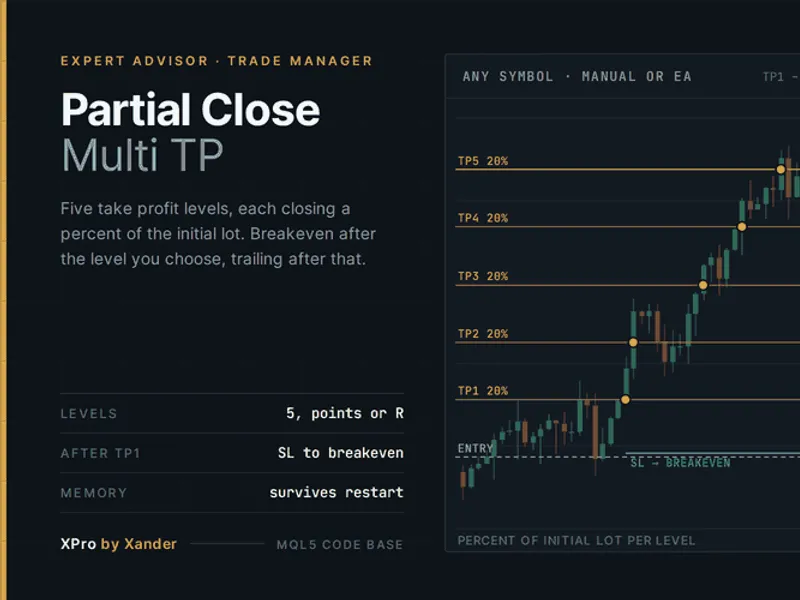
Close All Positions Panel offers seven buttons on your chart for one-click management of trades across various symbols like Gold (XAUUSD) and EURUSD.Also recommended: Partial Close Multi TP Manager for MetaTrader 5 - similar expert with strong performance on MetaTrader 5.
The panel allows you to perform the following actions:
- Close all positions
- Close all buy positions
- Close all sell positions
- Close profitable positions
- Close losing positions
- Close only positions on the current chart symbol
- Delete pending orders
This tool is effective for both manual trades and positions opened by Expert Advisors (EAs).
Customization and Control:
Magic Number Filter: A magic number setting allows you to specify which trades the panel affects. A magic number of 0 targets all positions on the account, including manual trades. Any other number restricts the panel's actions to trades with that specific magic number.
Scope Switch: Choose to manage positions on the current chart symbol only or across all symbols on your account.
Information Display: A line beneath the buttons shows the current number of positions that would be closed and their total floating profit or loss.
Optional Confirmation: An optional confirmation box appears before each closing action, requiring a 'Yes' or 'No' response to prevent accidental closures. The 'Delete Pending Orders' function operates without this confirmation.
Execution Method: Positions are closed individually using market orders, ensuring each trade is executed at its prevailing market price, which is crucial in fast-moving markets. The panel itself does not open any trades.
Panel Settings:
Close All and Pending Orders: The 'Close All' button can optionally remove pending orders that match the defined filters.
Confirmation Prompt: Enable or disable the confirmation dialog for closing actions.
Position Scope: Select whether the panel operates on 'All symbols' or 'Chart symbol only'. The dedicated 'Close symbol' button always targets the current chart's symbol.
Magic Number: Set to 0 for all positions (including manual trades) or specify a magic number to filter EA trades.
Panel Appearance:
- Panel Corner: Choose the corner of the chart where the panel will be displayed.
- Horizontal Offset: Adjust the horizontal position (default 12 pixels).
- Vertical Offset: Adjust the vertical position (default 28 pixels).
- Button Width: Set the width of the buttons (default 134 pixels).
- Button Height: Set the height of the buttons (default 24 pixels).
- Font Size: Adjust the font size for the panel text (default 9).
Color Customization: Configure colors for the text, neutral state, buy buttons, sell buttons, Close All button, and the information line.
Expert Settings:
Max Slippage: Define the maximum acceptable slippage in points (default 30 points).
Logging: Enable or disable the logging of each closed ticket, its symbol, and its profit/loss to the Experts log.
Object Prefix: Specify a prefix for graphical objects created and managed by the panel (default XP_CAP_).
Requirements:
- MetaTrader 5 with Algo Trading enabled.
- Compatible with both Hedging and Netting account types.
Note: This is an Expert Advisor and occupies an EA slot on the chart. If another EA is active on a chart, attach this panel to a separate chart. When configured for 'All symbols', it manages the entire account from that single chart.
Profit Calculation: Profit and loss are determined by the current profit plus swap. Commissions are not included in this calculation.
Versatile Application:
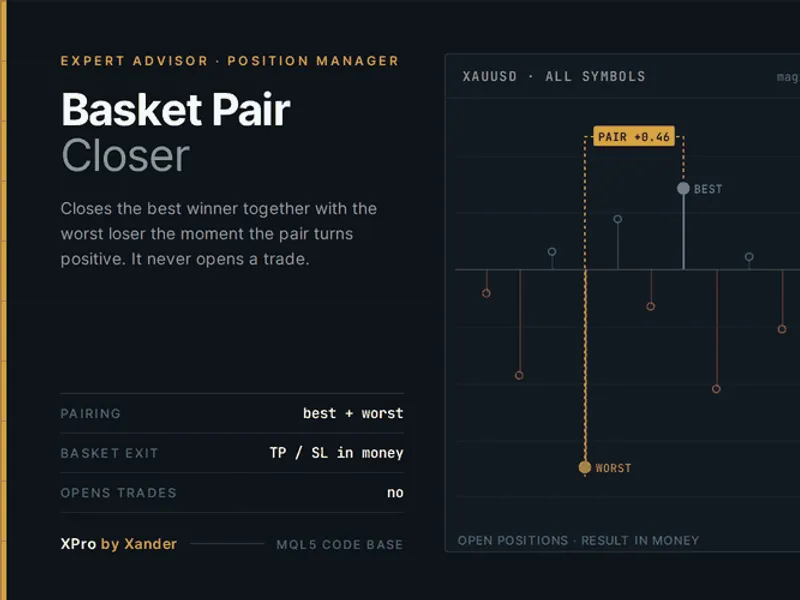
Place this panel on a spare chart alongside a grid or martingale EA operating on symbols like XAUUSD, EURUSD, GBPUSD, US30, NAS100, or BTCUSD. By setting the appropriate magic number filter, you can create an emergency exit for that specific EA's trades without affecting your manual trades. Combine it with the Basket Pair Closer EA for automated best-winner-worst-loser management, and use this panel for manual intervention.
Code Overview:
This is an open-source tool. Feel free to use, adapt, or build upon it. The core function for closing positions is a short, reusable snippet that iterates through open trades.
Stay Updated:
New versions and tools are announced on the author's MQL5 channel.
Community and Support:
Questions, suggestions, and user backtests are welcomed in the Xander Lab group.
Discover more tools on the author's profile.
Disclaimer: Provided as is, use at your own risk.
Related Tools:
- Basket Pair Closer
- Partial Close Multi TP Manager
- XPro Trade Panel
- Supply Demand Zones
- Smart Money Concepts BOS CHoCH
Changelog
v1.0 - 2026-10-25 - Initial release
You may also like: Basket Pair Closer: Efficiently Close Trading Positions - excellent alternative for expert users on MetaTrader 5.
Source Code
#property copyright "RobotFX"
#property link "https://robotfx.org"
#property version     "1.00"
#property description "This code is educational. Feel free to use, modify and upgrade as you wish. Visit ROBOTFX.ORG for professional trading tools"
#include <Trade\Trade.mqh>
enum ENUM_XP_SCOPE
  {
   XP_SCOPE_CHART = 0,
   XP_SCOPE_ALL   = 1
  };
.......
⚠ Limitations & Risk Warning
- This tool is provided for educational and testing purposes only.
- Past performance does not guarantee future results.
- Trading involves substantial risk of loss. Use on a demo account first.
- Results may vary depending on market conditions, broker, and settings.
- We recommend thorough backtesting and forward testing before using with real funds.