
Strategy Analysis Assistant for Historical Data
Info
The Strategy Analysis Assistant for Historical Data is a Indicator for MetaTrader 4 that the "tpehep" (trainer) assistant is designed to aid in the analysis of trading strategies and to build experience in evaluating strategy signals on historical data. This tool helps novice traders understand the logic behind order triggering and signal formation, facilitating the identification of suitable strategies.
Usage
This tool is typically used for enhancing chart analysis and decision making.
Platform
This Indicator works exclusively on MetaTrader 4 (both build 600+ and newer versions).
Setup
Place the downloaded file in MQL4/Indicators folder via File ? Open Data Folder in MetaTrader 4.
How to Install and Use Strategy Analysis Assistant for Historical Data
1. Installation: Place your file in the MQL/Indicators folder via "Open Data Folder" and restart your terminal.
2. Loading: Find the indicator in the Navigator, drag it onto your chart, and configure the input parameters in the popup window.
3. Customization: Press Ctrl+I to open the indicator list, select your tool, and click "Properties" to change colors, levels, or visual styles.
4. Updating: Replace the old file in the Indicators folder with the new version and restart the platform to apply changes.
Frequently Asked Questions
Q: Why is my indicator not showing? A: Verify the file is in the MQL/Indicators folder, or try right-clicking the "Indicators" tree in the Navigator and clicking "Refresh."
Q: Do custom indicators slow down the platform? A: Too many complex indicators can impact performance; remove unused ones via the "Indicator List" (Ctrl+I).
Q: Can I use MT4 indicators on MT5? A: No, MQL4 and MQL5 are distinct languages; ensure the indicator is compiled specifically for your platform version.
What this tool does
The "tpehep" (Trainer) assistant is designed to aid in the analysis of trading strategies and to build experience in evaluating strategy signals on historical data.
Typical Use Case
This Indicator excels in automated trading and technical analysis on MetaTrader 4.
Compatible Platform & Setup
This Indicator works on MetaTrader 4. Place the file in the MQL4/Indicators folder and restart the terminal.
Description & Settings
Related: Strategy Tester Report vs. Live Account: Trade-by-Trade Analysis - another powerful indicator for MetaTrader 4 traders.
The "tpehep" (Trainer) assistant is designed to aid in the analysis of trading strategies and to build experience in evaluating strategy signals on historical data.Also recommended: Pin-Point Trend Following Strategy - similar indicator with strong performance on MetaTrader 4.
This tool helps novice traders understand the logic behind order triggering and signal formation, facilitating the identification of suitable strategies.
Core Functionality:
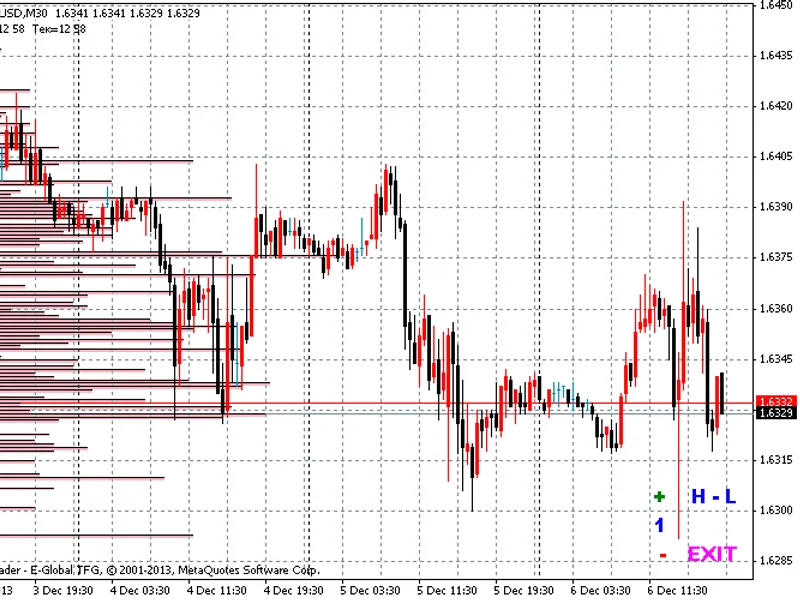
The assistant highlights key decision points for traders. Specifically, it marks the opening points for buy (blue, 'b' key) or sell (pink, 's' key) orders and the corresponding closing points.
Operational Rules:
Orders (opening and closing) are permitted only when a new candle opens (open[bar-1]), provided the previous candle (close[bar0]) closed within a designated colored area (purple).
Stop Loss and Take Profit levels can be adjusted manually using the mouse, with options to control minimum distance and freezing.
During the initial learning phase, the active area can be adjusted using the "<" and ">" keys to gradually align with the right side of the chart.
Chart history can be shifted using the "F12" key or a custom hotkey, while the active zone (purple) remains fixed.
To set a custom hotkey, press the desired key. An alert will display "Pressed wrong button XX", and you should then enter "XX" in the settings under "Key to shift the chart by 1 step". The default key is the 'Delete' key on the numeric keypad.
Installation and Setup:
Install the indicator by opening the desired currency pair chart, selecting the relevant historical data, applying the strategy template, and attaching the "tpehep" indicator.
Save the settings by pressing the 'R' (Record) key to the template (e.g., eurusd.60.tpl). If the active area is not visible, click the left mouse button.
Advanced Features:
The assistant's capabilities have been expanded to include management of open positions, control of various trader errors, and the output of final results to an Excel table, including a profitability chart.
Strategy results are presented in a balance table. Upon completion of testing, pressing the 'R' (Record) key saves these results to a file named "[Symbol] [Timeframe] [StartDate]-[EndDate].xls" (e.g., "eurusd.60 2026.07.06-2026.07.06.xls") within the `
Further Strategy Analysis:
To analyze strategies on different timeframes, disable order processing by setting `trading=false`. This mode displays only vertical lines indicating signal moments.
The plotting results are saved to a file (e.g., "eurusd.60 2026.07.06-2026.07.06.tpl") by pressing the 'R' key. Use this template on another timeframe. By modifying the indicator set and employing template plotting, conduct final profitability testing with order processing enabled (`trading=true`).
Backup Recommendations:
After testing a strategy, save the recorded files in a backup folder with a descriptive name, for example: "test eurusd per stochastic 5 3 3 moving averages ema55".
This naming convention aids in selecting the most effective strategy configuration.
Be aware that if template names or results from subsequent tests match existing files, the previous data will be overwritten. Ensure you maintain backups of your valuable results.
You may also like: External Range Liquidity (ERL) Indicator: Advanced Market Structure and Liquidity Analysis - excellent alternative for indicator users on MetaTrader 4.
Source Code
#property link "https://robotfx.org"
#property version   "1.01"
#property strict
#property indicator_chart_window
#property description "this code is educational. feel free to use, modify and upgrade as you wish. visit robotfx.org for professional trading tools"
#property description "this code is educational. feel free to use, modify and upgrade as you wish. visit robotfx.org for professional trading tools"
#property description "this code is educational. feel free to use, modify and upgrade as you wish. visit robotfx.org for professional trading tools"
#property description "this code is educational. feel free to use, modify and upgrade as you wish. visit robotfx.org for professional trading tools"
#property description "this code is educational. feel free to use, modify and upgrade as you wish. visit robotfx.org for professional trading tools"
#property description "this code is educational. feel free to use, modify and upgrade as you wish. visit robotfx.org for professional trading tools"
.......
⚠ Limitations & Risk Warning
- This tool is provided for educational and testing purposes only.
- Past performance does not guarantee future results.
- Trading involves substantial risk of loss. Use on a demo account first.
- Results may vary depending on market conditions, broker, and settings.
- We recommend thorough backtesting and forward testing before using with real funds.