
Change Chart Symbol Menu
Info
The Change Chart Symbol Menu is a Indicator for MetaTrader 4 that change chart symbol menu 1. 00This indicator displays a menu on the main menu bar.
Usage
This tool is typically used for enhancing chart analysis and decision making.
Platform
This Indicator works exclusively on MetaTrader 4 (both build 600+ and newer versions).
Setup
Place the downloaded file in MQL4/Indicators folder via File ? Open Data Folder in MetaTrader 4.
How to Install and Use Change Chart Symbol Menu
1. Installation: Place your file in the MQL/Indicators folder via "Open Data Folder" and restart your terminal.
2. Loading: Find the indicator in the Navigator, drag it onto your chart, and configure the input parameters in the popup window.
3. Customization: Press Ctrl+I to open the indicator list, select your tool, and click "Properties" to change colors, levels, or visual styles.
4. Updating: Replace the old file in the Indicators folder with the new version and restart the platform to apply changes.
Frequently Asked Questions
Q: Why is my indicator not showing? A: Verify the file is in the MQL/Indicators folder, or try right-clicking the "Indicators" tree in the Navigator and clicking "Refresh."
Q: Do custom indicators slow down the platform? A: Too many complex indicators can impact performance; remove unused ones via the "Indicator List" (Ctrl+I).
Q: Can I use MT4 indicators on MT5? A: No, MQL4 and MQL5 are distinct languages; ensure the indicator is compiled specifically for your platform version.
What this tool does
Change Chart Symbol Menu 1.
Typical Use Case
This Indicator excels in automated trading and technical analysis on MetaTrader 4.
Compatible Platform & Setup
This Indicator works on MetaTrader 4. Place the file in the MQL4/Indicators folder and restart the terminal.
Description & Settings
Related: exchange price indicator - another powerful indicator for MetaTrader 4 traders.
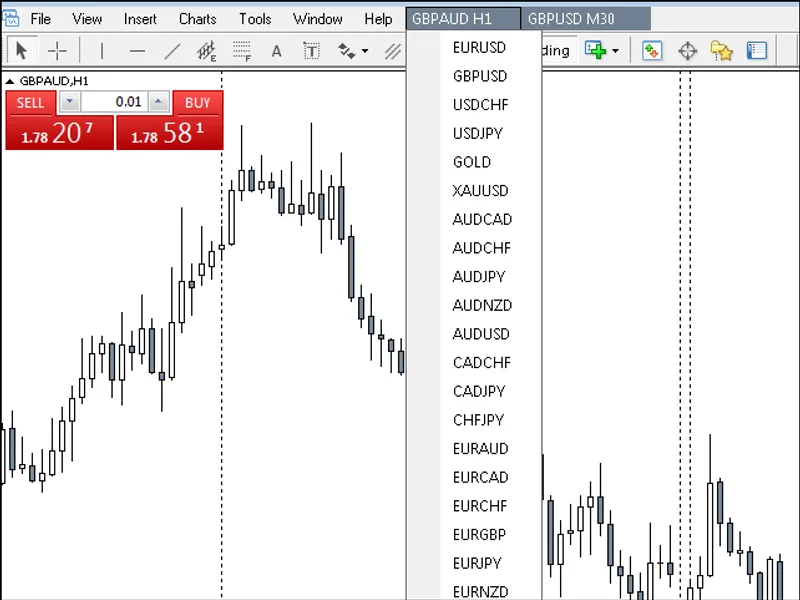
Change Chart Symbol Menu 1.00This indicator displays a menu on the main menu bar. Clicking the 'Symbol Menu' will open or close the symbol list. Selecting a symbol from the list will change the chart's current symbol.
Also recommended: equity chart modeller - similar indicator with strong performance on MetaTrader 4.
Tested in MT4 build 625.
Important Information:
The functionality of this indicator relies on the files mt4gui.dll and mt4.mgh. (As of 05-04-2026, these are updated to mt4gui2.dll and mt4gui2.mgh). Without these files, the indicator will not work. Both files are free and require a license key for each computer running the .dll file. The mt4gui2.mgh file is included with the indicator download and can be easily edited for updates. The mt4gui2.dll cannot be edited and must be downloaded from the source: download here.
Upon initial loading, a popup will request your name and email. This is for occasional update notifications only; using an alias name and alternative email address is always advisable. Once submitted, a license key will be emailed to you, which you then enter into the popup. There is no limit to the number of free licenses.
Required Installations:
- The .dll file should be placed in the MQL4/Libraries folder.
- The .mgh file should be placed in the MQL4/Include folder.
- The 'Change Chart Symbol Menu' indicator should be placed in the MQL4/Indicators folder.
- Optional: Additional chart symbols can be placed in the MQL4/Indicators folder.
The .dll and .mgh files are periodically updated to support new MT4 builds. Refer to the 'Updating' and 'How to Edit Code Example' sections below for details.
If your chart symbols differ from the standard six-letter format (e.g., EURUSD), such as EURUSDSB or EURUSD_UK, you will need to configure the suffixes. Please refer to 'Notes: Suffix -1 and Suffix -2'.
Notes:
Suffix - 1:
For platforms using symbol variations like EURUSDSB or EURUSD_UK, enter the additional suffix (case-sensitive, e.g., SB, _UK) in the 'Suffix' input section of the indicator settings.
Suffix - 2:
For future symbols such as USA500DEC13 or SOYBNSJAN14, add them as complete names (case-sensitive, e.g., USA500DEC13, SOYBNSJAN14) in the 'Spare' input sections. Do not add these to the Suffix section.
Any symbol can be modified directly from the indicator's inputs tab. Additional symbols can be added by changing 'Spare' to the desired symbol name. Important: If you have entered a suffix in the 'Suffix' section, do not include that suffix as part of the symbol name you add, to avoid duplication (e.g., EURUSD_UK_UK).
Ensure your Expert Advisor settings are correctly configured under Tools > Options > Expert Advisors.
Potential reasons for symbol change failure:
The first symbol change after loading the indicator may require two clicks. Subsequent changes will only require one click.
- Ensure you are on the correct chart. The symbol menu includes the chart timeframe for identification.
- Your broker symbols use suffixes. Verify that the correct suffix has been entered in the indicator's inputs tab.
- Check Expert Advisor settings.
Note: If the indicator stops working, the .dll file may be outdated even if the filename remains the same. Delete the old .dll file and download a new one.
Updating: 3 Easy Steps
As of April 2026, the updated .dll and .mgh files are mt4gui2.dll and mt4gui2.mgh. These files will likely be updated to mt4gui3.dll and mt4gui3.mgh in the future.
1. Download the new .dll file from the source: download here. Delete the old .dll file.
The .mgh file is easily editable for updates; see step 2. Alternatively, you can copy the .mgh code from the source (not available as a direct download) and paste it into the MT4 MetaEditor. To do this: Open MT4 MetaEditor > File > New > Include (*.mgh) > Name > Finish > Copy the .mgh code into the MetaEditor window > Save As (ensure the save path is MQL4/Include and the filename matches the current update name).
2. The following code in mt4gui2.mgh needs to be changed:
From:
#import
You may also like: albus multi chart 1: advanced chart overlay for metatrader - excellent alternative for indicator users on MetaTrader 4.
Source Code
#property copyright "robotfx"
#property link "https://robotfx.org"
#property version   "1.00"
#property strict
#property indicator_chart_window
#include <mt4gui2.mqh>
extern color menu_back_color = lavender;
extern color menu_text_color = black;
extern string suffix = "";
extern string symbol_1 = "eurusd";
.......
⚠ Limitations & Risk Warning
- This tool is provided for educational and testing purposes only.
- Past performance does not guarantee future results.
- Trading involves substantial risk of loss. Use on a demo account first.
- Results may vary depending on market conditions, broker, and settings.
- We recommend thorough backtesting and forward testing before using with real funds.