

Expert Advisor: Trading with MA Channel Boundary Rollbacks
Info
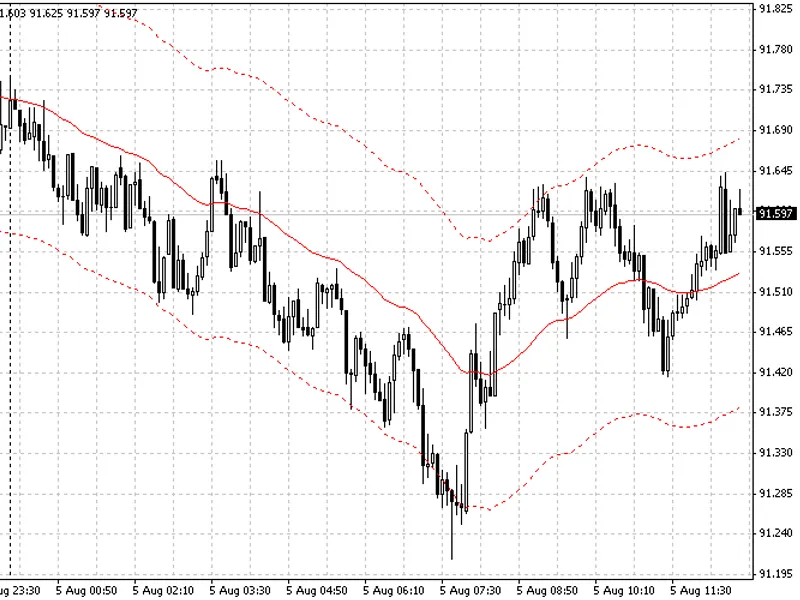
The Expert Advisor: Trading with MA Channel Boundary Rollbacks is a Expert Advisor for MetaTrader 4 that this expert advisor (ea) utilizes moving average channel boundary data for trading decisions. When the price deviates from the moving average by a specified number of points, an order is placed in the direction of the moving average line.
Usage
This tool is typically used for automated trading on major forex pairs and gold.
Platform
This Expert Advisor works exclusively on MetaTrader 4 (both build 600+ and newer versions).
Setup
Place the downloaded file in MQL4/Experts folder via File ? Open Data Folder in MetaTrader 4.
How to Install and Use Expert Advisor: Trading with MA Channel Boundary Rollbacks
1. Installation: Open the "File" menu, select "Open Data Folder," navigate to MQL/Experts, paste your file, and restart the terminal.
2. Activation: Drag the EA from the Navigator onto a chart, ensure "Allow live trading" is checked in the Common tab, and verify the AutoTrading button is green.
3. Optimization: Right-click your chart, choose "Expert List," click "Properties" to adjust inputs, and save your preferred setup as a set file for future use.
4. Maintenance: Regularly check the "Experts" tab in the terminal window to monitor trade logs and potential execution errors.
Frequently Asked Questions
Q: Why is my EA not opening trades? A: Check the "AutoTrading" button, ensure "Allow live trading" is enabled, and verify your broker allows automated trading on your account type.
Q: Can I run multiple EAs on one chart? A: No, each chart can only host one active EA; however, you can open multiple charts for different currency pairs to run several EAs.
Q: What does the "smiley face" icon mean? A: A smiley face in the top-right corner of the chart indicates the EA is successfully running; a frowny face means it is disabled.
What this tool does
This Expert Advisor (EA) utilizes moving average channel boundary data for trading decisions.
Typical Use Case
This Expert Advisor excels in automated trading and technical analysis on MetaTrader 4.
Compatible Platform & Setup
This Expert Advisor works on MetaTrader 4. Place the file in the MQL4/Experts folder and restart the terminal.
Description & Settings
Related: e-trailing2: enhanced trailing stop expert advisor - another powerful expert for MetaTrader 4 traders.
This Expert Advisor (EA) utilizes moving average channel boundary data for trading decisions. When the price deviates from the moving average by a specified number of points, an order is placed in the direction of the moving average line. This EA is designed to generate profit, though it may be modest and requires a substantial deposit.Also recommended: e-signal of trade expert advisor - similar expert with strong performance on MetaTrader 4.
The core logic relies on a solid red line representing indicator data and a dotted red line indicating the channel boundary. Orders are opened when the price crosses these boundaries: a buy order at the lower boundary and a sell order at the upper boundary.
To ensure trade validity, an additional condition is applied. For a buy order to be placed on a candlestick touching the lower boundary, the low of the preceding candlestick must be above the lower boundary level. Conversely, for a sell order at the upper boundary, the high of the preceding candlestick must be below the upper boundary level.
The EA includes several plug-in modules to enhance its functionality:
The Turn Module
This module places pending limit orders at the stop loss level of the main order, in the opposite direction. It is intended for scenarios where the price continues to move away from the MA line after reaching the channel boundary.
The Step Down Module
This module adds orders in the direction of the main order, creating a grid of orders. This functionality was previously used in another system.
The Trade Time Module
This module restricts the trading times for the EA. It allows users to define a specific time interval during which the EA can open its primary orders. This does not apply to orders placed by the Step Down module.
Expert Advisor Settings:
Moving Average Settings:
Period
– The period for the Moving Average indicator.
Shift
– The shift value for the Moving Average indicator.
Method MA
– The calculation method for the Moving Average.
Apply To
– The price data used for the Moving Average calculation.
Range
– The distance (above and below) from the current Moving Average value. When the price reaches this range, the EA may open its first main order.
Lot Size Settings:
Lot Const or Not
– Determines if the initial lot size is fixed or recalculated based on account balance changes. If true, the lot size is fixed as specified in the 'lots' parameter. If false, the initial lot size is dynamically calculated using the 'riskpercent' parameter and the account balance: lots = accountbalance() * (riskpercent / 100.0) / 10000.0.
Lots
– Sets the initial fixed trading lot size.
Riskpercent
– Sets the initial trading lot size dynamically based on the deposit and risk percentage.
Order Management:
Take Profit
– The profit target for an order, specified in points.
Stop Loss
– The loss limit for an order, specified in points.
Trailing Stop
– Enables automatic adjustment of the stop loss level.
Turn Module Settings:
Enabled (True/False)
– Activates or deactivates the Turn module.
Turn
– The distance after which an opposite pending order is placed.
Lot Multiplicator
– The factor by which the lot size is increased for subsequent orders.
Turn Take Profit
– The profit target for orders opened by the Turn module, specified in points.
Step Down Module Settings:
Enabled (True/False)
– Activates or deactivates the Step Down module.
Step Down
– The distance (gap) between orders in the order grid placed against the trend.
Trade Time Module Settings:
Enabled (True/False)
– Activates or deactivates the Trade Time module.
Open Trade
– The earliest time the EA can open its first main order.
Close Trade
– The latest time the EA can open its first main order.
Magic Number:
Magic
– A unique identifier for the EA to distinguish its orders from others.
Logo and Data Output:
Enabled (True/False)
– Activates or deactivates the display of the data table (e.g., earnings today, yesterday).
Time Frame:
Time Frame
– Specifies the chart time frame for the EA to use. Options include 'current' (the chart's current time frame) or fixed time frames (M1, M5, M15, M30, H1, H4, D1, W1, MN1).
You may also like: e-news-lucky$ - automated news trading expert advisor - excellent alternative for expert users on MetaTrader 4.
Source Code
enum enum_tf { current=0,m1=1,m5=5,m15=15,m30=30,h1=60,h4=240,d1=1440,w1=10080,mn1=43200 };
extern             string _1_="___  ma ___";
extern                int period_=21,
shift_=0;
extern     enum_ma_method method_ma_=mode_sma;
extern enum_applied_price apply_to_=price_close;
extern             double range=250.0;
extern             string _2_="___   (true - , false -  ) ___";
extern               bool lotconst_or_not=true;
extern             double lot=0.1,
.......
⚠ Limitations & Risk Warning
- This tool is provided for educational and testing purposes only.
- Past performance does not guarantee future results.
- Trading involves substantial risk of loss. Use on a demo account first.
- Results may vary depending on market conditions, broker, and settings.
- We recommend thorough backtesting and forward testing before using with real funds.