


Chart Event Handling Example for MT4/MT5
Info
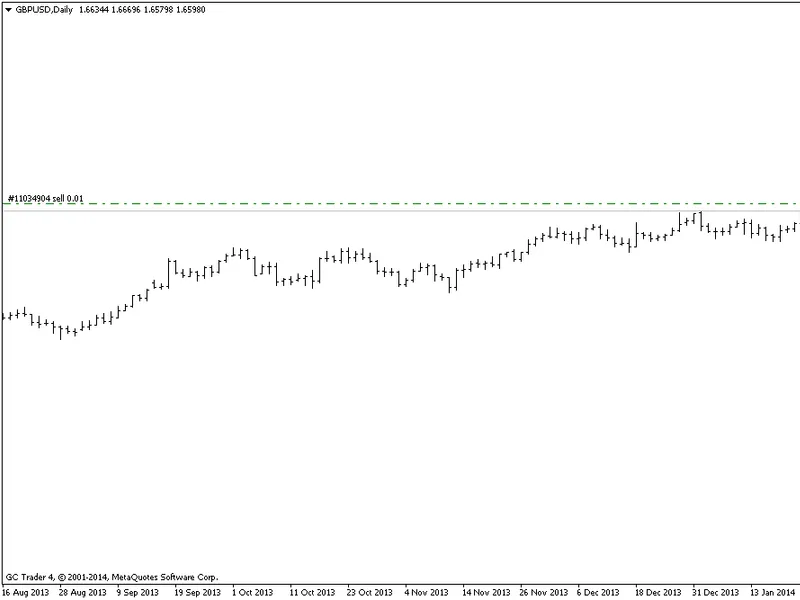
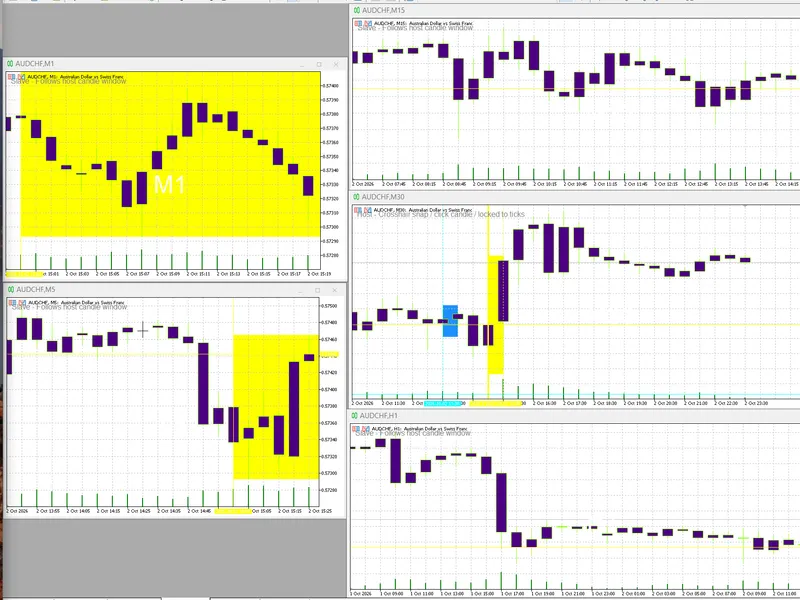
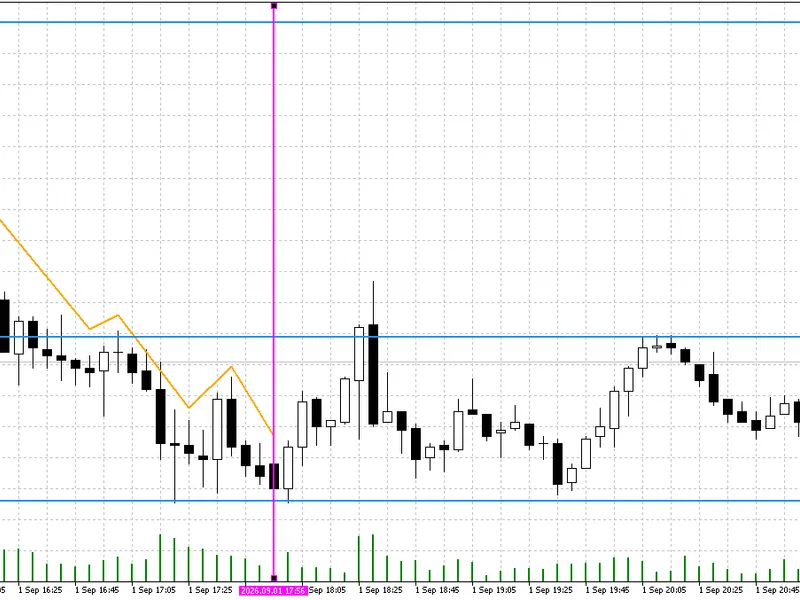
The Chart Event Handling Example for MT4/MT5 is a Expert Advisor for MetaTrader 4 that the "test_chartevent. mq4" Expert Advisor demonstrates various chart event types, including keyboard key events, mouse click and move events, and custom events.
Usage
This tool is typically used for automated trading on major forex pairs and gold.
Platform
This Expert Advisor works exclusively on MetaTrader 4 (both build 600+ and newer versions).
Setup
Place the downloaded file in MQL4/Experts folder via File ? Open Data Folder in MetaTrader 4.
How to Install and Use Chart Event Handling Example for MT4/MT5
1. Installation: Open the "File" menu, select "Open Data Folder," navigate to MQL/Experts, paste your file, and restart the terminal.
2. Activation: Drag the EA from the Navigator onto a chart, ensure "Allow live trading" is checked in the Common tab, and verify the AutoTrading button is green.
3. Optimization: Right-click your chart, choose "Expert List," click "Properties" to adjust inputs, and save your preferred setup as a set file for future use.
4. Maintenance: Regularly check the "Experts" tab in the terminal window to monitor trade logs and potential execution errors.
Frequently Asked Questions
Q: Why is my EA not opening trades? A: Check the "AutoTrading" button, ensure "Allow live trading" is enabled, and verify your broker allows automated trading on your account type.
Q: Can I run multiple EAs on one chart? A: No, each chart can only host one active EA; however, you can open multiple charts for different currency pairs to run several EAs.
Q: What does the "smiley face" icon mean? A: A smiley face in the top-right corner of the chart indicates the EA is successfully running; a frowny face means it is disabled.
What this tool does
The "test_chartevent.
Typical Use Case
This Expert Advisor excels in automated trading and technical analysis on MetaTrader 4.
Compatible Platform & Setup
This Expert Advisor works on MetaTrader 4. Place the file in the MQL4/Experts folder and restart the terminal.
Description & Settings
Related: exaccount: visualize order activity on chart - another powerful expert for MetaTrader 4 traders.
The "test_chartevent.mq4" Expert Advisor demonstrates various chart event types, including keyboard key events, mouse click and move events, and custom events. You can press the 'h' key for help and the 'm' key to enter mouse move event mode.Also recommended: Detecting New Bar Events in Expert Advisors - similar expert with strong performance on MetaTrader 4.
The source code is compatible with both MetaTrader 4 and MetaTrader 5.
Function Prototypes
bool obj_create()
bool obj_delete()
bool obj_move(int hsens, int vsens)
- Moves an object.
void print_info()
- Prints information about the objects.
int mousemove(int axx, int ayy, string sstate)
- Handles the mouse move event.
Global Variables
int gchartno=0
int gsubwinno=0
string gsobj_name_selected="" - The name of the currently selected object.
Custom Events
Three types of custom events are defined:
#define CMYEVE NT_1 0
#define CMYEVE NT_2 1
#define CMYEVE NT_3_BROADCAST 2
OnTimer() Function
This function creates custom chart events periodically. It randomly generates these three custom events (CMYEVE NT_1, CMYEVE NT_2, and CMYEVE NT_3_BROADCAST). Notably, the CMYEVE NT_3_BROADCAST event is generated for all open chart windows.
Class Example
The "cobjectman" class is created to handle object functionality on a chart. Two instances (variables) of this class are declared: gobjectman1 and gobjectman2. The names of the graphic objects associated with these two instances are "green button" and "yellow button", respectively.
Event Processing
void OnChartEvent():
ChartEvent_KeyDown Events:
- Use the 4 directional keys (arrows) or the 4 directional keys on the digital keypad to move the selected object.
- Press 'h' to display help information in the Expert Log window.
- Press 'i' to display position information for the two objects.
- Press 'm' to activate the mouse_move event.
Custom Events:
- Print information about these events, especially for the CMYEVE NT_3_BROADCAST event.
Object Events:
- ChartEvent_Object_Change, ChartEvent_Object_Drag, ChartEvent_Object_Delete - Print the corresponding object's name.
- ChartEvent_Object_Click - Print the name of the object being clicked and select its name for moving with the direction keys.
Mouse Events:
- ChartEvent_Click - Print the clicked bar's information, including prices (open, close) and the bar time.
- ChartEvent_Mouse_Move (see: chart_event_mouse_move) - Print information about the covered interval, such as the number of bars and price variation.
Demonstration Tests
1. Click on one of the two objects (buttons) to select it, then use the arrow keys to move the selected object.
2. Click on a graphic bar to see its information in the log tab (Messages).
3. Press the 'm' key to enter mouse_move event mode. Press Ctrl+F to show the crosshair, then perform a drag-and-drop operation. If you do not see the log messages, please adjust the input parameter "iloglevel".
You may also like: News Trader EA: Trading Volume Spikes and News Events - excellent alternative for expert users on MetaTrader 4.
Source Code
#property copyright "robotfx"
#property link "https://robotfx.org"
#property version   "1.00"
#ifdef __mql4__
#property strict
#endif
input int iloglevel=0;   // loglevel: 0: no log message, 1: a little, 2: more message
bool obj_create();
bool obj_delete();
bool obj_move(int hsens,int vsens);
.......
⚠ Limitations & Risk Warning
- This tool is provided for educational and testing purposes only.
- Past performance does not guarantee future results.
- Trading involves substantial risk of loss. Use on a demo account first.
- Results may vary depending on market conditions, broker, and settings.
- We recommend thorough backtesting and forward testing before using with real funds.