








Buffer Inspector Kb: Identify Indicator Buffers for MT4/MT5 Automation
Info
The Buffer Inspector Kb: Identify Indicator Buffers for MT4/MT5 Automation is a Script for MetaTrader 5 that buffer inspector kb is a utility script designed to identify which specific buffer within a technical indicator holds trading signals. This is crucial for anyone looking to integrate indicator signals into Expert Advisors (EAs) or alert systems.
Usage
This tool is typically used for enhancing chart analysis and decision making.
Platform
This Script works exclusively on MetaTrader 5 (both build 600+ and newer versions).
Setup
Place the downloaded file in MQL5/Scripts folder via File ? Open Data Folder in MetaTrader 5.
How to Install and Use Buffer Inspector Kb: Identify Indicator Buffers for MT4/MT5 Automation
1. Installation: Move your script file into the MQL/Scripts directory and restart the platform.
2. Execution: Drag the script onto a chart; it will perform a one-time action, such as closing all open orders or clearing chart objects.
3. Editing: Use MetaEditor (F4) to modify code, click "Compile," and verify no errors appear in the terminal before running.
4. Removing: Scripts stop automatically, but you can remove them manually by right-clicking the chart and choosing "Remove Script."
Frequently Asked Questions
Q: How are scripts different from EAs? A: Scripts execute a single action and then stop; EAs monitor the market and trade continuously.
Q: Can I assign a hotkey to a script? A: Yes, right-click the script in the Navigator, select "Set Hotkey," and define your preferred keyboard shortcut.
Q: Why did my script stop? A: Scripts are designed to stop immediately after finishing their programmed command; this is normal behavior.
What this tool does
Buffer Inspector Kb is a utility script designed to identify which specific buffer within a technical indicator holds trading signals.
Typical Use Case
This Script excels in automated trading and technical analysis on MetaTrader 5.
Compatible Platform & Setup
This Script works on MetaTrader 5. Place the file in the MQL5/Scripts folder and restart the terminal.
Description & Settings
Related: Global Variable Inspector: Manage Terminal Global Variables - another powerful script for MetaTrader 5 traders.
Buffer Inspector Kb is a utility script designed to identify which specific buffer within a technical indicator holds trading signals. This is crucial for anyone looking to integrate indicator signals into Expert Advisors (EAs) or alert systems. Simply attach this script to a chart that already has the indicator you wish to analyze.Also recommended: Broker Specification Inspector: Understand Trading Limits - similar script with strong performance on MetaTrader 5.
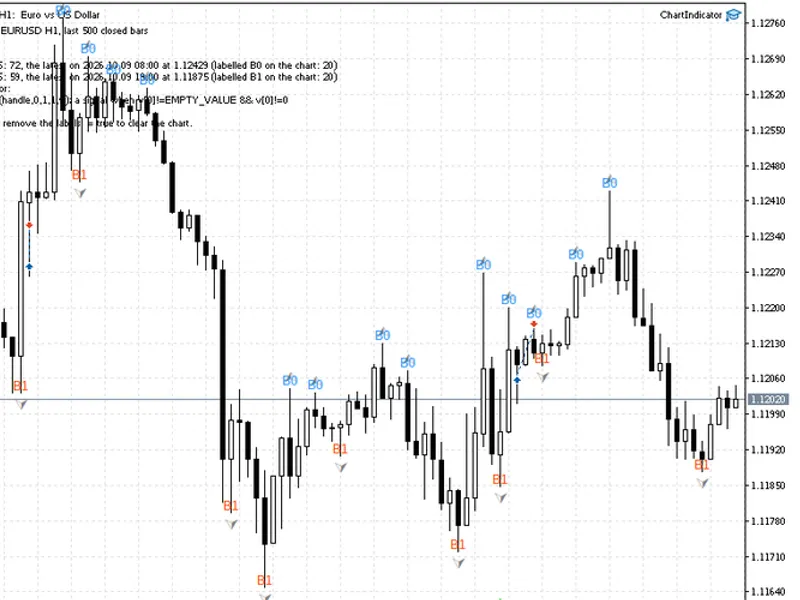
The script examines every buffer of every indicator present on the chart. This includes not only visible data buffers but also color and calculation buffers that are typically hidden from the standard Data Window. It classifies each buffer based on its content (arrows, line, or color index) and annotates the last occurring arrows on the chart with their corresponding buffer numbers. The results are also logged in the Experts journal.
Example: For the Fractals indicator, Buffer Inspector Kb labels the upper fractals with 'B0' and the lower ones with 'B1'.
Limitations of the Data Window
The standard Data Window only displays buffers that are visually rendered on the chart. Buffers used for coloring, such as those for Heiken Ashi candles or two-color Moving Averages, are not shown. Consequently, the buffer numbers listed in the Data Window may not correspond to the actual buffer indices used by an EA. For indicators purchased from the Market without source code, it's impossible to inspect the SetIndexBuffer calls. Buffer Inspector Kb, however, reads buffers in the same way an EA does using CopyBuffer, providing the correct buffer numbers for use with the iCustom function.
Buffer Classification Logic
Arrows: Identified by values appearing on 30% or fewer of the bars, with EMPTY_VALUE or 0 on the remaining bars. The script reports the total count of arrows and the timestamp and price of the latest one. These arrows are marked on the chart as B0, B1, etc.
Color Index: Characterized by a small, limited range of whole numbers (e.g., 0 and 1). The script provides the value range and the value on the last closed bar, allowing correlation with the visual color.
Line: Displays a value on nearly every bar. The script reports the current value and the observed range.
Empty: Indicates no values were found on the inspected bars.
Analysis Scope
The script analyzes only closed bars, as the forming bar's data can change before it closes. If an indicator displays arrows visually but does not use a dedicated arrow buffer, the script will note that the arrows are likely drawn as graphical objects, which cannot be accessed via iCustom.
Input Parameters
Parameter Name (InpIndicator)
Default Value: empty
Description: If 'empty', the script inspects all indicators attached to the current chart with their default settings. If a specific indicator path is provided (e.g., Examples\Fractals or Market\Name), the script will create and inspect that indicator.
Its inputs (InpParams)
Default Value: empty
Description: For a named indicator, specify its inputs as a comma-separated string in the order they appear in the inputs window. An empty value uses the indicator's default inputs.
Closed bars to inspect (InpBars)
Default Value: 500
Description: The number of most recent closed bars to analyze for each buffer.
Arrows to label (InpMarks)
Default Value: 20
Description: The number of the latest arrows from each arrow buffer to be labeled on the chart. Set to 0 to disable labels.
Only remove the labels (InpClear)
Default Value: false
Description: Set to true to remove previous labels and report, without performing any new analysis.
Integrating Signals into Expert Advisors
For each identified arrow buffer, the report includes a sample line of code: CopyBuffer(handle, n, 1, 1, v). The signal is triggered when v[0] is not EMPTY_VALUE and not 0. It is recommended to read the last closed bar (shift 1) to react once per new bar. Note that some indicator signals might be confirmed on subsequent bars (e.g., a fractal may require two additional bars), in which case the relevant signal bar shift might be 3 instead of 1.
The script's source code is concise and well-commented, demonstrating the use of ChartIndicatorGet for existing indicators, IndicatorCreate with dynamically built parameter lists, waiting for BarsCalculated, and the logic for classifying buffers based on their data values.
You may also like: Broker Session Schedule Inspector MT5 - excellent alternative for script users on MetaTrader 5.
Source Code
#property copyright "RobotFX"
#property link "https://robotfx.org"
#property version     "1.00"
#property description "This code is educational. Feel free to use, modify and upgrade as you wish. Visit ROBOTFX.ORG for professional trading tools"
#property script_show_inputs
input string InpIndicator="";
input string InpParams="";
input int    InpBars=500;
input int    InpMarks=20;
input bool   InpClear=false;
.......
⚠ Limitations & Risk Warning
- This tool is provided for educational and testing purposes only.
- Past performance does not guarantee future results.
- Trading involves substantial risk of loss. Use on a demo account first.
- Results may vary depending on market conditions, broker, and settings.
- We recommend thorough backtesting and forward testing before using with real funds.