






Global Variable Inspector: Manage Terminal Global Variables
Info
The Global Variable Inspector: Manage Terminal Global Variables is a Script for MetaTrader 5 that expert advisors store their operational status in terminal global variables. These can include daily start balances, lock flags, heartbeats, and last trade times.
Usage
This tool is typically used for enhancing chart analysis and decision making.
Platform
This Script works exclusively on MetaTrader 5 (both build 600+ and newer versions).
Setup
Place the downloaded file in MQL5/Scripts folder via File ? Open Data Folder in MetaTrader 5.
How to Install and Use Global Variable Inspector: Manage Terminal Global Variables
1. Installation: Move your script file into the MQL/Scripts directory and restart the platform.
2. Execution: Drag the script onto a chart; it will perform a one-time action, such as closing all open orders or clearing chart objects.
3. Editing: Use MetaEditor (F4) to modify code, click "Compile," and verify no errors appear in the terminal before running.
4. Removing: Scripts stop automatically, but you can remove them manually by right-clicking the chart and choosing "Remove Script."
Frequently Asked Questions
Q: How are scripts different from EAs? A: Scripts execute a single action and then stop; EAs monitor the market and trade continuously.
Q: Can I assign a hotkey to a script? A: Yes, right-click the script in the Navigator, select "Set Hotkey," and define your preferred keyboard shortcut.
Q: Why did my script stop? A: Scripts are designed to stop immediately after finishing their programmed command; this is normal behavior.
What this tool does
Expert Advisors store their operational status in terminal global variables.
Typical Use Case
This Script excels in automated trading and technical analysis on MetaTrader 5.
Compatible Platform & Setup
This Script works on MetaTrader 5. Place the file in the MQL5/Scripts folder and restart the terminal.
Description & Settings
Related: Time Variable Conversion Utility - another powerful script for MetaTrader 5 traders.
Expert Advisors store their operational status in terminal global variables. These can include daily start balances, lock flags, heartbeats, and last trade times. Over time, a terminal can accumulate numerous global variables, which are displayed in an unsorted manner without filtering or backup options in the built-in F3 window. When an Expert Advisor malfunctions after a restart, identifying the specific variable it accessed can be challenging using the F3 window.Also recommended: programming patterns - observer - similar script with strong performance on MetaTrader 5.
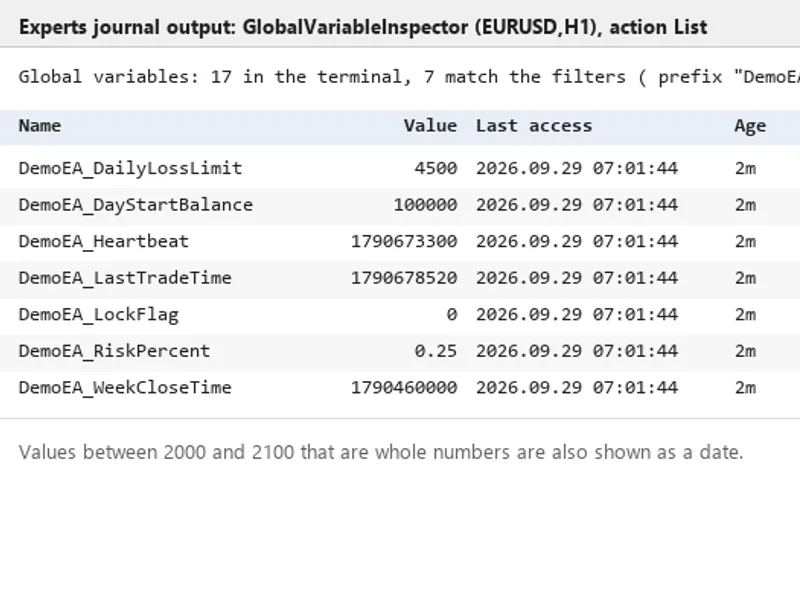
Global Variable Inspector is a utility script designed to address this. It captures a snapshot of all variables matching your specified filters, sorts them alphabetically, and logs them to the Experts journal along with their values, last access times, and ages. For values between the years 2000 and 2100 that are whole numbers, they are also displayed as dates, as many Expert Advisors store timestamps as double-precision floating-point numbers. This snapshot can also be exported to a CSV file, deleted, or restored from a file.
The List action, when used with a prefix filter, outputs a table to the Experts journal showing the variable name, value, last access time, age, and the value interpreted as a date.
Actions
List in journal: Displays a table of matching variables and their count in the Experts journal. No changes are made to the variables.
Export to CSV: Writes the variable name, value, last access time, and value as a date to a CSV file. The default save location is MQL5\Files\GlobalVariableInspector\gv_export_<date>_<time>.csv, or to a user-specified file name.
Delete matching variables: First, displays the table of variables to be deleted, requests confirmation, writes a backup CSV file, and then proceeds with deletion. If the backup cannot be created, no variables are deleted. If no filter is applied, a warning is displayed indicating that all terminal variables will be removed.
Import from CSV: Reads a file previously generated by the export function or a backup file and restores the variables. Existing variables are retained unless overwriting is permitted. The journal reports the number of variables created, overwritten, kept, and failed.
Reading a global variable is registered as an access in MetaTrader 5, which updates its last access time. This action also resets the four-week expiration period for unused variables. Therefore, the script first reads all variable names and access times, and only then reads the values of variables that pass the filters. The age filter is based on the untouched times, ensuring that variables outside your filter criteria are not refreshed by the script's execution.
The Delete action prompts for confirmation and displays the number of variables to be removed. A backup CSV file is generated before any variables are deleted.
Input Parameters
Parameter
Default
Meaning
InpAction
List in journal
Specifies the action to perform: List, Export to CSV, Delete matching variables, or Import from CSV.
InpPrefix
empty
Filters variable names that start with this text. An empty value means all names are included.
InpContains
empty
Filters variable names that contain this text. An empty value means all names are included.
InpMinAgeHours
0
Includes only variables that have not been accessed for at least this many hours. A value of 0 means no age filter is applied.
InpCaseSensitive
true
Enables case-sensitive matching for prefix and substring filters.
InpFileName
empty
The name of the CSV file, relative to the MQL5\Files directory. An empty value automatically generates a name for export. Import requires a specified file name.
InpBackupBeforeDelete
true
Enables writing a backup CSV file before deleting variables.
InpImportOverwrite
false
Enables overwriting the values of existing variables during import.
InpAskConfirmation
true
Prompts for confirmation before performing delete and import operations.
Typical Uses
Identify the variables associated with a specific Expert Advisor by using its prefix. Examine the stored values before and after a restart.
Remove leftover variables from Expert Advisors that are no longer in use. This can be done by specifying the old EA's prefix and a minimum age of several days.
Transfer Expert Advisor state to a new terminal or VPS. Export the variables on the old terminal, copy the CSV file to the MQL5\Files directory of the new terminal, and then import them.
Maintain a backup of global variables before testing a new version of an Expert Advisor that modifies the same variables.
Limitations
The script operates on the global variables of the terminal in which it is run; each terminal maintains its own set of variables.
Deleting a variable actively used by a running Expert Advisor can alter that EA's state. It is advisable to stop the EA first or apply filters carefully.
Ages are computed based on the local computer's clock (TimeLocal).
Variable names containing a semicolon are skipped during CSV processing, as the semicolon is used as the column separator.
Values are saved with 15 significant digits. Integer values, prices, and timestamps are preserved accurately through the round trip. Values with higher precision may exhibit minor variations in the final digits.
The import function cannot distinguish between temporary and permanent variables; all imported variables are restored as normal variables. In the strategy tester, delete and import operations are refused when confirmation is enabled.
The confirmation dialog is a standard Windows dialog, and its button labels (Yes/No) depend on the Windows operating system's language. Closing the terminal while the dialog is open is treated as a 'No' response.
Quick Start Guide
Run the script on any chart with the default input parameters. Review the table displayed in the Experts journal.
Enter a prefix to refine the list, then select Export if you wish to save a copy to disk.
For cleanup operations, choose Delete, ensure backup and confirmation are enabled, and respond to the dialog prompts.
This script is a complimentary tool offered alongside my proprietary trading utilities available on the Market (PropGuardian, PropMirror, PropSizer). It functions independently and requires no additional components.
You may also like: Close All Positions and Pending Orders - excellent alternative for script users on MetaTrader 5.
Source Code
#property copyright "RobotFX"
#property link "https://robotfx.org"
#property version "1.01"
#property description "This code is educational. Feel free to use, modify and upgrade as you wish. Visit ROBOTFX.ORG for professional trading tools"
#property script_show_inputs
enum ENUM_GV_ACTION
  {
   GV_ACTION_LIST=0,
   GV_ACTION_EXPORT=1,
   GV_ACTION_DELETE=2,
.......
⚠ Limitations & Risk Warning
- This tool is provided for educational and testing purposes only.
- Past performance does not guarantee future results.
- Trading involves substantial risk of loss. Use on a demo account first.
- Results may vary depending on market conditions, broker, and settings.
- We recommend thorough backtesting and forward testing before using with real funds.