
SR Zone Scanner for MetaTrader 5
Info
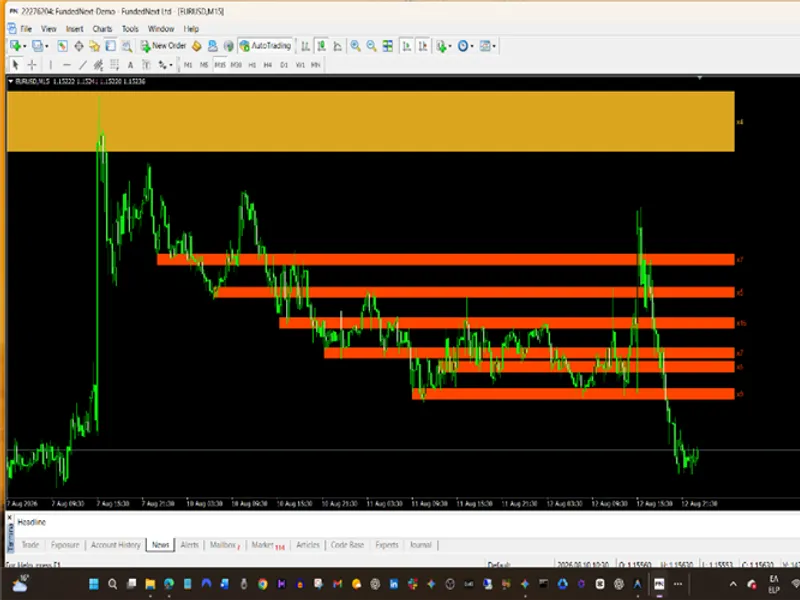
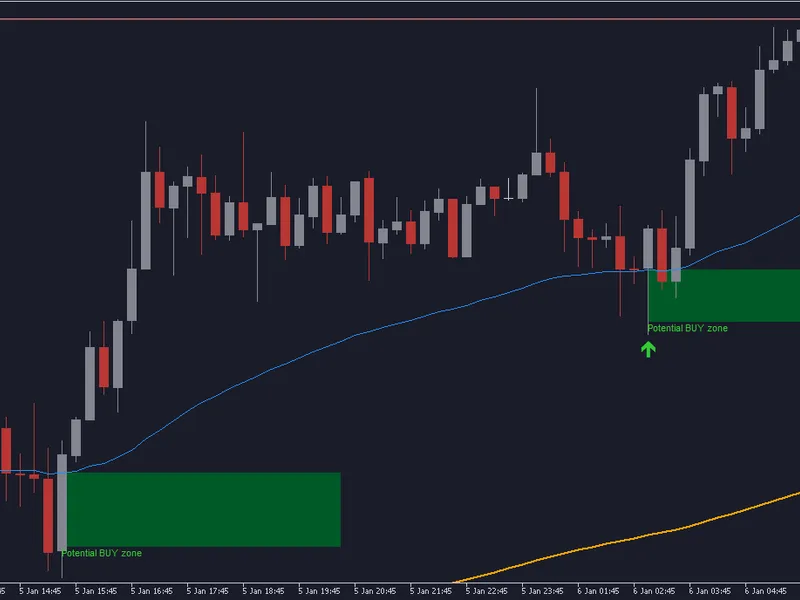
The SR Zone Scanner for MetaTrader 5 is a Indicator for MetaTrader 5 that sr zone scanner automatically detects and draws supply & demand zones from multiple timeframes directly on your chart — no manual drawing, no guesswork. See exactly where price has reacted before, how strong each level is, and get alerted the moment price approaches a key zone.
Usage
This tool is typically used for enhancing chart analysis and decision making.
Platform
This Indicator works exclusively on MetaTrader 5 (both build 600+ and newer versions).
Setup
Place the downloaded file in MQL5/Indicators folder via File ? Open Data Folder in MetaTrader 5.
How to Install and Use SR Zone Scanner for MetaTrader 5
1. Installation: Place your file in the MQL/Indicators folder via "Open Data Folder" and restart your terminal.
2. Loading: Find the indicator in the Navigator, drag it onto your chart, and configure the input parameters in the popup window.
3. Customization: Press Ctrl+I to open the indicator list, select your tool, and click "Properties" to change colors, levels, or visual styles.
4. Updating: Replace the old file in the Indicators folder with the new version and restart the platform to apply changes.
Frequently Asked Questions
Q: Why is my indicator not showing? A: Verify the file is in the MQL/Indicators folder, or try right-clicking the "Indicators" tree in the Navigator and clicking "Refresh."
Q: Do custom indicators slow down the platform? A: Too many complex indicators can impact performance; remove unused ones via the "Indicator List" (Ctrl+I).
Q: Can I use MT4 indicators on MT5? A: No, MQL4 and MQL5 are distinct languages; ensure the indicator is compiled specifically for your platform version.
What this tool does
SR Zone Scanner automatically detects and draws Supply & Demand zones from multiple timeframes directly on your chart — no manual drawing, no guesswork.
Typical Use Case
This Indicator excels in automated trading and technical analysis on MetaTrader 5.
Compatible Platform & Setup
This Indicator works on MetaTrader 5. Place the file in the MQL5/Indicators folder and restart the terminal.
Description & Settings
Related: Accurate Broker Time Zones and Session Lines for MT4/MT5 - another powerful indicator for MetaTrader 5 traders.
SR Zone Scanner automatically detects and draws Supply & Demand zones from multiple timeframes directly on your chart — no manual drawing, no guesswork. See exactly where price has reacted before, how strong each level is, and get alerted the moment price approaches a key zone.Also recommended: Trend Buy/Sell Zones with Automated Lot Sizing and Risk Panel for MT5 - similar indicator with strong performance on MetaTrader 5.
Built for price action and scalping traders who need clear, objective levels instead of subjective hand-drawn lines.
What it does
- Automatic Multi-Timeframe Zone Detection
The indicator scans up to four timeframes — M15, H1, H4 and D1 — and identifies areas where price has repeatedly reversed. Each zone is built from clustered pivot highs (Supply) or pivot lows (Demand), so you see real structure, not arbitrary lines.
Zones from higher timeframes (H4, D1) are drawn in deeper, more saturated colors — instantly showing you which levels carry more weight, even on a lower timeframe chart like M5.
- Zone Strength Rating
Every zone displays a touch-count label, e.g. H1 [4x] . The more times price has reacted at that level, the stronger and more reliable the zone. Set a minimum touch count so only meaningful zones are drawn — no clutter from single-touch noise.
- Active / Broken Zone Tracking
Zones automatically update their status. Once price closes through a zone, it's marked broken and won't trigger further alerts — keeping your chart and notifications relevant to current price structure.
- Instant Zone Alerts
The moment price approaches or enters a strong zone, you get notified through:
Popup — on-screen alert window
Push notification — straight to your MetaTrader mobile app
Email — sent to your registered MT5 address
Set the alert distance in pips so you're notified just before price reaches the zone — perfect for scalpers who want to be ready for a reaction trade.
- Info Panel
A compact Fox Wave panel shows at a glance:
Nearest Supply zone above price — exact level, touch count, source timeframe, distance in pips
Nearest Demand zone below price — same detail
Active zone count per timeframe (M15 / H1 / H4 / D1)
Key Features
- Scans 4 timeframes simultaneously: M15, H1, H4, D1
- Independent show/hide toggle per timeframe
- Smart pivot clustering — merges nearby touches into one clean zone
- Configurable minimum touch count to filter weak levels
- Automatic broken-zone detection
- Triple alert system: popup + push + email, each switchable independently
- Smart alert reset — no duplicate notifications while price stays in the zone
- Full color customization per timeframe, per zone type (Supply/Demand)
- Lightweight — periodic rescan, no per-tick recalculation load
- Consistent Fox Wave dark panel design
Inputs Reference
Timeframes to Scan
Parameter
Default
Description
UseTF_M15
true
Include M15 in scan
UseTF_H1
true
Include H1 in scan
UseTF_H4
true
Include H4 in scan
UseTF_D1
true
Include D1 in scan
Zone Detection
Parameter
Default
Description
LookbackBars
300
Number of bars scanned per timeframe
MinTouches
2
Minimum pivot touches to form a zone
ZoneWidthPips
8.0
Width of each drawn zone (pips)
MergeDistPips
5.0
Merge pivots closer than this distance
MinBarsBetween
3
Minimum bar separation between touches
Display
Parameter
Default
Description
ShowM15Zones / ShowH1Zones / ShowH4Zones / ShowD1Zones
true
Toggle zones per timeframe
ShowZoneLabels
true
Show touch-count labels on zones
ShowPanel
true
Show the info panel
MaxZonesPerTF
6
Maximum zones drawn per timeframe
Alerts
Parameter
Default
Description
AlertOnZoneEntry
true
Enable zone proximity/entry alerts
AlertPips
2.0
Trigger distance from zone (pips)
AlertPopup
true
On-screen popup alert
AlertPush
true
Push notification to mobile app
AlertEmail
false
Email alert
Colors
Fully independent color control for Supply and Demand zones on every timeframe, plus complete panel color customization.
Panel Position
Parameter
Default
Description
PanelX
15
Horizontal offset from chart edge
PanelY
25
Vertical offset from chart edge
How to set up push notifications
Open MetaTrader 5 on your mobile device
Go to Settings → Messages and copy your MetaQuotes ID
In MT5 desktop: Tools → Options → Notifications
Paste your MetaQuotes ID and enable notifications
Set AlertPush = true in the indicator inputs
Who is it for?
- Price action traders who rely on Support & Resistance but are tired of manually redrawing zones
- Scalpers who want to know instantly when price reaches a key reaction level
- Multi-timeframe traders who want H4/D1 structure visible while trading on M5/M15
- Anyone who wants objective, touch-validated zones instead of subjective lines
Trade with the same higher-timeframe structure that institutional levels are built around — automatically detected, clearly labeled, and impossible to miss thanks to real-time alerts.
Compatibility
Platform: MetaTrader 5
Works on all symbols: Forex pairs, indices, commodities, crypto, metals
Works on any chart timeframe (zones come from M15/H1/H4/D1 regardless of chart period)
No DLL imports required
You may also like: ICT Kill Zones Indicator: Asian, London, New York in New York Time (2026) - excellent alternative for indicator users on MetaTrader 5.
Source Code
#property copyright "RobotFX"
#property link "https://robotfx.org"
#property version   "1.00"
#property description "This code is educational. Feel free to use, modify and upgrade as you wish. Visit ROBOTFX.ORG for professional trading tools"
#property indicator_chart_window
#property indicator_plots 0
input group "TIMEFRAMES TO SCAN"
input bool   UseTF_M15   = true;
input bool   UseTF_H1    = true;
input bool   UseTF_H4    = true;
.......
⚠ Limitations & Risk Warning
- This tool is provided for educational and testing purposes only.
- Past performance does not guarantee future results.
- Trading involves substantial risk of loss. Use on a demo account first.
- Results may vary depending on market conditions, broker, and settings.
- We recommend thorough backtesting and forward testing before using with real funds.