
Day Trader Dashboard for MT4/MT5
Info
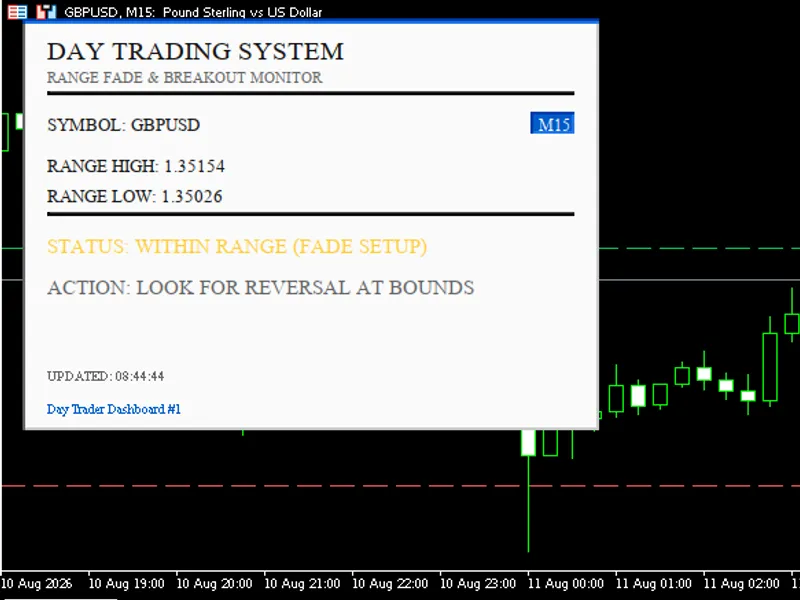
The Day Trader Dashboard for MT4/MT5 is a Indicator for MetaTrader 5 that how it helps in real live tradingremoves manual range-drawing: instead of eyeballing or manually drawing high/low lines every session, the panel calculates and plots them automatically from a configurable lookback. Instant market-state read: at a glance you know whether price is consolidating inside the range (fade opportunity) or has broken out (momentum opportunity) — no need to interpret raw candles.
Usage
This tool is typically used for enhancing chart analysis and decision making.
Platform
This Indicator works exclusively on MetaTrader 5 (both build 600+ and newer versions).
Setup
Place the downloaded file in MQL5/Indicators folder via File ? Open Data Folder in MetaTrader 5.
How to Install and Use Day Trader Dashboard for MT4/MT5
1. Installation: Place your file in the MQL/Indicators folder via "Open Data Folder" and restart your terminal.
2. Loading: Find the indicator in the Navigator, drag it onto your chart, and configure the input parameters in the popup window.
3. Customization: Press Ctrl+I to open the indicator list, select your tool, and click "Properties" to change colors, levels, or visual styles.
4. Updating: Replace the old file in the Indicators folder with the new version and restart the platform to apply changes.
Frequently Asked Questions
Q: Why is my indicator not showing? A: Verify the file is in the MQL/Indicators folder, or try right-clicking the "Indicators" tree in the Navigator and clicking "Refresh."
Q: Do custom indicators slow down the platform? A: Too many complex indicators can impact performance; remove unused ones via the "Indicator List" (Ctrl+I).
Q: Can I use MT4 indicators on MT5? A: No, MQL4 and MQL5 are distinct languages; ensure the indicator is compiled specifically for your platform version.
What this tool does
How it helps in real live tradingRemoves manual range-drawing: instead of eyeballing or manually drawing High/Low lines every session, the panel calculates and plots them automatically from a configurable lookback.
Typical Use Case
This Indicator excels in automated trading and technical analysis on MetaTrader 5.
Compatible Platform & Setup
This Indicator works on MetaTrader 5. Place the file in the MQL5/Indicators folder and restart the terminal.
Description & Settings
Related: Failed Breakout Detector: Identifying Trapped Traders - another powerful indicator for MetaTrader 5 traders.
How it helps in real live tradingAlso recommended: Spread Monitor Indicator for MetaTrader 5 - similar indicator with strong performance on MetaTrader 5.
Removes manual range-drawing: instead of eyeballing or manually drawing High/Low lines every session, the panel calculates and plots them automatically from a configurable lookback.
Instant market-state read: at a glance you know whether price is consolidating inside the range (fade opportunity) or has broken out (momentum opportunity) — no need to interpret raw candles.
Visual confirmation on the chart itself: the High/Low lines plus optional price tags mean you don't have to keep glancing at the panel text — the levels are right where price action is happening.
Multi-timeframe context: since you can run several instances with different lookbacks/timeframes at once, you can confirm setups across timeframes without switching charts.
Lightweight and stable: updates run on a timer (not on every tick) with no heavy recalculation, so it won't slow down the terminal even running continuously through a session.
Input explanations
Input What it does
Instance ID Identifies each copy of the panel; if the requested ID is already taken on the chart, the indicator automatically assigns the next free one
Range lookback (bars) Number of past bars used to compute the Range High and Low
Breakout confirmation buffer (points) How many points price must exceed the range by before it's counted as a real breakout (filters out noise/false breaks)
Panel refresh interval How often (in seconds) the panel data updates
Color theme Visual theme, chosen from a dropdown (6 presets)
Base text size Base font size for the panel
Auto-scale panel Automatically resizes the panel to fit the longest text string
Extra scale multiplier Additional manual scaling factor on top of auto-scale
Show panel Shows/hides the panel
Panel corner Anchor corner: Top Left, Top Right, Bottom Left, Bottom Right
Horizontal/Vertical offset Distance from the chosen corner, in pixels
Draw range lines on chart Toggles the High/Low horizontal lines on the price chart
Range line style Solid / Dash / Dot / Dash-Dot
Range line width Thickness of the range lines
Show floating price tags Displays the price value next to each range line
A few real trading methods
Fade the range — when status shows "WITHIN RANGE": wait for price to tag the High or Low line on the chart, look for a rejection signal (pin bar, long wick), then trade back toward the middle of the range with a stop just beyond the line.
Trade the breakout — when status flips to "BULLISH/BEARISH BREAKOUT": enter in the direction of the break right after confirmation (the buffer filters out minor false breaks), with a stop back inside the broken range level.
Opening Range Breakout (ORB) — set a small lookback (10–15 bars) right at session open to define the opening range; the first confirmed breakout from that range is often a strong signal for a directional day.
Multi-timeframe confluence — run two instances with different IDs: one on H1 for the daily range, one on M15 for shorter-term ranges; only take the trade when both show a breakout in the same direction.
You may also like: Enhanced Spread Monitor for MetaTrader 5 - excellent alternative for indicator users on MetaTrader 5.
Source Code
#property copyright "RobotFX"
#property link "https://robotfx.org"
#property version   "2.10"
#property strict
#property indicator_chart_window
#property indicator_plots 0
#property description "This code is educational. Feel free to use, modify and upgrade as you wish. Visit ROBOTFX.ORG for professional trading tools"
enum ENUM_COLOR_THEME
  {
   THEME_BLOOMBERG_BLACK,
.......
⚠ Limitations & Risk Warning
- This tool is provided for educational and testing purposes only.
- Past performance does not guarantee future results.
- Trading involves substantial risk of loss. Use on a demo account first.
- Results may vary depending on market conditions, broker, and settings.
- We recommend thorough backtesting and forward testing before using with real funds.