






GM Matrix Monitor: Read-Only EA Risk Dashboard
Info
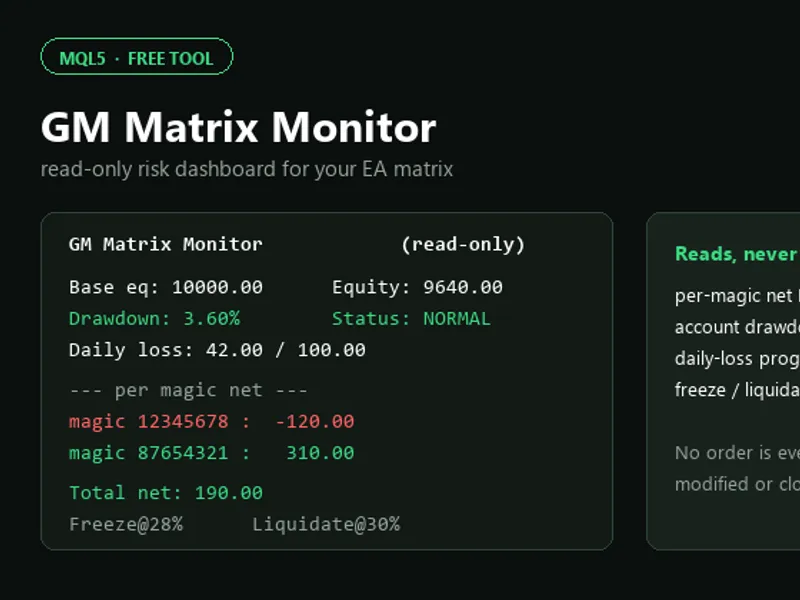
The GM Matrix Monitor: Read-Only EA Risk Dashboard is a Expert Advisor for MetaTrader 5 that gm matrix monitor is a read-only dashboard designed to monitor a multi-ea account without requiring constant checks of the trading terminal. Key Features- Per-Magic Number Net Profit/Loss: Displays the running result for each EA, identified by its magic number.
Usage
This tool is typically used for automated trading on major forex pairs and gold.
Platform
This Expert Advisor works exclusively on MetaTrader 5 (both build 600+ and newer versions).
Setup
Place the downloaded file in MQL5/Experts folder via File ? Open Data Folder in MetaTrader 5.
How to Install and Use GM Matrix Monitor: Read-Only EA Risk Dashboard
1. Installation: Open the "File" menu, select "Open Data Folder," navigate to MQL/Experts, paste your file, and restart the terminal.
2. Activation: Drag the EA from the Navigator onto a chart, ensure "Allow live trading" is checked in the Common tab, and verify the AutoTrading button is green.
3. Optimization: Right-click your chart, choose "Expert List," click "Properties" to adjust inputs, and save your preferred setup as a set file for future use.
4. Maintenance: Regularly check the "Experts" tab in the terminal window to monitor trade logs and potential execution errors.
Frequently Asked Questions
Q: Why is my EA not opening trades? A: Check the "AutoTrading" button, ensure "Allow live trading" is enabled, and verify your broker allows automated trading on your account type.
Q: Can I run multiple EAs on one chart? A: No, each chart can only host one active EA; however, you can open multiple charts for different currency pairs to run several EAs.
Q: What does the "smiley face" icon mean? A: A smiley face in the top-right corner of the chart indicates the EA is successfully running; a frowny face means it is disabled.
What this tool does
GM Matrix Monitor is a read-only dashboard designed to monitor a multi-EA account without requiring constant checks of the trading terminal.
Typical Use Case
This Expert Advisor excels in automated trading and technical analysis on MetaTrader 5.
Compatible Platform & Setup
This Expert Advisor works on MetaTrader 5. Place the file in the MQL5/Experts folder and restart the terminal.
Description & Settings
Related: Matrix Manual - another powerful expert for MetaTrader 5 traders.
GM Matrix Monitor is a read-only dashboard designed to monitor a multi-EA account without requiring constant checks of the trading terminal.Also recommended: KCI N-Matrix Engine: Advanced Trading Framework for MetaTrader 5 - similar expert with strong performance on MetaTrader 5.
Key Features
- Per-Magic Number Net Profit/Loss: Displays the running result for each EA, identified by its magic number. This includes closed deals and open floating profit, all in a single column.
- Real-Time Account Drawdown: Monitors the current equity in relation to a specified reference balance, showing the drawdown percentage. This helps users stay aware of their proximity to risk limits.
- Daily Loss Breaker Progress: Tracks realized losses from the start of the trading day and compares them against a defined daily loss limit, similar to a daily loss cap.
- Freeze / Liquidation Proximity Alerts: Allows users to set two threshold percentages (e.g., -28% freeze, -30% liquidate). The panel visually indicates proximity to these levels by changing color (orange then red).
- Fully Configurable: Magic numbers and all risk thresholds are user-configurable inputs, allowing the tool to be tailored to specific EAs and risk management strategies.
- Read-Only by Design: The tool exclusively reads account history and open positions. It does not send, modify, or close any orders.
How to Use
1. Attach the panel to any chart.
2. Set the 'InpMagics' input parameter to the magic numbers of the EAs you wish to monitor, separated by commas.
3. Set 'InpBaseEquity' as the drawdown reference. If left at 0, the current account balance will be used.
4. Configure 'InpFreezePct', 'InpLiquidPct', and 'InpDailyLoss' according to your risk management limits.
5. Monitor the panel display: Green indicates normal operation, orange signifies the freeze zone, and red indicates the liquidation zone.
6. Always test on a demo account first.
Important Notes
- This is a monitoring tool. It displays data but does not execute trades and cannot independently protect an account.
- Drawdown calculations are based on the reference equity set by the user. An incorrect reference value will lead to inaccurate percentage readings.
- Strategy-specific states (e.g., 'volatile / calm tier') are managed internally by the EA and are not read by this panel. The panel focuses on account-level risk exposure.
- No trading results are guaranteed.
---
Custom Tool Development Needs?
I offer custom Expert Advisor, indicator, and chart panel development for MT4/MT5.
Free tools are available here. Custom development projects are quoted with a fixed price and a guaranteed delivery date.
Contact me via my profile or send a private message.
You may also like: hon matrix pro - excellent alternative for expert users on MetaTrader 5.
Source Code
#property copyright "RobotFX"
#property link "https://robotfx.org"
#property version   "1.00"
#property description "This code is educational. Feel free to use, modify and upgrade as you wish. Visit ROBOTFX.ORG for professional trading tools"
input string  InpMagics     = "20250001,20250937";
input double  InpBaseEquity = 0.0;
input double  InpFreezePct  = 28.0;
input double  InpLiquidPct  = 30.0;
input double  InpDailyLoss  = 100.0;
input int     InpRefreshMs  = 500;
.......
⚠ Limitations & Risk Warning
- This tool is provided for educational and testing purposes only.
- Past performance does not guarantee future results.
- Trading involves substantial risk of loss. Use on a demo account first.
- Results may vary depending on market conditions, broker, and settings.
- We recommend thorough backtesting and forward testing before using with real funds.