




Analog Clock
Info
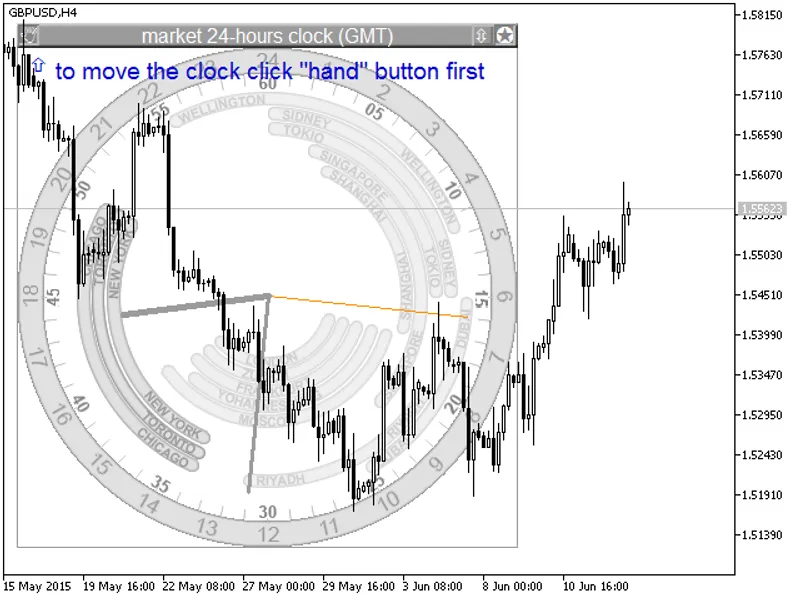
The Analog Clock is a Indicator for MetaTrader 5 that 24-hour analog gmt(utc) market clock displaying in the background. The clock shows the Greenwich Mean Time and the status of major stock exchanges according to their schedules.
Usage
This tool is typically used for enhancing chart analysis and decision making.
Platform
This Indicator works exclusively on MetaTrader 5 (both build 600+ and newer versions).
Setup
Place the downloaded file in MQL5/Indicators folder via File ? Open Data Folder in MetaTrader 5.
How to Install and Use Analog Clock
1. Installation: Place your file in the MQL/Indicators folder via "Open Data Folder" and restart your terminal.
2. Loading: Find the indicator in the Navigator, drag it onto your chart, and configure the input parameters in the popup window.
3. Customization: Press Ctrl+I to open the indicator list, select your tool, and click "Properties" to change colors, levels, or visual styles.
4. Updating: Replace the old file in the Indicators folder with the new version and restart the platform to apply changes.
Frequently Asked Questions
Q: Why is my indicator not showing? A: Verify the file is in the MQL/Indicators folder, or try right-clicking the "Indicators" tree in the Navigator and clicking "Refresh."
Q: Do custom indicators slow down the platform? A: Too many complex indicators can impact performance; remove unused ones via the "Indicator List" (Ctrl+I).
Q: Can I use MT4 indicators on MT5? A: No, MQL4 and MQL5 are distinct languages; ensure the indicator is compiled specifically for your platform version.
What this tool does
24-hour analog GMT(UTC) market clock displaying in the background.
Typical Use Case
This Indicator excels in automated trading and technical analysis on MetaTrader 5.
Compatible Platform & Setup
This Indicator works on MetaTrader 5. Place the file in the MQL5/Indicators folder and restart the terminal.
Description & Settings
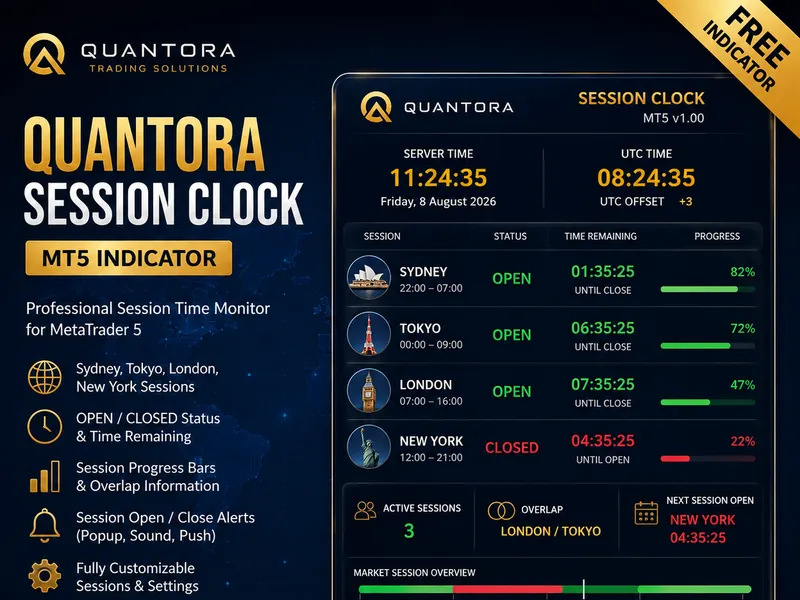
Related: Quantora Session Clock MT5 - Professional Forex Trading Session Monitor - another powerful indicator for MetaTrader 5 traders.
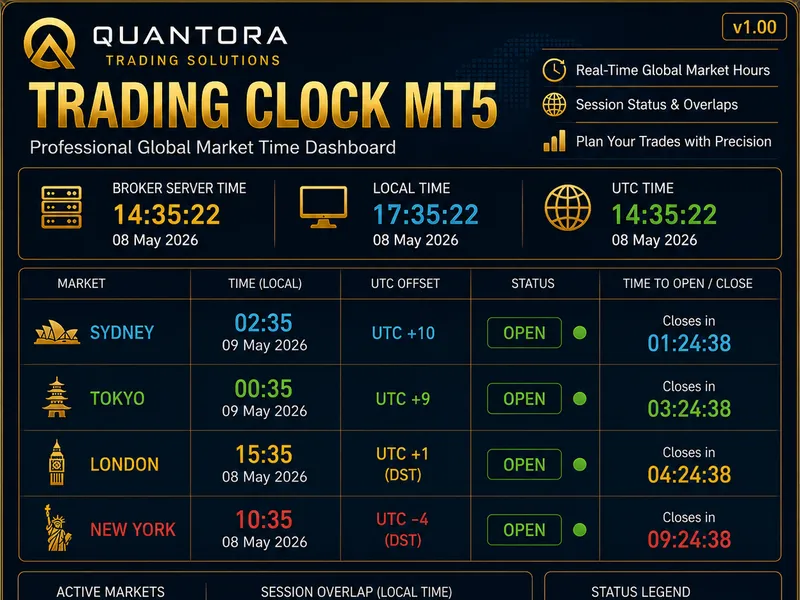
24-hour analog GMT(UTC) market clock displaying in the background.Also recommended: Quantora Trading Clock MT5: Professional Global Market Time Dashboard - similar indicator with strong performance on MetaTrader 5.
The clock shows the Greenwich Mean Time and the status of major stock exchanges according to their schedules.
It displays the following stock exchanges:
- Tokyo
- Singapore
- Shanghai
- Dubai
- Moscow
- Johannesburg
- London
- Zurich
- Frankfurt
- Riyadh
- New York
- Toronto
- Chicago
- Wellington
- Sidney
Daylight Saving/Standard Time transitions:
- Second Sunday in March: New York, Toronto, Chicago transition to Daylight Saving Time.
- Last Sunday in March: London, Zurich, Frankfurt transition to Daylight Saving Time.
- First Sunday in April: Wellington, Sidney transition to Standard Time.
- Last Sunday in September: Wellington transitions to Daylight Saving Time.
- First Sunday in October: Sidney transitions to Daylight Saving Time.
- Last Sunday in October: London, Zurich, Frankfurt transition to Standard Time.
- First Sunday in November: New York, Toronto, Chicago transition to Standard Time.
Stock exchange working hours in GMT (information from stocktime.ru):
- Tokyo: Open — 0:00, Close — 6:00.
- Singapore: Open — 1:00, Close — 9:00.
- Shanghai: Open — 1:30, Close — 7:00.
- Dubai: Open — 6:00, Close — 10:00.
- Moscow: Open — 6:00, Close — 14:45.
- Johannesburg: Open — 7:00, Close — 15:00.
- Riyadh: Open — 8:00, Close — 12:30.
- London, Zurich, Frankfurt: Standard Time — Open 8:00, Close 16:30; Daylight Saving Time — Open 7:00, Close 15:30.
- New York, Toronto, Chicago: Standard Time — Open 14:30, Close 21:00; Daylight Saving Time — Open 13:30, Close 20:00.
- Wellington: Standard Time — Open 22:00, Close 04:45; Daylight Saving Time — Open 21:00, Close 03:45.
- Sidney: Standard Time — Open 00:00, Close 06:00; Daylight Saving Time — Open 23:00, Close 05:00.
The clock offers two color schemes for white and black chart backgrounds. You can customize the second hand color and style in the settings.
Button Actions:
- Move
- Bring to Front
- Hide (Move function is disabled in hidden state)
Demo Mode: Allows you to display opening and closing hours for any date.
Files Location:
The clockanalog.zip archive contains BMP images. Extract it to the /images folder, maintaining the folder structure. The /images/clockanalog folder should contain sub-folders: /104 (32 files), /110 (36 files), /111 (34 files), /203 (36 files), /403 (36 files), /409 (32 files), and 5 BMP files in /images/clockanalog.
Place MQH files in /include/clockanalog.
You can put clockanalog.mq4 in any indicator folder, e.g., /indicators/my.
You may also like: Clock (Spread) Indicator for MT5 - excellent alternative for indicator users on MetaTrader 5.
Source Code
#property copyright "robotfx"
#property link "https://robotfx.org"
#property version   "1.00"
#property indicator_chart_window
#property strict
#property indicator_buffers 1
#property indicator_plots 1
#include <clockanalog\cstockclock.mqh>
input string comment0="position";
input int topleft=10;                  // left position
.......
⚠ Limitations & Risk Warning
- This tool is provided for educational and testing purposes only.
- Past performance does not guarantee future results.
- Trading involves substantial risk of loss. Use on a demo account first.
- Results may vary depending on market conditions, broker, and settings.
- We recommend thorough backtesting and forward testing before using with real funds.