




Server Clock and Daily Reset Hour: Understanding Your Broker's Time
Info
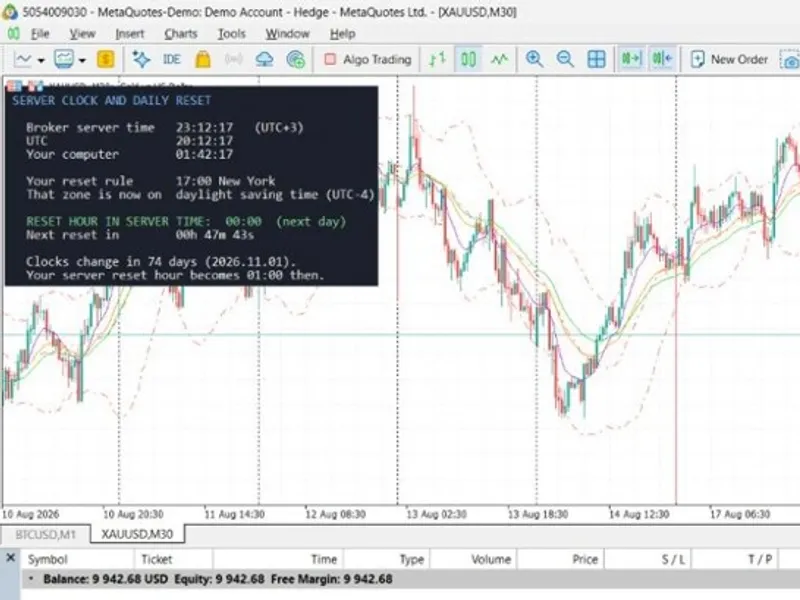
The Server Clock and Daily Reset Hour: Understanding Your Broker's Time is a Expert Advisor for MetaTrader 5 that server clock and daily reset hour is a read-only chart panel designed to clarify a critical question for traders: at what hour, according to your broker's server time, does your trading day officially reset. Proprietary trading firms and funded account providers often establish rules based on time zones that may differ from your own and your broker's.
Usage
This tool is typically used for automated trading on major forex pairs and gold.
Platform
This Expert Advisor works exclusively on MetaTrader 5 (both build 600+ and newer versions).
Setup
Place the downloaded file in MQL5/Experts folder via File ? Open Data Folder in MetaTrader 5.
How to Install and Use Server Clock and Daily Reset Hour: Understanding Your Broker's Time
1. Installation: Open the "File" menu, select "Open Data Folder," navigate to MQL/Experts, paste your file, and restart the terminal.
2. Activation: Drag the EA from the Navigator onto a chart, ensure "Allow live trading" is checked in the Common tab, and verify the AutoTrading button is green.
3. Optimization: Right-click your chart, choose "Expert List," click "Properties" to adjust inputs, and save your preferred setup as a set file for future use.
4. Maintenance: Regularly check the "Experts" tab in the terminal window to monitor trade logs and potential execution errors.
Frequently Asked Questions
Q: Why is my EA not opening trades? A: Check the "AutoTrading" button, ensure "Allow live trading" is enabled, and verify your broker allows automated trading on your account type.
Q: Can I run multiple EAs on one chart? A: No, each chart can only host one active EA; however, you can open multiple charts for different currency pairs to run several EAs.
Q: What does the "smiley face" icon mean? A: A smiley face in the top-right corner of the chart indicates the EA is successfully running; a frowny face means it is disabled.
What this tool does
Server Clock and Daily Reset Hour is a read-only chart panel designed to clarify a critical question for traders: at what hour, according to your broker's server time, does your trading day officially reset.
Typical Use Case
This Expert Advisor excels in automated trading and technical analysis on MetaTrader 5.
Compatible Platform & Setup
This Expert Advisor works on MetaTrader 5. Place the file in the MQL5/Experts folder and restart the terminal.
Description & Settings
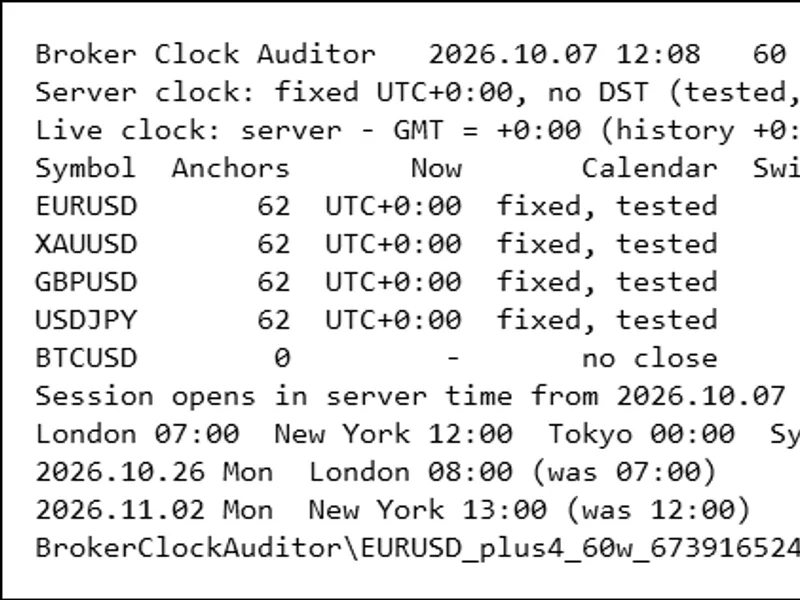
Related: Broker Clock Auditor: Accurately Track Server Time and Daylight Saving Shifts - another powerful expert for MetaTrader 5 traders.
Server Clock and Daily Reset Hour is a read-only chart panel designed to clarify a critical question for traders: at what hour, according to your broker's server time, does your trading day officially reset?Also recommended: loong clock indicator - similar expert with strong performance on MetaTrader 5.
Proprietary trading firms and funded account providers often establish rules based on time zones that may differ from your own and your broker's. A rule stating that the day resets at 5:00 PM New York time requires conversion to your broker's server time to be practically useful. This conversion is complicated by the twice-yearly daylight saving time shifts, which alter the effective reset hour. Incorrectly managing this can lead to inaccurate tracking of daily trading performance, as your metrics may be calculated from the wrong starting point.
Panel Features
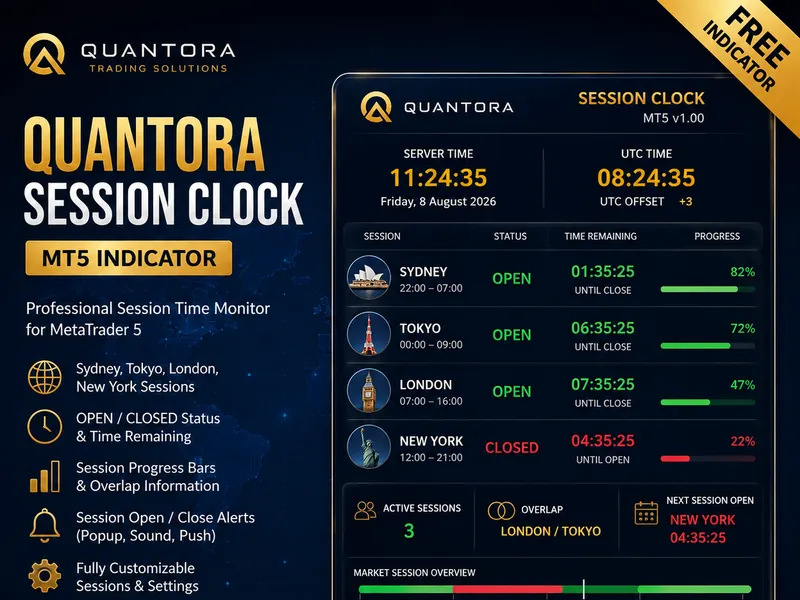
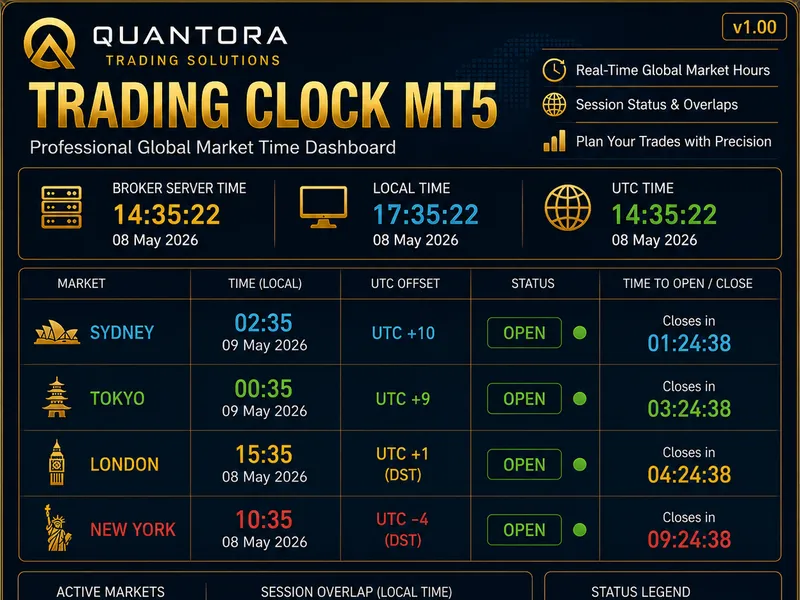
- Displays broker server time, updating every second, with automatic detection of the server's UTC offset.
- Shows current UTC time and your computer's local time side-by-side for easy comparison.
- Displays your entered firm's reset rule and its specified time zone.
- Indicates whether the specified time zone is currently observing standard time or daylight saving time.
- Calculates and shows the reset hour converted into your broker's server time.
- Provides a live countdown to the next trading day reset.
- Alerts you in advance of upcoming daylight saving changes and shows the new reset hour after the shift.
User Inputs
- ResetZone: Specifies the time zone of your firm's rule (e.g., New York, Chicago, London, Frankfurt, UTC, or a custom fixed offset).
- ResetHour / ResetMinute: Sets the reset hour and minute in the specified ResetZone, as defined by your firm (e.g., 17:00).
- CustomZoneOffsetMinutes: Used only when ResetZone is set to Custom.
- AutoDetectServerOffset: Automatically determines the broker server's UTC offset (recommended, enabled by default).
- ManualServerOffsetMinutes: Used only if AutoDetectServerOffset is disabled.
- Panel position, font size, and color settings for display customization.
Purpose of the Tool
For traders operating under proprietary firm or funded account conditions, the daily reset boundary is a fundamental aspect of trading. This tool addresses a common source of confusion by accurately converting a firm's reset time rule into your trading terminal's operational time, while also accounting for the semi-annual daylight saving adjustments.
Technical Specifications
This tool is for display purposes only. It does not send any orders, nor does it read any account, order, or position data. It is compatible with any trading symbol and timeframe on the MetaTrader 5 platform. It was last updated in 2026.
You may also like: DDE Server for MT4/MT5 - excellent alternative for expert users on MetaTrader 5.
Source Code
#property copyright "RobotFX"
#property version   "1.00"
#property strict
#property description "This code is educational. Feel free to use, modify and upgrade as you wish. Visit ROBOTFX.ORG for professional trading tools"
enum ENUM_RESET_ZONE
  {
   ZONE_NEW_YORK = 0,
   ZONE_CHICAGO  = 1,
   ZONE_LONDON   = 2,
   ZONE_FRANKFURT= 3,
.......
⚠ Limitations & Risk Warning
- This tool is provided for educational and testing purposes only.
- Past performance does not guarantee future results.
- Trading involves substantial risk of loss. Use on a demo account first.
- Results may vary depending on market conditions, broker, and settings.
- We recommend thorough backtesting and forward testing before using with real funds.