

Trading Panel EA - Enhanced Trade Management
Info
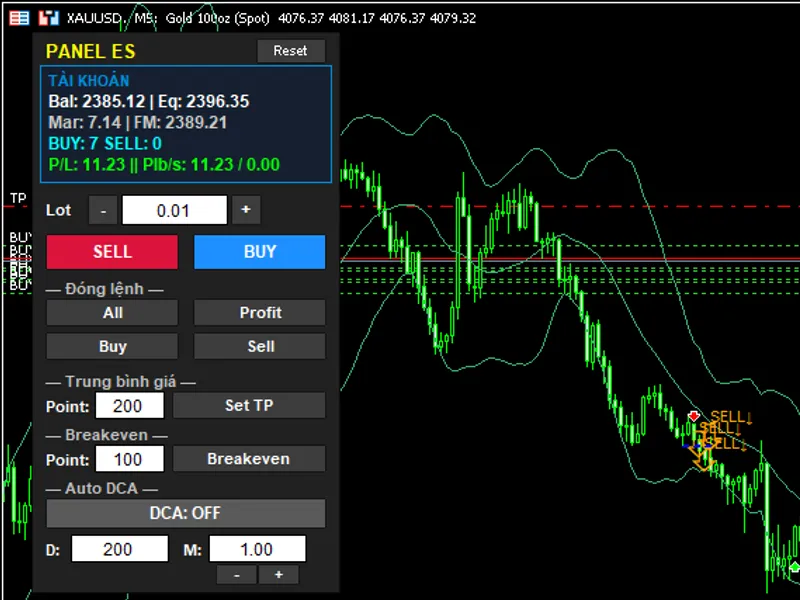
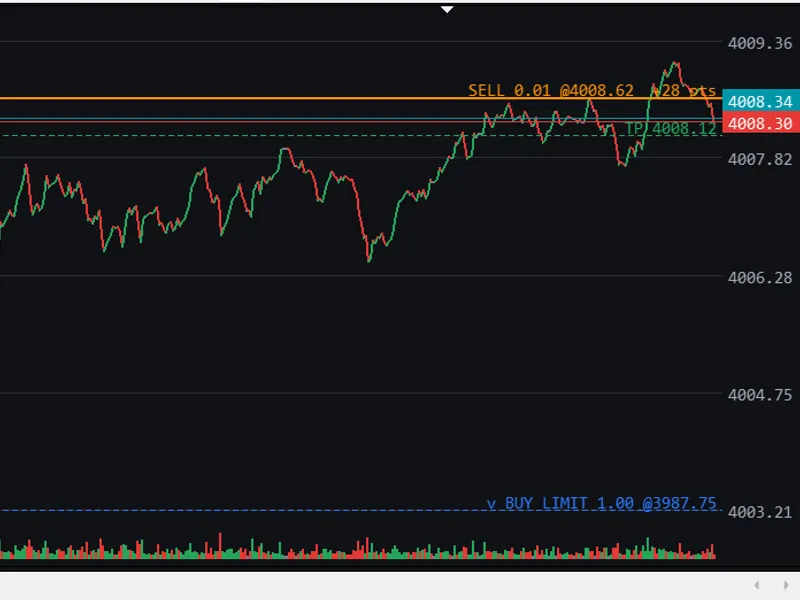
The Trading Panel EA - Enhanced Trade Management is a Expert Advisor for MetaTrader 5 that mini panel managersimplifies trade execution through a user-friendly interface and practical functionalities. Information PanelProvides real-time updates on your account status and all active trading positions.
Usage
This tool is typically used for automated trading on major forex pairs and gold.
Platform
This Expert Advisor works exclusively on MetaTrader 5 (both build 600+ and newer versions).
Setup
Place the downloaded file in MQL5/Experts folder via File ? Open Data Folder in MetaTrader 5.
How to Install and Use Trading Panel EA - Enhanced Trade Management
1. Installation: Open the "File" menu, select "Open Data Folder," navigate to MQL/Experts, paste your file, and restart the terminal.
2. Activation: Drag the EA from the Navigator onto a chart, ensure "Allow live trading" is checked in the Common tab, and verify the AutoTrading button is green.
3. Optimization: Right-click your chart, choose "Expert List," click "Properties" to adjust inputs, and save your preferred setup as a set file for future use.
4. Maintenance: Regularly check the "Experts" tab in the terminal window to monitor trade logs and potential execution errors.
Frequently Asked Questions
Q: Why is my EA not opening trades? A: Check the "AutoTrading" button, ensure "Allow live trading" is enabled, and verify your broker allows automated trading on your account type.
Q: Can I run multiple EAs on one chart? A: No, each chart can only host one active EA; however, you can open multiple charts for different currency pairs to run several EAs.
Q: What does the "smiley face" icon mean? A: A smiley face in the top-right corner of the chart indicates the EA is successfully running; a frowny face means it is disabled.
What this tool does
Mini Panel ManagerSimplifies trade execution through a user-friendly interface and practical functionalities.
Typical Use Case
This Expert Advisor excels in automated trading and technical analysis on MetaTrader 5.
Compatible Platform & Setup
This Expert Advisor works on MetaTrader 5. Place the file in the MQL5/Experts folder and restart the terminal.
Description & Settings
Related: Supertrend Scalper with Breakeven Win Rate Panel - another powerful expert for MetaTrader 5 traders.
Mini Panel ManagerSimplifies trade execution through a user-friendly interface and practical functionalities.
Also recommended: Tick Scalper Helper: Tick Chart and One-Click Trading Panel for MT5 - similar expert with strong performance on MetaTrader 5.
Information Panel
Provides real-time updates on your account status and all active trading positions.
Trading Panel
Features dedicated Buy and Sell buttons with Magic Number support, enabling the Expert Advisor (EA) to accurately identify and manage its trades.
Position Closing Panel
Offers quick actions for efficient closing of specific positions.
Average Take Profit Panel
Enables rapid setting or updating of a Take Profit level, calculated from the average entry price of your open positions.
Break-even Panel
Automatically adjusts open positions to the break-even level once they achieve a predetermined profit target.
Auto Grid Panel
Initiates additional grid or martingale positions automatically when the ON mode is activated.
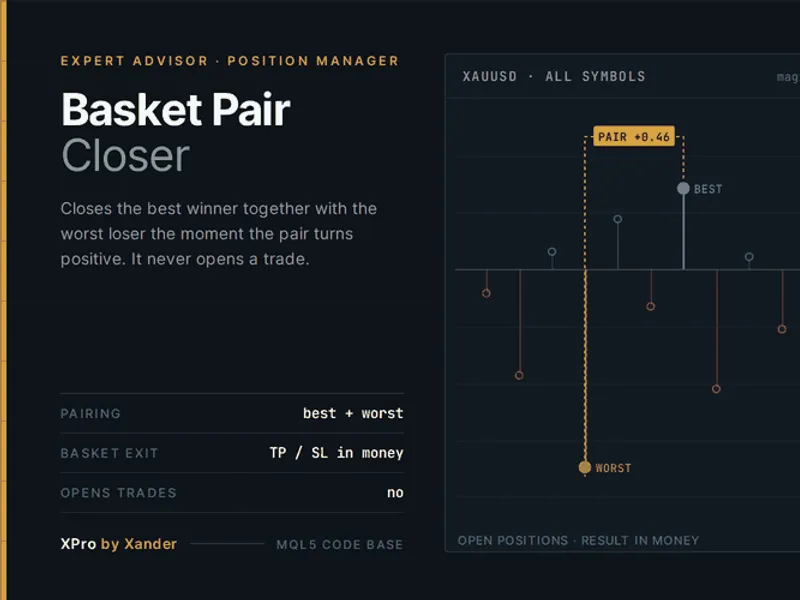
You may also like: Basket Pair Closer: Efficiently Close Trading Positions - excellent alternative for expert users on MetaTrader 5.
Source Code
#property copyright "RobotFX"
#property version   "1.00"
#property description "This code is educational. Feel free to use, modify and upgrade as you wish. Visit ROBOTFX.ORG for professional trading tools"
#include <Trade\Trade.mqh>
CTrade trade;
input group "=== CГ i Д‘бє·t chung ==="
input long   InpMagic          = 20260729;
input int    InpSlippage       = 20;
input group "=== Lot ==="
input double InpLotDefault     = 0.01;
.......
⚠ Limitations & Risk Warning
- This tool is provided for educational and testing purposes only.
- Past performance does not guarantee future results.
- Trading involves substantial risk of loss. Use on a demo account first.
- Results may vary depending on market conditions, broker, and settings.
- We recommend thorough backtesting and forward testing before using with real funds.