
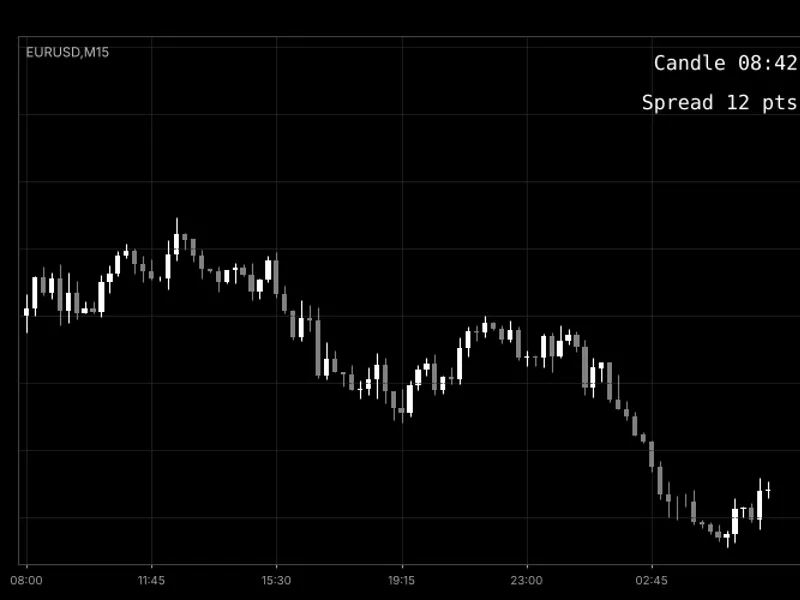
Spread and Slippage Tracker
Info
The Spread and Slippage Tracker is a Expert Advisor for MetaTrader 5 that spread & slippage trackerthe idea behind the toolthis tool addresses two common concerns often grouped as 'broker trouble': wide spreads at the time of trading and fills executed at prices different from the requested price. These are distinct issues, and conflating them hinders accurate identification of cost factors.
Usage
This tool is typically used for automated trading on major forex pairs and gold.
Platform
This Expert Advisor works exclusively on MetaTrader 5 (both build 600+ and newer versions).
Setup
Place the downloaded file in MQL5/Experts folder via File ? Open Data Folder in MetaTrader 5.
How to Install and Use Spread and Slippage Tracker
1. Installation: Open the "File" menu, select "Open Data Folder," navigate to MQL/Experts, paste your file, and restart the terminal.
2. Activation: Drag the EA from the Navigator onto a chart, ensure "Allow live trading" is checked in the Common tab, and verify the AutoTrading button is green.
3. Optimization: Right-click your chart, choose "Expert List," click "Properties" to adjust inputs, and save your preferred setup as a set file for future use.
4. Maintenance: Regularly check the "Experts" tab in the terminal window to monitor trade logs and potential execution errors.
Frequently Asked Questions
Q: Why is my EA not opening trades? A: Check the "AutoTrading" button, ensure "Allow live trading" is enabled, and verify your broker allows automated trading on your account type.
Q: Can I run multiple EAs on one chart? A: No, each chart can only host one active EA; however, you can open multiple charts for different currency pairs to run several EAs.
Q: What does the "smiley face" icon mean? A: A smiley face in the top-right corner of the chart indicates the EA is successfully running; a frowny face means it is disabled.
What this tool does
Spread & Slippage TrackerThe Idea Behind the ToolThis tool addresses two common concerns often grouped as 'broker trouble': wide spreads at the time of trading and fills executed at prices different from the requested price.
Typical Use Case
This Expert Advisor excels in automated trading and technical analysis on MetaTrader 5.
Compatible Platform & Setup
This Expert Advisor works on MetaTrader 5. Place the file in the MQL5/Experts folder and restart the terminal.
Description & Settings
Related: Execution Quality Logger - Monitor Slippage, Fill Delay, and Spread for Every Trade - another powerful expert for MetaTrader 5 traders.
Spread & Slippage TrackerAlso recommended: Spread Session Recorder - similar expert with strong performance on MetaTrader 5.
The Idea Behind the Tool
This tool addresses two common concerns often grouped as 'broker trouble': wide spreads at the time of trading and fills executed at prices different from the requested price. These are distinct issues, and conflating them hinders accurate identification of cost factors. This tool segregates these metrics and quantifies them using real data, not assumptions.
Spread tracking is straightforward: it samples the SYMBOL_SPREAD at every tick, maintaining running minimum, maximum, and average values. These statistics are reset daily to prevent older data, such as quiet trading sessions, from skewing current readings, especially after significant events like Non-Farm Payroll releases.
Slippage tracking is more complex. Slippage data is available only at the moment a trade executes, via the OnTradeTransaction function. This is why the tool is implemented as an Expert Advisor (EA) rather than an indicator. Indicators do not receive trade execution events, making it impossible to observe the difference between the requested order price and the actual fill price. The EA does not place any trades itself; its sole function is to monitor executed trades.
How to Interpret the Data
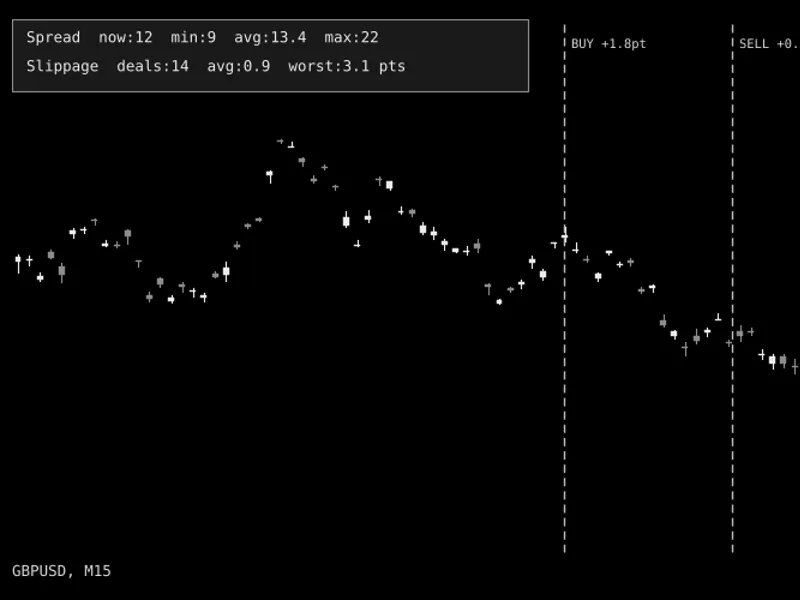
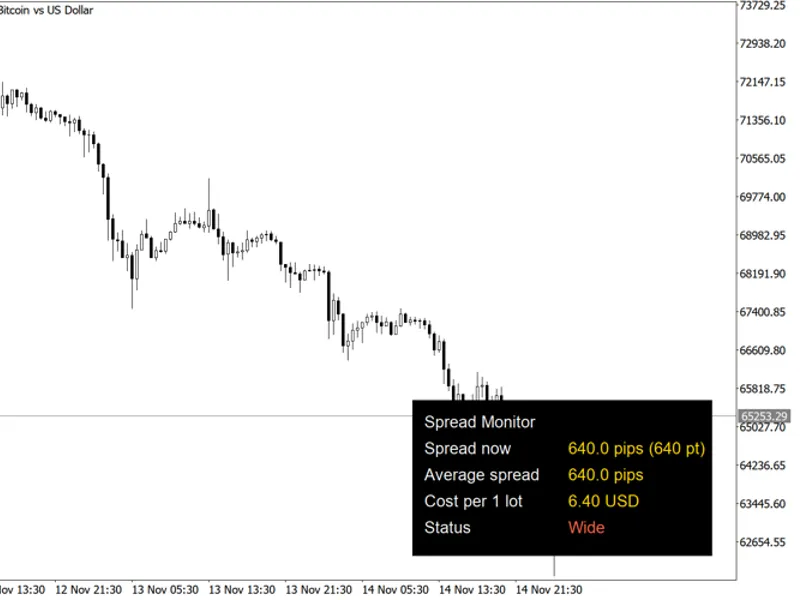
The panel displays spread information on the top line: the current spread in points, followed by the day's minimum, average, and maximum spread recorded so far.
The second line of the panel shows slippage details: the total number of deals tracked since the EA was attached, the average slippage across these deals, and the most adverse slippage encountered.
Slippage is presented with a sign, where a positive value consistently indicates a cost to the trader. This means a higher-than-requested fill price for a buy order, or a lower-than-requested fill price for a sell order, irrespective of the trade direction.
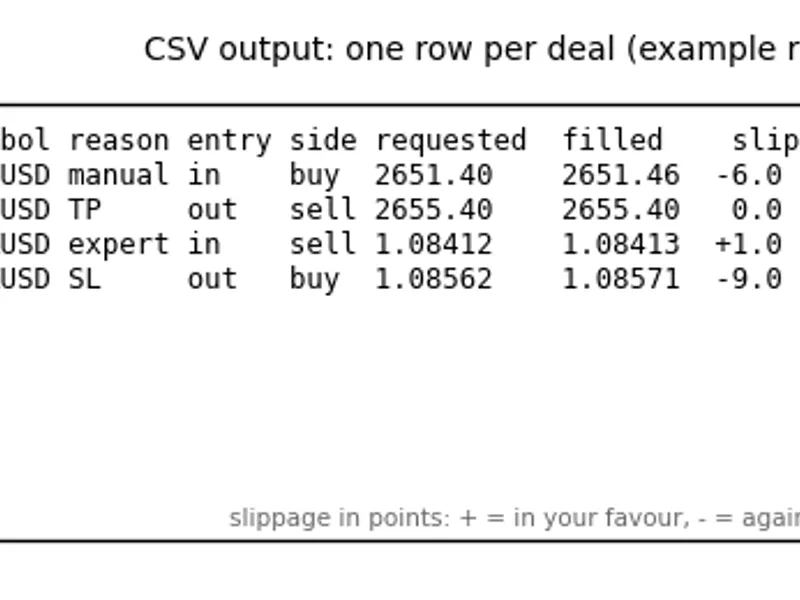
With file logging enabled, each tracked deal is recorded in a CSV file. The log includes the timestamp, symbol, deal ticket, side (buy/sell), requested price, filled price, and slippage in points. This raw data can be used for custom analysis in spreadsheets, allowing for segmentation by time of day, symbol, or broker.
If an alert threshold is set above zero, a single deal with slippage exceeding this threshold will trigger an alert. This alert appears as a one-time entry in the Experts log and a terminal notification at the moment the event occurs, rather than appearing later in the aggregated averages.
External Variables (Inputs)
Input
Default
Purpose
InpResetStatsDaily
true
Resets the minimum, average, and maximum spread statistics at the beginning of each new trading day to ensure that historical data does not influence current readings.
InpTrackAllSymbols
false
Enables tracking of slippage for all symbols traded on the account, not limited to the symbol of the current chart.
InpSlippageAlertPoints
0
Sets the threshold in points for adverse slippage on a single deal that will trigger an immediate alert. A value of 0 disables this alert feature.
InpLogToFile
true
Appends the details of every tracked deal to a CSV log file located in the MQL5\Files\SpreadSlippageTracker\ directory.
InpCorner
CORNER_LEFT_UPPER
Specifies the chart corner to which the readout panel will be anchored.
InpCornerX
20
Sets the horizontal offset in pixels from the selected corner for the panel's position.
InpCornerY
20
Sets the vertical offset in pixels from the selected corner for the panel's position.
Recommended Usage
Attach this EA to any chart on the account you wish to monitor. If InpTrackAllSymbols is enabled, a single instance will cover all symbols traded on the account, regardless of the chart it is attached to.
Spread statistics are inherently per-symbol. If you trade multiple symbols and require separate spread statistics for each, deploy one instance of the EA on the chart for each symbol.
The EA does not place orders or hold positions, thus it does not incur its own margin or stop-out risk. It only reads existing trade history.
Slippage figures are only representative of trades executed while the EA is attached and operational. It does not analyze historical trade data from before its activation.
The tool functions identically across all account types. However, observed slippage can vary significantly based on the execution model. Market-execution accounts may show non-zero slippage in both directions, whereas some instant-execution setups might consistently display near-zero slippage due to their fill matching mechanisms. This difference in observed slippage is itself informative and does not indicate a malfunction of the tool.
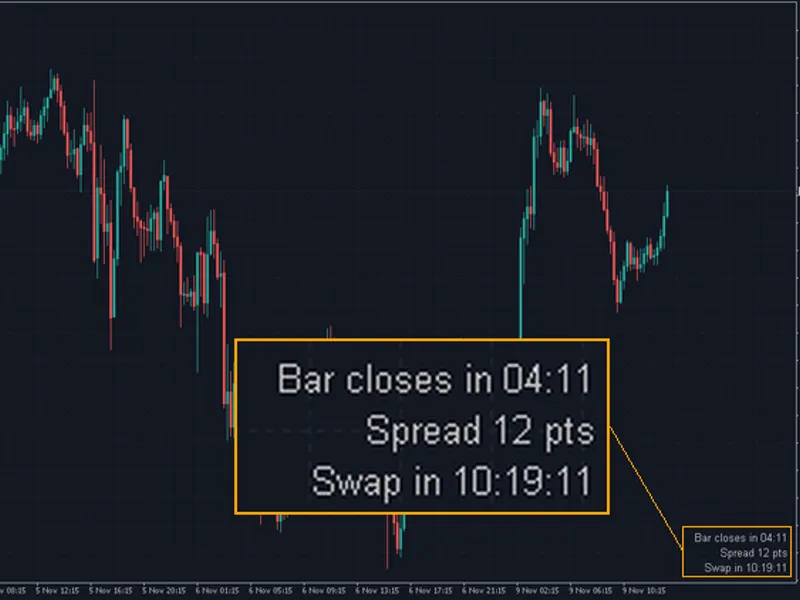
Figure 1. Spread & Slippage Tracker panel displayed on a GBPUSD chart. (Displayed in monochrome as per Code Base image guidelines).
You may also like: Leverage Monitor: Real Leverage, Margin Tiers, Swap, Commission, and Spread - excellent alternative for expert users on MetaTrader 5.
Source Code
#property copyright "RobotFX"
#property link "https://robotfx.org"
#property version   "1.00"
#property description "This code is educational. Feel free to use, modify and upgrade as you wish. Visit ROBOTFX.ORG for professional trading tools"
#property strict
input group "Spread tracking";
input bool InpResetStatsDaily = true;
input group "Slippage tracking";
input bool InpTrackAllSymbols      = false;
input int  InpSlippageAlertPoints  = 0;
.......
⚠ Limitations & Risk Warning
- This tool is provided for educational and testing purposes only.
- Past performance does not guarantee future results.
- Trading involves substantial risk of loss. Use on a demo account first.
- Results may vary depending on market conditions, broker, and settings.
- We recommend thorough backtesting and forward testing before using with real funds.