

Leverage Monitor: Real Leverage, Margin Tiers, Swap, Commission, and Spread
Info
The Leverage Monitor: Real Leverage, Margin Tiers, Swap, Commission, and Spread is a Expert Advisor for MetaTrader 5 that know what your broker is really giving you. Account leverage of 1:500 says little about the leverage you get on each symbol.
Usage
This tool is typically used for automated trading on major forex pairs and gold.
Platform
This Expert Advisor works exclusively on MetaTrader 5 (both build 600+ and newer versions).
Setup
Place the downloaded file in MQL5/Experts folder via File ? Open Data Folder in MetaTrader 5.
How to Install and Use Leverage Monitor: Real Leverage, Margin Tiers, Swap, Commission, and Spread
1. Installation: Open the "File" menu, select "Open Data Folder," navigate to MQL/Experts, paste your file, and restart the terminal.
2. Activation: Drag the EA from the Navigator onto a chart, ensure "Allow live trading" is checked in the Common tab, and verify the AutoTrading button is green.
3. Optimization: Right-click your chart, choose "Expert List," click "Properties" to adjust inputs, and save your preferred setup as a set file for future use.
4. Maintenance: Regularly check the "Experts" tab in the terminal window to monitor trade logs and potential execution errors.
Frequently Asked Questions
Q: Why is my EA not opening trades? A: Check the "AutoTrading" button, ensure "Allow live trading" is enabled, and verify your broker allows automated trading on your account type.
Q: Can I run multiple EAs on one chart? A: No, each chart can only host one active EA; however, you can open multiple charts for different currency pairs to run several EAs.
Q: What does the "smiley face" icon mean? A: A smiley face in the top-right corner of the chart indicates the EA is successfully running; a frowny face means it is disabled.
What this tool does
Know what your broker is really giving you.
Typical Use Case
This Expert Advisor excels in automated trading and technical analysis on MetaTrader 5.
Compatible Platform & Setup
This Expert Advisor works on MetaTrader 5. Place the file in the MQL5/Experts folder and restart the terminal.
Description & Settings
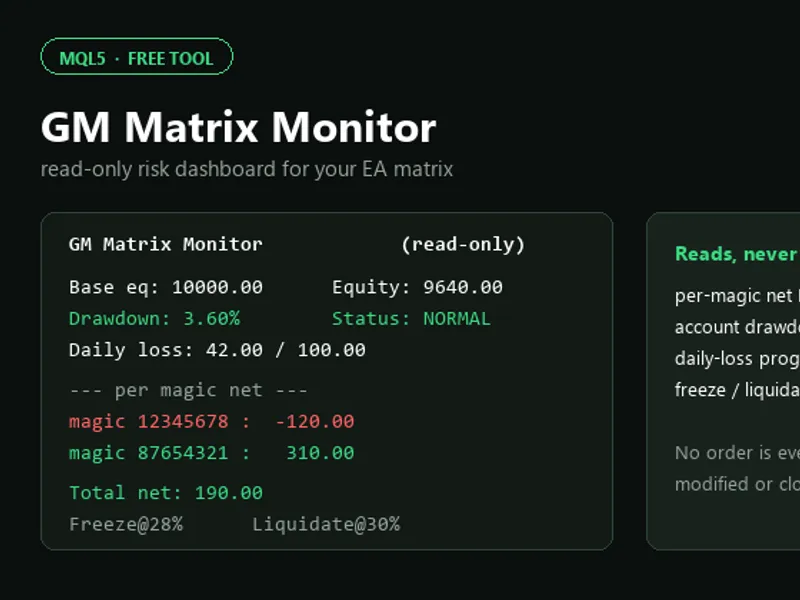
Related: GM Matrix Monitor: Read-Only EA Risk Dashboard - another powerful expert for MetaTrader 5 traders.
Know what your broker is really giving you.Also recommended: forex calculators - similar expert with strong performance on MetaTrader 5.
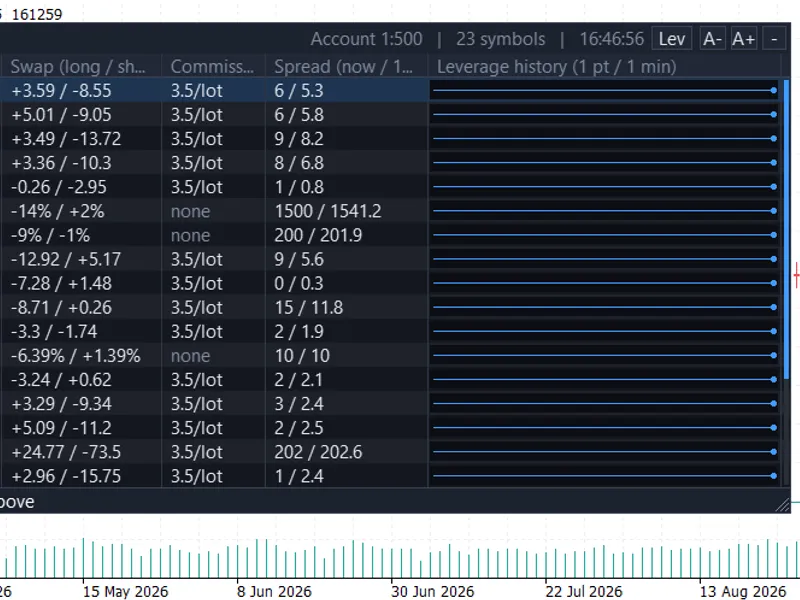
Account leverage of 1:500 says little about the leverage you get on each symbol. Brokers use different margin rates per instrument, and many reduce leverage as position size grows.Leverage Monitor puts the real numbers for every symbol in your Market Watch into one compact panel on your chart.
It is a non-trading tool. It never places, modifies or closes orders.
What you see
Column
What it shows
Symbol
Every symbol in your Market Watch
Type
Margin calculation mode (FX, CFD, INDEX, STOCK, FUT)
Leverage
Effective leverage, coloured green or red when it changes
Tiers (by volume)
Floating margin tiers, e.g. 500 > 200 > 100 , with the volume where each tier starts
Swap (long / short)
Overnight swap from the symbol specification
Commission
Commission rules from the symbol specification
Spread (now / 1h avg)
Current spread and the average of the last hour, in points
History
Mini chart of leverage or spread over time, one point per minute by default
Key features
Tier-aware leverage. Detects floating margin rates and shows the leverage of each volume tier. Hover a row to read the tiers in full on the bottom line.
Specification-based values. Leverage, swap and commission are read from the symbol specification, not guessed from price.
Change tracking. Leverage history is stored per symbol and kept between sessions, so you can see when your broker changed margin requirements.
Spread monitor. Shows current spread against the one-hour average.
Chart switch. One button toggles the history column between leverage and spread.
Tooltips everywhere. Text is never allowed to overlap. Long text is cut with “...” and the full text appears in a tooltip. Swap, commission, spread and history cells give extra detail on hover.
Fully adjustable panel:
Zoom with the A- / A+ buttons
Drag column borders to change widths
Resize with the corner grip
Collapse to the title bar
Sort by symbol or by leverage
Scroll with the mouse wheel
Settings are remembered between sessions.
How leverage is determined
Margin mode
Method
Forex
Account leverage ÷ margin rate
Forex without leverage, CFD, Index, Stocks
1 ÷ margin rate
CFD with leverage
Account leverage ÷ margin rate
Futures
Notional value ÷ initial margin
Tiers
The terminal’s own margin calculation is sampled at growing volumes. The change in margin per lot shows each tier’s leverage.
Requirements
Platform
MetaTrader 5,
recent build
(commission data needs SymbolInfoCommissions )
Type
Expert Advisor. Attach it to its own chart.
Trading
None. The EA does not trade.
DLL / web requests
Not used
Note:
The EA must run as an Expert Advisor because margin calculation is not available to indicators.
Input parameters
Parameter
Default
Description
Panel X / Y offset
10 / 20
Position on the chart
Row height / font size
18 / 8
Base size at zoom 100%
Initial visible rows
0
0 = fit chart height
Column widths
various
Symbol, Type, Leverage, Tiers, Swap, Commission, Spread, History. All can also be dragged.
History chart shows spread
false
Starting mode of the history column
History sample interval
60 s
One chart point per interval
Spec re-check interval
5 s
How often values are refreshed
Tier re-scan interval
600 s
How often margin tiers are re-scanned
Symbols tier-scanned per second
3
Limits CPU load
Max history points
1440
Per symbol (24 h at 1 per minute)
Persist history
true
Keep history between sessions
Colours
dark theme
Background, title, header, border, text, bottom info line, accent, up, down
Good to know
Spread averages and the spread chart start collecting when the EA is attached. The average fills in over the first hour, and spread history is not saved between sessions.
Tier detection depends on what your broker’s server returns for margin calculations. Symbols with a single flat rate show “single tier”.
Values shown are those of the connected account and server.
Quick start
Open a new, empty chart.
Drag Leverage Monitor onto it.
Add the symbols you want to see to your Market Watch.
Hover a row for tiers, and drag the column borders to taste.
Risk notice: This tool displays information only and is not financial advice. Check margin requirements with your broker before trading.
You may also like: Previous Candle Breakdown EA - excellent alternative for expert users on MetaTrader 5.
Source Code
#property copyright "RobotFX"
#property version     "4.30"
#property description "This code is educational. Feel free to use, modify and upgrade as you wish. Visit ROBOTFX.ORG for professional trading tools"
#include <Canvas\Canvas.mqh>
input int      InpCornerX     = 10;
input int      InpCornerY     = 20;
input int      InpRowHeight   = 18;
input int      InpMaxRows     = 0;
input int      InpFontSize    = 8;
input int      InpSymbolColW  = 92;
.......
⚠ Limitations & Risk Warning
- This tool is provided for educational and testing purposes only.
- Past performance does not guarantee future results.
- Trading involves substantial risk of loss. Use on a demo account first.
- Results may vary depending on market conditions, broker, and settings.
- We recommend thorough backtesting and forward testing before using with real funds.