



Safe Risk Manager EA - Daily Loss, Break-Even, and Trailing Stop Management
Info
The Safe Risk Manager EA - Daily Loss, Break-Even, and Trailing Stop Management is a Expert Advisor for MetaTrader 5 that overviewsafe risk manager ea 1. 02 is an educational, manually operated MetaTrader 5 trade panel for hedging accounts.
Usage
This tool is typically used for automated trading on major forex pairs and gold.
Platform
This Expert Advisor works exclusively on MetaTrader 5 (both build 600+ and newer versions).
Setup
Place the downloaded file in MQL5/Experts folder via File ? Open Data Folder in MetaTrader 5.
How to Install and Use Safe Risk Manager EA - Daily Loss, Break-Even, and Trailing Stop Management
1. Installation: Open the "File" menu, select "Open Data Folder," navigate to MQL/Experts, paste your file, and restart the terminal.
2. Activation: Drag the EA from the Navigator onto a chart, ensure "Allow live trading" is checked in the Common tab, and verify the AutoTrading button is green.
3. Optimization: Right-click your chart, choose "Expert List," click "Properties" to adjust inputs, and save your preferred setup as a set file for future use.
4. Maintenance: Regularly check the "Experts" tab in the terminal window to monitor trade logs and potential execution errors.
Frequently Asked Questions
Q: Why is my EA not opening trades? A: Check the "AutoTrading" button, ensure "Allow live trading" is enabled, and verify your broker allows automated trading on your account type.
Q: Can I run multiple EAs on one chart? A: No, each chart can only host one active EA; however, you can open multiple charts for different currency pairs to run several EAs.
Q: What does the "smiley face" icon mean? A: A smiley face in the top-right corner of the chart indicates the EA is successfully running; a frowny face means it is disabled.
What this tool does
OverviewSafe Risk Manager EA 1.
Typical Use Case
This Expert Advisor excels in automated trading and technical analysis on MetaTrader 5.
Compatible Platform & Setup
This Expert Advisor works on MetaTrader 5. Place the file in the MQL5/Experts folder and restart the terminal.
Description & Settings
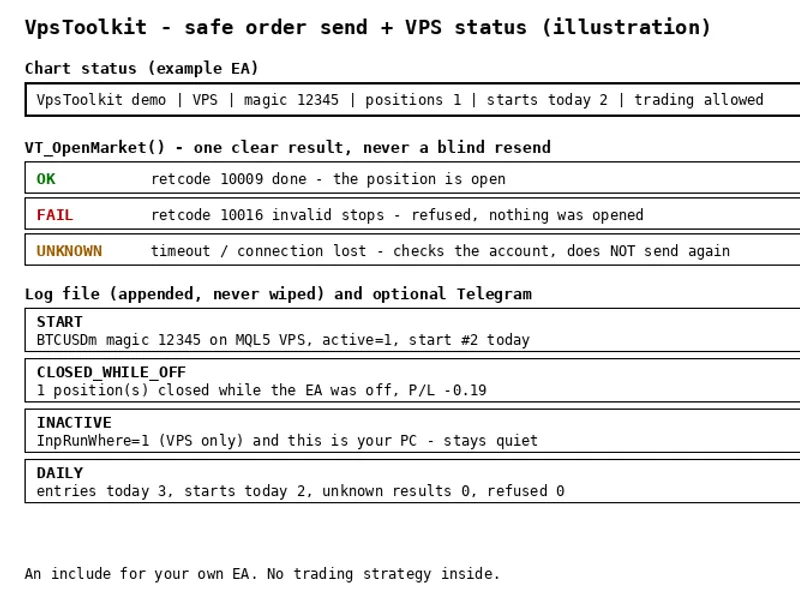
Related: VPS Toolkit: Secure Order Sending and Restart-Safe State for Expert Advisors - another powerful expert for MetaTrader 5 traders.
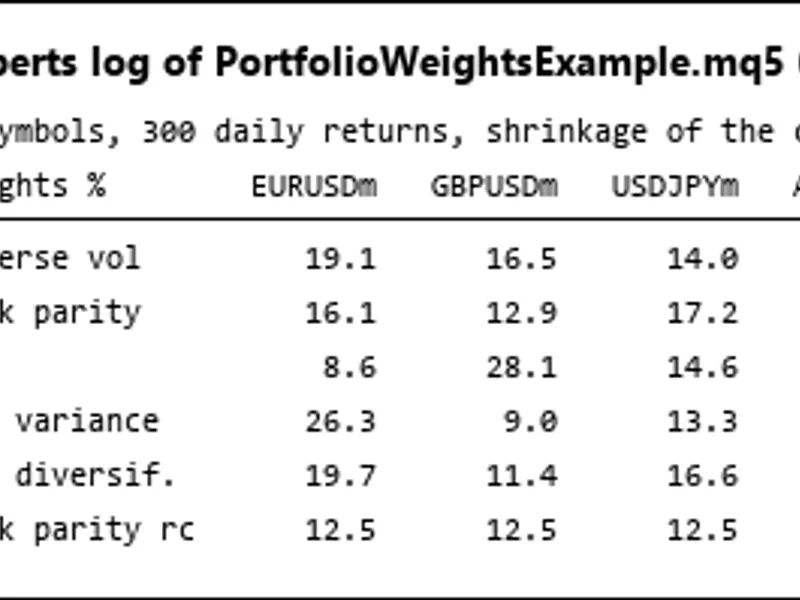
OverviewAlso recommended: Portfolio Weight Calculation: Risk Parity, HRP, Minimum Variance, and Maximum Diversification - similar expert with strong performance on MetaTrader 5.
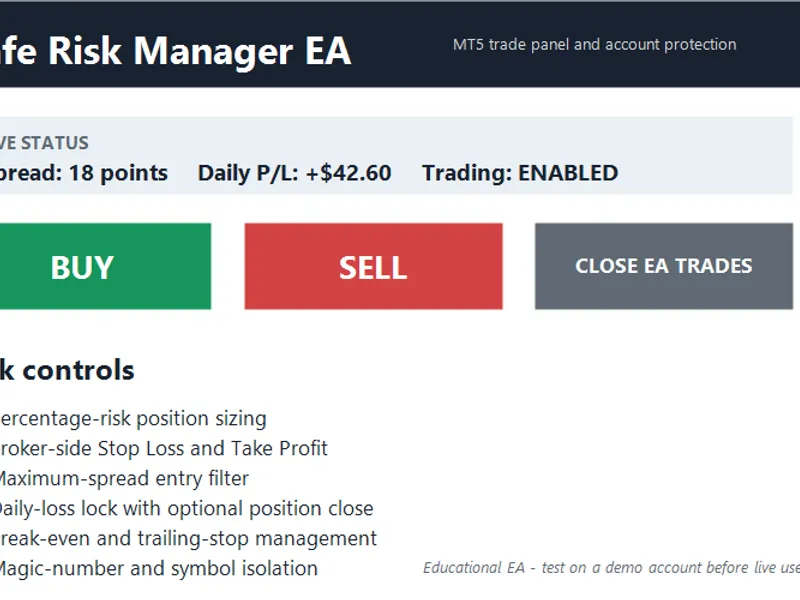
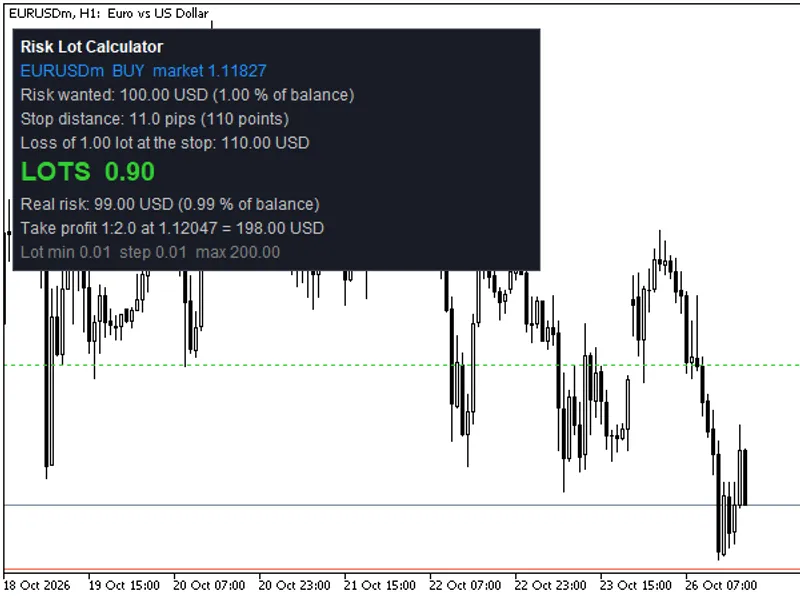
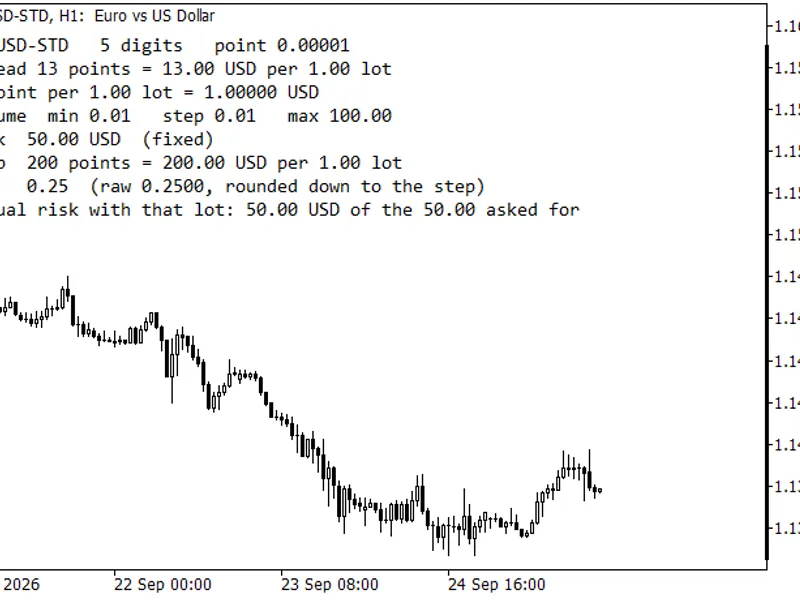
Safe Risk Manager EA 1.02 is an educational, manually operated MetaTrader 5 trade panel for hedging accounts. BUY and SELL buttons initiate market entries with percentage-risk sizing, a broker-side stop loss, and an optional take profit. This tool is not an automated signal strategy and does not guarantee profits or limit maximum losses.
Operation
Entries are blocked if the configured spread is exceeded or the daily loss threshold is reached. The daily loss lock is maintained for the current broker-server day, persisting across EA restarts. Positions associated with the configured magic number on the current chart symbol are managed using break-even and trailing stop logic. The CLOSE EA TRADES function closes these matching positions. The EA rejects netting accounts and rejects trade volumes below the broker's minimum, rather than rounding up beyond the requested risk.
Inputs
InpMagicNumber: A unique identifier for positions; use a distinct value for independent strategies.
InpRiskPercent: The target percentage of account equity allocated for each entry's volume. This is not an account-wide exposure limit.
InpStopLossPoints / InpTakeProfitPoints: Stop loss and optional take profit distances specified in symbol points.
InpMaxSpreadPoints / InpDeviationPoints: The maximum allowable entry spread and the requested execution deviation.
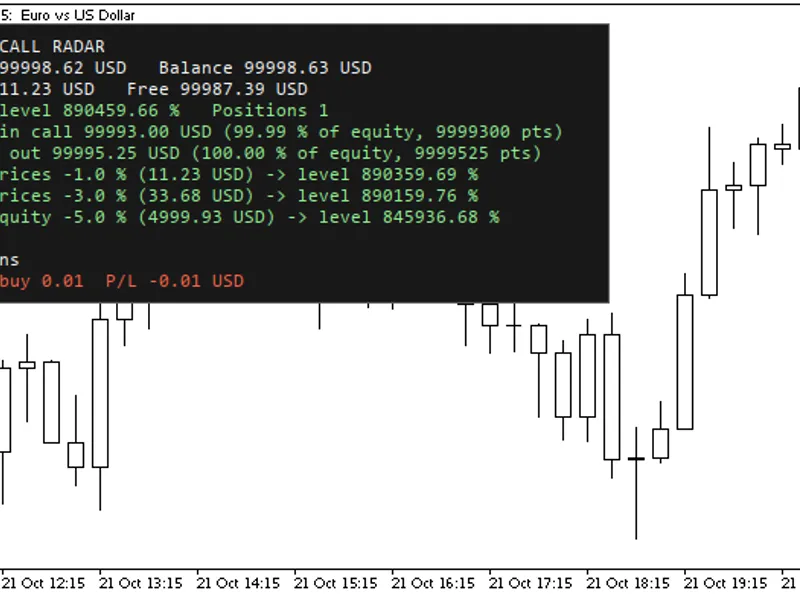
InpDailyLossPercent: The threshold for account trading loss, expressed as a percentage of the current balance.
InpIncludeFloatingPnL: Determines whether to include the account's floating profit and loss in the daily loss calculation.
InpCloseAtDailyLimit: If enabled, requests closure of matching positions when the daily loss lock first activates.
InpUseBreakEven / InpBreakEvenTrigger / InpBreakEvenOffset: Controls for the break-even functionality.
InpUseTrailingStop / InpTrailStartPoints / InpTrailDistance: Controls for the trailing stop functionality.
InpCorner / InpPanelX / InpPanelY: Parameters for positioning the trade panel on the chart.
Installation and Requirements
Place the SafeRiskManagerEA.mq5 file in the MQL5/Experts directory and compile it using MetaEditor with the standard Trade library. Attach the EA to a demo hedging account chart, configure the input parameters, and enable Algo Trading. Netting accounts are not supported because merged netting positions cannot reliably maintain individual ownership. Entries are manual, and position management is driven by tick data. Distances are measured in points, not pips.
Daily Loss Calculation
The calculation for the current broker-server day includes the profit and loss of BUY and SELL deals, swaps, commissions, and fees. Optionally, the account's floating profit and loss can also be included. Balance operations unrelated to trading are excluded. Once the loss threshold is met, a terminal global variable maintains the entry lock for the current server day, even if the EA is restarted. This lock does not affect trades opened manually or by other EAs.
Limitations and Verification
The risk sizing calculation does not account for commissions, price gaps, or slippage. Trade entries, stop updates, or closures may fail due to broker rejections, invalid stop or freeze levels, unavailable ticks, or disconnections. This example does not include guaranteed retry mechanisms. Multiple button presses can lead to increased exposure. Avoid running different strategies using the same magic number.
Version 1.02 was compiled locally with zero errors and zero warnings. Compilation does not guarantee safe or profitable runtime performance. It is recommended to test the BUY/SELL functions, below-minimum volume rejection, spread blocking, both directions of stop management, daily threshold activation, restart persistence, next-day reset, symbol isolation, and broker rejection handling on a demo account before using it for any other purpose. No claims are made regarding live performance.
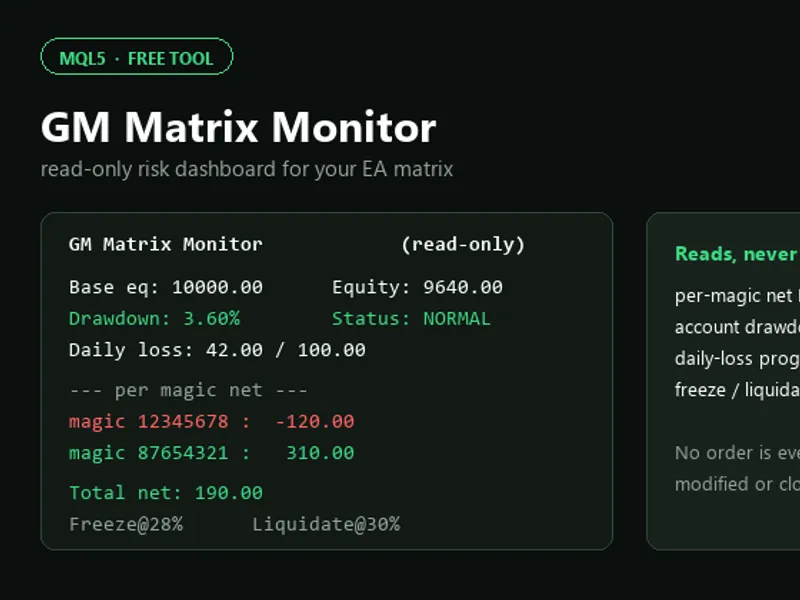
You may also like: GM Matrix Monitor: Read-Only EA Risk Dashboard - excellent alternative for expert users on MetaTrader 5.
Source Code
#property copyright "RobotFX"
#property version   "1.02"
#property strict
#property description "This code is educational. Feel free to use, modify and upgrade as you wish. Visit ROBOTFX.ORG for professional trading tools"
#include <Trade/Trade.mqh>
input group "Trade settings"
input ulong  InpMagicNumber        = 26090501;
input double InpRiskPercent        = 1.00;
input int    InpStopLossPoints     = 500;
input int    InpTakeProfitPoints   = 1000;
.......
⚠ Limitations & Risk Warning
- This tool is provided for educational and testing purposes only.
- Past performance does not guarantee future results.
- Trading involves substantial risk of loss. Use on a demo account first.
- Results may vary depending on market conditions, broker, and settings.
- We recommend thorough backtesting and forward testing before using with real funds.