



Real-Time Visualization of Optimization Results
Info
The Real-Time Visualization of Optimization Results is a Expert Advisor for MetaTrader 5 that metatrader 5 strategy tester provides statistical parameters of a trading system after each testing pass. These parameters can be obtained using a specific function within the testing environment.
Usage
This tool is typically used for automated trading on major forex pairs and gold.
Platform
This Expert Advisor works exclusively on MetaTrader 5 (both build 600+ and newer versions).
Setup
Place the downloaded file in MQL5/Experts folder via File ? Open Data Folder in MetaTrader 5.
How to Install and Use Real-Time Visualization of Optimization Results
1. Installation: Open the "File" menu, select "Open Data Folder," navigate to MQL/Experts, paste your file, and restart the terminal.
2. Activation: Drag the EA from the Navigator onto a chart, ensure "Allow live trading" is checked in the Common tab, and verify the AutoTrading button is green.
3. Optimization: Right-click your chart, choose "Expert List," click "Properties" to adjust inputs, and save your preferred setup as a set file for future use.
4. Maintenance: Regularly check the "Experts" tab in the terminal window to monitor trade logs and potential execution errors.
Frequently Asked Questions
Q: Why is my EA not opening trades? A: Check the "AutoTrading" button, ensure "Allow live trading" is enabled, and verify your broker allows automated trading on your account type.
Q: Can I run multiple EAs on one chart? A: No, each chart can only host one active EA; however, you can open multiple charts for different currency pairs to run several EAs.
Q: What does the "smiley face" icon mean? A: A smiley face in the top-right corner of the chart indicates the EA is successfully running; a frowny face means it is disabled.
What this tool does
MetaTrader 5 Strategy Tester provides statistical parameters of a trading system after each testing pass.
Typical Use Case
This Expert Advisor excels in automated trading and technical analysis on MetaTrader 5.
Compatible Platform & Setup
This Expert Advisor works on MetaTrader 5. Place the file in the MQL5/Experts folder and restart the terminal.
Description & Settings
Related: Telegram Trade Notifier: Real-time Alerts and Daily Summaries - another powerful expert for MetaTrader 5 traders.
MetaTrader 5 Strategy Tester provides statistical parameters of a trading system after each testing pass. These parameters can be obtained using a specific function within the testing environment.Also recommended: Mirror Hedge EA: Reverse Trading Strategies in Real-Time - similar expert with strong performance on MetaTrader 5.
With the introduction of new functions for optimization results (, , , and ), traders can now perform visual optimization. Data can be processed and displayed during the optimization of an Expert Advisor or while solving mathematical problems.
Visualizing Balance Dynamics During Optimization
1. Downloading Files
The 'moving averages_with_frames.mq5' Expert Advisor should be copied to the 'terminal_data_folder\mql5\experts' directory.
The following files are required for the Expert Advisor's operation:
- framegenerator.mqh - CFrameGenerator class for displaying optimization results.
- specialchart.mqh - CSpecialChart class for drawing balance charts.
- simpletable.mqh - CSimpletable class, a simple table with two columns.
- colorprogressbar.mqh - CColorProgressBar class, a progress bar with two colors.
These files should be copied to the 'terminal_data_folder\mql5\include' folder.
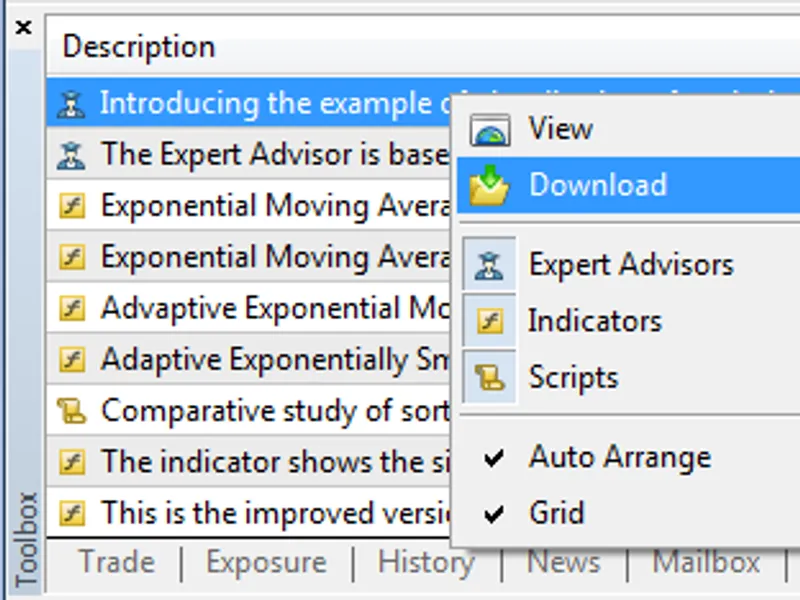
Codebase programs can be downloaded automatically via the MetaTrader 5 Terminal (CodeBase tab of the 'Toolbox' window). Select 'Download' to retrieve and place all codes in their respective folders.
1.2. Testing the Expert Advisor
Launch the 'moving averages_with_frames.mq5' Expert Advisor in the Strategy Tester with the following test settings:
- Fig. 2: Moving averages_with_frames.mq5 Test Settings
- Fig. 3: Moving averages_with_frames.mq5 Optimization Options
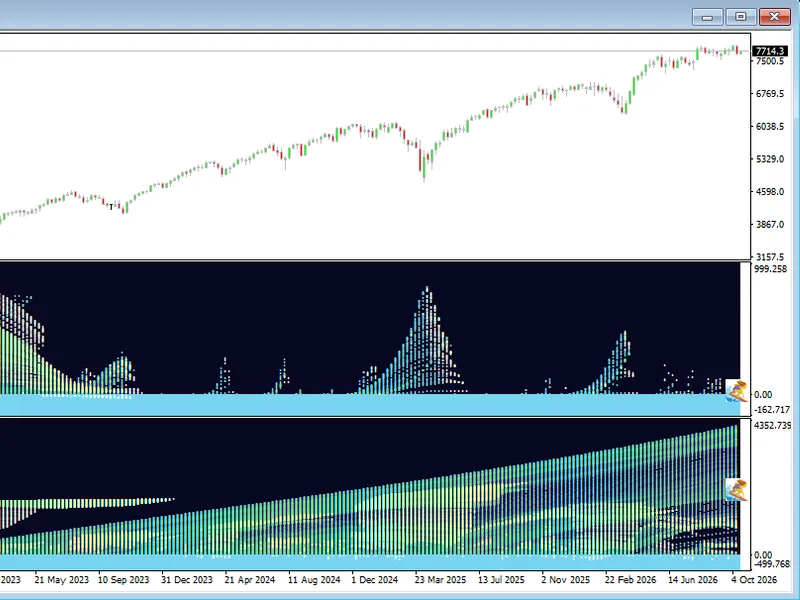
During optimization, the Expert Advisor displays balance dynamics and statistical data for each pass:
- Fig. 4: Moving averages_with_frames.mq5 Optimization
1.3. Expert Advisor Operation Principle
The 'moving averages_with_frames.mq5' Expert Advisor is based on 'moving averages.mq5', included in the standard MetaTrader 5 Terminal package (mql5\experts\examples\moving average).
The following code has been added for results visualization and can be used in any Expert Advisor:
The CFrameGenerator class is utilized for optimization results. It includes methods for handling Strategy Tester events (, , , ) and chart events (). Graphical objects are prepared in the onTesterInit() method of the CFrameGenerator class.
The onTester() method of the CFrameGenerator class is invoked after each test pass, calculating the balance curve dynamics based on trading results. The balance curve chart is a one-dimensional array, with its length determined by the number of deals.
The function is then used to request statistical data (net profit, profit factor, recovery factor, number of trades, deals, maximum drawdown, custom criteria value), and a frame (test pass data array) is generated and sent to the terminal using the function.
Frames are received and handled in the onTesterPass() method of the CFrameGenerator class. The function reads frame data, and the function requests the Expert Advisor's input parameters for the generated frame.
Data is displayed and updated using CSimpletable, CColorProgressBar, and CSpecialChart class methods. It's important to note that onTester() handling functions execute on the test agent after the current optimization pass is complete, enabling the utilization of distributed network capacities for complex mathematical calculations. Place the calculation code within the onTester event handler.
2. Working with CSimpletable, CColorProgressBar, and CSpecialChart Classes
The attached test_simpletable.mq5 and test_cspecialchart.mq5 scripts provide examples of working with these classes. Copy these scripts to the 'terminal_data_folder\mql5\scripts' directory:
- Fig. 5: test_simpletable.mq5 Script Operation Result
- Fig. 6: test_cspecialchart.mq5 Script Operation Result
You may also like: Spread Monitor MT5: Real-Time Spread Analysis and Alerting - excellent alternative for expert users on MetaTrader 5.
Source Code
#property copyright "robotfx"
#property link "https://robotfx.org"
#property version   "1.00"
#include <trade\trade.mqh>
input double maximumrisk        = 0.02;    // maximum risk in percentage
input double decreasefactor     = 3;       // decrease factor
input int    movingperiod       = 12;      // moving average period
input int    movingshift        = 6;       // moving average shift
int   exthandle=0;
double tradesizeoptimized(void)
.......
⚠ Limitations & Risk Warning
- This tool is provided for educational and testing purposes only.
- Past performance does not guarantee future results.
- Trading involves substantial risk of loss. Use on a demo account first.
- Results may vary depending on market conditions, broker, and settings.
- We recommend thorough backtesting and forward testing before using with real funds.