
ma on momentum min profit
Info
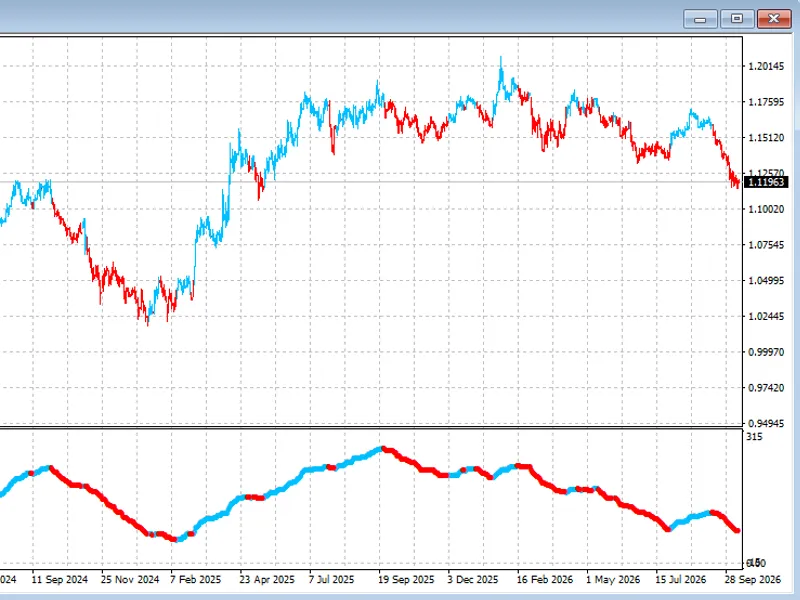
The ma on momentum min profit is a Expert Advisor for MetaTrader 5 that the idea of an adviserthe ea trades on the signals of the custom indicator '' - the signal is the intersection of two lines of the indicator. at the same time, a signal to open a 'buy' position is considered only if the intersection was below the level '100', and a signal to open a 'sell' is considered only if the intersection was above the level '100'.
Usage
This tool is typically used for automated trading on major forex pairs and gold.
Platform
This Expert Advisor works exclusively on MetaTrader 5 (both build 600+ and newer versions).
Setup
Place the downloaded file in MQL5/Experts folder via File ? Open Data Folder in MetaTrader 5.
How to Install and Use ma on momentum min profit
1. Installation: Open the "File" menu, select "Open Data Folder," navigate to MQL/Experts, paste your file, and restart the terminal.
2. Activation: Drag the EA from the Navigator onto a chart, ensure "Allow live trading" is checked in the Common tab, and verify the AutoTrading button is green.
3. Optimization: Right-click your chart, choose "Expert List," click "Properties" to adjust inputs, and save your preferred setup as a set file for future use.
4. Maintenance: Regularly check the "Experts" tab in the terminal window to monitor trade logs and potential execution errors.
Frequently Asked Questions
Q: Why is my EA not opening trades? A: Check the "AutoTrading" button, ensure "Allow live trading" is enabled, and verify your broker allows automated trading on your account type.
Q: Can I run multiple EAs on one chart? A: No, each chart can only host one active EA; however, you can open multiple charts for different currency pairs to run several EAs.
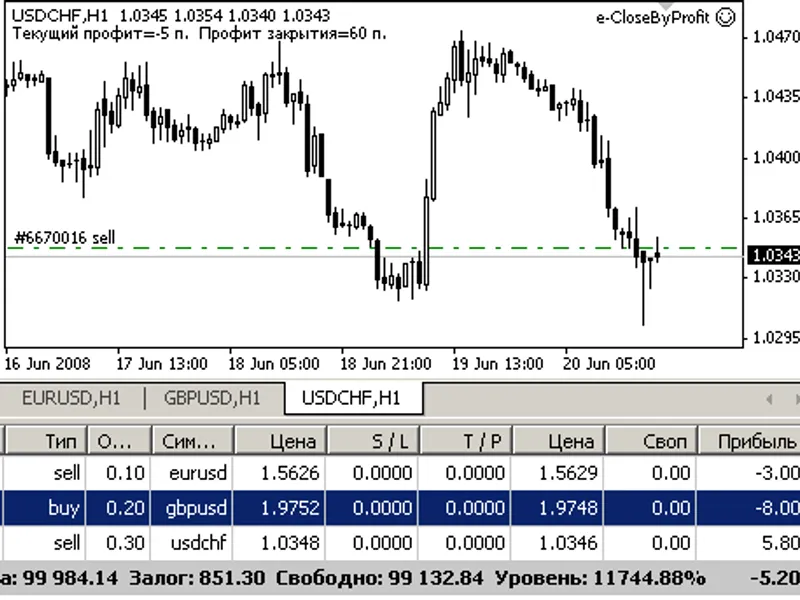
Q: What does the "smiley face" icon mean? A: A smiley face in the top-right corner of the chart indicates the EA is successfully running; a frowny face means it is disabled.
What this tool does
the idea of an adviserthe ea trades on the signals of the custom indicator '' - the signal is the intersection of two lines of the indicator.
Typical Use Case
This Expert Advisor excels in automated trading and technical analysis on MetaTrader 5.
Compatible Platform & Setup
This Expert Advisor works on MetaTrader 5. Place the file in the MQL5/Experts folder and restart the terminal.
Description & Settings
Related: Equity Guard: Daily Loss, Max Drawdown, and Profit Target Protection for MT5 - another powerful expert for MetaTrader 5 traders.
Also recommended: GER40 Evening Coil EA: 376% Profit with 10% Max Drawdown - similar expert with strong performance on MetaTrader 5.
the idea of an adviserthe ea trades on the signals of the custom indicator '' - the signal is the intersection of two lines of the indicator. at the same time, a signal to open a 'buy' position is considered only if the intersection was below the level '100', and a signal to open a 'sell' is considered only if the intersection was above the level '100'.
attention: '
take profit
' in points (1.00055-1.00045=10 points), '
stop loss
' in money
the position can be closed if the 'take profit' level is reached (set in points) or if the 'stop loss' level is reached (set in money). there is no trailing in the ea.
how to optimize an expert advisor
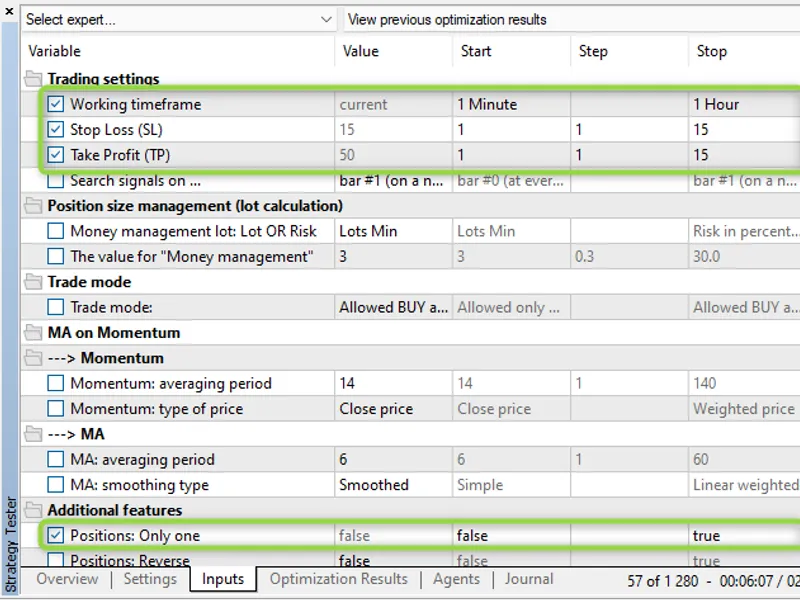
for initial optimization, i recommend using the following parameters
rice. 1. ma on momentum min profit
peculiarities:
the ea can be optimized for the working timeframe ('
working timeframe
')
there can be only one 'entry to the market' deal per bar (this is an internal parameter, it is not included in the input parameters and it has nothing to do with the '
only one positions
' parameter)
when working in the ' inside bar ' mode (parameter '
search signals on ...
' equals '
bar #0 (at every tick)
') the current bar is bar #0, when working in the mode ' only at the moment of birth of a new bar ' (parameter '
search signals on ...
' equals '
bar #1 (on a new bar)
) current bar is bar #1
now more about each group of parameters:
trading settings:
'
working timeframe
' - working timeframe. the timeframe on which indicators are created and on which a new bar is searched. stop loss, take profit and trailing are set in . any of the parameters ('
stop loss
', '
take profit
', '
trailing stop
') can be disabled - for this, set the selected parameter to '0.0'. how trailing works is shown in the pictures in the code.
position size management (lot calculation)
the lot can be either permanent ('
money management
' set to '
constant lot
' and set the lot size to '
the value for "money management"
') and dynamic - in percent risk per trade ('
money management
' set to '
risk in percent for a deal
' and set the risk percentage in '
the value for "money management"
'). you can also set a constant lot equal to the minimum lot - '
money management
' set to '
lots min
'.
additional features:
flag '
positions: only one
' set to '
true
' allows the ea to have no more than one position in the market.
warning: '
positions: only one
' set to '
true
' does not override '
positions: close opposite
' set to '
true
'! in other words: the opposite position(s) will be closed first
the flag '
positions: reverse
' is responsible for signal reversal. an interesting flag '
positions: close opposite
' - when set to '
true
' before opening a position, it is guaranteed to remove opposite positions. '
print log
' prints an extended log of all operations. the '
freeze and stopslevels coefficient
' parameter sets the coefficient for stop and freeze levels for cases when these levels for a symbol are equal to zero. the recommended value is '3'.
You may also like: Nikkei 225 EA: High Profitability with Low Volatility and Quiet Volume - excellent alternative for expert users on MetaTrader 5.
Source Code
яю//+------------------------------------------------------------------+
#property copyright "RobotFX"
#property link "https://robotfx.org"
#property version   "1.000"
#property description "Educational code - RobotFX www.robotfx.org"
#property description "Educational code - RobotFX www.robotfx.org"
#include <Trade\PositionInfo.mqh>
#include <Trade\Trade.mqh>
#include <Trade\SymbolInfo.mqh>
#include <Trade\AccountInfo.mqh>
.......
⚠ Limitations & Risk Warning
- This tool is provided for educational and testing purposes only.
- Past performance does not guarantee future results.
- Trading involves substantial risk of loss. Use on a demo account first.
- Results may vary depending on market conditions, broker, and settings.
- We recommend thorough backtesting and forward testing before using with real funds.