





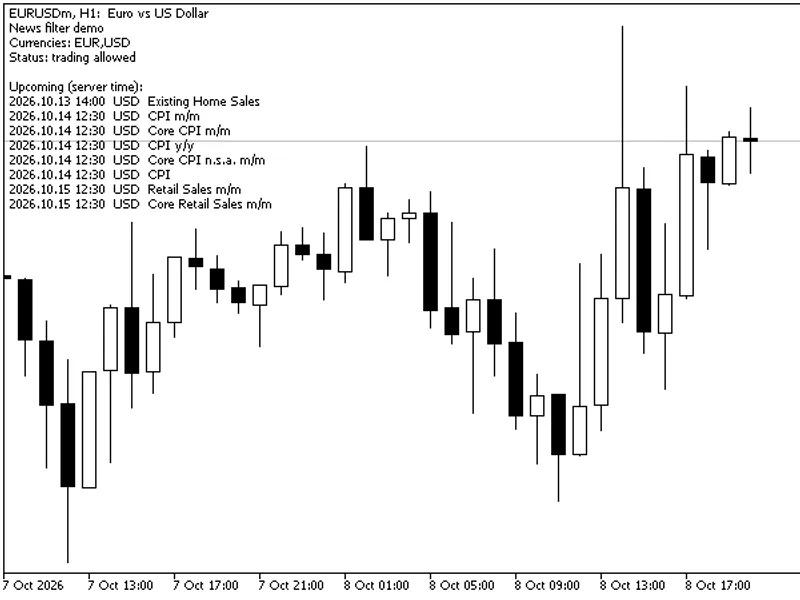


Economic Calendar Export for MetaTrader 5
Info
The Economic Calendar Export for MetaTrader 5 is a Expert Advisor for MetaTrader 5 that metatrader 5 includes a comprehensive economic calendar, accessible via the calendarvaluehistory() function in mql5. However, external applications like Python's MetaTrader5 package cannot access this calendar data directly.
Usage
This tool is typically used for automated trading on major forex pairs and gold.
Platform
This Expert Advisor works exclusively on MetaTrader 5 (both build 600+ and newer versions).
Setup
Place the downloaded file in MQL5/Experts folder via File ? Open Data Folder in MetaTrader 5.
How to Install and Use Economic Calendar Export for MetaTrader 5
1. Installation: Open the "File" menu, select "Open Data Folder," navigate to MQL/Experts, paste your file, and restart the terminal.
2. Activation: Drag the EA from the Navigator onto a chart, ensure "Allow live trading" is checked in the Common tab, and verify the AutoTrading button is green.
3. Optimization: Right-click your chart, choose "Expert List," click "Properties" to adjust inputs, and save your preferred setup as a set file for future use.
4. Maintenance: Regularly check the "Experts" tab in the terminal window to monitor trade logs and potential execution errors.
Frequently Asked Questions
Q: Why is my EA not opening trades? A: Check the "AutoTrading" button, ensure "Allow live trading" is enabled, and verify your broker allows automated trading on your account type.
Q: Can I run multiple EAs on one chart? A: No, each chart can only host one active EA; however, you can open multiple charts for different currency pairs to run several EAs.
Q: What does the "smiley face" icon mean? A: A smiley face in the top-right corner of the chart indicates the EA is successfully running; a frowny face means it is disabled.
What this tool does
MetaTrader 5 includes a comprehensive economic calendar, accessible via the CalendarValueHistory() function in MQL5.
Typical Use Case
This Expert Advisor excels in automated trading and technical analysis on MetaTrader 5.
Compatible Platform & Setup
This Expert Advisor works on MetaTrader 5. Place the file in the MQL5/Experts folder and restart the terminal.
Description & Settings
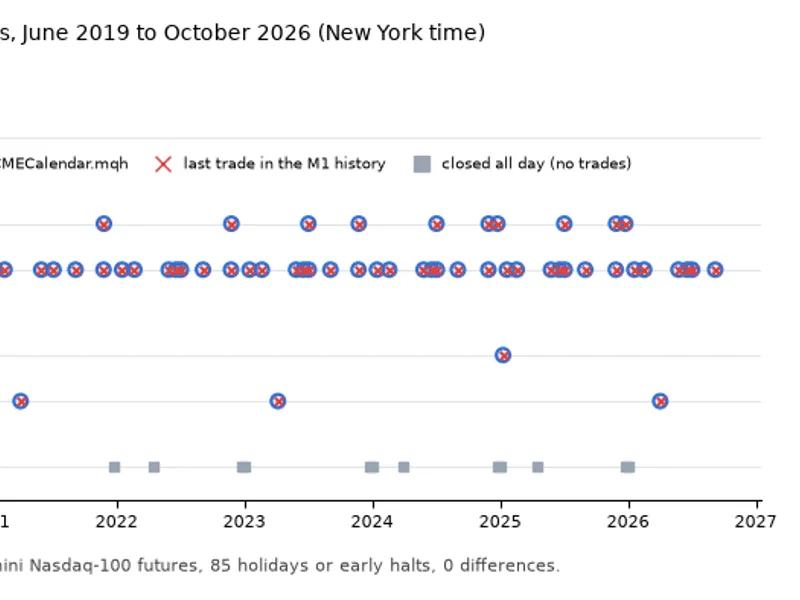
Related: CME Equity Index Futures Holiday Calendar and Trading Halt Automation - another powerful expert for MetaTrader 5 traders.
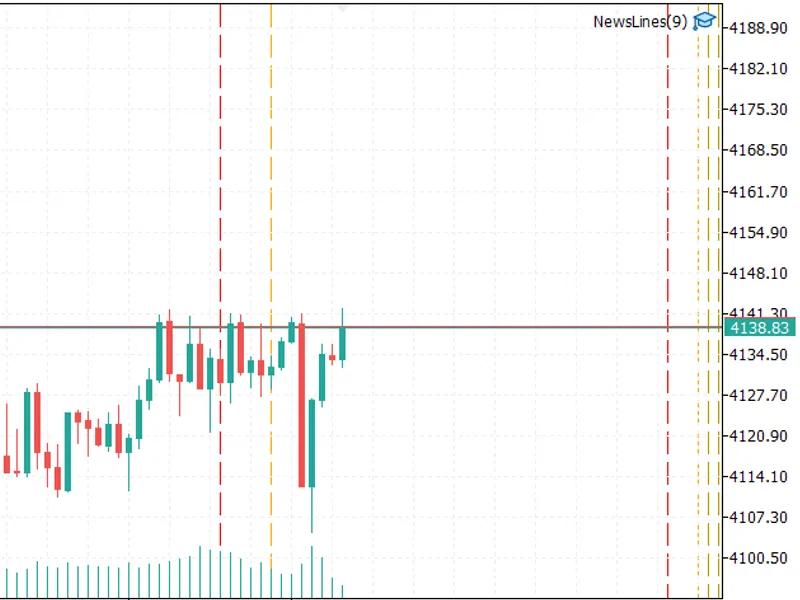
MetaTrader 5 includes a comprehensive economic calendar, accessible via the CalendarValueHistory() function in MQL5. However, external applications like Python's MetaTrader5 package cannot access this calendar data directly. This means research scripts, dashboards, bots, or spreadsheets cannot query the terminal for upcoming high-impact economic releases.Also recommended: News Lines Utility: Economic Calendar On Your Chart - similar expert with strong performance on MetaTrader 5.
This Expert Advisor acts as a bridge, providing a way to export the economic calendar data. When attached to any chart, it periodically writes the calendar information to a CSV file located in the MQL5\Files directory, making it accessible to external applications.
The Expert Advisor operates in a strictly read-only mode, ensuring it does not open, close, or modify any trading positions.
Key Features and Considerations
UTF-8 Output:
The terminal localizes event names, which can lead to issues with non-English MT5 installations where characters may not be valid UTF-8. This EA ensures UTF-8 compatibility for broader consumer support.
Chronological Sorting:
The calendar data is queried per currency, which can result in a non-chronological output. This EA sorts the data by time to provide a chronological view.
Atomic File Writes:
The entire file is generated in memory and written in a single operation. This prevents data corruption or incomplete reads by consumers that might access the file during the writing process.
HTML Entity Decoding:
Event names in the terminal can be stored with HTML entities (e.g., & for &). This EA decodes these entities to ensure accurate display in external applications.
Freshness Header:
The first line of the CSV file includes the update timestamp, event count, and server UTC offset. This allows consumers to verify the data's recency and detect if the EA has been detached, preventing the display of outdated information.
The update timestamp is sourced from the trade server clock, not the last tick, ensuring accuracy even when the market is closed and ticks are static. This prevents the file from appearing stale when it is actively being updated.
Inputs
Input Name
Meaning
InpCurrencies
A comma-separated list of currency codes (e.g., USD,EUR). Leave empty to include all currencies.
InpHoursAhead
The number of hours into the future to include calendar events. Default is 48.
InpHoursBack
The number of hours into the past to include, useful for capturing recently released data. Default is 3.
InpMinImportance
Filters events by importance: 0 = none, 1 = low, 2 = medium, 3 = high. Default is 2.
InpFile
The name of the output CSV file within the MQL5\Files directory.
InpRefreshSec
The interval in seconds for rewriting the file. Minimum value is 30.
InpUtf8
Determines if the output should be in UTF-8 format. Set to false only if your consumer application requires the local codepage.
Language Considerations
Event names are provided in the language set by the MetaTrader 5 terminal. MQL5 does not offer a method to request event names in different languages. For a stable identifier across different languages and installations, use the 'event_id' column.
Troubleshooting Empty Files
If the output file is empty, ensure that MetaTrader 5 is connected to the server and that the calendar feature is enabled. Check this setting under Tools → Options → Server.
You may also like: Calendar News Filter for MT5: Avoid Trading During High-Impact News Events - excellent alternative for expert users on MetaTrader 5.
Source Code
#property copyright "RobotFX"
#property version   "1.00"
#property description "This code is educational. Feel free to use, modify and upgrade as you wish. Visit ROBOTFX.ORG for professional trading tools"
#property strict
input group "--- What to include ---"
input string InpCurrencies   = "USD,EUR";
input int    InpHoursAhead   = 48;
input int    InpHoursBack    = 3;
input int    InpMinImportance = 2;
input group "--- Output ---"
.......
⚠ Limitations & Risk Warning
- This tool is provided for educational and testing purposes only.
- Past performance does not guarantee future results.
- Trading involves substantial risk of loss. Use on a demo account first.
- Results may vary depending on market conditions, broker, and settings.
- We recommend thorough backtesting and forward testing before using with real funds.