






Bot Guard: Terminal Health Monitoring for VPS
Info
The Bot Guard: Terminal Health Monitoring for VPS is a Expert Advisor for MetaTrader 5 that botguard is a utility expert advisor designed for users running trading robots on a virtual private server (vps). Its sole purpose is to monitor the health of the trading terminal and report its status, enabling the detection of issues within minutes rather than days.
Usage
This tool is typically used for automated trading on major forex pairs and gold.
Platform
This Expert Advisor works exclusively on MetaTrader 5 (both build 600+ and newer versions).
Setup
Place the downloaded file in MQL5/Experts folder via File ? Open Data Folder in MetaTrader 5.
How to Install and Use Bot Guard: Terminal Health Monitoring for VPS
1. Installation: Open the "File" menu, select "Open Data Folder," navigate to MQL/Experts, paste your file, and restart the terminal.
2. Activation: Drag the EA from the Navigator onto a chart, ensure "Allow live trading" is checked in the Common tab, and verify the AutoTrading button is green.
3. Optimization: Right-click your chart, choose "Expert List," click "Properties" to adjust inputs, and save your preferred setup as a set file for future use.
4. Maintenance: Regularly check the "Experts" tab in the terminal window to monitor trade logs and potential execution errors.
Frequently Asked Questions
Q: Why is my EA not opening trades? A: Check the "AutoTrading" button, ensure "Allow live trading" is enabled, and verify your broker allows automated trading on your account type.
Q: Can I run multiple EAs on one chart? A: No, each chart can only host one active EA; however, you can open multiple charts for different currency pairs to run several EAs.
Q: What does the "smiley face" icon mean? A: A smiley face in the top-right corner of the chart indicates the EA is successfully running; a frowny face means it is disabled.
What this tool does
BotGuard is a utility Expert Advisor designed for users running trading robots on a Virtual Private Server (VPS).
Typical Use Case
This Expert Advisor excels in automated trading and technical analysis on MetaTrader 5.
Compatible Platform & Setup
This Expert Advisor works on MetaTrader 5. Place the file in the MQL5/Experts folder and restart the terminal.
Description & Settings
Related: Account Guard: EA Account Locking for MT5 - another powerful expert for MetaTrader 5 traders.
BotGuard is a utility Expert Advisor designed for users running trading robots on a Virtual Private Server (VPS). Its sole purpose is to monitor the health of the trading terminal and report its status, enabling the detection of issues within minutes rather than days. It does not open, close, or modify trades.Also recommended: Prop Firm Guard: Daily Loss and Max Drawdown Protection - similar expert with strong performance on MetaTrader 5.
Functionality
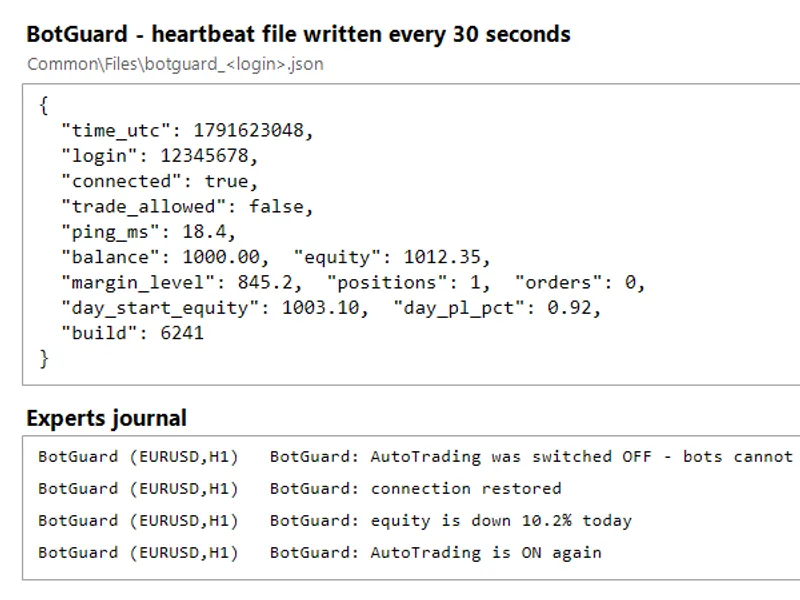
Every 30 seconds, BotGuard creates a heartbeat file named botguard_
Additionally, every 5 minutes, it appends a line to a log file named botguard_
BotGuard also sends an MT5 push notification and logs an entry in the Experts journal under specific conditions: when AutoTrading is turned off or back on, when the connection is re-established, and when the equity drops below a predefined percentage of the start-of-day equity.
Rationale for the Heartbeat File
A frozen or crashed trading terminal cannot independently signal an issue. The heartbeat file, updated every 30 seconds, allows an external monitoring program (such as a PowerShell script, scheduled task, or custom application) to check the file's modification timestamp. If the file is not updated, it indicates that the terminal is unresponsive or BotGuard has been disabled. The monitoring program can then initiate a restart of MetaTrader 5 and alert the user. To prevent data corruption, the file is written to a temporary name before being renamed, ensuring that the monitor never reads an incomplete file.
Input Parameters
InpHeartbeatSec: Sets the heartbeat interval in seconds. The default is 30 seconds, with a minimum of 5 seconds.
InpLogEveryMin: Configures the equity log interval in minutes. The default is 5 minutes.
InpEquityDropPct: Specifies the percentage below the start-of-day equity at which a push alert will be sent. The default is 10 percent; setting it to 0 disables this alert.
InpPushAlerts: Enables or disables MT5 mobile push notifications. This feature requires a MetaQuotes ID to be configured in Tools - Options - Notifications.
Usage Instructions
To use BotGuard, attach it to any spare chart in each trading terminal you wish to monitor. The symbol and timeframe are irrelevant as the EA does not perform any trading operations.
To ensure BotGuard loads automatically after terminal restarts, close the terminal normally (File - Exit) once after attaching the EA. This saves the chart with BotGuard in the profile.
Configure your external monitoring tool to watch the heartbeat file. Since each account generates its own unique file, multiple terminals on the same VPS can be monitored independently.
Tested on MetaTrader 5 build 6241. A crash test and a freeze test confirmed that the external watchdog successfully restarted the terminal and resumed the heartbeat within 15 seconds.
You may also like: Equity Guard: Daily Loss, Max Drawdown, and Profit Target Protection for MT5 - excellent alternative for expert users on MetaTrader 5.
Source Code
#property copyright "RobotFX"
#property version   "1.00"
#property description "This code is educational. Feel free to use, modify and upgrade as you wish. Visit ROBOTFX.ORG for professional trading tools"
input int    InpHeartbeatSec  = 30;
input int    InpLogEveryMin   = 5;
input double InpEquityDropPct = 10.0;
input bool   InpPushAlerts    = true;
int      dayOfYear      = -1;
double   dayStartEquity = 0.0;
bool     ddAlerted      = false;
.......
⚠ Limitations & Risk Warning
- This tool is provided for educational and testing purposes only.
- Past performance does not guarantee future results.
- Trading involves substantial risk of loss. Use on a demo account first.
- Results may vary depending on market conditions, broker, and settings.
- We recommend thorough backtesting and forward testing before using with real funds.