




Moving Average Cross Studies
Info
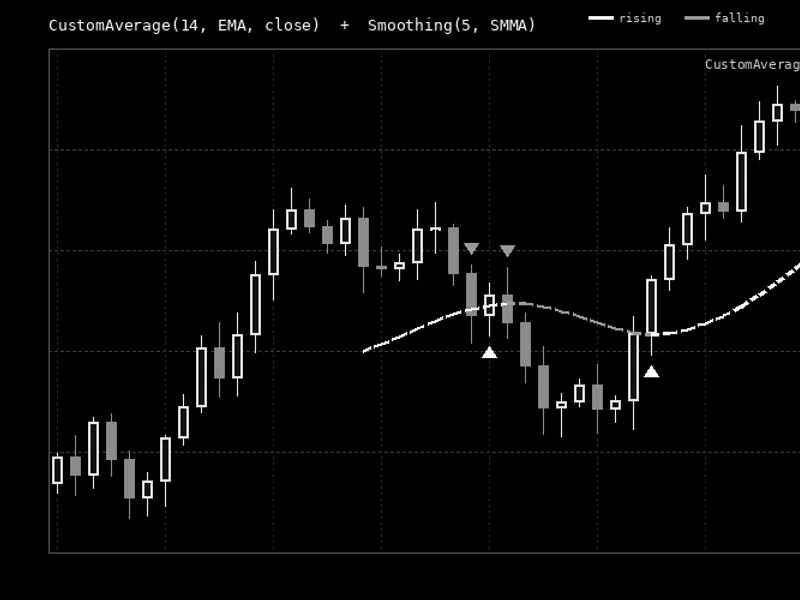
The Moving Average Cross Studies is a Expert Advisor for MetaTrader 4 that this expert advisor (ea) is designed to investigate the impact of diverse trade and money management strategies on a simple system, utilizing a moving average for bias. The EA enables the implementation of a moving average trading system that automatically alternates between buying and selling.
Usage
This tool is typically used for automated trading on major forex pairs and gold.
Platform
This Expert Advisor works exclusively on MetaTrader 4 (both build 600+ and newer versions).
Setup
Place the downloaded file in MQL4/Experts folder via File ? Open Data Folder in MetaTrader 4.
How to Install and Use Moving Average Cross Studies
1. Installation: Open the "File" menu, select "Open Data Folder," navigate to MQL/Experts, paste your file, and restart the terminal.
2. Activation: Drag the EA from the Navigator onto a chart, ensure "Allow live trading" is checked in the Common tab, and verify the AutoTrading button is green.
3. Optimization: Right-click your chart, choose "Expert List," click "Properties" to adjust inputs, and save your preferred setup as a set file for future use.
4. Maintenance: Regularly check the "Experts" tab in the terminal window to monitor trade logs and potential execution errors.
Frequently Asked Questions
Q: Why is my EA not opening trades? A: Check the "AutoTrading" button, ensure "Allow live trading" is enabled, and verify your broker allows automated trading on your account type.
Q: Can I run multiple EAs on one chart? A: No, each chart can only host one active EA; however, you can open multiple charts for different currency pairs to run several EAs.
Q: What does the "smiley face" icon mean? A: A smiley face in the top-right corner of the chart indicates the EA is successfully running; a frowny face means it is disabled.
What this tool does
This Expert Advisor (EA) is designed to investigate the impact of diverse trade and money management strategies on a simple system, utilizing a moving average for bias.
Typical Use Case
This Expert Advisor excels in automated trading and technical analysis on MetaTrader 4.
Compatible Platform & Setup
This Expert Advisor works on MetaTrader 4. Place the file in the MQL4/Experts folder and restart the terminal.
Description & Settings
Related: e-moving in wl2: automated stop loss adjustment - another powerful expert for MetaTrader 4 traders.
This Expert Advisor (EA) is designed to investigate the impact of diverse trade and money management strategies on a simple system, utilizing a moving average for bias.Also recommended: moving average grid ea - similar expert with strong performance on MetaTrader 4.
The EA enables the implementation of a moving average trading system that automatically alternates between buying and selling. It also supports a scaling-in strategy with options to average up, average down, or both. Additionally, you can choose to disable direction switching based on the moving average and use it solely for opening new positions in a single direction.
The EA provides flexibility in setting the stop loss and take profit, allowing you to enable or disable them as needed. The position size is dynamically adjusted based on the account balance, with the user determining the percentage of the balance to allocate per position. If free equity drops below a user-defined threshold, the EA can stop placing new orders or close all open positions.
This EA is intentionally designed to avoid hedging. Trading in the opposite direction of the EA's strategy is strongly discouraged. Manual intervention during unexpected market movements or for portfolio adjustments is expected.
While the EA facilitates rapid exploration of trade management options and optimization through backtesting, it can also be used with preferred settings during live trading.
Please note that there are no guarantees of profitability, and the EA should be thoroughly tested on a demo account before considering live trading.
Settings:
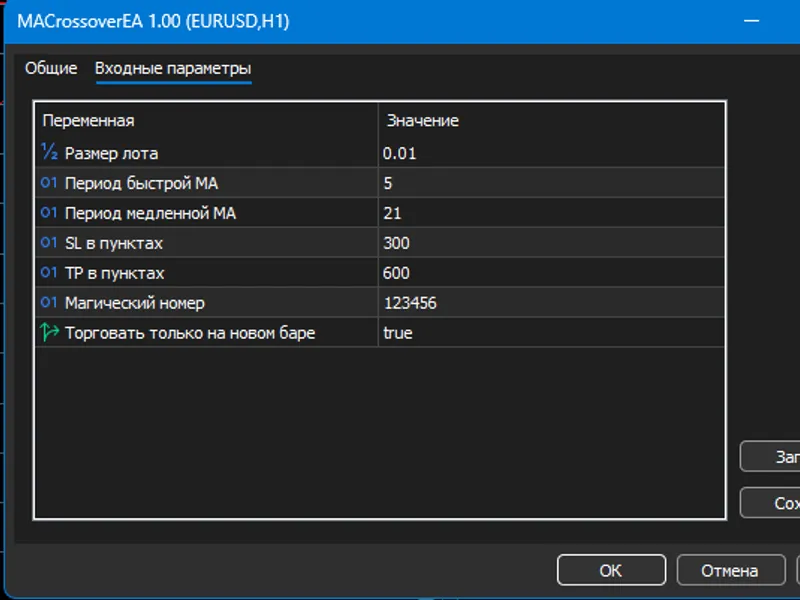
- Allowed Trade Direction: Controls whether the EA can buy, sell, or do both, without causing simultaneous trades in both directions.
- Hedging Allowed: Set to true to enable trading in both directions simultaneously (broker support required).
- Hidden TP SL: Set to true to close positions when take profit or stop loss conditions are met without placing actual TP or SL orders. Caution is advised in live accounts due to potential connectivity issues.
- Leverage per Position: Determines the position size growth as the account balance increases. This setting specifies the number of micro lots (0.01 lot) to buy or sell per 1000 units of account balance.
- Stoploss Percent: Optional setting to manage the stop loss based on a percentage loss in the base currency. A value of 0.5 means the stop loss will be triggered at a 0.5% loss in the base currency.
- Trailing Stoploss Percent: Optional setting to adjust the stop loss above the average entry price when averaging up is enabled, preventing the loss of unrealized gains beyond a certain percentage.
- Takeprofit Percent: Optional setting to manage the take profit target based on a percentage gain in the base currency. A value of 4.5 means the take profit will be triggered at a 4.5% gain in the base currency.
- Slippage: Specifies the acceptable amount of slippage for orders.
- Minimum Free Equity Percent: Disables placing new positions when free equity falls below a specified percentage. Setting this to 10 prevents new positions if they would cause free equity to drop below 10% of the account balance.
- Close All at Minimum Free Equity Reached: Set to true to close all positions when free equity reaches the minimum set.
- Average Up: Set to true to add positions as price moves in favor of the strategy.
- Average Down: Set to true to add positions as price moves against the strategy.
- Averaging Step Size Percent: Controls the distance between positions when averaging, expressed as a percentage. A value of 3 means a new position is added when the price moves 3%.
- Averaging Down Step Multiplier: Multiplies the distance between positions during averaging down. If the average step size percent is 2 and this setting is 3, a new position is added when the price moves 6% against the strategy.
- Close All at MA Crossover: Set to true to close all positions when the biasing moving average changes direction.
- MA Timeframe Previous: Timeframe for the slow moving average.
- MA Timeframe Current: Timeframe for the fast moving average.
- MA Period Previous Add: Sum of the "current" period and this value determines the period for the slow moving average.
- MA Period Current: Period of the fast moving average.
- MA Shift Previous: Shift applied to the slow moving average.
- MA Shift Current: Shift applied to the fast moving average.
- MA Method: Calculation method for both slow and fast moving averages.
- MA Applied Price: Applied price for both slow and fast moving averages.
- Start Day: Day of the week to commence trading.
- End Day: Day of the week to cease trading.
- Start Time: Time to start trading on the start day.
- End Time: Time to stop trading on the end day.
Testing and Optimization:
The EA evaluates actions only at the beginning of a new bar. To test on a minute-by-minute basis, set the chart timeframe to 1 minute. For weekly checks, use a 1-week timeframe. Backtesting on "every tick" is unnecessary and inefficient. Using open bars only significantly speeds up testing.
You may also like: average range monitor (arm) - excellent alternative for expert users on MetaTrader 4.
Source Code
/.......
⚠ Limitations & Risk Warning
- This tool is provided for educational and testing purposes only.
- Past performance does not guarantee future results.
- Trading involves substantial risk of loss. Use on a demo account first.
- Results may vary depending on market conditions, broker, and settings.
- We recommend thorough backtesting and forward testing before using with real funds.