






oanda x order book chart
Info
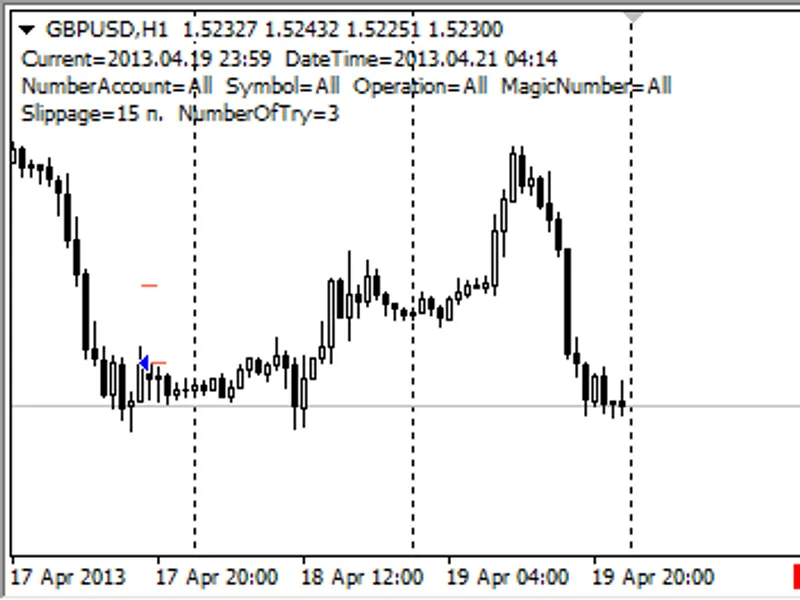
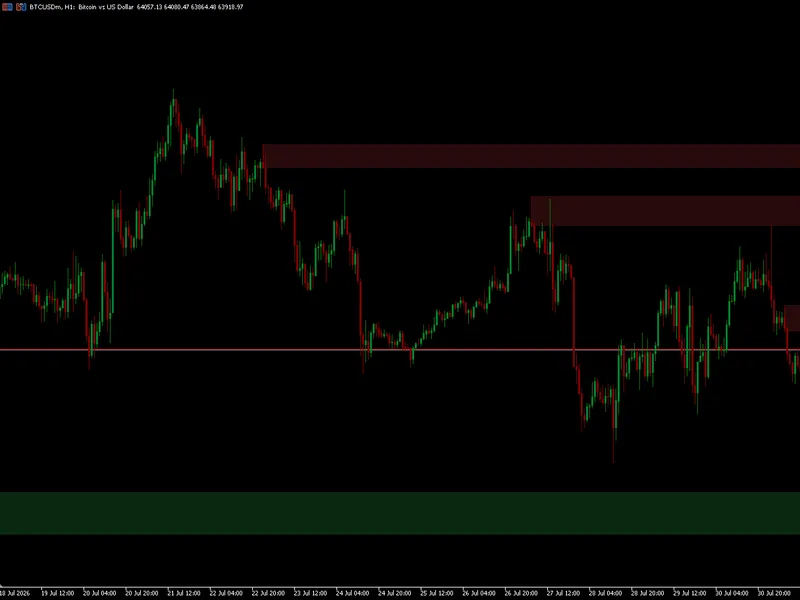
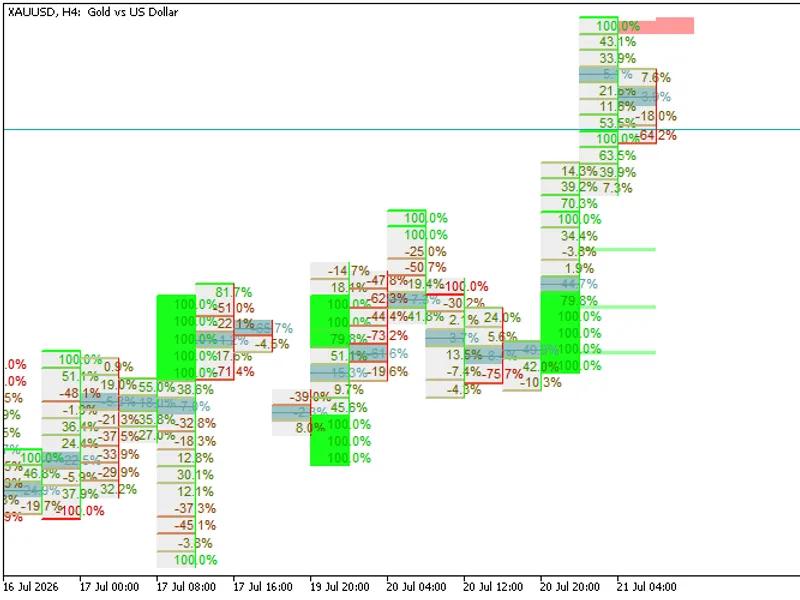
The oanda x order book chart is a Indicator for MetaTrader 4 that the oandaxproduct series is designed to display additional data on orders and positions provided by the oanda fxlabsservice. the oandax orderbook chartindicator is designed to display the history histogram of orders or positions on the instrument, nearest to the time specified by user on the chart (vertical line is used for indication).
Usage
This tool is typically used for enhancing chart analysis and decision making.
Platform
This Indicator works exclusively on MetaTrader 4 (both build 600+ and newer versions).
Setup
Place the downloaded file in MQL4/Indicators folder via File ? Open Data Folder in MetaTrader 4.
How to Install and Use oanda x order book chart
1. Installation: Place your file in the MQL/Indicators folder via "Open Data Folder" and restart your terminal.
2. Loading: Find the indicator in the Navigator, drag it onto your chart, and configure the input parameters in the popup window.
3. Customization: Press Ctrl+I to open the indicator list, select your tool, and click "Properties" to change colors, levels, or visual styles.
4. Updating: Replace the old file in the Indicators folder with the new version and restart the platform to apply changes.
Frequently Asked Questions
Q: Why is my indicator not showing? A: Verify the file is in the MQL/Indicators folder, or try right-clicking the "Indicators" tree in the Navigator and clicking "Refresh."
Q: Do custom indicators slow down the platform? A: Too many complex indicators can impact performance; remove unused ones via the "Indicator List" (Ctrl+I).
Q: Can I use MT4 indicators on MT5? A: No, MQL4 and MQL5 are distinct languages; ensure the indicator is compiled specifically for your platform version.
What this tool does
the oandaxproduct series is designed to display additional data on orders and positions provided by the oanda fxlabsservice.
Typical Use Case
This Indicator excels in automated trading and technical analysis on MetaTrader 4.
Compatible Platform & Setup
This Indicator works on MetaTrader 4. Place the file in the MQL4/Indicators folder and restart the terminal.
Description & Settings
Related: order tracing for mt4/mt5 - another powerful indicator for MetaTrader 4 traders.
the
oandax
product series is designed to display additional data on orders and positions provided by the
Also recommended: source code for multiple orders - similar indicator with strong performance on MetaTrader 4.
oanda fxlabsservice.
the
oandax orderbook chart
indicator is designed to display the history histogram of orders or positions on the instrument, nearest to the time specified by user on the chart (vertical line is used for indication). for the constant update of data it is necessary for the ea to be running in the terminal. to display the previously downloaded data, the ea is not required.
this indicator serves as an example of calling to the data of histogram downloaded by the ea. the histogram scale is linked to the chart scale. this means that unlike the
oandax orderbook image history
indicator, the histogram will be drawn not at the user-defined location, but directly on the chat area, for which the data had been downloaded. the time for which the histogram is drawn will be displayed in the upper left corner (using the comment function).
if the vertical indication line is located at the 0 bar or to the right from it (at the location of upcoming history), the line will be automatically moved to the right when a new bar appears. this is done to be able to constantly monitor the latest data downloaded.
the order book (
orderbook
) or
open orders
. this is a histogram that shows the distribution of limit and stop orders by price levels. the limit orders include the
buy limit
orders and the
take profit
levels. the stop orders include the
sell limit
orders and the
stop loss
levels.
position book or
open positions
. this histogram shows the distribution of prices, at which the active positions of traders were opened at the time the histogram was formed.
the above information is available for 16 instruments:
audjpy, audusd, euraud, eurchf, eurgbp, eurjpy, eurusd, gbpchf, gbpjpy, gbpusd, nzdusd, usdcad, usdchf, usdjpy, xauusd, xagusd.
the minimum step of history data is 20 minutes, but depending on the history depth the step can increase up to 24 hours, there can also be unexpected gaps.
four display formats are available for both (orders and positions) histograms:
basic; displays a basic level histogram without further processing
cumulative; the values of all the previous levels are added to each level
simple difference; instead of short and long orders (positions), their difference is displayed
cumulative difference; difference for the cumulative histogram
the data is downloaded and saved by
utc
time, therefore, for the correct display of the histogram time, set the correct time zone of your broker server relative to
utc
in the indicator settings
indicator parameters
use custom instrument — true
, if you have non-standard instrument names or if you need to display a histogram of another instrument on the chart;
custom instrument name
—
instrument name in the format of
oanda fxlabs
. for
eurusd
—
eur_usd
, for
gold
,
xauusd
—
xau_usd
, for
silver
,
xagusd
—
xag_usd
;
server utc time offset
—
time zone of your server relative to
utc
show histogram cumulative
—
if
true
, draws cumulative histogram, i.e. the values of previous levels are added to each subsequent level;
show histogram difference
—
if
true
, displays difference horizontal, i.e. displays not buy or sell levels for the horizontal level, but their difference. also works for the cumulative mode.
show orders (positions if false)
—
if
true
, displays histogram of orders, if
false
, displays histogram of positions, i.e. level distribution of the prices the current positions were opened at.
You may also like: order balance control - excellent alternative for indicator users on MetaTrader 4.
Source Code
#property link "https://robotfx.org"
#property copyright "robotfx"
#property version   "1.4"
#property strict
#property description "this code is educational. feel free to use, modify and upgrade as you wish. visit robotfx.org for professional trading tools"
#property description "this code is educational. feel free to use, modify and upgrade as you wish. visit robotfx.org for professional trading tools"
#property description "this code is educational. feel free to use, modify and upgrade as you wish. visit robotfx.org for professional trading tools"
#property description "this code is educational. feel free to use, modify and upgrade as you wish. visit robotfx.org for professional trading tools"
#property indicator_chart_window
template <typename t>
.......
⚠ Limitations & Risk Warning
- This tool is provided for educational and testing purposes only.
- Past performance does not guarantee future results.
- Trading involves substantial risk of loss. Use on a demo account first.
- Results may vary depending on market conditions, broker, and settings.
- We recommend thorough backtesting and forward testing before using with real funds.