

cme futures volume
Info
The cme futures volume is a Expert Advisor for MetaTrader 4 that version 1. 01 - fixed a bug with updating volume display on the minute chart.
Usage
This tool is typically used for automated trading on major forex pairs and gold.
Platform
This Expert Advisor works exclusively on MetaTrader 4 (both build 600+ and newer versions).
Setup
Place the downloaded file in MQL4/Experts folder via File ? Open Data Folder in MetaTrader 4.
How to Install and Use cme futures volume
1. Installation: Open the "File" menu, select "Open Data Folder," navigate to MQL/Experts, paste your file, and restart the terminal.
2. Activation: Drag the EA from the Navigator onto a chart, ensure "Allow live trading" is checked in the Common tab, and verify the AutoTrading button is green.
3. Optimization: Right-click your chart, choose "Expert List," click "Properties" to adjust inputs, and save your preferred setup as a set file for future use.
4. Maintenance: Regularly check the "Experts" tab in the terminal window to monitor trade logs and potential execution errors.
Frequently Asked Questions
Q: Why is my EA not opening trades? A: Check the "AutoTrading" button, ensure "Allow live trading" is enabled, and verify your broker allows automated trading on your account type.
Q: Can I run multiple EAs on one chart? A: No, each chart can only host one active EA; however, you can open multiple charts for different currency pairs to run several EAs.
Q: What does the "smiley face" icon mean? A: A smiley face in the top-right corner of the chart indicates the EA is successfully running; a frowny face means it is disabled.
What this tool does
version 1.
Typical Use Case
This Expert Advisor excels in automated trading and technical analysis on MetaTrader 4.
Compatible Platform & Setup
This Expert Advisor works on MetaTrader 4. Place the file in the MQL4/Experts folder and restart the terminal.
Description & Settings
Related: cme futures saver - another powerful expert for MetaTrader 4 traders.
version 1.01 - fixed a bug with updating volume display on the minute chart. bug fixes based on crash logs.i've added the 'experts.zip' archive, which contains the full trading system:
Also recommended: equivolume bars builder - similar expert with strong performance on MetaTrader 4.
cme_futures_volume/
cme_futures_saver
/
cme_futures_download
everything is organised into the standard terminal folders. extract the archive to the root folder of your terminal, then restart the terminal for recompilation. the archive's 'config' folder contains a '.crv' file for a demo server, which you can use to receive online data for free.
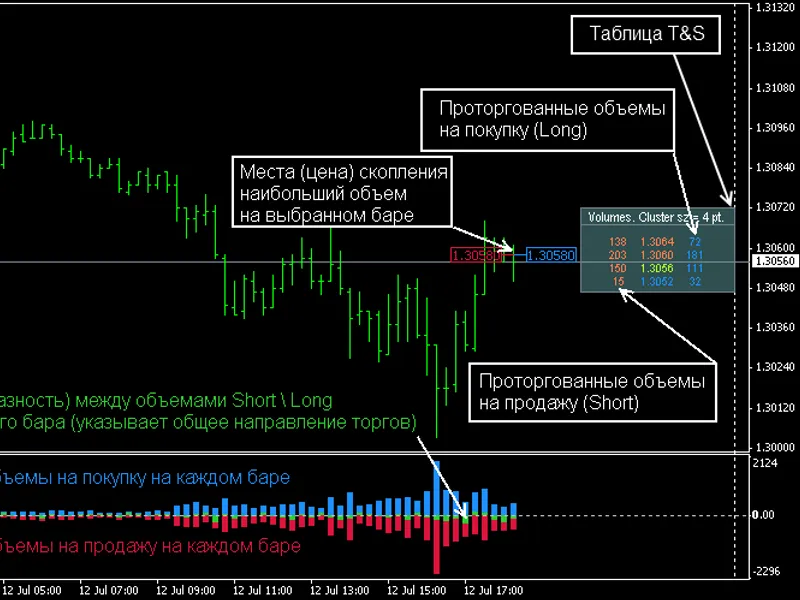
the cme_futures_volume indicator lets you view the time&sales table for cme currency futures. it's the core element of the futures package.
the package also includes:
- a script for downloading history from the repository: cme_futures_download
- a non-trading advisor: cme_futures_saver, which collects quotes for these instruments and writes them to files in real-time.
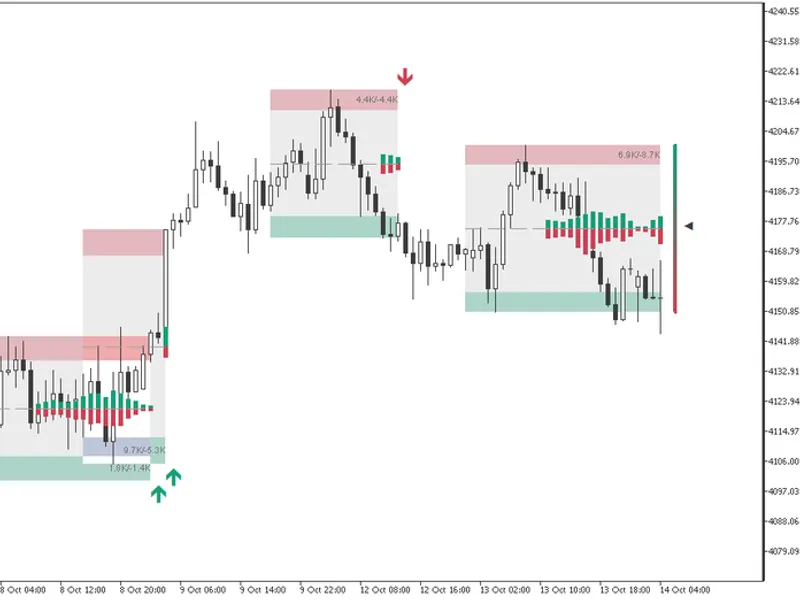
the indicator is displayed in a separate window on the terminal's chart. it shows the total traded volume of cme currency futures, broken down into separate figures for sales, purchases, and delta (the difference between sales and purchases).
on the main chart window, the indicator displays the time&sales table, updating it in real-time. the table has two display modes: volume and delta. in delta mode, the table shows the difference in traded volumes for each price cluster.
a price cluster represents a price range on the terminal's chart scale. all volumes within this range are summed and displayed in the table. when you change the chart's scale or time frame, the table automatically adjusts.
data format: data in the file is stored in the format price/volume for each minute candle. when the chart is rebuilt, the data is automatically summed for the required price range and time frame, providing the best possible detail that the mt4 terminal can display.
custom variables for the cme_futures_volume indicator:
show_volumes_or_delta: in 'true' mode, the table displays traded volumes. setting this flag to 'false' shows the delta of volumes for each cluster.
selectmarketdeptbar: in 'false' mode, the table displays real-time data received by the terminal (the current candle). this data is available to users connected to a trading server that provides such data. in 'true' mode, a vertical indicator line appears on the main chart. move this line to select a candle on the history for which you want to view traded volumes in the t&s table. this feature is available to all mt4 users, regardless of their broker. in this case, you should first download the history using the cme_futures_download script.
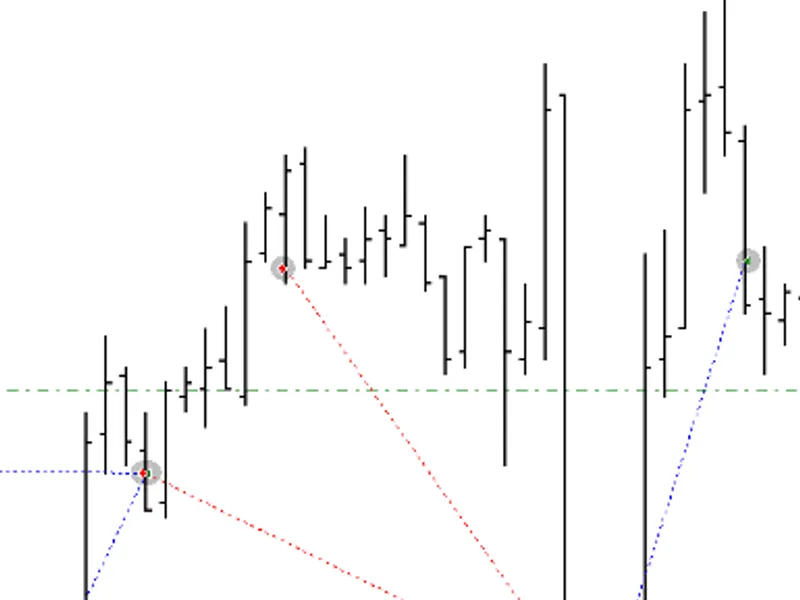
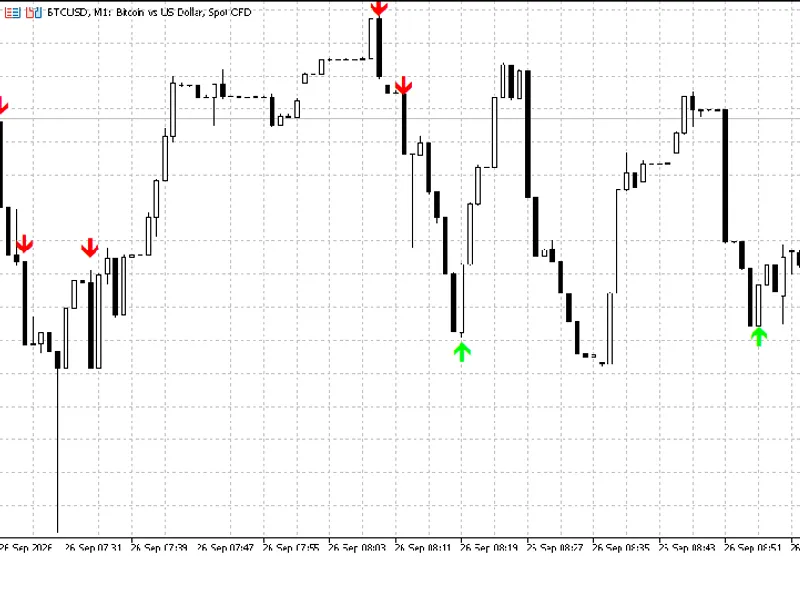
showlevels_of_breakdown: if you want to highlight bars on the chart where the volume exceeds a certain threshold, set this variable to 'true'. in this mode, two horizontal lines appear in the indicator window. move these lines to set the volume threshold separately for short and long. candles that break through these lines will be highlighted on the main chart with circular markers. the size and colour of these markers indicate the direction and percentage by which the threshold is exceeded.
currently, we provide quotes for the following instruments:
faudusd,fcadusd,fchfusd,feurusd,feurgbp,feurjpy,fgbpusd,fnzdusd,fusdjpy,fusdcad,fusdchf = futures concatenation
f6em3,f6eu3,f6ez3 = near/far contracts for feurusd.
we also have quotes for 41 cme currency futures, available on request (by agreement).
You may also like: equal volume bars - excellent alternative for expert users on MetaTrader 4.
Source Code
#property copyright "robotfx"
#property link "https://robotfx.org"
#import "user32.dll"
  int   registerwindowmessagea(string lpstring);
  int   settimer(int hwnd,int nidevent,int uelapse,int& lptimerfunc[]);
  bool  killtimer(int hwnd,int uidevent);
#import "kernel32.dll"
  int   getmodulehandlea(string lpmodulename);
  int   getprocaddress(int hmodule,string lpprocname);
#import
.......
⚠ Limitations & Risk Warning
- This tool is provided for educational and testing purposes only.
- Past performance does not guarantee future results.
- Trading involves substantial risk of loss. Use on a demo account first.
- Results may vary depending on market conditions, broker, and settings.
- We recommend thorough backtesting and forward testing before using with real funds.