


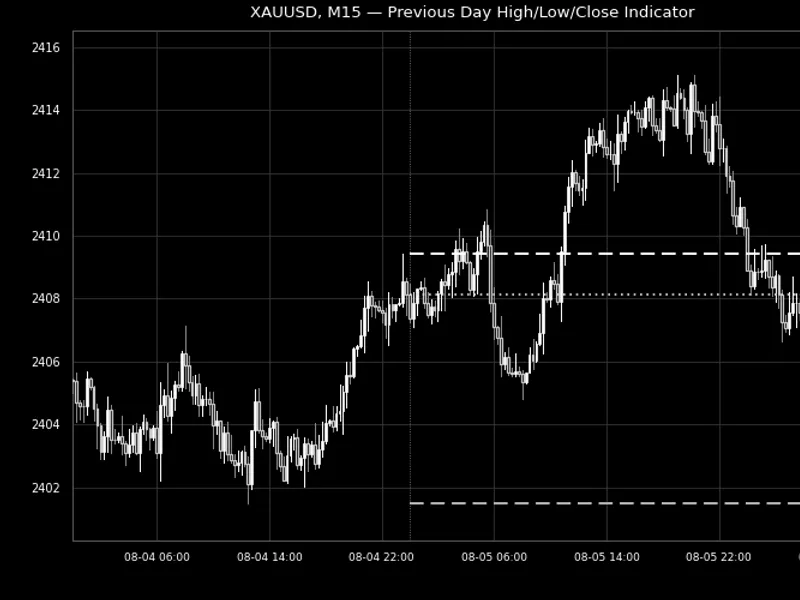


Close Cross MA Expert Advisor
Info
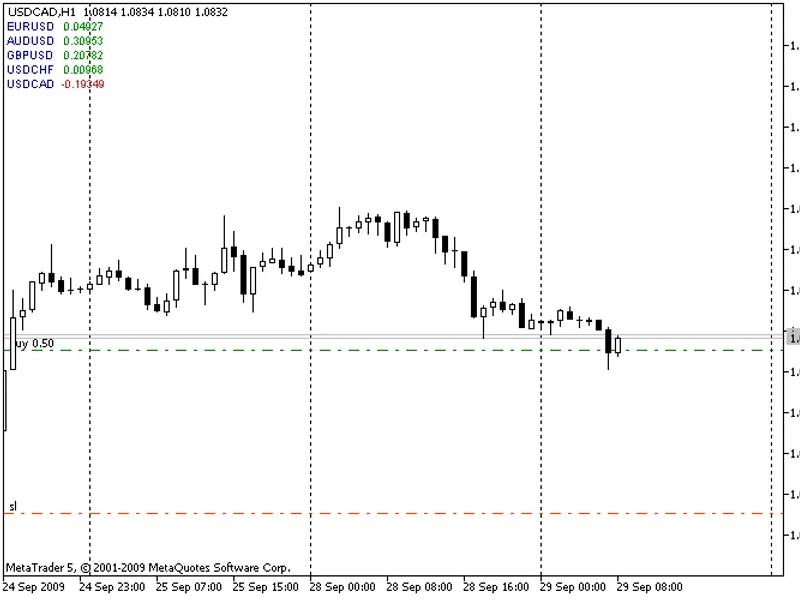
The Close Cross MA Expert Advisor is a Expert Advisor for MetaTrader 4 that close cross ma expert advisor (ea) 3. 00Stealth Mode:The EA will close all open orders on charts corresponding to the EA's chart symbol when the bid or ask price is equal to or crosses the Moving Average (MA).
Usage
This tool is typically used for automated trading on major forex pairs and gold.
Platform
This Expert Advisor works exclusively on MetaTrader 4 (both build 600+ and newer versions).
Setup
Place the downloaded file in MQL4/Experts folder via File ? Open Data Folder in MetaTrader 4.
How to Install and Use Close Cross MA Expert Advisor
1. Installation: Open the "File" menu, select "Open Data Folder," navigate to MQL/Experts, paste your file, and restart the terminal.
2. Activation: Drag the EA from the Navigator onto a chart, ensure "Allow live trading" is checked in the Common tab, and verify the AutoTrading button is green.
3. Optimization: Right-click your chart, choose "Expert List," click "Properties" to adjust inputs, and save your preferred setup as a set file for future use.
4. Maintenance: Regularly check the "Experts" tab in the terminal window to monitor trade logs and potential execution errors.
Frequently Asked Questions
Q: Why is my EA not opening trades? A: Check the "AutoTrading" button, ensure "Allow live trading" is enabled, and verify your broker allows automated trading on your account type.
Q: Can I run multiple EAs on one chart? A: No, each chart can only host one active EA; however, you can open multiple charts for different currency pairs to run several EAs.
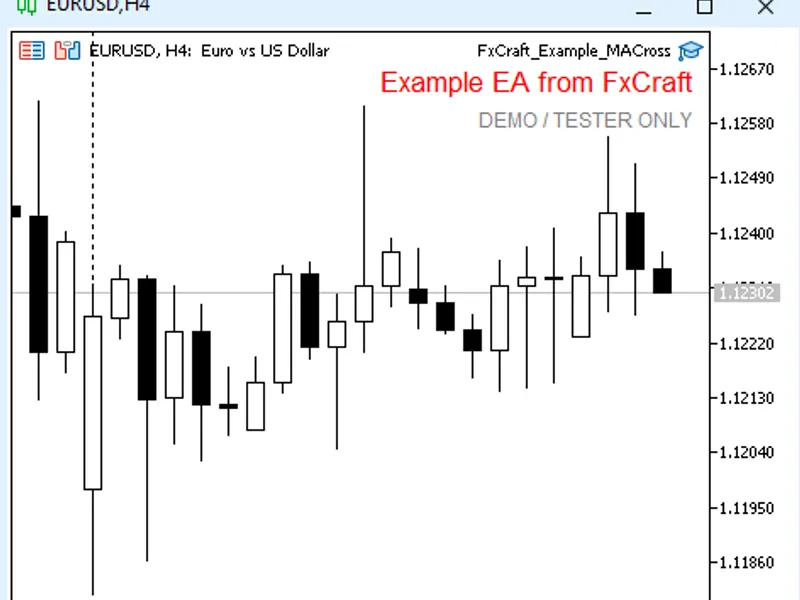
Q: What does the "smiley face" icon mean? A: A smiley face in the top-right corner of the chart indicates the EA is successfully running; a frowny face means it is disabled.
What this tool does
Close Cross MA Expert Advisor (EA) 3.
Typical Use Case
This Expert Advisor excels in automated trading and technical analysis on MetaTrader 4.
Compatible Platform & Setup
This Expert Advisor works on MetaTrader 4. Place the file in the MQL4/Experts folder and restart the terminal.
Description & Settings
Related: close positions by percentage profit or loss - another powerful expert for MetaTrader 4 traders.
Close Cross MA Expert Advisor (EA) 3.00Also recommended: E-Close by Time: Automated Position and Order Management - similar expert with strong performance on MetaTrader 4.
Stealth Mode:The EA will close all open orders on charts corresponding to the EA's chart symbol when the bid or ask price is equal to or crosses the Moving Average (MA). For buy orders, the condition is met when the bid price is equal to or less than the MA. For sell orders, the condition is met when the ask price is equal to or greater than the MA.
Price Gaps in Stealth Mode:
If the current price gaps past the MA, the EA will close all relevant open orders at the first available price.
Spread Mode:
The EA will close all open orders on charts corresponding to the EA's chart symbol when the MA price falls between the bid-ask spread. In this condition, the bid price is lower than the MA price, and simultaneously, the ask price is higher than the MA price. This condition applies to both buy and sell orders.
Price Gaps in Spread Mode:
If the current price gaps past the MA, both the bid and ask prices will either be greater than the MA or less than the MA. All relevant open orders will remain open until the current price retraces back to the MA and the MA price falls between the ask-bid spread, or until relevant open orders are closed manually.
Note:
Ensure that the chart MA and EA parameters match exactly regarding MA period, MA shift, MA method, and MA applied price.
Changed parameters can be saved, named, and loaded for reuse using the Save & Load buttons. Refer to the EA properties inputs tab (F7 -> Inputs tab -> Save, Load buttons).
Chart Popup, Sound Alert, and Push Notification for Mobile Options.
Enable/Disable Order Close Function:
Click on the chart -> | Close On ^ | Close Off .
Limitations
For an EA to control specific orders and actions of other EAs, it must have access to the order's assigned magic number. Magic numbers cannot be assigned to manually opened orders. Since orders are opened manually and only closed by the EA, the absence of a magic number results in EA function limitations as highlighted below.
For more information, see 'Magic Number: "Magic" Identifier of the Order'.
When an order is placed (a position is opened), a unique number can be assigned to it. This number will subsequently be used to distinguish the order from others. There is no use (or even possibility) of applying this feature when trading manually.
The EA will close all open trades for the symbol of the chart to which it is attached, and all open trades on charts of the same symbol that are not attached.
Do not use the EA on more than one chart of the same symbol simultaneously. This will frequently result in all open trades on all same symbol charts being closed by the first EA to meet any orderClose() conditions.
Note:
The EA will close all open positions across all charts *only* of the same symbol to which the EA is attached. Open positions of different symbols will remain open.
Push Notification:
iOS and Android
Push notifications are fast, fail-safe, and easy to set up.
First, install MetaTrader 4 on a mobile device.
Locate your MetaQuotes ID. See 'Settings and Messages' in MetaTrader 4 Mobile.
Enter your MetaQuotes ID in the client terminal of MetaTrader 4 on your computer (Tools -> Options -> Notifications).
Note: The same MetaQuotes ID can be used with multiple client terminals (different brokers).
Click the 'Test' button.
Open the MetaTrader 4 terminal (Ctrl+T) and select the 'Journal' tab. Check under 'Messages' if the test was successful.
Verify that the test message has been received on the mobile device.
Once a successful test is obtained, push notification alerts can be configured in the EA.
Important:
Ensure your mobile device has sound turned on for notifications, and also ensure MetaTrader 4 mobile is included in your phone's notification or messaging settings.
If further clarification is required, search Google and YouTube for "MT4 Push Notification".
Please Note:
The EA only notifies of trades closed, not any other trade transaction. If 'Notify of trade transactions' is checked, the user will receive notifications of all trade transactions.
To view images of similar push notifications as received on iOS and Android devices, see 'Here' (scroll down to Push Notification).
This document was last updated in 2026.
You may also like: three neural networks across three different timeframes - excellent alternative for expert users on MetaTrader 4.
Source Code
#property copyright "robotfx"
#property link "https://robotfx.org"
#property version   "3.00"
#property description "this code is educational. feel free to use, modify and upgrade as you wish. visit robotfx.org for professional trading tools"
#property description "this code is educational. feel free to use, modify and upgrade as you wish. visit robotfx.org for professional trading tools"
#property description "this code is educational. feel free to use, modify and upgrade as you wish. visit robotfx.org for professional trading tools"
#property strict
/*enum eaoffon
{
   ea_off = 0, // off
.......
⚠ Limitations & Risk Warning
- This tool is provided for educational and testing purposes only.
- Past performance does not guarantee future results.
- Trading involves substantial risk of loss. Use on a demo account first.
- Results may vary depending on market conditions, broker, and settings.
- We recommend thorough backtesting and forward testing before using with real funds.