



XAUUSD Hourly Volatility Clock: Typical Hourly Range vs. Current Hour
Info
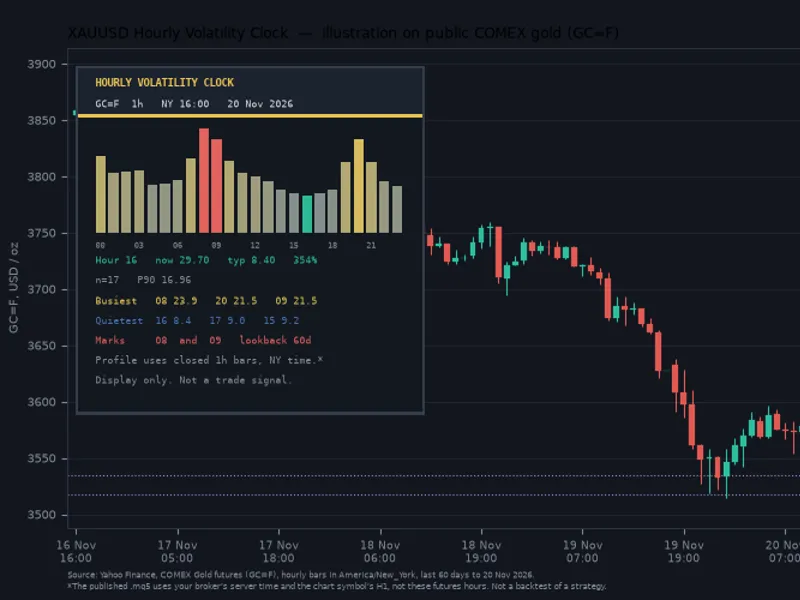
The XAUUSD Hourly Volatility Clock: Typical Hourly Range vs. Current Hour is a Indicator for MetaTrader 5 that xauusd hourly volatility clock is a metatrader 5 chart indicator. It measures, for each hour of the broker’s server clock, the typical high–low range of completed H1 bars, and compares that profile with the hour that is forming now.
Usage
This tool is typically used for enhancing chart analysis and decision making.
Platform
This Indicator works exclusively on MetaTrader 5 (both build 600+ and newer versions).
Setup
Place the downloaded file in MQL5/Indicators folder via File ? Open Data Folder in MetaTrader 5.
How to Install and Use XAUUSD Hourly Volatility Clock: Typical Hourly Range vs. Current Hour
1. Installation: Place your file in the MQL/Indicators folder via "Open Data Folder" and restart your terminal.
2. Loading: Find the indicator in the Navigator, drag it onto your chart, and configure the input parameters in the popup window.
3. Customization: Press Ctrl+I to open the indicator list, select your tool, and click "Properties" to change colors, levels, or visual styles.
4. Updating: Replace the old file in the Indicators folder with the new version and restart the platform to apply changes.
Frequently Asked Questions
Q: Why is my indicator not showing? A: Verify the file is in the MQL/Indicators folder, or try right-clicking the "Indicators" tree in the Navigator and clicking "Refresh."
Q: Do custom indicators slow down the platform? A: Too many complex indicators can impact performance; remove unused ones via the "Indicator List" (Ctrl+I).
Q: Can I use MT4 indicators on MT5? A: No, MQL4 and MQL5 are distinct languages; ensure the indicator is compiled specifically for your platform version.
What this tool does
XAUUSD Hourly Volatility Clock is a MetaTrader 5 chart indicator.
Typical Use Case
This Indicator excels in automated trading and technical analysis on MetaTrader 5.
Compatible Platform & Setup
This Indicator works on MetaTrader 5. Place the file in the MQL5/Indicators folder and restart the terminal.
Description & Settings
Related: Gold Volatility and Risk Meter: ATR Regimes and Stop Cost Analysis for XAUUSD - another powerful indicator for MetaTrader 5 traders.
XAUUSD Hourly Volatility Clock is a MetaTrader 5 chart indicator.Also recommended: Gold Level Map for XAUUSD: Key Levels and Trading Context - similar indicator with strong performance on MetaTrader 5.
It measures, for each hour of the broker’s server clock, the typical high–low range of completed H1 bars, and compares that profile with the hour that is forming now.The idea is simple: gold does not move the same amount at 03:00 as it does around a liquid session open.
The indicator does not place, modify or close orders, and it is not a trade signal.
It is not a session-box tool and it does not mark liquidity sweeps.
It is a volatility profile of the twenty-four server hours, drawn as a compact dark-theme clock.
XAUUSD Hourly Volatility Clock: median H1 range for each server hour versus the current hour.
Features
A 24-hour strip in the panel: each column is the median H1 range of that server hour over the lookback.
Quiet hours are cool, busy hours are gold, the current hour is teal.
The current hour is reported as “now versus typical”, in price and as a percentage of the median.
The mean and the 90th percentile can be shown as well.
A short ranking of the busiest and quietest hours in the current lookback.
An optional box on the chart for the developing hour’s high and low, and a dotted typical band at hour-open ± the median range of that hour.
Two optional highlight hours (defaults 10 and 16 in server time).
Set them to the session opens you actually care about on your broker; the indicator does not assume a timezone.
An optional expansion alert when a closed H1 bar’s range exceeds a multiple of that hour’s median (1.5× by default).
Auto-scale panel, configurable colours, fonts and widths.
Objects use the prefix HVC_ and are removed when the indicator is removed.
No look-ahead in the profile: only closed H1 bars are counted.
The current hour is displayed as developing and is not written back into the medians.
Works on any symbol and any chart timeframe.
The profile is always built from that symbol’s H1 history.
Defaults and the title are chosen for gold.
How the profile is built
The indicator reads completed H1 bars of the chart symbol, going back N days (60 by default).
For each bar it takes the server hour of the bar’s open and the high–low range.
For each hour 00–23 it stores the median range, and optionally the mean and the 90th percentile, once at least 8 samples are present.
The hour that is still open is excluded from the medians.
When that hour closes, the profile is rebuilt.
The clock follows broker server time, not London or New York time.
If your broker changes server time with daylight saving, the same wall-clock hour may land in a different column after the change.
That is a property of the server clock, not a repaint of past bars.
A typical band around the hour open is a budget, not a target and not a stop.
Inputs
Profile
Input
Default
Meaning
Lookback days
60
Completed days of H1 history used for the medians.
Minimum samples
8
An hour with fewer closed bars is shown as empty.
Show mean / P90
mean off, P90 on
Extra statistics for the current hour.
Chart marks and alerts
Input
Default
Meaning
Current-hour box
on
Rectangle of the developing hour’s high and low.
Typical band
on
Dotted lines at hour open ± that hour’s median.
Highlight hours A / B
10 and 16
Server hours to paint in the accent colour; −1 turns one off.
Expansion alert
off
Fires only on a closed H1 bar.
Expansion multiple
1.50
Closed-hour range versus that hour’s median.
Corner, offsets, auto-scale, font, line and panel colours are all inputs.
How to use it
Attach the indicator to XAUUSD (or to any other symbol).
It is comfortable on M15 and H1; the profile still comes from H1.
Look at the clock before you plan an entry: if the typical range of this server hour is already used, the “average” hour has less room left.
That is a budget, not a barrier.
Set highlight hours to the session opens of your broker, after you have checked the server clock.
Leave alerts off until you have watched a few sessions.
Do not treat a busy hour as a buy or a sell signal.
Requirements
Platform: MetaTrader 5.
Enough H1 history on the symbol (a few weeks at least; 60 days is the default lookback).
No DLL calls, no WebRequest, no internet connection.
The indicator does not trade.
About the author
More free tools by the same developer available in 2026.
You may also like: Gold Session Liquidity Free MT5 - XAUUSD Sessions, Sweeps, and Risk Planner - excellent alternative for indicator users on MetaTrader 5.
Source Code
#property copyright "RobotFX"
#property link "https://robotfx.org"
#property version   "1.00"
#property description "This code is educational. Feel free to use, modify and upgrade as you wish. Visit ROBOTFX.ORG for professional trading tools"
#property indicator_chart_window
#property indicator_plots   0
#property indicator_buffers 0
input group "1. Profile"
input int    InpLookbackDays    = 60;
input int    InpMinSamples      = 8;
.......
⚠ Limitations & Risk Warning
- This tool is provided for educational and testing purposes only.
- Past performance does not guarantee future results.
- Trading involves substantial risk of loss. Use on a demo account first.
- Results may vary depending on market conditions, broker, and settings.
- We recommend thorough backtesting and forward testing before using with real funds.