
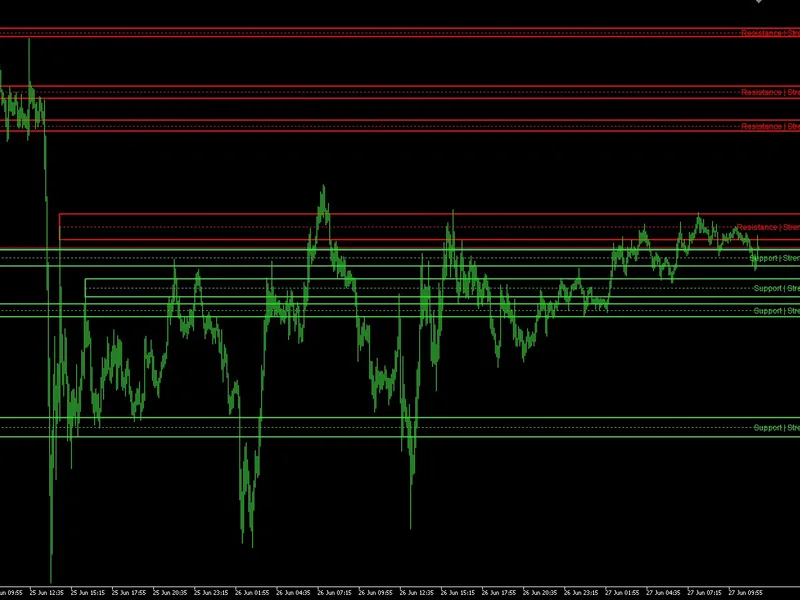
day extremum zones
Info
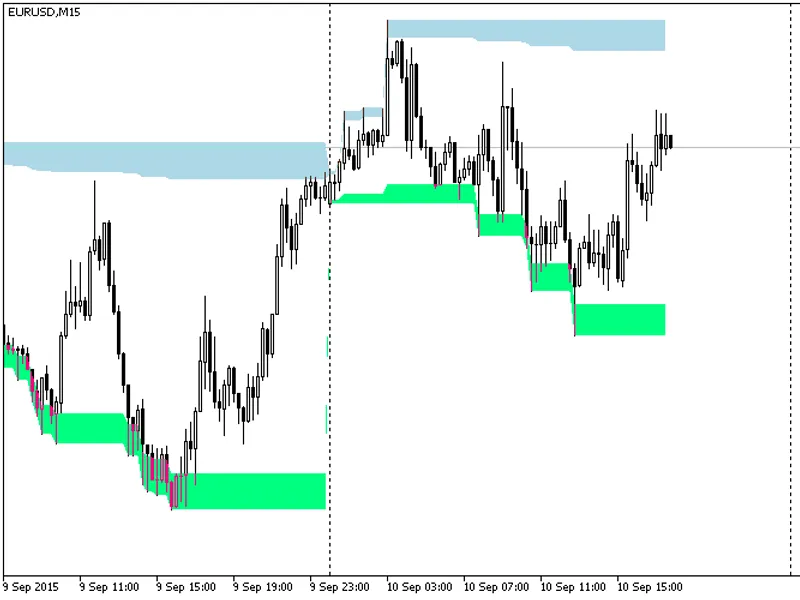
The day extremum zones is a Indicator for MetaTrader 5 that the indicator shows daily extremum zones. maximum zone: distance from day maximum - Х% of day range, minimum zone: distance from day minimum + y% of day range.
Usage
This tool is typically used for enhancing chart analysis and decision making.
Platform
This Indicator works exclusively on MetaTrader 5 (both build 600+ and newer versions).
Setup
Place the downloaded file in MQL5/Indicators folder via File ? Open Data Folder in MetaTrader 5.
How to Install and Use day extremum zones
1. Installation: Place your file in the MQL/Indicators folder via "Open Data Folder" and restart your terminal.
2. Loading: Find the indicator in the Navigator, drag it onto your chart, and configure the input parameters in the popup window.
3. Customization: Press Ctrl+I to open the indicator list, select your tool, and click "Properties" to change colors, levels, or visual styles.
4. Updating: Replace the old file in the Indicators folder with the new version and restart the platform to apply changes.
Frequently Asked Questions
Q: Why is my indicator not showing? A: Verify the file is in the MQL/Indicators folder, or try right-clicking the "Indicators" tree in the Navigator and clicking "Refresh."
Q: Do custom indicators slow down the platform? A: Too many complex indicators can impact performance; remove unused ones via the "Indicator List" (Ctrl+I).
Q: Can I use MT4 indicators on MT5? A: No, MQL4 and MQL5 are distinct languages; ensure the indicator is compiled specifically for your platform version.
What this tool does
the indicator shows daily extremum zones.
Typical Use Case
This Indicator excels in automated trading and technical analysis on MetaTrader 5.
Compatible Platform & Setup
This Indicator works on MetaTrader 5. Place the file in the MQL5/Indicators folder and restart the terminal.
Description & Settings
Related: Session Scalping Zones Indicator - another powerful indicator for MetaTrader 5 traders.
the indicator shows daily extremum zones. maximum zone: distance from day maximum - Х% of day range, minimum zone: distance from day minimum + y% of day range.
Also recommended: Draw On Liquidity and Kill Zones Indicator - similar indicator with strong performance on MetaTrader 5.
flexible parameter setting is allowed. tune zone parameters as you like!the indicator can display information using one of five drawing styles:
filling (draw_filling);
histogram (draw_histogram2);
line (draw_line);
arrows (draw_arrow);
not drawn (draw_none).
usage:
for color fill and histogram styles (zone size for maximums (inpupzonepct) and zone size for minimums (inpdnzonepct) are not equal to 0), the indicator shows zones which can be treated as support zones.
color fill drawing style. using as support zones. ranges = 10%
for line and arrows styles, the indicator can display both external and internal boundaries of relevant zones (by changing the inpdrawinternalzone parameter). when displaying the internal zone (its boundary is specified in settings, no more than 50% of day range from each side), you can set its value, for example, on a certain fibonacci level. using as a support level.
the green line is 38% from minimum (inpdnzonepct = 38), the blue line is 50% from day maximum (inpupzonepct = 50). inpdrawinternalzone = true. imitating fibonacci levels
in all drawing styles, zones can be used as a filter for placing orders (avoid opening positions in ranges close to day maximum/minimum).
you can use it as a supplemental indicator in your own solutions, and it will not obstruct the screen. in this case, use not drawn style.
recommendations:
pay attention to log records! handling of common errors is implemented in the code.
notes:
the indicator is displayed on timeframes up to Н2.
indicator is used for calculation.
the indicator shows values only on closed bars.
you can disable displaying values in the data window (set inpshowdata = false).
You may also like: ATR Ranked Support and Resistance Zones - excellent alternative for indicator users on MetaTrader 5.
Source Code
#property copyright "robotfx"
#property link "https://robotfx.org"
#property version   "1.01"
#property indicator_chart_window
#property description "this code is educational. feel free to use, modify and upgrade as you wish. visit robotfx.org for professional trading tools"
#property description "this code is educational. feel free to use, modify and upgrade as you wish. visit robotfx.org for professional trading tools"
#property indicator_plots 2
#property indicator_buffers 4
double bufw[];         //
double bufx[];         //   /
.......
⚠ Limitations & Risk Warning
- This tool is provided for educational and testing purposes only.
- Past performance does not guarantee future results.
- Trading involves substantial risk of loss. Use on a demo account first.
- Results may vary depending on market conditions, broker, and settings.
- We recommend thorough backtesting and forward testing before using with real funds.