



trend me leave me
Info
The trend me leave me is a Expert Advisor for MetaTrader 5 that trendmeleaveme is a metatrader 5 ea. the semi-automated expert advisor using a trend line (trendline).
Usage
This tool is typically used for trend following strategies across multiple currency pairs.
Platform
This Expert Advisor works exclusively on MetaTrader 5 (both build 600+ and newer versions).
Setup
Place the downloaded file in MQL5/Experts folder via File ? Open Data Folder in MetaTrader 5.
How to Install and Use trend me leave me
1. Installation: Open the "File" menu, select "Open Data Folder," navigate to MQL/Experts, paste your file, and restart the terminal.
2. Activation: Drag the EA from the Navigator onto a chart, ensure "Allow live trading" is checked in the Common tab, and verify the AutoTrading button is green.
3. Optimization: Right-click your chart, choose "Expert List," click "Properties" to adjust inputs, and save your preferred setup as a set file for future use.
4. Maintenance: Regularly check the "Experts" tab in the terminal window to monitor trade logs and potential execution errors.
Frequently Asked Questions
Q: Why is my EA not opening trades? A: Check the "AutoTrading" button, ensure "Allow live trading" is enabled, and verify your broker allows automated trading on your account type.
Q: Can I run multiple EAs on one chart? A: No, each chart can only host one active EA; however, you can open multiple charts for different currency pairs to run several EAs.
Q: What does the "smiley face" icon mean? A: A smiley face in the top-right corner of the chart indicates the EA is successfully running; a frowny face means it is disabled.
What this tool does
trendmeleaveme is a metatrader 5 ea.
Typical Use Case
This Expert Advisor excels in trend following on MetaTrader 5.
Compatible Platform & Setup
This Expert Advisor works on MetaTrader 5. Place the file in the MQL5/Experts folder and restart the terminal.
Description & Settings
Related: Steep MA Trend EA - another powerful expert for MetaTrader 5 traders.
trendmeleaveme is a metatrader 5 ea. the semi-automated expert advisor using a trend line (trendline).
before launching the ea, simply draw a bullish or a bearish trend. set the properties, launch the ea and you are free to focus your attention on something else.
Also recommended: Super Trend Trading EA - similar expert with strong performance on MetaTrader 5.
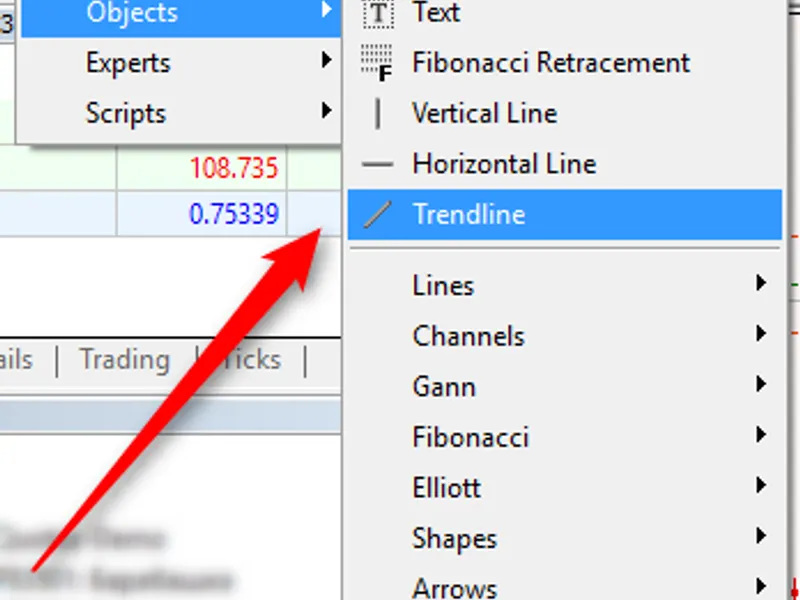
this is an automated ea. first, you should draw an upward, downward or horizontal trend:name it
buystop
or
sellstop
and set the
buystop_stepupper
,
buystop_steplower
,
sellstop_stepupper
and
sellstop_steplower
parameters
when the price enters the area between your buystop and buystop_steplower levels, the ea opens a buystop order following the buystop_stepupper price. when the price enters the area between your sellstop and sellstop_stepupper levels, the ea opens a sellstop order following the sellstop_steplower price. the ea always changes the openprice for both order types when the price follows a trend till it leaves the displayed area. you can adjust
buystop_stoploss
,
buystop_takeprofit
and
buystop_lot
to open a buystop order. you can also set
sellstop_stoploss
,
sellstop_takeprofit
and
sellstop_lot
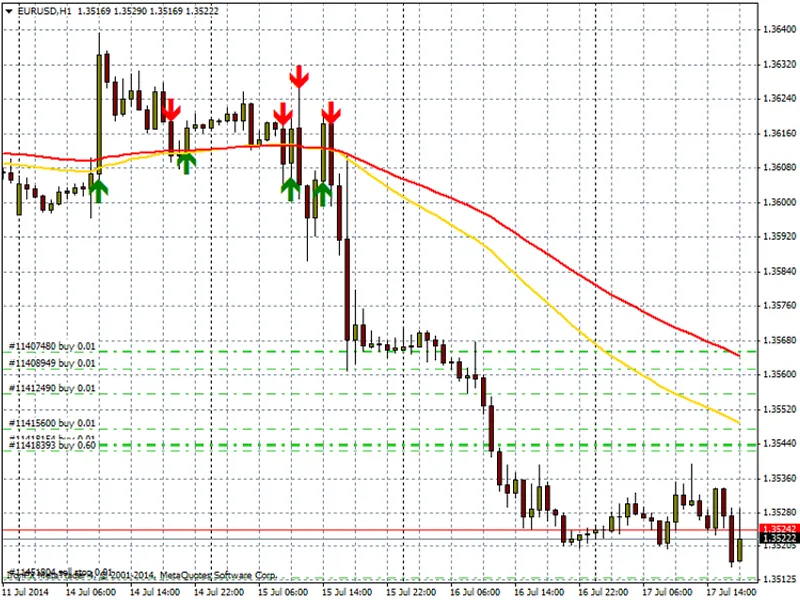
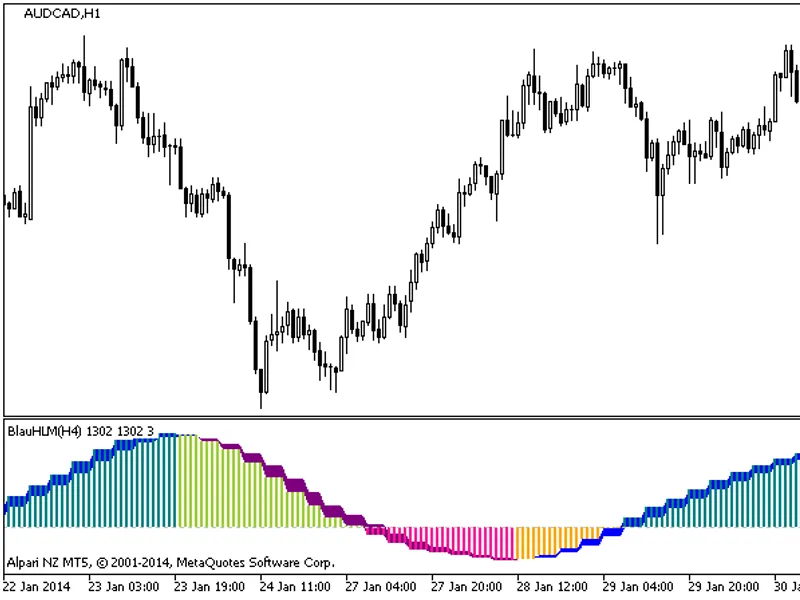
for a sellstop order. here is how it looks on the charts:
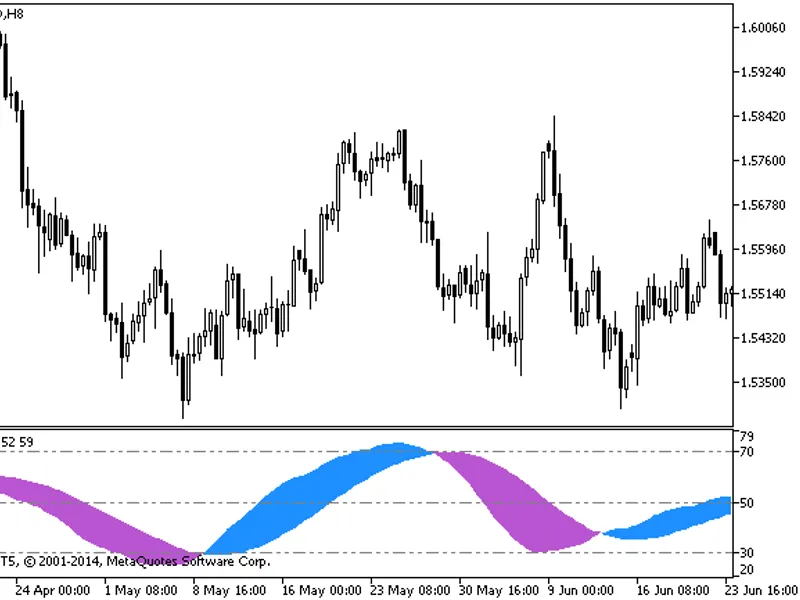
another example:
You may also like: adx trend pullback ea: trend strength and volatility-based trading - excellent alternative for expert users on MetaTrader 5.
Source Code
/.......
⚠ Limitations & Risk Warning
- This tool is provided for educational and testing purposes only.
- Past performance does not guarantee future results.
- Trading involves substantial risk of loss. Use on a demo account first.
- Results may vary depending on market conditions, broker, and settings.
- We recommend thorough backtesting and forward testing before using with real funds.