


Margin Risk Simulator
Info
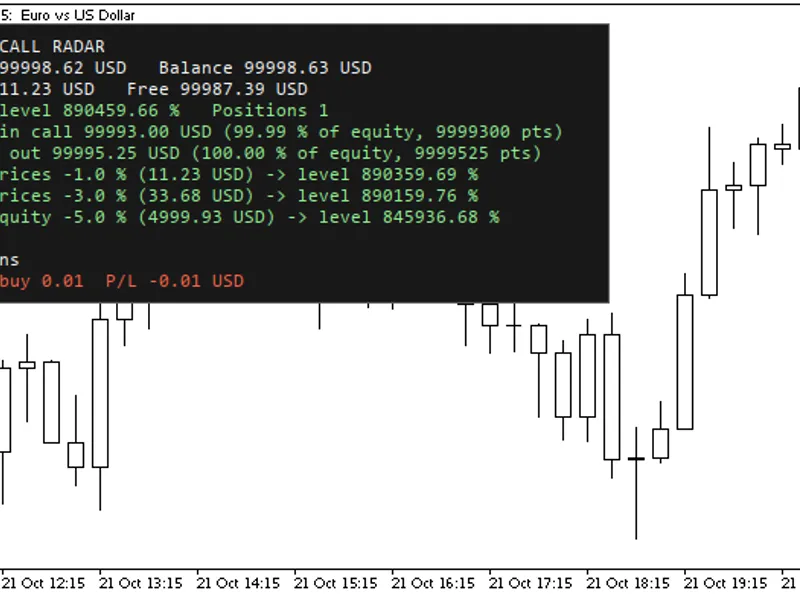
The Margin Risk Simulator is a Expert Advisor for MetaTrader 5 that margin risk simulator displays the prices for the current symbol at which your account would reach the broker's margin call and stop-out levels. It helps answer key questions before adding to a position: what happens to the margin level if I add X lots, and how many lots can I add without falling below a safety level.
Usage
This tool is typically used for automated trading on major forex pairs and gold.
Platform
This Expert Advisor works exclusively on MetaTrader 5 (both build 600+ and newer versions).
Setup
Place the downloaded file in MQL5/Experts folder via File ? Open Data Folder in MetaTrader 5.
How to Install and Use Margin Risk Simulator
1. Installation: Open the "File" menu, select "Open Data Folder," navigate to MQL/Experts, paste your file, and restart the terminal.
2. Activation: Drag the EA from the Navigator onto a chart, ensure "Allow live trading" is checked in the Common tab, and verify the AutoTrading button is green.
3. Optimization: Right-click your chart, choose "Expert List," click "Properties" to adjust inputs, and save your preferred setup as a set file for future use.
4. Maintenance: Regularly check the "Experts" tab in the terminal window to monitor trade logs and potential execution errors.
Frequently Asked Questions
Q: Why is my EA not opening trades? A: Check the "AutoTrading" button, ensure "Allow live trading" is enabled, and verify your broker allows automated trading on your account type.
Q: Can I run multiple EAs on one chart? A: No, each chart can only host one active EA; however, you can open multiple charts for different currency pairs to run several EAs.
Q: What does the "smiley face" icon mean? A: A smiley face in the top-right corner of the chart indicates the EA is successfully running; a frowny face means it is disabled.
What this tool does
Margin Risk Simulator displays the prices for the current symbol at which your account would reach the broker's margin call and stop-out levels.
Typical Use Case
This Expert Advisor excels in automated trading and technical analysis on MetaTrader 5.
Compatible Platform & Setup
This Expert Advisor works on MetaTrader 5. Place the file in the MQL5/Experts folder and restart the terminal.
Description & Settings
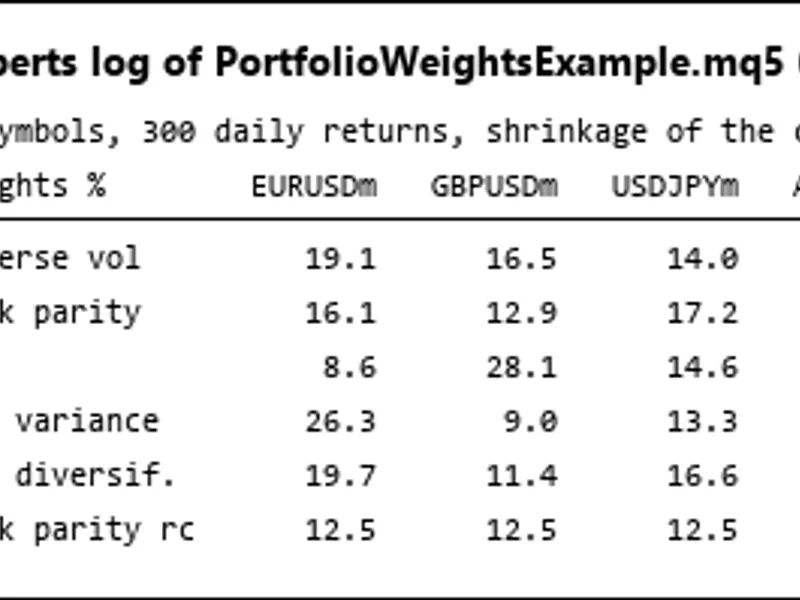
Related: Portfolio Weight Calculation: Risk Parity, HRP, Minimum Variance, and Maximum Diversification - another powerful expert for MetaTrader 5 traders.
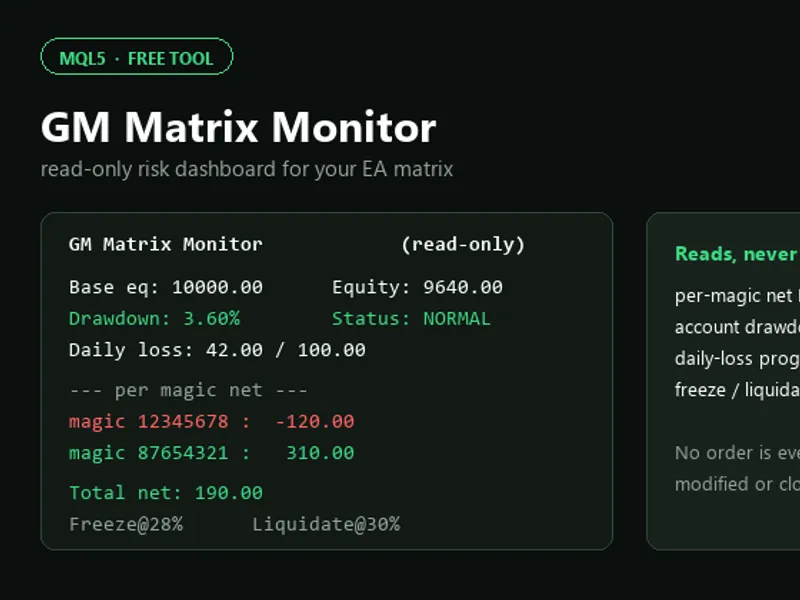
Margin Risk Simulator displays the prices for the current symbol at which your account would reach the broker's margin call and stop-out levels.Also recommended: GM Matrix Monitor: Read-Only EA Risk Dashboard - similar expert with strong performance on MetaTrader 5.
It helps answer key questions before adding to a position: what happens to the margin level if I add X lots, and how many lots can I add without falling below a safety level.
This tool is designed for traders who scale into positions, average down, or manage grids of pending orders.
It functions solely as an analysis tool and does not send, modify, or close orders.
The Expert Advisor format is used because the terminal does not support OrderCalcProfit and OrderCalcMargin within indicators. Algo Trading does not need to be enabled.
Features
Margin Call and Stop Out Lines
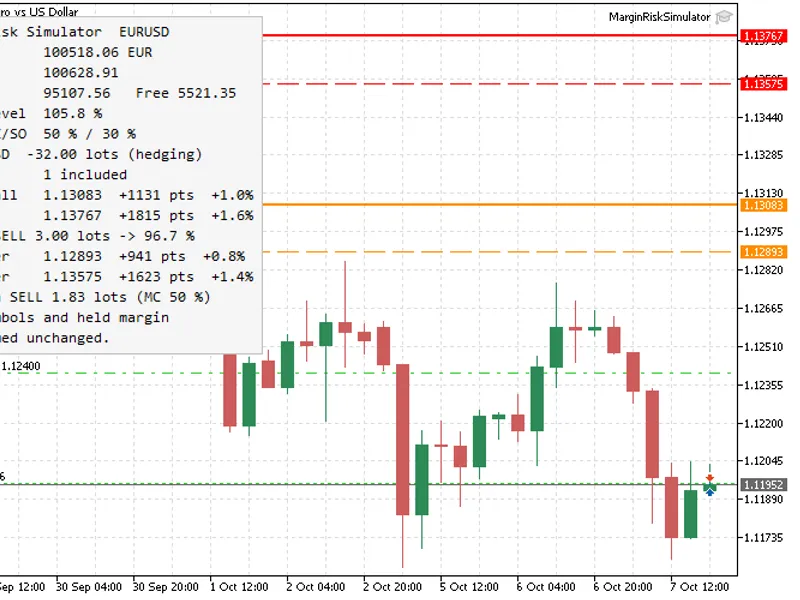
Two horizontal lines (orange and red) are drawn on the chart at the prices where the broker's margin call and stop-out levels would be reached. The panel displays the price, distance in points, and percentage difference. The simulator checks both upward and downward price movements, accommodating hedged or mixed exposures.
Broker Rules Read from Account
Margin call and stop-out levels, along with their calculation mode (percentage or monetary value), are dynamically read from the account properties. Both netting and hedging account types are supported.
What-If Mode
Hypothetical extra volume and Hypothetical position side allow you to simulate adding a position at the current price. The panel will then display the resulting margin level immediately after the trade, with dashed lines indicating the new hypothetical margin call and stop-out prices.
Maximum Extra Volume Calculation
This feature calculates the largest possible volume (rounded according to the broker's volume step and limits) that can be added in the specified direction without the margin level falling below the safety level and while ensuring free margin remains non-negative. By default, the safety level is the broker's margin call level, but you can set a custom percentage.
Pending Orders Considered
Limit and stop orders for the current symbol whose prices lie between the current price and the calculated margin levels are treated as if they have been filled at their respective prices. This includes the added exposure and margin impact. This simulation demonstrates how a grid of buy limit orders, for example, can significantly reduce the distance to the stop-out level.
Native Calculation Engine
Profit calculations utilize OrderCalcProfit, and margin calculations use OrderCalcMargin for the total volume on each side. This ensures accuracy by incorporating contract size, profit currency conversion, and volume-tiered leverage (where the cost of 10 lots might differ from 10 times the cost of a single lot) as recognized by the trading terminal.
Resource Efficiency
The simulator refreshes on price ticks and via a timer, with a maximum frequency of five times per second. It intelligently skips calculations if quotes, account status, or orders have not changed, minimizing resource usage.
How to Use
1. Attach the Expert Advisor to a chart of the symbol you wish to analyze. If another Expert Advisor is already active on the chart, open a separate chart for the same symbol.
2. Observe the panel: it displays the account state, broker-defined levels, net volume for the symbol, and the nearest margin call and stop-out prices.
3. To test trading strategies, adjust the Hypothetical extra volume and select the position side. The panel and dashed lines will reflect the account's status after executing that simulated trade.
4. Before scaling into a position, check the Maximum extra volume calculation. You can also set a custom Safety margin level if you prefer a buffer above the broker's standard margin call.
Inputs
Input Name
Default Value
Description
Hypothetical extra volume, lots
0
Specifies the volume for the what-if position. Setting this to 0 disables the mode.
Hypothetical position side
Buy
Determines the direction of the what-if position and the calculation for maximum volume.
Safety margin level for max volume, %
0
Sets the minimum margin level required for the maximum volume calculation. A value of 0 uses the broker's margin call level.
Include pending orders that trigger on the way
true
When enabled, limit and stop orders for this symbol are considered filled as the price moves through their levels.
Search range around current price, %
50
Defines the price range around the current market price within which margin levels are searched.
Show margin call line / Show stop out line
true
Toggles the display of the margin call and stop-out lines on the chart.
Margin call line color / Stop out line color
DarkOrange / Red
Sets the colors for the margin call and stop-out lines. Dashed lines are used for the what-if scenarios.
Panel corner
Left upper
Determines the position of the information panel on the chart.
Panel font size
9
Sets the font size for the text displayed in the information panel.
Panel text color / Panel background color
Black / WhiteSmoke
Configures the text and background colors of the panel. The light background ensures readability on various chart themes.
Refresh interval, seconds
1
Sets the timer interval for panel refreshes. This ensures updates even without new price ticks for the symbol, reflecting changes on other symbols.
Notes
The displayed margin levels are estimates specific to the current symbol. Positions on other symbols are assumed to remain static, and the currently held margin is considered unchanged. Actual levels can be affected by gaps, swaps, commissions, and changes in currency conversion rates.
The current spread is assumed for short positions. When the profit of this symbol is converted using its own exchange rate (e.g., EURUSD on a EUR account), the conversion follows the simulated price.
Margin is evaluated at current prices. For hedging accounts, both long and short positions for this symbol are charged margin in full, without the reduced margin typically applied to hedged positions. This provides a more conservative estimate. For exchange accounts, margin rules may differ, and the result is an approximation.
Stop-out levels calculated in money mode are compared against free margin (equity minus used margin).
Stop-limit orders are not simulated due to their fill dependency on price movement path.
If even the minimum possible trade volume would breach the safety level, the Maximum extra volume calculation will display 'n/a'.
This tool is provided as a single file with no external dependencies. It compiles without errors or warnings.
Screenshots
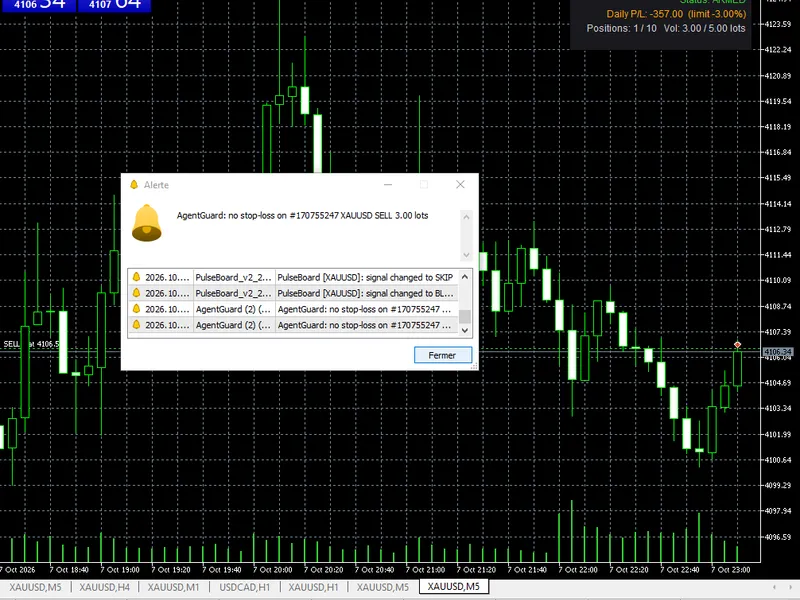
You may also like: Agent Guard: Independent Risk Management for MetaTrader 5 AI Agents - excellent alternative for expert users on MetaTrader 5.
Source Code
#property copyright "RobotFX"
#property link "https://robotfx.org"
#property version   "1.00"
#property description "This code is educational. Feel free to use, modify and upgrade as you wish. Visit ROBOTFX.ORG for professional trading tools"
#include <Trade\AccountInfo.mqh>
#include <Trade\SymbolInfo.mqh>
#include <Trade\PositionInfo.mqh>
#include <Trade\OrderInfo.mqh>
#include <ChartObjects\ChartObjectsTxtControls.mqh>
#include <ChartObjects\ChartObjectsLines.mqh>
.......
⚠ Limitations & Risk Warning
- This tool is provided for educational and testing purposes only.
- Past performance does not guarantee future results.
- Trading involves substantial risk of loss. Use on a demo account first.
- Results may vary depending on market conditions, broker, and settings.
- We recommend thorough backtesting and forward testing before using with real funds.