


ICQ Messenger for MetaTrader
Info
The ICQ Messenger for MetaTrader is a Expert Advisor for MetaTrader 5 that backgrounds / usage motivationwhen using an automated trading system, there are times when we need to access account information, such as balance and open positions, while away from the trading terminal. Instead of installing and logging into MetaTrader, this tool allows you to retrieve this information via ICQ, a popular messaging platform.
Usage
This tool is typically used for automated trading on major forex pairs and gold.
Platform
This Expert Advisor works exclusively on MetaTrader 5 (both build 600+ and newer versions).
Setup
Place the downloaded file in MQL5/Experts folder via File ? Open Data Folder in MetaTrader 5.
How to Install and Use ICQ Messenger for MetaTrader
1. Installation: Open the "File" menu, select "Open Data Folder," navigate to MQL/Experts, paste your file, and restart the terminal.
2. Activation: Drag the EA from the Navigator onto a chart, ensure "Allow live trading" is checked in the Common tab, and verify the AutoTrading button is green.
3. Optimization: Right-click your chart, choose "Expert List," click "Properties" to adjust inputs, and save your preferred setup as a set file for future use.
4. Maintenance: Regularly check the "Experts" tab in the terminal window to monitor trade logs and potential execution errors.
Frequently Asked Questions
Q: Why is my EA not opening trades? A: Check the "AutoTrading" button, ensure "Allow live trading" is enabled, and verify your broker allows automated trading on your account type.
Q: Can I run multiple EAs on one chart? A: No, each chart can only host one active EA; however, you can open multiple charts for different currency pairs to run several EAs.
Q: What does the "smiley face" icon mean? A: A smiley face in the top-right corner of the chart indicates the EA is successfully running; a frowny face means it is disabled.
What this tool does
Backgrounds / Usage MotivationWhen using an automated trading system, there are times when we need to access account information, such as balance and open positions, while away from the trading terminal.
Typical Use Case
This Expert Advisor excels in automated trading and technical analysis on MetaTrader 5.
Compatible Platform & Setup
This Expert Advisor works on MetaTrader 5. Place the file in the MQL5/Experts folder and restart the terminal.
Description & Settings
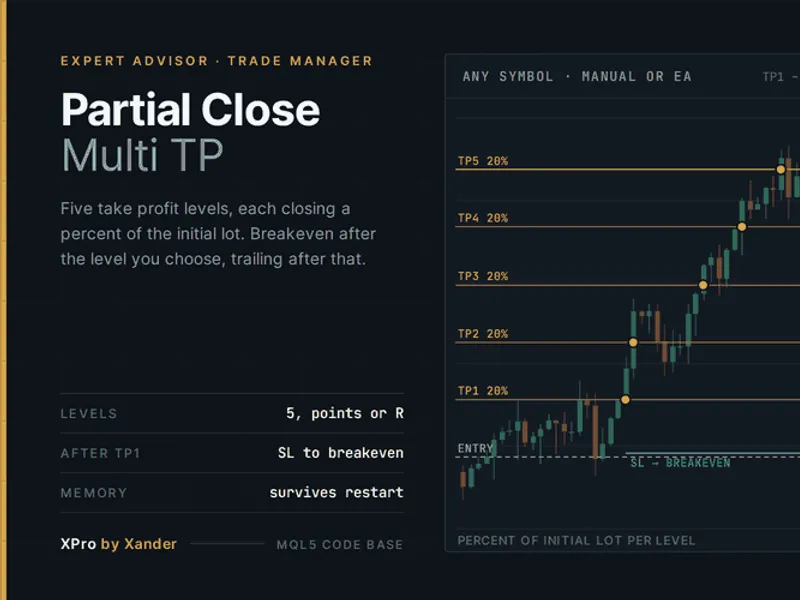
Related: Partial Close Multi TP Manager for MetaTrader 5 - another powerful expert for MetaTrader 5 traders.
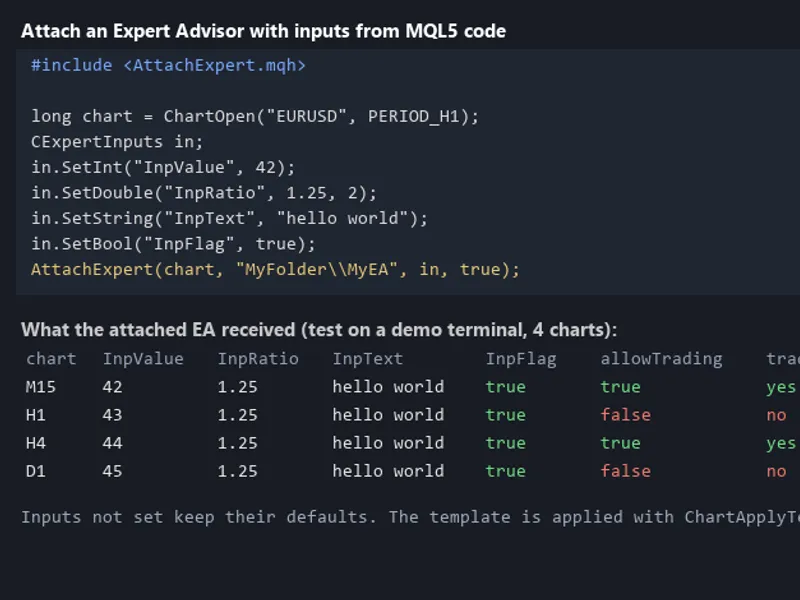
Backgrounds / Usage MotivationAlso recommended: Programmatically Attach Expert Advisors with Custom Inputs to MetaTrader 5 Charts - similar expert with strong performance on MetaTrader 5.
When using an automated trading system, there are times when we need to access account information, such as balance and open positions, while away from the trading terminal. Instead of installing and logging into MetaTrader, this tool allows you to retrieve this information via ICQ, a popular messaging platform.Implementation
The solution involves saving account information in text files and sending it on request.
An MT4/MT5 advisor, exp_statusbot, is used to save account balance information in a 'status.txt' file and open position changes in a 'notify.txt' file.
To send this information, an ICQ bot, mustwatcher, is developed. It analyzes requests and sends the requested account information to the user.
Installation Instructions
1. Download and compile exp_statusbot.mq4/mq5.
2. Launch MT4/MT5 and add the advisor to any chart.
3. Download icqbot_mustwatcher_v1.16.zip.
4. Launch the bot, ensuring 'Microsoft .NET Framework 3.5' is installed.
5. Use the 'Add' button to add 'status.txt' and 'notify.txt' (located in
6. Register a UIN (ICQ number) for the bot on the official website.
7. Enter the UIN and password for the bot.
8. Enter your name as an administrator.
9. Click 'Connect'.
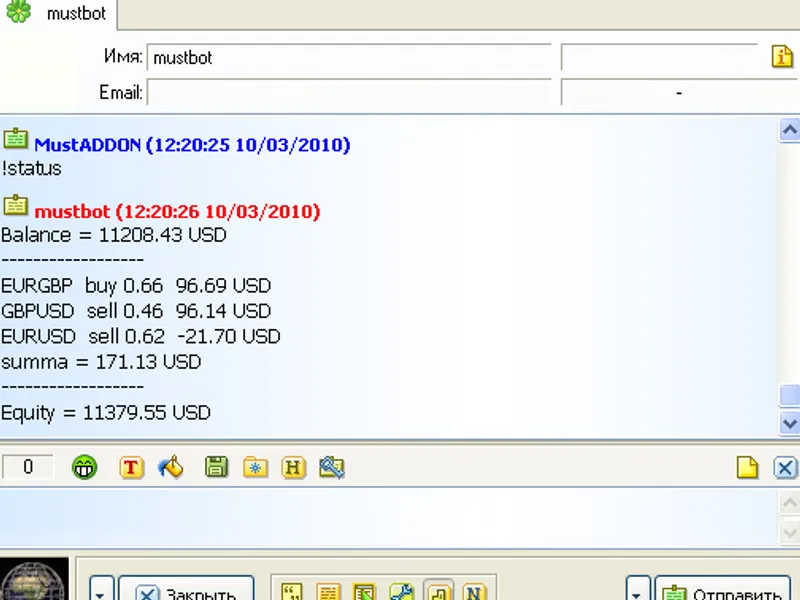
10. Send the command '!status' from your UIN to receive the account balance information.
11. To enable automatic notifications for file changes (e.g., 'notify.txt'), send the command '!spamon'.
12. Administrators can add other users to the registry for access to this information.
Additional Features
- Create multiple text files with custom content and retrieve them on demand.
- View the list of available commands with '!help' or in the file mustwatcher_dir/data/help_admin.txt.
- The bot's interface includes buttons for easy navigation.
Updates
mustwatcher v1.05: Added automatic connection on program launch.
mustwatcher v1.06: Added a checkbox for automatic program launch with the operating system, minimizing to the tray.
mustwatcher v1.07:
1. Changed the list scheme for files requiring automatic notification. Now, add files to the list ('Watcher' tab) before obtaining their content.
2. Enhanced the feedback system. Users can now add custom commands ('Feedback' tab) with text and file records.
exp_statusbot.mq4/mq5: Added a function to record data files for email reports.
mustwatcher v1.08: Introduced a detailed report generation feature. Add data files to the list ('Watcher' tab) to receive reports. The file name without a suffix acts as the request command (e.g., '!report' for 'report.txt').
mustwatcher v1.10: Bug fixes.
mustwatcher v1.13: Optimization and error fixes.
mustwatcher v1.16: Further optimization and error fixes.
You may also like: GDS Renko Trade Manager for MetaTrader 5 - excellent alternative for expert users on MetaTrader 5.
Source Code
#property copyright "robotfx"
extern string statusfilename = "status.txt";
extern string spamfilename   = "notify.txt";
extern string reportfilename = "report.txt";
string expname = "statusbot";
int    ord_tickets[];
int    ord_tickets_past[];
int    ord_tickets_changing_open[];
int    ord_tickets_changing_close[];
double curbalance = 0.0;
.......
⚠ Limitations & Risk Warning
- This tool is provided for educational and testing purposes only.
- Past performance does not guarantee future results.
- Trading involves substantial risk of loss. Use on a demo account first.
- Results may vary depending on market conditions, broker, and settings.
- We recommend thorough backtesting and forward testing before using with real funds.