Download ALL MT5 experts (1731)

Similar MetaTrader Tools
as q command desk
Info
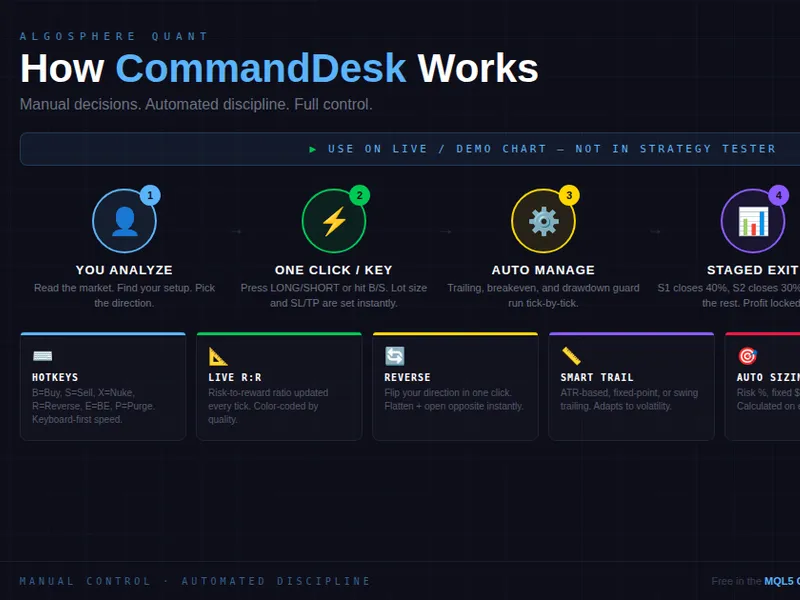
The as q command desk is a Expert Advisor for MetaTrader 5 that attach the ea to any live or demo chart, enable algo trading, and use the panel buttons or keyboard shortcuts to trade. commanddesk is a manual trading tool, not an automated strategy, and will show zero trades in strategy tester.
Usage
This tool is typically used for automated trading on major forex pairs and gold.
Platform
This Expert Advisor works exclusively on MetaTrader 5 (both build 600+ and newer versions).
Setup
Place the downloaded file in MQL5/Experts folder via File ? Open Data Folder in MetaTrader 5.
How to Install and Use as q command desk
1. Installation: Open the "File" menu, select "Open Data Folder," navigate to MQL/Experts, paste your file, and restart the terminal.
2. Activation: Drag the EA from the Navigator onto a chart, ensure "Allow live trading" is checked in the Common tab, and verify the AutoTrading button is green.
3. Optimization: Right-click your chart, choose "Expert List," click "Properties" to adjust inputs, and save your preferred setup as a set file for future use.
4. Maintenance: Regularly check the "Experts" tab in the terminal window to monitor trade logs and potential execution errors.
Frequently Asked Questions
Q: Why is my EA not opening trades? A: Check the "AutoTrading" button, ensure "Allow live trading" is enabled, and verify your broker allows automated trading on your account type.
Q: Can I run multiple EAs on one chart? A: No, each chart can only host one active EA; however, you can open multiple charts for different currency pairs to run several EAs.
Q: What does the "smiley face" icon mean? A: A smiley face in the top-right corner of the chart indicates the EA is successfully running; a frowny face means it is disabled.
What this tool does
attach the ea to any live or demo chart, enable algo trading, and use the panel buttons or keyboard shortcuts to trade.
Typical Use Case
This Expert Advisor excels in automated trading and technical analysis on MetaTrader 5.
Compatible Platform & Setup
This Expert Advisor works on MetaTrader 5. Place the file in the MQL5/Experts folder and restart the terminal.
Description & Settings
Related: Neon Desk: Manual Trading Panel with Multi-Timeframe Bias for MT5 - another powerful expert for MetaTrader 5 traders.
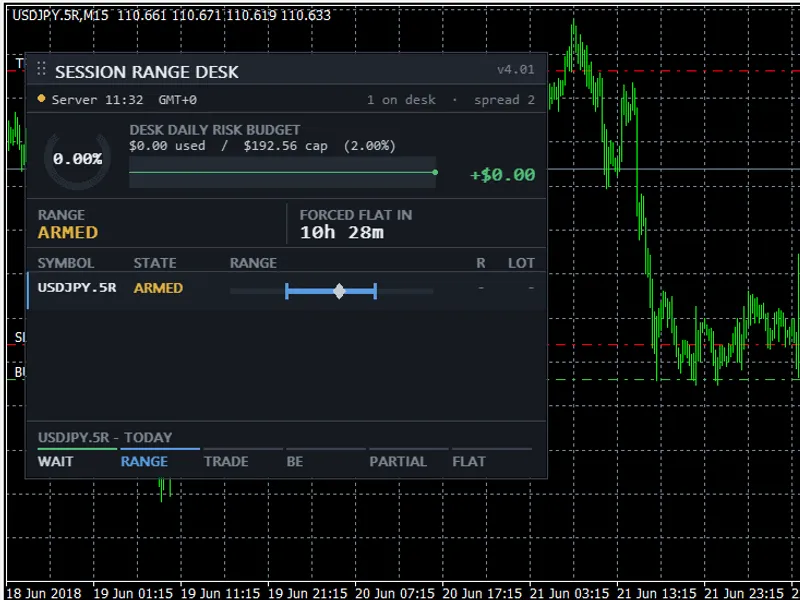
attach the ea to any live or demo chart, enable algo trading, and use the panel buttons or keyboard shortcuts to trade. commanddesk is a manual trading tool, not an automated strategy, and will show zero trades in strategy tester.Also recommended: Session Range Desk MT5: Educational Range Breakout EA - similar expert with strong performance on MetaTrader 5.
features
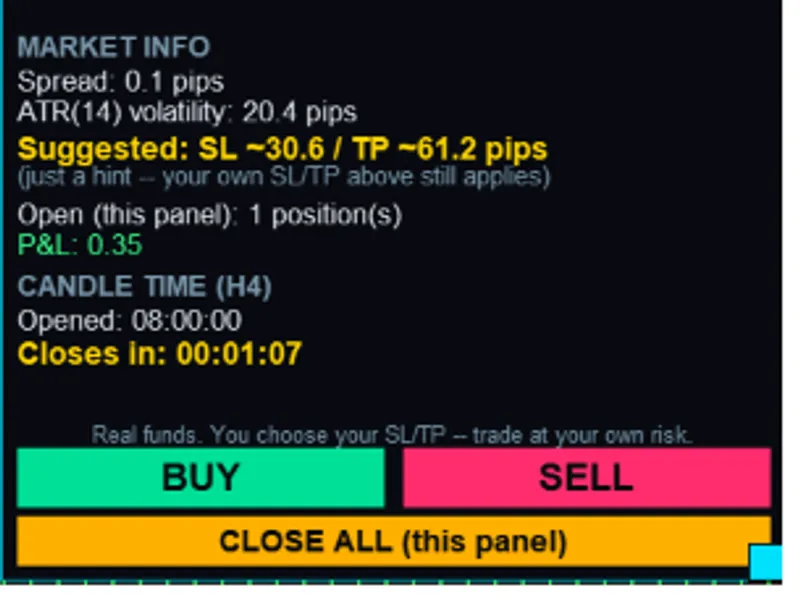
- one-click execution: press long or short on the panel. lot size is calculated based on your risk settings, and sl and tp levels are set automatically.
- keyboard shortcuts: trade without the mouse. b = buy, s = sell, x = flatten positions, r = reverse, e = breakeven, p = purge pending orders. shortcuts can be disabled in settings.
- staged multi-tp exits: set up to three exit stages with customizable close percentages. default: 40% at stage 1, 30% at stage 2, and the remainder at stage 3. stage information is stored in the order comment.
- adaptive trailing stop: choose from three trailing algorithms: fixed-point distance, atr-scaled distance (customizable), or previous-bar swing high/low. broker stop levels are automatically considered.
- auto breakeven: move the sl to entry price plus a safety offset when profit reaches a configured threshold. the "lock b/e" button applies breakeven to all profitable positions.
- drawdown guard: set a maximum drawdown percentage from your session equity peak. commanddesk monitors equity and auto-flattens positions/pending orders when the limit is breached. new orders are blocked until recovery. disabled by default.
- reverse position: close the current net direction and open the opposite side with one click or the r key. net direction is calculated from all open positions.
- live r:r display: real-time risk-to-reward ratio, color-coded for easy interpretation.
- daily trade counter: tracks daily market orders, resetting at midnight.
- intelligent position sizing: choose from fixed lot, percentage of balance, or flat dollar amount at risk. volume adjusts on every tick.
- full pending order suite: buy/sell limit and stop with automatic sl/tp placement, adhering to broker's minimum stop levels.
- live dashboard: a dark-themed panel displaying spread, position details, p&l, staged exit tracker, trailing configuration, drawdown guard status, and daily trade counter.
important
⚠ commanddesk requires manual interaction to open trades. it does not generate signals or auto-trade.
⚠ keyboard shortcuts are active when the chart window is in focus. disable in settings for mouse-only operation.
usage
1. place asq_commanddesk_v1.00.mq5 in the mql5/experts folder.
2. compile in metaeditor.
3. attach to any chart on a live or demo account.
4. enable algo trading in mt5.
5. configure risk settings, trailing, and drawdown guard in inputs.
6. click long/short or use b/s shortcuts to trade.
files
asq_commanddesk_v1.00.mq5 — main ea source (1,200 lines)
compatibility
metatrader 5 build 4000+
all symbols and timeframes
hedging and netting account types
You may also like: ks q command center: remote trade management for metatrader 5 - excellent alternative for expert users on MetaTrader 5.
Source Code
#property copyright "RobotFX"
#property link "https://robotfx.org"
#property description "Educational code - RobotFX"
#property version     "1.00"
п»ї
#include <Trade/Trade.mqh>
#include <Trade/PositionInfo.mqh>
#include <Trade/AccountInfo.mqh>
#include <Trade/SymbolInfo.mqh>
#include <Trade/OrderInfo.mqh>
.......
⚠ Limitations & Risk Warning
- This tool is provided for educational and testing purposes only.
- Past performance does not guarantee future results.
- Trading involves substantial risk of loss. Use on a demo account first.
- Results may vary depending on market conditions, broker, and settings.
- We recommend thorough backtesting and forward testing before using with real funds.