
ks q command center: remote trade management for metatrader 5
Info
The ks q command center: remote trade management for metatrader 5 is a Expert Advisor for MetaTrader 5 that this expert advisor (ea) is a powerful tool for quantitative fund managers, enabling remote monitoring and management of funded accounts from a mobile browser without the need for a vps. it establishes a two-way communication bridge between metatrader 5 and google sheets, offering both reporting and commanding capabilities.
Usage
This tool is typically used for automated trading on major forex pairs and gold.
Platform
This Expert Advisor works exclusively on MetaTrader 5 (both build 600+ and newer versions).
Setup
Place the downloaded file in MQL5/Experts folder via File ? Open Data Folder in MetaTrader 5.
How to Install and Use ks q command center: remote trade management for metatrader 5
1. Installation: Open the "File" menu, select "Open Data Folder," navigate to MQL/Experts, paste your file, and restart the terminal.
2. Activation: Drag the EA from the Navigator onto a chart, ensure "Allow live trading" is checked in the Common tab, and verify the AutoTrading button is green.
3. Optimization: Right-click your chart, choose "Expert List," click "Properties" to adjust inputs, and save your preferred setup as a set file for future use.
4. Maintenance: Regularly check the "Experts" tab in the terminal window to monitor trade logs and potential execution errors.
Frequently Asked Questions
Q: Why is my EA not opening trades? A: Check the "AutoTrading" button, ensure "Allow live trading" is enabled, and verify your broker allows automated trading on your account type.
Q: Can I run multiple EAs on one chart? A: No, each chart can only host one active EA; however, you can open multiple charts for different currency pairs to run several EAs.
Q: What does the "smiley face" icon mean? A: A smiley face in the top-right corner of the chart indicates the EA is successfully running; a frowny face means it is disabled.
What this tool does
this expert advisor (ea) is a powerful tool for quantitative fund managers, enabling remote monitoring and management of funded accounts from a mobile browser without the need for a vps.
Typical Use Case
This Expert Advisor excels in automated trading and technical analysis on MetaTrader 5.
Compatible Platform & Setup
This Expert Advisor works on MetaTrader 5. Place the file in the MQL5/Experts folder and restart the terminal.
Description & Settings
Related: as q command desk - another powerful expert for MetaTrader 5 traders.
this expert advisor (ea) is a powerful tool for quantitative fund managers, enabling remote monitoring and management of funded accounts from a mobile browser without the need for a vps.Also recommended: check the time periods used - similar expert with strong performance on MetaTrader 5.
it establishes a two-way communication bridge between metatrader 5 and google sheets, offering both reporting and commanding capabilities.
push (reporting):
the ea collects live account data, including balance, equity, margin, and open position metrics, and securely transmits this information as a json payload to a google apps script web app via http post.
pull (commanding):
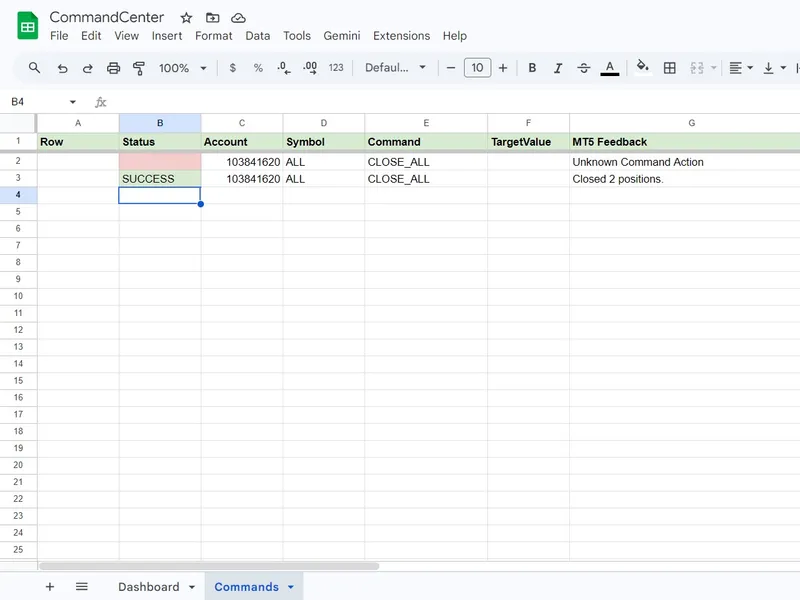
the ea periodically polls a designated 'commands' tab in the google sheet. when a user queues a command, the ea interprets the json instruction, executes the specified trade actions (e.g., closing positions, adjusting stop losses), and reports the outcome back to the sheet.
symbol and timeframe:
as a global trade management utility, the ea is independent of specific symbols and timeframes. it can be attached to a single major currency pair like eurusd and will manage the entire account.
recommended timeframes are h1 or higher to minimize resource usage on the vps.
external variables:
googlesheetwebappurl:
the deployment url of your google apps script.
sheetpassword:
a security string to protect against unauthorized post requests. this must match the password in the javascript backend.
datapushinterval (seconds):
frequency of account data updates sent to the google sheet.
commandpullinterval (seconds):
frequency of checking the google sheet for new commands.
slippagepoints:
maximum slippage allowed for remote trade execution.
enablelogging:
set to true for detailed communication logs in the mt5 experts tab.
critical setup instructions:
mt5 blocks external connections by default. to enable communication with google servers, follow these steps:
- whitelist webrequest urls: in mt5, go to tools -> options -> expert advisors. enable 'allow webrequest for listed url' and add the specified urls.
- install google sheets backend: create a blank google sheet, access apps script, and paste the provided javascript code. deploy as a web app with 'execute as me' and 'access: anyone' permissions. copy the web app url and paste it into the ea's googlesheetwebappurl parameter in mt5.
magic setup: within 60 seconds of attaching the ea, the script will automatically format the google sheet, creating the dashboard and commands tabs.
google apps script backend code // ========================================================================= // ksquants command center backend (auto-building version) // ========================================================================= const password = "secret"; // must match the sheetpassword in your mt5 ea function dopost(e) { try { var payload = json.parse(e.postdata.contents); var ss = spreadsheetapp.getactivespreadsheet(); // 0. auto-setup: build tabs and headers if they don't exist ensuresetup(ss); // 1. authenticate if (payload.password !== password) { return createjsonresponse({ error: "authentication failed: incorrect password" }); } // 2. route the request if (payload.action === 'status_update') { return handlestatusupdate(payload, ss); } else if (payload.action === 'get_commands') { return handlegetcommands(payload, ss); } else if (payload.action === 'mark_command_done') { return handlemarkcommanddone(payload, ss); } return createjsonresponse({ error: "unknown action requested" }); } catch (error) { return createjsonresponse({ error: "server error: " + error.message }); } } // ------------------------------------------------------------------------- // the magic: auto-build function // ------------------------------------------------------------------------- function ensuresetup(ss) { // 1. setup dashboard tab var dashsheet = ss.getsheetbyname("dashboard"); if (!dashsheet) { // try to rename 'sheet1' var sheet1 = ss.getsheetbyname("sheet1"); if(sheet1) { sheet1.setname("dashboard"); dashsheet = sheet1; } else { dashsheet = ss.insertsheet("dashboard"); } dashsheet.clear(); } // 2. setup commands tab var cmdsheet = ss.getsheetbyname("commands"); if (!cmdsheet) { cmdsheet = ss.insertsheet("commands"); // insert headers var headers = [["row", "status", "account", "symbol", "command", "targetvalue", "mt5 feedback", "time completed"]]; var headerrange = cmdsheet.getrange("a1:h1"); headerrange.setvalues(headers); headerrange.setfontweight("bold"); headerrange.setbackground("#d9ead3"); // light green background cmdsheet.setfrozenrows(1); // freeze top row cmdsheet.setcolumnwidth(2, 100); // status cmdsheet.setcolumnwidth(5, 150); // command cmdsheet.setcolumnwidth(7, 300); // mt5 feedback } } // ------------------------------------------------------------------------- // route 1: handle status updates (push from mt5) // ------------------------------------------------------------------------- function handlestatusupdate(data, ss) { var dashsheet = ss.getsheetbyname("dashboard"); // update account metrics dashsheet.getrange("a1:b6").setvalues([ ["ksquants command center", "live data"], ["last sync", new date().tolocalestring()], ["account login", data.account.login], ["balance", "$" + data.account.balance], ["equity", "$" + data.account.equity], ["margin level", data.account.margin_level + "%"] ]); dashsheet.getrange("a1:b1").setfontweight("bold").setbackground("#d9ead3"); // update open positions dashsheet.getrange("d1:h500").clearcontent(); dashsheet.getrange("d1:h1").setvalues([ ["ticket", "symbol", "type", "volume", "profit"] ]).setfontweight("bold").setbackground("#cfe2f3"); if (data.positions && data.positions.length > 0) { var posdata = data.positions.map(function(p) { return [p.ticket, p.symbol, p.type, p.volume, p.profit]; }); dashsheet.getrange(2, 4, posdata.length, 5).setvalues(posdata); } else { dashsheet.getrange("d2").setvalue("no open positions"); } return createjsonresponse({ status: "success", message: "dashboard updated" }); } // ------------------------------------------------------------------------- // route 2: send pending commands (pull from mt5) // ------------------------------------------------------------------------- function handlegetcommands(data, ss) { var cmdsheet = ss.getsheetbyname("commands"); var values = cmdsheet.getrange(2, 1, cmdsheet.getlastrow() - 1, 6).getvalues(); var pendingcommands = []; for (var i = 0; i < values.length; i++) { var status = string(values[i][1]).touppercase(); var acc = string(values[i][2]); if (status === "pending" && acc === string(data.account)) { pendingcommands.push({ row: i + 2, account: acc, symbol: string(values[i][3]), command: string(values[i][4]).touppercase(), targetvalue: number(values[i][5]) || 0 }); } } return createjsonresponse(pendingcommands); } // ------------------------------------------------------------------------- // route 3: mark commands as done (acknowledge from mt5) // ------------------------------------------------------------------------- function handlemarkcommanddone(data, ss) { var cmdsheet = ss.getsheetbyname("commands"); var row = data.row; var status = data.status; var details = data.details; cmdsheet.getrange(row, 2).setvalue(status); cmdsheet.getrange(row, 7).setvalue(details); cmdsheet.getrange(row, 8).setvalue(new date().tolocalestring()); if(status === "success") { cmdsheet.getrange(row, 2).setbackground("#d9ead3"); } else { cmdsheet.getrange(row, 2).setbackground("#f4cccc"); } return createjsonresponse({ status: "cleared" }); } // ------------------------------------------------------------------------- // utility function // ------------------------------------------------------------------------- function createjsonresponse(jsonobject) { return contentservice.createtextoutput(json.stringify(jsonobject)) .setmimetype(contentservice.mimetype.json); }
You may also like: silver trend - excellent alternative for expert users on MetaTrader 5.
⚠ Limitations & Risk Warning
- This tool is provided for educational and testing purposes only.
- Past performance does not guarantee future results.
- Trading involves substantial risk of loss. Use on a demo account first.
- Results may vary depending on market conditions, broker, and settings.
- We recommend thorough backtesting and forward testing before using with real funds.