


Advanced Prop-Firm Trade Panel with Support/Resistance Finder for MT5
Info
The Advanced Prop-Firm Trade Panel with Support/Resistance Finder for MT5 is a Expert Advisor for MetaTrader 5 that advanced prop-firm trade panel based on s-ra manual trading panel with a built-in prop-firm risk guard and a hidden support/resistance finder for metatrader 5. What it isThis is a trade-management panel, not a signal robot.
Usage
This tool is typically used for automated trading on major forex pairs and gold.
Platform
This Expert Advisor works exclusively on MetaTrader 5 (both build 600+ and newer versions).
Setup
Place the downloaded file in MQL5/Experts folder via File ? Open Data Folder in MetaTrader 5.
How to Install and Use Advanced Prop-Firm Trade Panel with Support/Resistance Finder for MT5
1. Installation: Open the "File" menu, select "Open Data Folder," navigate to MQL/Experts, paste your file, and restart the terminal.
2. Activation: Drag the EA from the Navigator onto a chart, ensure "Allow live trading" is checked in the Common tab, and verify the AutoTrading button is green.
3. Optimization: Right-click your chart, choose "Expert List," click "Properties" to adjust inputs, and save your preferred setup as a set file for future use.
4. Maintenance: Regularly check the "Experts" tab in the terminal window to monitor trade logs and potential execution errors.
Frequently Asked Questions
Q: Why is my EA not opening trades? A: Check the "AutoTrading" button, ensure "Allow live trading" is enabled, and verify your broker allows automated trading on your account type.
Q: Can I run multiple EAs on one chart? A: No, each chart can only host one active EA; however, you can open multiple charts for different currency pairs to run several EAs.
Q: What does the "smiley face" icon mean? A: A smiley face in the top-right corner of the chart indicates the EA is successfully running; a frowny face means it is disabled.
What this tool does
Advanced Prop-firm Trade Panel based on S-RA manual trading panel with a built-in prop-firm risk guard and a hidden Support/Resistance finder for MetaTrader 5.
Typical Use Case
This Expert Advisor excels in automated trading and technical analysis on MetaTrader 5.
Compatible Platform & Setup
This Expert Advisor works on MetaTrader 5. Place the file in the MQL5/Experts folder and restart the terminal.
Description & Settings
Related: APEX VELOCITY: Advanced Volatility Breakout System - another powerful expert for MetaTrader 5 traders.
Advanced Prop-firm Trade Panel based on S-RAlso recommended: Risk Guard: Advanced Account Protection for MT4/MT5 - similar expert with strong performance on MetaTrader 5.
A manual trading panel with a built-in prop-firm risk guard and a hidden Support/Resistance finder for MetaTrader 5.
What it is
This is a trade-management panel, not a signal robot. On a live or demo account it never opens a trade by itself. You decide when to trade, and the panel does the work around the trade:
It finds support and resistance levels and suggests stop losses and targets.
It sizes the lot from your risk percentage.
It checks every order against your daily and maximum drawdown limits and against leverage and margin rules.
It draws everything as draggable lines on the chart.
It is built for traders on funded or challenge accounts, where one oversized trade can end the account. It also works on ordinary accounts.
The four tabs at a glance
Tab
Purpose
Main tools
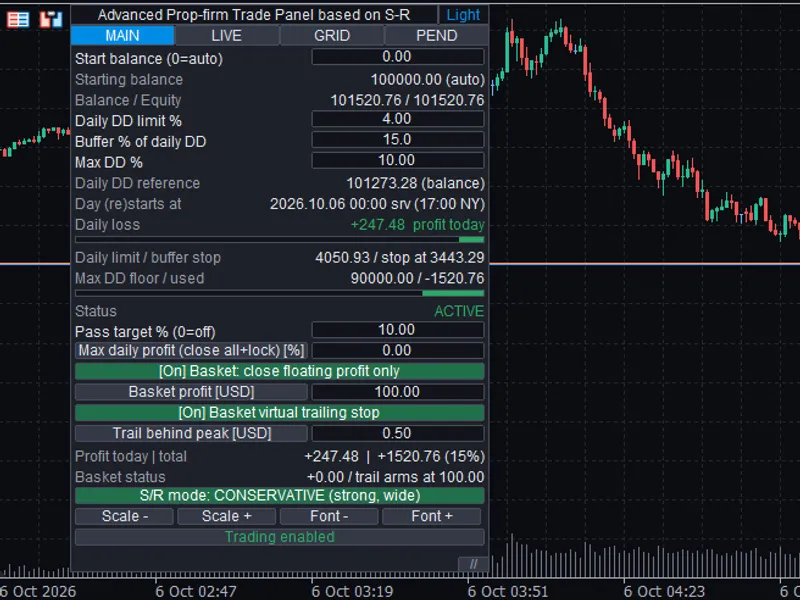
MAIN
Account protection and settings
Daily and max drawdown bars, buffer, profit target, max daily profit, basket close, S/R mode button, scale and font, theme
LIVE
Instant market orders
Buy / Sell, draggable SL and TP, S/R suggestions, risk %, auto lot, risk / reward / R:R, leverage and account-risk rows
GRID
Multi-order grids along S/R levels
Grid planner, first TP and grid TP, breakeven, TP on pending orders, Extend Grid, open-grid note, 2nd-grid toggle
PEND
Pending orders at S/R levels
Three entry suggestions, limit / stop / both selector, draggable entry, SL and TP
Key features
1. Prop-firm drawdown guard
Daily drawdown and maximum drawdown limits in %, plus a safety buffer.
The starting balance is detected automatically or can be entered by hand.
The remaining allowance is shown live, with colour bars.
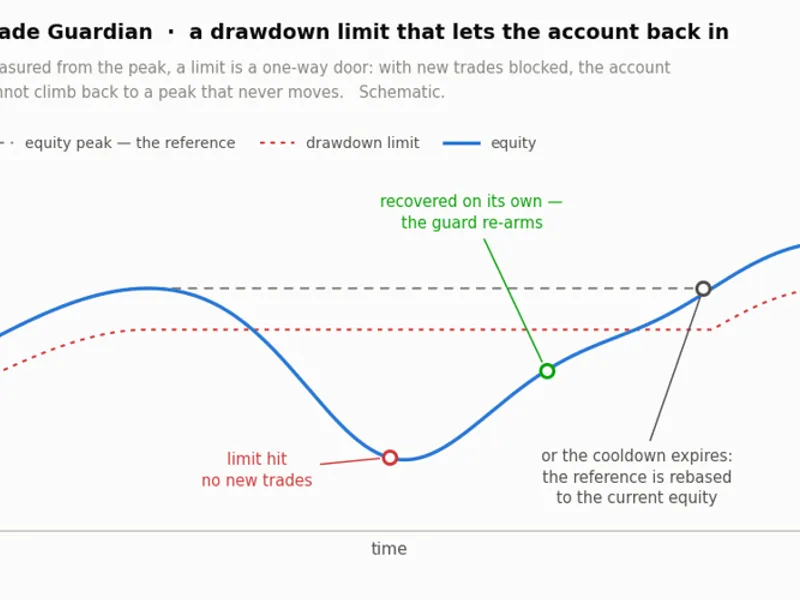
When a limit is reached, the EA closes positions and pending orders and locks trading until the next day, or permanently for the maximum drawdown.
The day boundary can follow 17:00 New York time, with daylight saving handled automatically, or the broker's server midnight.
Optional profit target and optional maximum daily profit, each with its own lock.
2. Hidden Support/Resistance finder
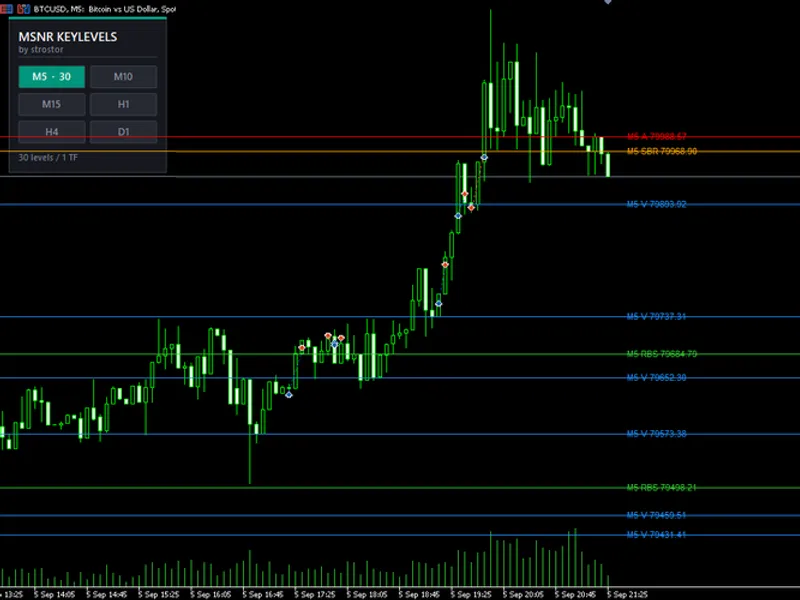
Levels are calculated from price pivots and are not drawn on the chart. They feed the suggestions and the grid planner only.
One button switches between the two modes compared below.
Aggressive
Conservative
Levels used
Nearest levels
Only the strongest levels
Pivot strength and touches
Standard
Higher
Distance between levels
Standard
Wider
Stop buffer
Standard
Larger
Grid order spacing
Standard
Wider
Typical use
Tighter stops and targets
Wider stops with more room
Button colour
Light red
Light green
3. Live trading tab
Buy and Sell buttons, with SL and TP lines you drag by their handles (small coloured tabs at the right edge of each line).
One-click suggestions for the three nearest targets and stops.
Lot size from your risk % of the starting balance, or a fixed lot.
The spread is added to the stop-loss distance, so a stop is never placed inside the spread.
Live display of risk, reward, risk-to-reward and risk as a percentage.
4. Pending order tab
Three S/R-based entry suggestions with SL and TP.
Choose limit orders only, stop orders only, or both.
Draggable entry, SL and TP lines.
An identical pending order is never placed twice.
5. Grid tab
Plans a grid of 2 to 8 orders along S/R levels, with a master stop beyond the outer zone.
Optional lot increase per level, set in the settings.
Automatic or manual first take profit, and a take profit for the whole grid in points or currency.
Optional breakeven.
Every pending grid order carries a take profit at the open price of the first order, so profit and stop are held by the broker server even if the EA or VPS goes offline. This can be switched off.
The preview and levels refresh every minute, or when you press the Re-suggest button.
When a grid is open in one direction, a note says so and the preview for another grid in that direction is hidden. The opposite direction stays available, and a toggle enables a second grid in the same direction.
Extend Grid moves the stop to the next strong S/R zone and adds orders up to the remaining daily allowance, which includes the day's profit. It needs two clicks, so you see the plan on the chart before confirming.
6. Hedge-aware risk model
Risk is judged on the whole account, not trade by trade.
Open opposite positions offset each other. A new order that reduces the worst-case loss is never blocked.
Pending orders count only their possible loss and never earn hedge credit, because they may never fill.
Each order is checked against the remaining daily allowance, and the panel shows the account risk before and after the order.
7. Leverage and margin rules
Leverage limits per asset class, all editable. The defaults below follow figures commonly used by prop firms. Always set them to your own firm's current rules.
Asset class
Default leverage
Forex
1:30
Exotic forex (editable list of currency codes)
1:6
Gold
1:30
Silver
1:10
Oil / energy
1:5
Indices
1:10
Shares
1:2
Major crypto (BTC, ETH, SOL)
1:5
Other crypto
1:2
Other instruments
1:10
The stricter of the prop-firm margin and the broker's margin is used.
Hedged positions can be netted, counted as the larger side or counted in full.
Suggested lots are capped so the order is affordable. For a grid, every level is checked after the drawdown of the earlier orders, so the last order can still be placed.
8. Close options and basket
Close all, close profitable and close losing positions.
The scope is selectable: this EA's magic number, this symbol, or the whole account, including trades not created by the EA.
The basket and the maximum daily profit are two separate functions:
Basket close
Maximum daily profit
Triggered by
Floating profit target
Day's profit (realized and floating)
Closes open positions
Yes, within the chosen scope
Yes, everything
Pending orders
Only those that belong to grids
All of them
Locks trading
No
Yes, until the next day
Optional trailing basket.
9. Interface
Dark and light themes. The chart colours follow the theme: colour on near-black in dark mode, colour on white in light mode. Your trade-level and trade-history settings are left as they are.
On/Off buttons are shown as [On] / [Off] and change colour.
Long values are shortened with "..." and show the full text in a tooltip.
Adjustable scale and font size, and a movable panel.
Strategy Tester
On a live or demo account the panel never trades automatically. In the Strategy Tester, automatic trading is on by default so the EA can be validated and back-tested. It opens a trade when a bar touches a strong S/R level and closes back on the right side of it. It uses the same risk, hedge and margin checks as a manual order. Turn InpTestAutoTrade off to use the panel by hand in visual mode. A non-visual test skips the panel for speed.
Strategy Tester input
Default
Meaning
InpTestAutoTrade
On
Open trades automatically in the tester
InpTestRiskPct
0.5
Risk % of the starting balance per automatic trade
InpTestMaxTrades
1
Maximum open automatic positions
InpTestMinRR
1.5
Minimum reward : risk of an automatic trade
Requirements and recommendations
MetaTrader 5, with algorithmic trading allowed.
A hedging account is recommended. The grid and hedge features are designed for it.
No DLLs, no web requests and no external services.
Attach it to one chart per symbol. The magic number separates different charts.
Test on a demo account first.
Input groups
Group
What it controls
Prop-firm rules
Daily and maximum drawdown, buffer, start balance, day transition mode, profit target and daily profit
Leverage / margin
Leverage per asset class, hedged-margin mode, maximum margin use
Order defaults
Magic number, risk %, auto lot, default SL and TP, pending type, minimum entry distance
Grid defaults
Number of orders, lot increase, spacing, first TP, breakeven, TP on pending orders, Extend Grid limits
Support/Resistance finder
Timeframe, lookback, pivot strength, touches, cluster size, SL buffer, aggressive and conservative settings
Close and basket
Scope, basket target, trailing basket
Strategy tester
Automatic trading on or off, risk %, maximum trades, minimum R:R
GUI
Theme, chart theme, scale, font, position, trade-level display
How to use it
Attach the EA to a chart and allow algorithmic trading. Adjust the settings as per your prop firm (Defaults are for FXIFY).
On the MAIN tab, check your daily and maximum drawdown and the starting balance. Choose Aggressive or Conservative levels.
On LIVE, GRID or PEND, pick Buy or Sell and drag the lines by their handles if you want to adjust them.
Read the risk, margin and account-risk rows, then place the order.
Important notes
S/R levels are statistical suggestions, not predictions.
The hedge model assumes price moves in one direction between now and the stops. A whipsaw that hits stops on both sides can lose more than the model shows.
Margin figures are estimates built from your settings and the broker's data. Prop firms and brokers have different rules and can change them, so set the values to your own firm's current terms.
Grids, and especially grids with increasing lots, can produce large losses.
Disclaimer
Trading foreign exchange, metals, crypto and other leveraged products carries a high level of risk and may not be suitable for everyone. You can lose some or all of your capital, and on funded or challenge accounts you can lose the account. This software is a trading tool. It does not provide investment advice or trading signals, and it does not guarantee profits or any particular result. Back-test results and past performance do not indicate future results. Settings such as risk, leverage and drawdown limits are your responsibility, and the software cannot protect against slippage, gaps, spreads, requotes, connection loss or broker and prop-firm rule changes. The software is provided "as is", without warranty. Always test on a demo account first and trade only with money you can afford to lose. You are solely responsible for your trading decisions and for complying with the rules of your broker and prop firm.
You may also like: Trade Guardian: Advanced Stop Loss and Drawdown Management for MT4/MT5 - excellent alternative for expert users on MetaTrader 5.
Source Code
#property copyright "RobotFX"
#property link "https://robotfx.org"
#property version     "2.71"
#property description "This code is educational. Feel free to use, modify and upgrade as you wish. Visit ROBOTFX.ORG for professional trading tools"
#define APP_NAME  "Advanced Prop-firm Trade Panel based on S-R"
#define APP_SHORT "Adv. Prop-firm Trade Panel (S/R)"
#define AC_FOREX        0
#define AC_EXOTIC       1
#define AC_GOLD         2
#define AC_SILVER       3
.......
⚠ Limitations & Risk Warning
- This tool is provided for educational and testing purposes only.
- Past performance does not guarantee future results.
- Trading involves substantial risk of loss. Use on a demo account first.
- Results may vary depending on market conditions, broker, and settings.
- We recommend thorough backtesting and forward testing before using with real funds.