
SD X-TZ Pivots 3
Info
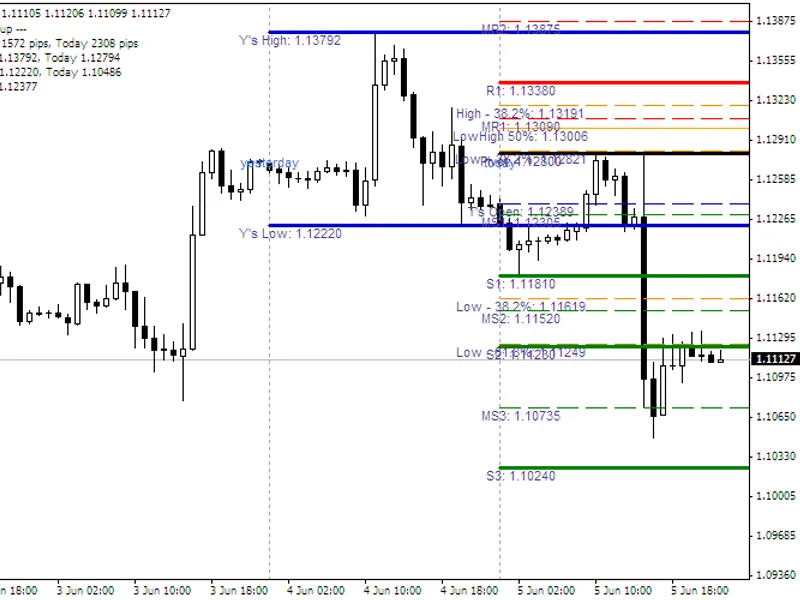
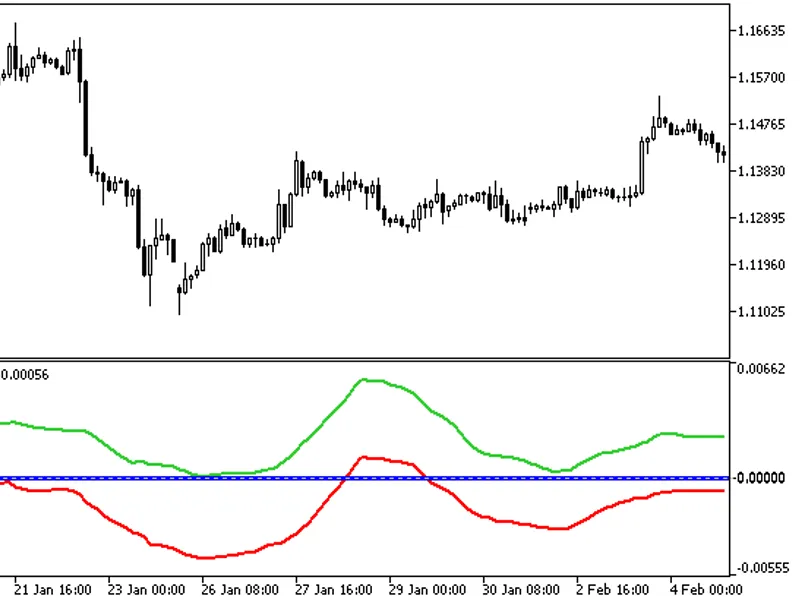
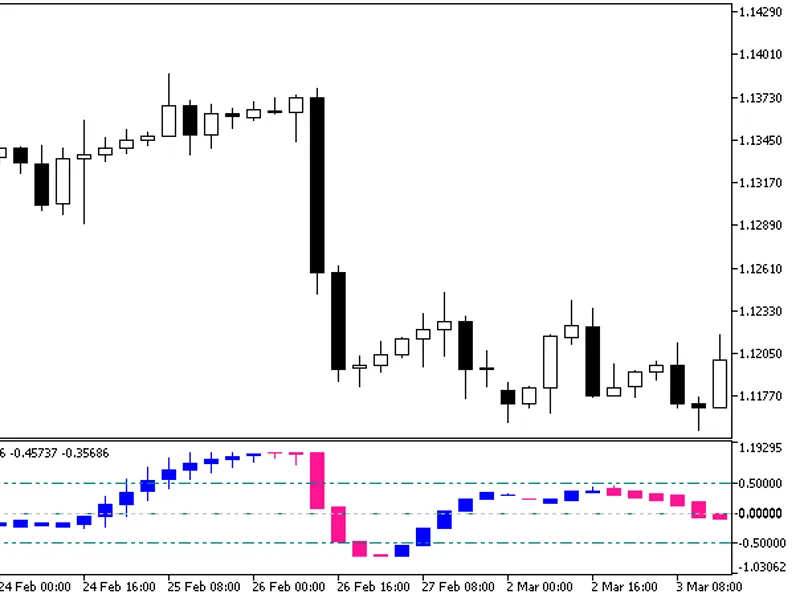
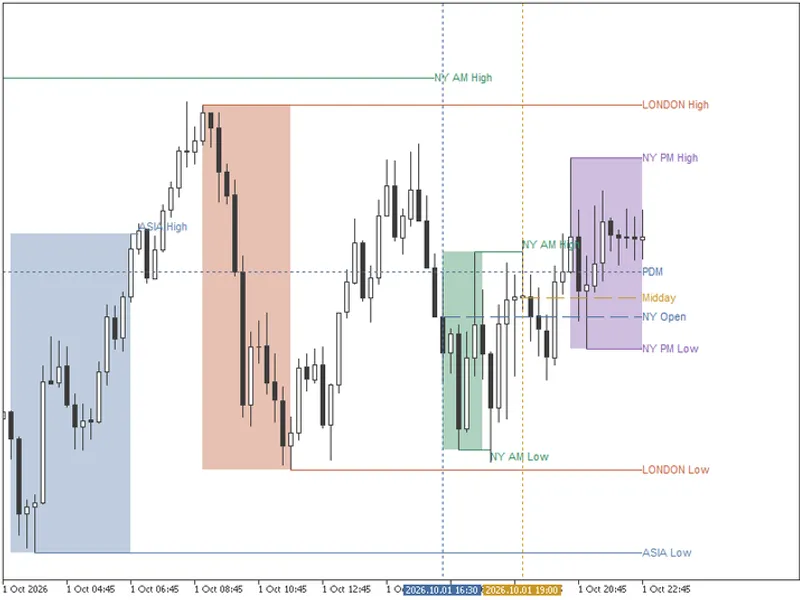
The SD X-TZ Pivots 3 is a Indicator for MetaTrader 4 that shimodaxintroduction:this indicator calculates pivot and similar levels based on time zones. To modify the colors, scroll down to line 200 and below (under "calculate levels") and change the color names.
Usage
This tool is typically used for enhancing chart analysis and decision making.
Platform
This Indicator works exclusively on MetaTrader 4 (both build 600+ and newer versions).
Setup
Place the downloaded file in MQL4/Indicators folder via File ? Open Data Folder in MetaTrader 4.
How to Install and Use SD X-TZ Pivots 3
1. Installation: Place your file in the MQL/Indicators folder via "Open Data Folder" and restart your terminal.
2. Loading: Find the indicator in the Navigator, drag it onto your chart, and configure the input parameters in the popup window.
3. Customization: Press Ctrl+I to open the indicator list, select your tool, and click "Properties" to change colors, levels, or visual styles.
4. Updating: Replace the old file in the Indicators folder with the new version and restart the platform to apply changes.
Frequently Asked Questions
Q: Why is my indicator not showing? A: Verify the file is in the MQL/Indicators folder, or try right-clicking the "Indicators" tree in the Navigator and clicking "Refresh."
Q: Do custom indicators slow down the platform? A: Too many complex indicators can impact performance; remove unused ones via the "Indicator List" (Ctrl+I).
Q: Can I use MT4 indicators on MT5? A: No, MQL4 and MQL5 are distinct languages; ensure the indicator is compiled specifically for your platform version.
What this tool does
ShimodaxIntroduction:This indicator calculates pivot and similar levels based on time zones.
Typical Use Case
This Indicator excels in automated trading and technical analysis on MetaTrader 4.
Compatible Platform & Setup
This Indicator works on MetaTrader 4. Place the file in the MQL4/Indicators folder and restart the terminal.
Description & Settings
Related: SD X-TZ Pivots - another powerful indicator for MetaTrader 4 traders.
ShimodaxIntroduction:
This indicator calculates pivot and similar levels based on time zones. To modify the colors, scroll down to line 200 and below (under "calculate levels") and change the color names. You can find valid color names by placing the cursor on a color name and pressing F1.
Also recommended: Pivots Hi Low Indicator for MT4/MT5 - similar indicator with strong performance on MetaTrader 4.
Time-zone inputs:
LocalTimeZone
: Timezone for your local time on MT4, e.g., 1 or 2 for Europe (GMT+1 or GMT+2 with daylight savings). Use zero for no adjustment. The MetaQuotes demo server uses GMT +2.
DestTimeZone
: Timezone for the session to calculate levels (e.g., 1 or 2 for the European session, with or without daylight savings). Use zero for GMT.
Example:
If your MetaTrader server is in EST (Eastern Standard Time, GMT-5) and you want to calculate levels for the London trading session (European time, GMT+1 in summer), enter -5 for LocalTimeZone and 1 for DestTimeZone.
Note that the LocalTimeZone setting depends on the time displayed on your MT4 charts, regardless of your physical location.
Tips:
BarForLabels = Number of bars from the right where line labels will appear.
Comment for upper left corner: Range, highs, lows, close - yesterday, today.
New:
VarLineStyle
VarLineThickness
You may also like: Camarilla Pivots Indicator for MT4/MT5 - excellent alternative for indicator users on MetaTrader 4.
Source Code
#property copyright "robotfx"
#property link "https://robotfx.org"
#property indicator_chart_window
/* introduction:
   calculation of pivot and similar levels based on time zones.
   if you want to modify the colors, please scroll down to line
   200 and below (where it says "calculate levels") and change
   the colors.  valid color names can be obtained by placing
   the curor on a color name (e.g. somewhere in the word "orange"
   and pressing f1).
.......
⚠ Limitations & Risk Warning
- This tool is provided for educational and testing purposes only.
- Past performance does not guarantee future results.
- Trading involves substantial risk of loss. Use on a demo account first.
- Results may vary depending on market conditions, broker, and settings.
- We recommend thorough backtesting and forward testing before using with real funds.