Visual Trader-Simulator Edtion
This professional-grade solution for MetaTrader 4 helps traders achieve greater efficiency in their daily workflow. This Expert Advisor serves as automated trading software. It is utilized to monitor financial markets and execute trades based on predefined algorithmic rules, enabling precise position management without the need for constant manual oversight.
How to Setup and Use Visual Trader-Simulator Edtion
1. Installation: Open the "File" menu, select "Open Data Folder," navigate to MQL/Experts, paste your file, and restart the terminal.
2. Activation: Drag the EA from the Navigator onto a chart, ensure "Allow live trading" is checked in the Common tab, and verify the AutoTrading button is green.
3. Optimization: Right-click your chart, choose "Expert List," click "Properties" to adjust inputs, and save your preferred setup as a set file for future use.
4. Maintenance: Regularly check the "Experts" tab in the terminal window to monitor trade logs and potential execution errors.
Frequently Asked Questions
Q: Why is my EA not opening trades? A: Check the "AutoTrading" button, ensure "Allow live trading" is enabled, and verify your broker allows automated trading on your account type.
Q: Can I run multiple EAs on one chart? A: No, each chart can only host one active EA; however, you can open multiple charts for different currency pairs to run several EAs.
Q: What does the "smiley face" icon mean? A: A smiley face in the top-right corner of the chart indicates the EA is successfully running; a frowny face means it is disabled.
Description & Settings
Use the Strategy Tester as simulator. Currently only market orders (BUY and SELL) are supported. Orders are set trough the use of scripts which gets executed by the EA. You can set an initial Stoploss/Takeprofit in the scripts and modify them afterward trough drag&drop of the the lines drawn by the EA. Very simple concept and easy to use.
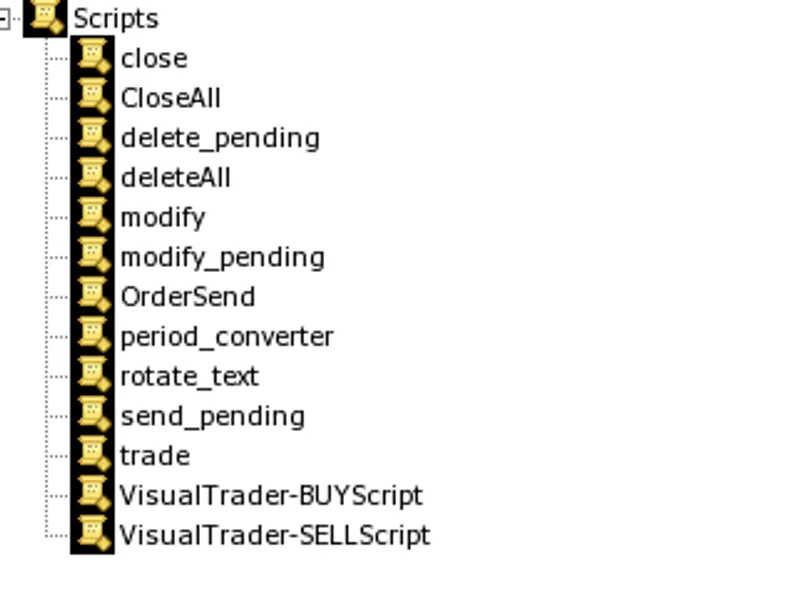
Use the VisualTrader-BUYScript to place a buy order and the VisualTrader-SELLScript to place a sell order.
Then you can modify the TakeProfit and Stoploss trough drag&drop of the Green (TP) and Red(SL) lines
Installation:
Copy VisualTrader-SimulatorEdition.mq4 into: *YourMT4Directory*/experts/
Copy VisualTrader-BUYScript.mq4 into: *YourMT4Directory*/experts/scripts/
Copy VisualTrader-SELLScript.mq4 into: *YourMT4Directory*/experts/scripts/
Restart Your Terminal
Open StrategyTester
Select VisualTrader-SimulatorEdition and choose your desiderated timeframe.
Check
Visual mode
Press Start and trade.