






chart event test example
Info
The chart event test example is a Expert Advisor for MetaTrader 4 that the "test_chartevent. mq4" expert advisor is an example demonstrating the various types of chartevent: keyboard keys events, mouse click & move events, custom events.
Usage
This tool is typically used for automated trading on major forex pairs and gold.
Platform
This Expert Advisor works exclusively on MetaTrader 4 (both build 600+ and newer versions).
Setup
Place the downloaded file in MQL4/Experts folder via File ? Open Data Folder in MetaTrader 4.
How to Install and Use chart event test example
1. Installation: Open the "File" menu, select "Open Data Folder," navigate to MQL/Experts, paste your file, and restart the terminal.
2. Activation: Drag the EA from the Navigator onto a chart, ensure "Allow live trading" is checked in the Common tab, and verify the AutoTrading button is green.
3. Optimization: Right-click your chart, choose "Expert List," click "Properties" to adjust inputs, and save your preferred setup as a set file for future use.
4. Maintenance: Regularly check the "Experts" tab in the terminal window to monitor trade logs and potential execution errors.
Frequently Asked Questions
Q: Why is my EA not opening trades? A: Check the "AutoTrading" button, ensure "Allow live trading" is enabled, and verify your broker allows automated trading on your account type.
Q: Can I run multiple EAs on one chart? A: No, each chart can only host one active EA; however, you can open multiple charts for different currency pairs to run several EAs.
Q: What does the "smiley face" icon mean? A: A smiley face in the top-right corner of the chart indicates the EA is successfully running; a frowny face means it is disabled.
What this tool does
the "test_chartevent.
Typical Use Case
This Expert Advisor excels in automated trading and technical analysis on MetaTrader 4.
Compatible Platform & Setup
This Expert Advisor works on MetaTrader 4. Place the file in the MQL4/Experts folder and restart the terminal.
Description & Settings
Related: exaccount: visualize order activity on chart - another powerful expert for MetaTrader 4 traders.
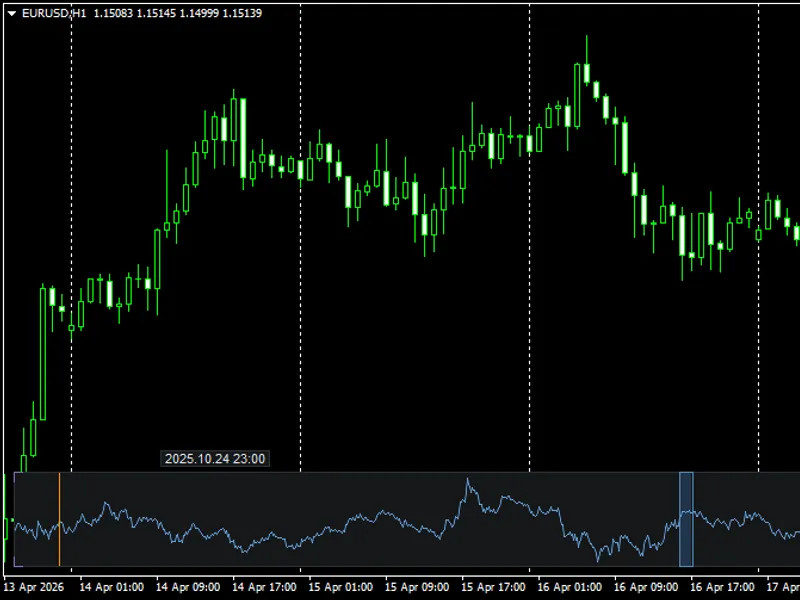
the "test_chartevent.mq4" expert advisor is an example demonstrating the various types of chartevent: keyboard keys events, mouse click & move events, custom events. you can press the 'h' key for help and press the 'm' key to enter the mouse_move event mode.
Also recommended: Detecting New Bar Events in Expert Advisors - similar expert with strong performance on MetaTrader 4.
the source code works both in metatrader 4 and metatrader 5.function prototype
bool obj_create()
bool obj_delete()
bool obj_move(int hsens,int vsens)
- moves an object.
void print_info()
- prints information about the objects.
int mousemove(int axx,int ayy,string sstate)
- handles the mouse move event. global variables
int gchartno=0
int gsubwinno=0
string gsobj_name_selected="" - the name of currently selected object. custom events
three types of custom events are defined:
#define cmyevent_1 0
#define cmyevent_2 1
#define cmyevent_3_broadcast 2 ontimer() function
this function creates the custom chartevent periodically. and the function randomly generates these three custom events (cmyevent_1, cmyevent_2 and cmyevent_3_broadcast). in particular, the cmyevent_3_broadcast event is generated for all open chart windows.
example of class
class "cobjectman" is created to handle the functionality for objects on a chart. two instances (variables) of the class are declared: gobjectman1 and gobjectman2.
the names of the graphic objects linked to these two instances are respectively: "green button" and "yellow button".
event processing
void onchartevent():
the "chartevent_keydown" events:
4 directional keys (arrows) or the 4 directional keys on the digital panel to move the selected object.
'h': print the help information (in expert log window).
'i': print the positions information of two objects.
'm': active the mouse_move event. custom events
print information about these events. especially for the myevent_3_broadcast event.
object events
chartevent_object_change, chartevent_object_drag, chartevent_object_delete - print the corresponding object's name.
chartevent_object_click - print the name of object being clicked, select its name for moving by the direction keys. mouse events
chartevent_click - print the clicked bar's information: the prices (open, close) and the bar time.
chartevent_mouse_move (see: chart_event_mouse_move) - print the information of the covered interval: number of bars, price variation. demonstration
you can perform the following tests:
click on one of the two objects (buttons) to select and use the arrow keys to move the selected object.
click on graphic bar and see the information of the bar in the log tab (message).
press the 'm' key to enter the mouse_move event mode. press ctrl+f to show the crosshair, then perform a drag'n'drop operation. if you do not see the log message, please change the input parameter: "iloglevel".
You may also like: News Trader EA: Trading Volume Spikes and News Events - excellent alternative for expert users on MetaTrader 4.
Source Code
#property copyright "robotfx"
#property link "https://robotfx.org"
#property version   "1.00"
#ifdef __mql4__
#property strict
#endif
input int iloglevel=0;   // loglevel: 0: no log message, 1: a little, 2: more message
bool obj_create();
bool obj_delete();
bool obj_move(int hsens,int vsens);
.......
⚠ Limitations & Risk Warning
- This tool is provided for educational and testing purposes only.
- Past performance does not guarantee future results.
- Trading involves substantial risk of loss. Use on a demo account first.
- Results may vary depending on market conditions, broker, and settings.
- We recommend thorough backtesting and forward testing before using with real funds.