i Forex Sessions
This is a powerful addition to your MetaTrader 5 toolkit designed to optimize market analysis and performance. This technical indicator acts as a specialized analysis tool designed to visualize market data. It helps traders identify emerging trends, momentum shifts, and key support or resistance levels by plotting statistical calculations directly onto price charts.
How to Setup and Use i Forex Sessions
1. Installation: Place your file in the MQL/Indicators folder via "Open Data Folder" and restart your terminal.
2. Loading: Find the indicator in the Navigator, drag it onto your chart, and configure the input parameters in the popup window.
3. Customization: Press Ctrl+I to open the indicator list, select your tool, and click "Properties" to change colors, levels, or visual styles.
4. Updating: Replace the old file in the Indicators folder with the new version and restart the platform to apply changes.
Frequently Asked Questions
Q: Why is my indicator not showing? A: Verify the file is in the MQL/Indicators folder, or try right-clicking the "Indicators" tree in the Navigator and clicking "Refresh."
Q: Do custom indicators slow down the platform? A: Too many complex indicators can impact performance; remove unused ones via the "Indicator List" (Ctrl+I).
Q: Can I use MT4 indicators on MT5? A: No, MQL4 and MQL5 are distinct languages; ensure the indicator is compiled specifically for your platform version.
Description & Settings
The indicator assumes local "wall clock" trading hours of 8:00 AM - 5:00 PM in each Forex market, except in Sydney it is 7:00 AM - 4:00 PM or 9:00 AM - 6:00 PM.
Features:
Draw colored rectangles for the forex market sessions (Sydney, Tokyo, London, New York).
Accurate session times on Forex pairs and gold charts (Forex pairs trading starts at 17:00 NY. Gold starts an hour later).
The indicator respects the GMT offset + daylight savings for the broker's server, and also for the time zones.
The indicator's time calculations are performed using
Additional broker's clock (in the left lower corner) with some useful information:
- server time
- broker GMT offset
- Time remaining till weekend (so you can close open trades or skip opening new ones before weekend).
- The status of time synchronization of the local computer. A hint to check if pc time is not synchronized.
Moving the mouse pointer on a chart bar while the 'Ctrl' key is pressed: the bar number and time (and corresponding times in major Forex markets) will be written to the chart window for debugging.
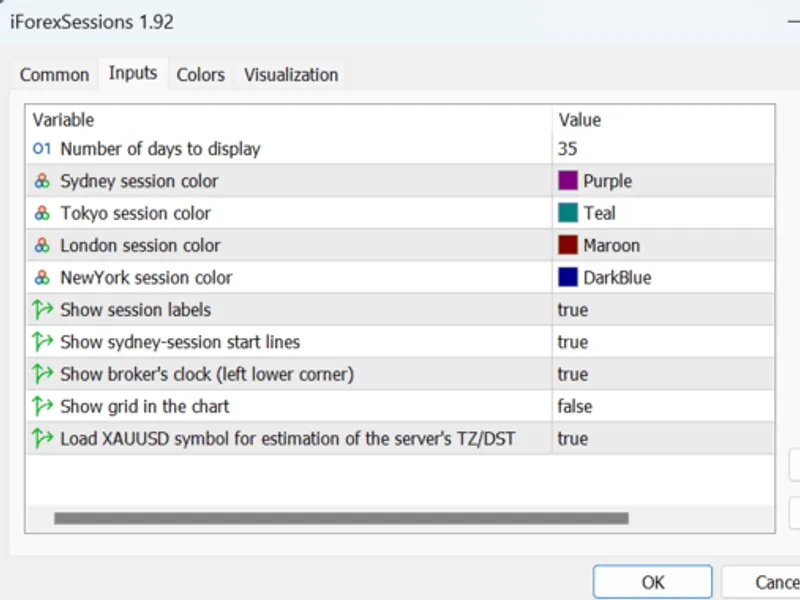
Input parameters: Parameter: "Load XAUUSD symbol for estimation of the server's TZ/DST"
By default, the indicator will search and load the XAUUSD symbol for estimation of server's timezone offset. XAUUSD can provide more reliable results (esp., for brokers that follow EU DST schedule) on weeks during US DST and EU DST schedules are out of sync (March and late October). Optionally, if your broker follows the US DST schedule, or no schedule at all, then using the chart symbol is also fine. Set this parameter to 'false' to use the current chart's symbol, instead of XAUUSD.
To determine your broker's daylight (DST) schedule, you can use this script
Note
:
As a side effect that XAUUSD starts an hour after Forex, dst switches will occur one hour later (only in the strategy tester, and not in normal mode).
Bonus Feature: Moving the mouse pointer on a chart bar while the 'Ctrl' key is pressed
the bar number # and its time (and corresponding times in major Forex markets) will be written to the chart window for debugging.
Then, to delete the debug info from the chart, just click the mouse anywhere on the chart (without pressing the 'Ctrl' key).
Other market session indicators:
All of the above indicators (and nearly all other indicators on the codebase) use hardcoded fixed offsets for time zones and they do not consider the DST on the broker's server or time zones. Simply, this is inaccurate because the session times do change during the year, either due to 1) the broker switches its time zone to DST or 2) one or more of the major forex markets change its time zone's DST.
NOTICE
: The indicator was confirmed to work on the following list of brokers (having different trading schedules, GMT offsets and summer DST schedules):
Admirals Markets
FxPro
RannForex
EXNESS
FXOpen
IC Markets
Octa Markets
Tickmill
XM Global
The indicator should also work correctly on other brokers.
Note about Compatibility with The Strategy Tester
During testing in the strategy tester, TimeGMT() is always equal to TimeTradeServer() simulated server time.
TimeZoneInfo library estimates the proper times in time zones based on the "true" GMT by analysis of H1 quotes history, and not based on the time returned by calling built-in TimeGMT function.
If the input parameter "Load XAUUSD symbol for estimation of the server's TZ/DST" is set to TRUE: then dst switches can occur one hour later in the strategy tester.