



Spread Profile by Hour
Info
The Spread Profile by Hour is a Indicator for MetaTrader 5 that spread profile by hour generates the actual spread distribution for each server hour using your broker's tick history, displaying the median and 90th percentile as 24 bars. Input your typical stop size, and each bar will indicate the spread's cost as a percentage of 1R for that hour, making high-cost trading times easily identifiable.
Usage
This tool is typically used for enhancing chart analysis and decision making.
Platform
This Indicator works exclusively on MetaTrader 5 (both build 600+ and newer versions).
Setup
Place the downloaded file in MQL5/Indicators folder via File ? Open Data Folder in MetaTrader 5.
How to Install and Use Spread Profile by Hour
1. Installation: Place your file in the MQL/Indicators folder via "Open Data Folder" and restart your terminal.
2. Loading: Find the indicator in the Navigator, drag it onto your chart, and configure the input parameters in the popup window.
3. Customization: Press Ctrl+I to open the indicator list, select your tool, and click "Properties" to change colors, levels, or visual styles.
4. Updating: Replace the old file in the Indicators folder with the new version and restart the platform to apply changes.
Frequently Asked Questions
Q: Why is my indicator not showing? A: Verify the file is in the MQL/Indicators folder, or try right-clicking the "Indicators" tree in the Navigator and clicking "Refresh."
Q: Do custom indicators slow down the platform? A: Too many complex indicators can impact performance; remove unused ones via the "Indicator List" (Ctrl+I).
Q: Can I use MT4 indicators on MT5? A: No, MQL4 and MQL5 are distinct languages; ensure the indicator is compiled specifically for your platform version.
What this tool does
Spread Profile by Hour generates the actual spread distribution for each server hour using your broker's tick history, displaying the median and 90th percentile as 24 bars.
Typical Use Case
This Indicator excels in automated trading and technical analysis on MetaTrader 5.
Compatible Platform & Setup
This Indicator works on MetaTrader 5. Place the file in the MQL5/Indicators folder and restart the terminal.
Description & Settings
Related: Spread Monitor Indicator for MetaTrader 5 - another powerful indicator for MetaTrader 5 traders.
Spread Profile by Hour generates the actual spread distribution for each server hour using your broker's tick history, displaying the median and 90th percentile as 24 bars. Input your typical stop size, and each bar will indicate the spread's cost as a percentage of 1R for that hour, making high-cost trading times easily identifiable.Also recommended: Enhanced Spread Monitor for MetaTrader 5 - similar indicator with strong performance on MetaTrader 5.
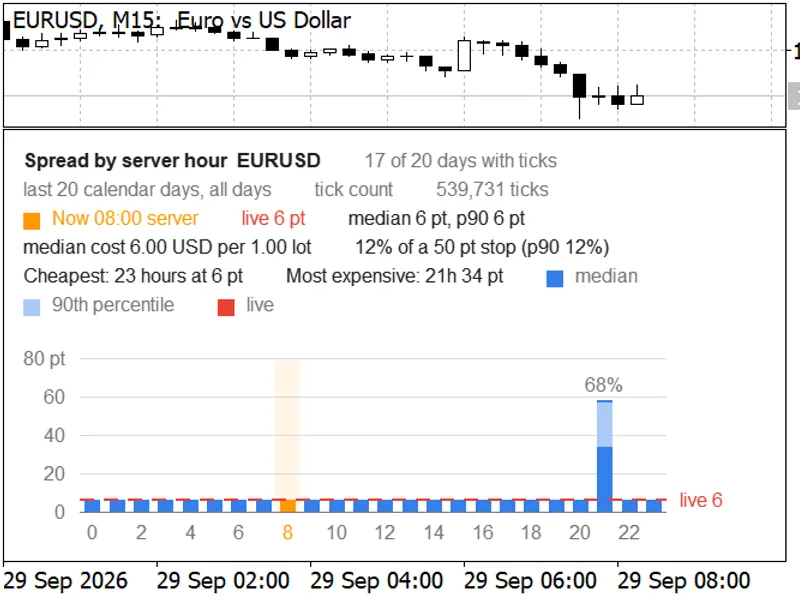
Example: EURUSD, tick count, 50-point stop. The median spread is 6 points (12% of the stop) for most of the day, but increases to 34 points (68% of the stop) during the 21:00 rollover period.
The Problem
For intraday and scalping strategies, the spread is often more critical than the entry signal in determining profitability. While trading platforms show the current spread, they do not illustrate its behavior throughout the day. A strategy that performs well during quiet periods may fail under the same rules during rollover, session opens, or around news events due to significantly wider spreads.
Bar history typically stores only one spread value per bar, obscuring the true spread distribution. This indicator analyzes the raw tick data (every bid/ask quote over the last N days), grouping it by the hour of the day in server time. The output is a per-hour median and 90th percentile that can be directly compared to your stop loss and expected price movement.
Features
Per-hour median, 90th percentile, mean, and maximum spread in points, calculated from CopyTicksRange over the last N calendar days. The current day is excluded to prevent the profile from shifting during the trading session.
Two sampling modes:
Tick count: Each quote is counted once.
Time-weighted: Each quote is weighted by the duration it remained valid (up to 60 seconds until the next quote). Tick counting can over-represent fast markets, which often have the widest spreads. Time weighting provides a more accurate representation of the spread you would encounter at a random moment within that hour.
Weekday filter: Allows analysis of all days or individual weekdays (Monday to Friday).
Cost view: Input your stop loss size in points, and each bar will display the median spread as a percentage of that stop loss. The header shows the current hour's median and 90th percentile as a percentage of the stop loss.
Median spread cost in account currency per 1.00 lot for the current hour, calculated using the symbol's tick value and tick size.
Cheapest and most expensive hours: Identifies up to three of each based on the median spread. Hours with identical median spreads are grouped or summarized (e.g., "Cheapest: 23 hours at 6 pts") to avoid redundant ranking. If all hours share the same median spread, this is indicated in the header.
Current server hour is highlighted, and the live spread is shown as a dashed line. If the window is too narrow for labels on every bar, the tallest bar will retain its label.
Optional CSV export: Allows exporting per-hour statistics to the MQL5\Files directory in UTF-8 format, compatible with Excel.
Efficient data loading: Loads one day of ticks at a time and releases the memory immediately, ensuring chart responsiveness even for high-frequency symbols like gold or crypto (which can generate over 100,000 ticks per day). Days that are still being downloaded by the terminal are retried. Days where tick data is incomplete compared to M1 bars are re-evaluated before being used. For days older than the terminal's M1 history (Max bars in chart), completeness cannot be verified against bars; such days are used only once their tick count stabilizes during download.
Data loading order: Reads the most recent days first. If three consecutive trading days lack ticks (or three consecutive days of the selected weekday), or if ten consecutive days have neither ticks nor M1 bars (exceeding typical market holidays), those days are re-read after a brief pause. If they still lack ticks, the loading process stops. Gaps in the broker's tick storage have a similar effect. Symbols without any tick history will display a clear message within approximately 20 seconds. If the tick history is shorter than the selected depth, the available history is used. On the first run with a long history depth, the terminal may still be downloading data; if loading stops prematurely, re-attach the indicator after the download is complete (the second run will load from disk). The Experts journal will receive a summary line for each calculation.
Display customization: Follows chart appearance, with background color matching the chart by default. Text and grid colors adapt to dark or light backgrounds, and the layout scales with screen DPI. Multiple instances can be run on a single chart.
No trading functions, DLLs, or external files are required.
Inputs
Input
Default
Description
History depth, calendar days (today excluded)
20
Number of calendar days preceding today to analyze (range: 1 to 365). Weekends are included in the count; therefore, 20 calendar days typically yield 14 to 17 trading days.
Sampling
Tick count
Choose between "Tick count" or "Time-weighted" sampling (refer to Features).
Weekday filter
All days
Filters the profile to include only a specific weekday. It is recommended to increase the history depth when using this filter, as 20 calendar days contain only 2 or 3 instances of a given weekday.
Histogram range, points (wider spreads = overflow)
5000
Spreads exceeding this value are categorized into an overflow bin. Statistics falling into the overflow bin are displayed as ">5000".
Minimum ticks for an hour to be shown
100
Hours with fewer than the specified number of ticks will be displayed as "-", such as the daily break period.
Stop size, points (0 = off)
0
Your typical stop loss size in points. Setting this to 0 disables percentage labels and displays the median spread in points instead.
Window height at 100% scaling, px (0 = resizable)
240
Specifies the fixed height of the indicator window, which scales with screen DPI. A setting of 0 allows for free resizing of the window.
Background (None = chart background)
None
Setting to "None" utilizes the chart's background color.
Median bar
Blue
Color of the median spread bar.
90th percentile cap (None = lighter bar color)
None
Setting to "None" uses a lighter shade of the median bar color for the 90th percentile.
Current hour
Orange
Highlight color for the current server hour.
Live spread line
Red
Color of the live spread line.
Text (None = automatic)
None
Setting to "None" automatically selects a readable color for dark or light backgrounds.
Grid (None = automatic)
None
Setting to "None" automatically selects a grid color that complements the background.
Font size, pt
9
Base font size for the indicator text.
Save per-hour statistics to MQL5\Files (CSV)
false
If set to true, writes MQL5\Files\SpreadProfile_<symbol>_<yyyymmdd>.csv after each calculation.
How to Read the Profile
Each bar represents one hour of the day in server time. The solid portion of the bar indicates the median spread (half of the quotes, or half of the time in time-weighted mode, had a spread at or below this value). The lighter section extending to the 90th percentile shows the spread value at which 90% of quotes occurred. The dashed line represents the live spread, and the highlighted bar signifies the current server hour. The examples below are from screenshots taken on a demo account over 20 calendar days (17 of which had tick data).
EURUSD, tick count, 50-point stop: The median spread is 6 points for 23 out of 24 hours. During the 21:00 server time rollover, the median spread increases to 34 points with a 90th percentile of 58. This means the median spread consumes 12% of the 1R stop loss for most of the day but rises to 68% during the rollover hour.
GBPUSD, time-weighted: For 23 hours, the median spread is 7 points. At 21:00, during rollover, the median is 46 points and the 90th percentile is 94 points. In tick-count mode for the same hour, the readings are 54 and 100 points, respectively, as the most active quoting periods around rollover also exhibit the widest spreads.
XAUUSD, tick count, 1500-point stop: The median spread is consistently 182 points (12% of the stop, equivalent to 18.20 USD per lot) across all hours with available data. The daily break at 21:00 shows no ticks and is represented as "-".
GBPUSD, time-weighted, no stop entered: 7 points for 23 hours, with the median at 46 points and the 90th percentile at 94 points during the 21:00 period.
XAUUSD, tick count, 1500-point stop: 182 points for every hour with data; no ticks were recorded during the 21:00 daily break.
Practical Application: If your trading strategy operates during an hour where the median spread represents a significant portion of your stop loss, consider skipping that hour, widening your stop loss, or ensuring your expected profit adequately covers the increased spread cost.
Notes and Limitations
Tick history availability is dependent on your broker and the data downloaded by your terminal. The initial analysis of extensive historical data may require significant time as the terminal downloads tick data from the server. If the tick history predates the selected depth, the header will indicate "no ticks before" along with the date of the oldest utilized day. For instance, on the test server, tick history commenced on January 1, 2026, while M1 bar data extended back several years.
All times are presented in server time. Depending on the broker's server time zone and daylight saving rules, events like the daily rollover may shift by one hour between summer and winter. A history window that spans such a transition will display the event across two adjacent hours.
Spreads can vary significantly between demo and live accounts, as well as different account types (standard, raw, zero) for the same symbol. It is crucial to perform analysis on the account type you actively trade.
Historical spread data does not guarantee future performance. Spreads can exceed the 90th percentile during news events, holidays, or periods of low liquidity.
The per-lot cost calculation utilizes the current tick value, which can fluctuate for cross pairs in response to exchange rate changes.
The profile is recalculated daily at the start of a new server day and whenever inputs, the symbol, or the timeframe are modified.
Performance metrics on a test machine: 20 days of XAUUSD data (approximately 4.3 million ticks) loaded in 1-3 seconds; 90 days (approximately 19 million ticks) in about 8 seconds; and 365 days of EURUSD data (approximately 9.4 million ticks over 232 days with ticks) in about 30 seconds. This includes a second pass for days preceding tick history availability, once the ticks were stored locally. Actual loading times will vary based on your broker's tick density and whether the ticks are already stored on disk.
You may also like: Spread Monitor for Scalpers - excellent alternative for indicator users on MetaTrader 5.
Source Code
#property copyright "RobotFX"
#property link "https://robotfx.org"
#property version     "1.00"
#property description "This code is educational. Feel free to use, modify and upgrade as you wish. Visit ROBOTFX.ORG for professional trading tools"
#property indicator_separate_window
#property indicator_buffers 0
#property indicator_plots   0
#include <Canvas\Canvas.mqh>
enum ENUM_SPH_SAMPLE
  {
.......
⚠ Limitations & Risk Warning
- This tool is provided for educational and testing purposes only.
- Past performance does not guarantee future results.
- Trading involves substantial risk of loss. Use on a demo account first.
- Results may vary depending on market conditions, broker, and settings.
- We recommend thorough backtesting and forward testing before using with real funds.