





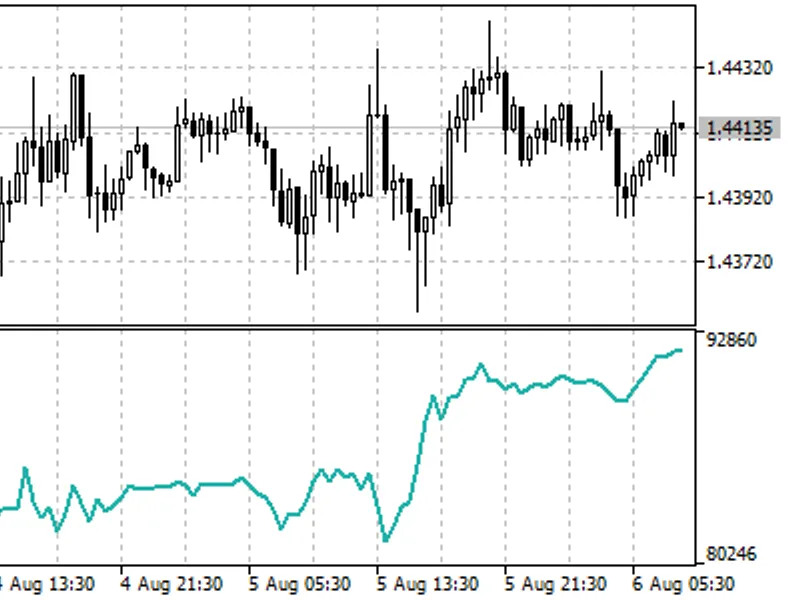







self adjusting rs i
Info
The self adjusting rs i is a Indicator for MetaTrader 5 that in pscillator self-adjusting rsi, we have implemented the methods of automated adjusting the rsi oscillator overbought/oversold levels, described in david sepiashvili's article the self-adjusting rsi. the indicator has five configurable parameters:period- rsi calculation period;applied price- rsi calculation price;calculation mode- adjusting mode: standard deviation- by standard deviation;moving average- by moving average.
Usage
This tool is typically used for enhancing chart analysis and decision making.
Platform
This Indicator works exclusively on MetaTrader 5 (both build 600+ and newer versions).
Setup
Place the downloaded file in MQL5/Indicators folder via File ? Open Data Folder in MetaTrader 5.
How to Install and Use self adjusting rs i
1. Installation: Place your file in the MQL/Indicators folder via "Open Data Folder" and restart your terminal.
2. Loading: Find the indicator in the Navigator, drag it onto your chart, and configure the input parameters in the popup window.
3. Customization: Press Ctrl+I to open the indicator list, select your tool, and click "Properties" to change colors, levels, or visual styles.
4. Updating: Replace the old file in the Indicators folder with the new version and restart the platform to apply changes.
Frequently Asked Questions
Q: Why is my indicator not showing? A: Verify the file is in the MQL/Indicators folder, or try right-clicking the "Indicators" tree in the Navigator and clicking "Refresh."
Q: Do custom indicators slow down the platform? A: Too many complex indicators can impact performance; remove unused ones via the "Indicator List" (Ctrl+I).
Q: Can I use MT4 indicators on MT5? A: No, MQL4 and MQL5 are distinct languages; ensure the indicator is compiled specifically for your platform version.
What this tool does
in pscillator self-adjusting rsi, we have implemented the methods of automated adjusting the rsi oscillator overbought/oversold levels, described in david sepiashvili's article the self-adjusting rsi.
Typical Use Case
This Indicator excels in automated trading and technical analysis on MetaTrader 5.
Compatible Platform & Setup
This Indicator works on MetaTrader 5. Place the file in the MQL5/Indicators folder and restart the terminal.
Description & Settings
Related: self-aware trend system (sats) for mt5 - another powerful indicator for MetaTrader 5 traders.
in pscillator self-adjusting rsi, we have implemented the methods of automated adjusting the rsi oscillator overbought/oversold levels, described in david sepiashvili's article the self-adjusting rsi.
Also recommended: FX5 Self-Adjusting RSI Indicator - similar indicator with strong performance on MetaTrader 5.
the indicator has five configurable parameters:period
- rsi calculation period;
applied price
- rsi calculation price;
calculation mode
- adjusting mode:
standard deviation
- by standard deviation;
moving average
- by moving average.
deviation for stddev mode
- deviation for the standard deviation mode;
deviation for ma mode
- deviation for the moving average mode.
calculations:
if calculation mode = standard deviation:
if calculation mode = moving average:
fig 1. calculation mode = standard deviation
fig. 2. calculation mode = moving average
You may also like: fx5 self adjusting rs i ht f - excellent alternative for indicator users on MetaTrader 5.
Source Code
/.......
⚠ Limitations & Risk Warning
- This tool is provided for educational and testing purposes only.
- Past performance does not guarantee future results.
- Trading involves substantial risk of loss. Use on a demo account first.
- Results may vary depending on market conditions, broker, and settings.
- We recommend thorough backtesting and forward testing before using with real funds.