

Prop News Countdown: MT5 News Timer for Prop Firm Accounts
Info
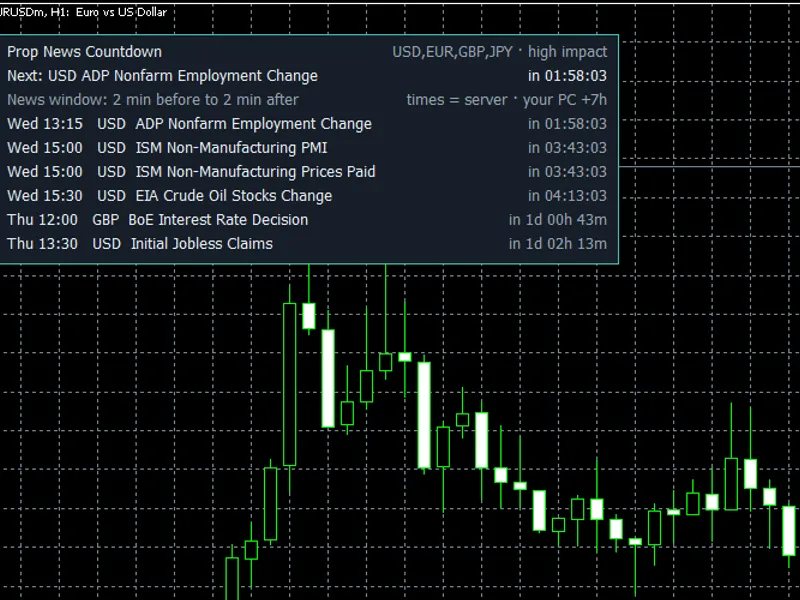
The Prop News Countdown: MT5 News Timer for Prop Firm Accounts is a Indicator for MetaTrader 5 that prop news countdown reads the built-in mt5 economic calendar and displays information directly on your chart to help you adhere to prop firm trading rules. Key Features:- Next News Display: Shows the next upcoming news event and a live countdown timer in hh:mm:ss format.
Usage
This tool is typically used for enhancing chart analysis and decision making.
Platform
This Indicator works exclusively on MetaTrader 5 (both build 600+ and newer versions).
Setup
Place the downloaded file in MQL5/Indicators folder via File ? Open Data Folder in MetaTrader 5.
How to Install and Use Prop News Countdown: MT5 News Timer for Prop Firm Accounts
1. Installation: Place your file in the MQL/Indicators folder via "Open Data Folder" and restart your terminal.
2. Loading: Find the indicator in the Navigator, drag it onto your chart, and configure the input parameters in the popup window.
3. Customization: Press Ctrl+I to open the indicator list, select your tool, and click "Properties" to change colors, levels, or visual styles.
4. Updating: Replace the old file in the Indicators folder with the new version and restart the platform to apply changes.
Frequently Asked Questions
Q: Why is my indicator not showing? A: Verify the file is in the MQL/Indicators folder, or try right-clicking the "Indicators" tree in the Navigator and clicking "Refresh."
Q: Do custom indicators slow down the platform? A: Too many complex indicators can impact performance; remove unused ones via the "Indicator List" (Ctrl+I).
Q: Can I use MT4 indicators on MT5? A: No, MQL4 and MQL5 are distinct languages; ensure the indicator is compiled specifically for your platform version.
What this tool does
Prop News Countdown reads the built-in MT5 economic calendar and displays information directly on your chart to help you adhere to prop firm trading rules.
Typical Use Case
This Indicator excels in automated trading and technical analysis on MetaTrader 5.
Compatible Platform & Setup
This Indicator works on MetaTrader 5. Place the file in the MQL5/Indicators folder and restart the terminal.
Description & Settings
Related: Daily Loss Meter for Prop Firm Rules - another powerful indicator for MetaTrader 5 traders.
Prop News Countdown reads the built-in MT5 economic calendar and displays information directly on your chart to help you adhere to prop firm trading rules.Also recommended: News Event Marker for MetaTrader 5 - similar indicator with strong performance on MetaTrader 5.
Key Features:
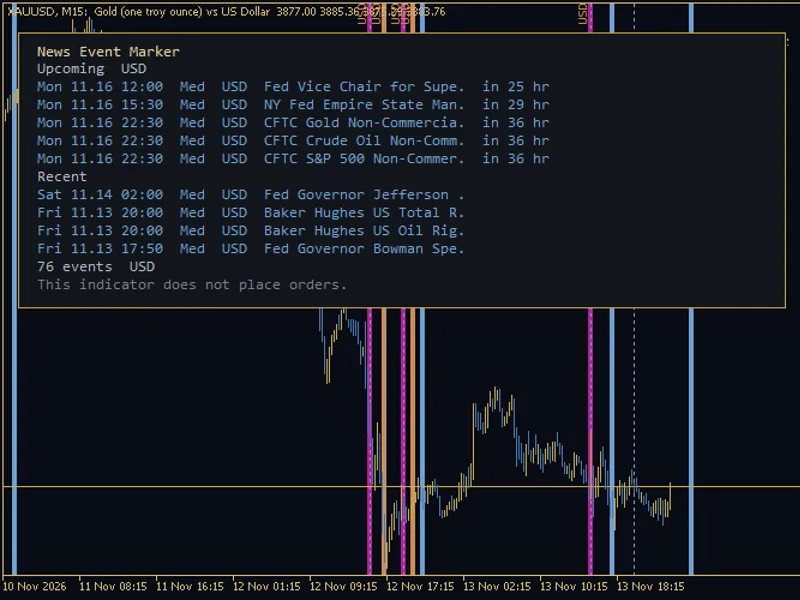
- Next News Display: Shows the next upcoming news event and a live countdown timer in hh:mm:ss format.
- Upcoming Events List: Provides a detailed list including time, currency, event name, and time remaining.
- Trading Window Indicator: A red panel clearly indicates the "NEWS WINDOW NOW" period, customizable from X minutes before to Y minutes after each event to match your firm's specific regulations.
- Chart Lines: Displays a dotted vertical line on the chart at the exact time of each news event.
- Optional Alerts: Configurable alerts for a set number of minutes before the news and at the start of the news trading window. Alerts can be sent as pop-up messages and/or MT5 mobile push notifications.
The indicator functions solely as a display and reminder tool; it does not open, close, or modify trades.
Indicator Inputs:
1. News Filter
- InpCurrencies: Automatically detects currencies for the chart symbol or allows a manual list (e.g., USD, EUR, GBP, JPY). The AUTO setting intelligently skips events with irrelevant currencies (e.g., BTC on a BTCUSD chart).
- InpImportance: Filter news by high impact only, or include moderate and high impact events.
- InpLookAheadHours: Set the range for how many hours ahead the indicator should look for news (1-168 hours).
2. News Window Settings (Customize to your prop firm's rules)
- InpMinBefore: Define how many minutes before the scheduled news time the trading window begins.
- InpMinAfter: Define how many minutes after the scheduled news time the trading window ends.
3. Alert Configuration
- InpAlertMin: Set the number of minutes before a news event to receive an alert (0 to disable).
- InpAlertWindow: Trigger an alert when the trading news window starts.
- InpPush: Enable sending alerts as push notifications to your MT5 mobile app.
4. Display Options
- InpShowCount: Specify the number of upcoming news events to display in the list (1-10).
- InpDrawLines: Choose whether to draw vertical lines on the chart for each news event time.
- InpX, InpY: Adjust the pixel position of the display panel.
- InpFontSize: Set the font size for the panel text.
Troubleshooting and Notes:
- Calendar Unavailable: If the economic calendar cannot be read or is empty (e.g., during initial sync), the panel will turn red with a "CALENDAR NOT AVAILABLE" message, and the indicator will retry every 30 seconds. It will not display "no news" if the calendar data is inaccessible.
- Imprecise Event Times: Events without exact times (all-day or tentative) will be listed with "(time not exact)" and are not factored into the news window calculations.
- Unknown Currencies: Any unrecognized currency in the InpCurrencies input will be flagged as a warning on the panel.
- Alert Frequency: Each alert is sent only once per event. Alerts are also triggered after a terminal restart or a timeframe change.
- Time Synchronization: All times are displayed in trade-server time (your broker/prop firm's server time). The panel also shows the time difference relative to your PC clock.
- Weekend and No-Tick Operation: The countdown continues even on weekends or during periods with no market activity, utilizing TimeTradeServer().
- Strategy Tester Limitation: The economic calendar is not available in the Strategy Tester. The indicator will display a message in the tester; use it on live or demo charts.
- Shared Alerts: Alert flags are shared across all instances within the same terminal, ensuring an event triggers an alert only once, even if the indicator is applied to multiple charts.
- Data Source: News data is sourced from the official MetaQuotes economic calendar. Always verify your specific prop firm's rules and news list, as their regulations are definitive.
- Disclaimer: This tool is not affiliated with any prop firm. It is a third-party utility.
- Demo Testing Recommended: While compiled with no errors and having passed internal self-tests, the "NEWS WINDOW" state and alert functionalities have been verified through built-in self-testing only. It is strongly recommended to test the indicator on a demo chart before using it on a live account.
Testing and Verification:
- Compiled in MetaEditor with 0 errors and 0 warnings.
- Built-in self-test conducted on a live demo chart covering currency list accuracy, news-window timing, countdown format, event sorting, AUTO currency filter functionality, and calendar data retrieval, with all 30 checks passing.
- Panel display, vertical lines, and object cleanup were verified on a live EURUSD chart.
Installation Instructions:
1. Copy the "PropNewsCountdown.mq5" file to your MT5 MQL5\Indicators folder.
2. Compile the file in MetaEditor or restart your MT5 terminal.
3. Drag the indicator onto any desired chart and configure the news window timings according to your firm's rules.
This indicator is free to use. Feedback and suggestions are welcome in the comments section.
Last updated: 2026
You may also like: Prop Firm Guard Panel - excellent alternative for indicator users on MetaTrader 5.
Source Code
#property copyright "RobotFX"
#property link "https://robotfx.org"
#property version     "1.01"
#property description "This code is educational. Feel free to use, modify and upgrade as you wish. Visit ROBOTFX.ORG for professional trading tools"
#property indicator_chart_window
#property indicator_buffers 0
#property indicator_plots   0
enum ENUM_PNC_IMPORTANCE
  {
   PNC_HIGH=0,
.......
⚠ Limitations & Risk Warning
- This tool is provided for educational and testing purposes only.
- Past performance does not guarantee future results.
- Trading involves substantial risk of loss. Use on a demo account first.
- Results may vary depending on market conditions, broker, and settings.
- We recommend thorough backtesting and forward testing before using with real funds.