CC I Arrows MT4
This is a powerful addition to your MetaTrader 4 toolkit designed to optimize market analysis and performance. This technical indicator acts as a specialized analysis tool designed to visualize market data. It helps traders identify emerging trends, momentum shifts, and key support or resistance levels by plotting statistical calculations directly onto price charts.
How to Setup and Use CC I Arrows MT4
1. Installation: Place your file in the MQL/Indicators folder via "Open Data Folder" and restart your terminal.
2. Loading: Find the indicator in the Navigator, drag it onto your chart, and configure the input parameters in the popup window.
3. Customization: Press Ctrl+I to open the indicator list, select your tool, and click "Properties" to change colors, levels, or visual styles.
4. Updating: Replace the old file in the Indicators folder with the new version and restart the platform to apply changes.
Frequently Asked Questions
Q: Why is my indicator not showing? A: Verify the file is in the MQL/Indicators folder, or try right-clicking the "Indicators" tree in the Navigator and clicking "Refresh."
Q: Do custom indicators slow down the platform? A: Too many complex indicators can impact performance; remove unused ones via the "Indicator List" (Ctrl+I).
Q: Can I use MT4 indicators on MT5? A: No, MQL4 and MQL5 are distinct languages; ensure the indicator is compiled specifically for your platform version.
Description & Settings
CCI_Period
(default = 14) — the period of the CCI that is used in this indicator. The higher is the value the more lags this indicator but less false signals occur.
EnableNativeAlerts
(default = false) — if true, MetaTrader's native pop-up alerts will be used when an arrow appears.
EnablePushAlerts
(default = false) — if true, MetaTrader's push notification alerts will be sent to your device when an arrow appears. Notifications should be properly configured in MetaTrader via Tools->Options->Notifications.
TriggerCandle
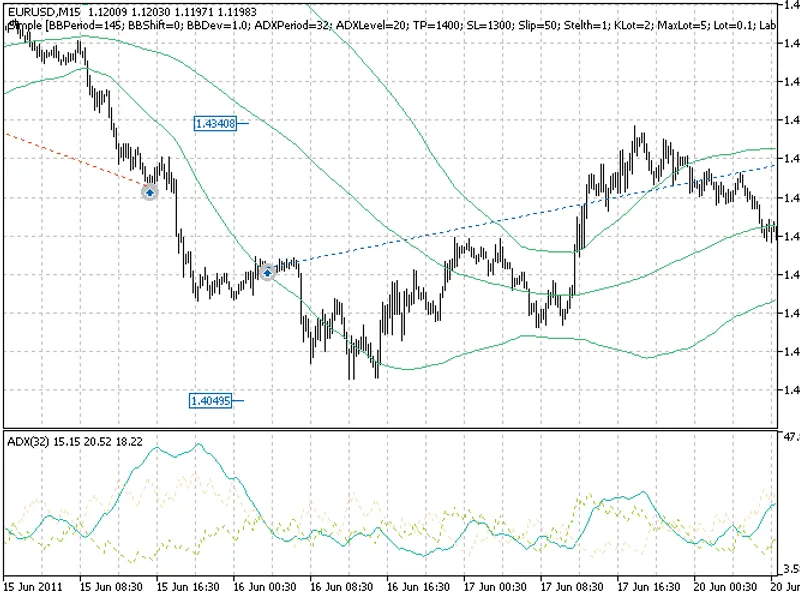
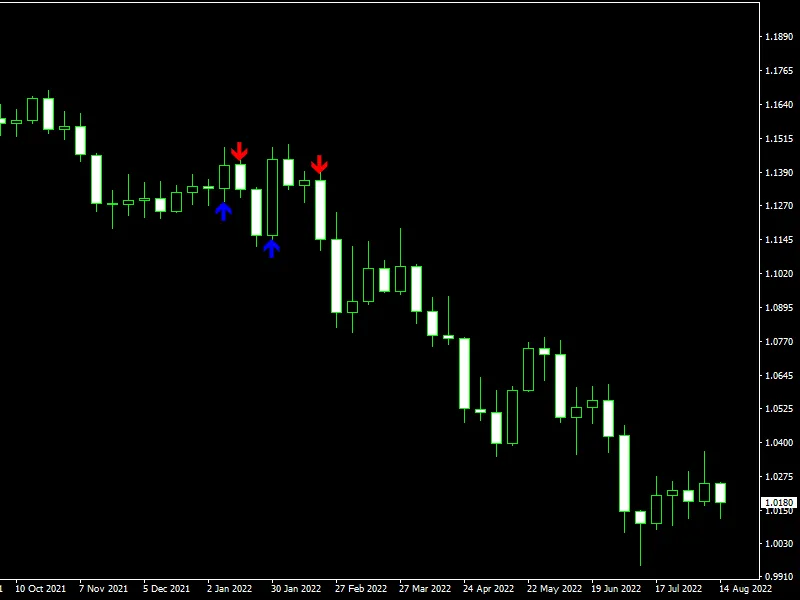
(default = Previous) — the candle to issue alerts on: Previous — the most recently closed candle or Current — the yet unfinished candle. As you can see, this indicator gives direct signals for buy (blue arrow pointing up) and sell (red arrow pointing down). You should know that you should NOT enter the trade if the signal is contradicting the current general trend. If it is uptrend and you get a blue arrow — go long, if you get a red arrow — do nothing (just close your long position if you had one open); if it is downtrend and you get blue arrow — close short position but don't go long, if you get red arrow — go short; if chart goes sideways and you get blue or red arrow — feel free to go long or short respectively. I recommend setting your stop-loss directly at the level where the arrow is drawn (it is displayed if you point your mouse at it).