







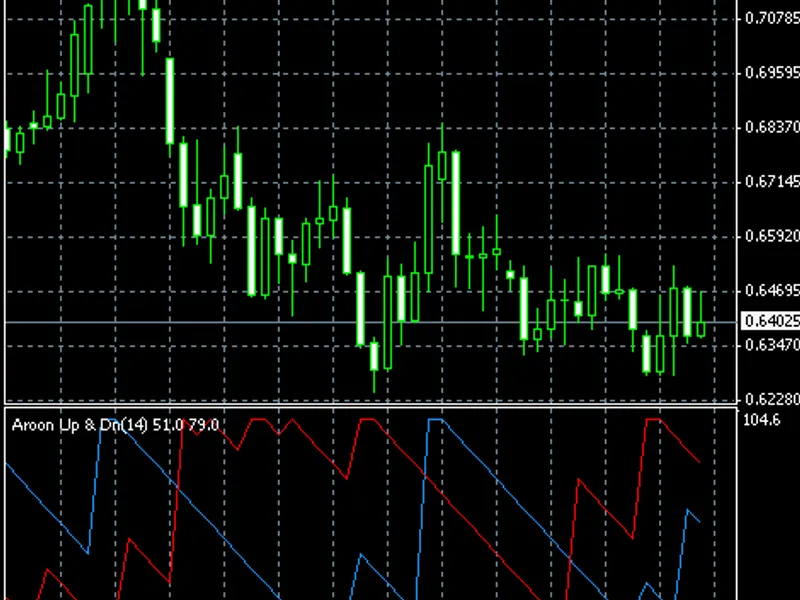
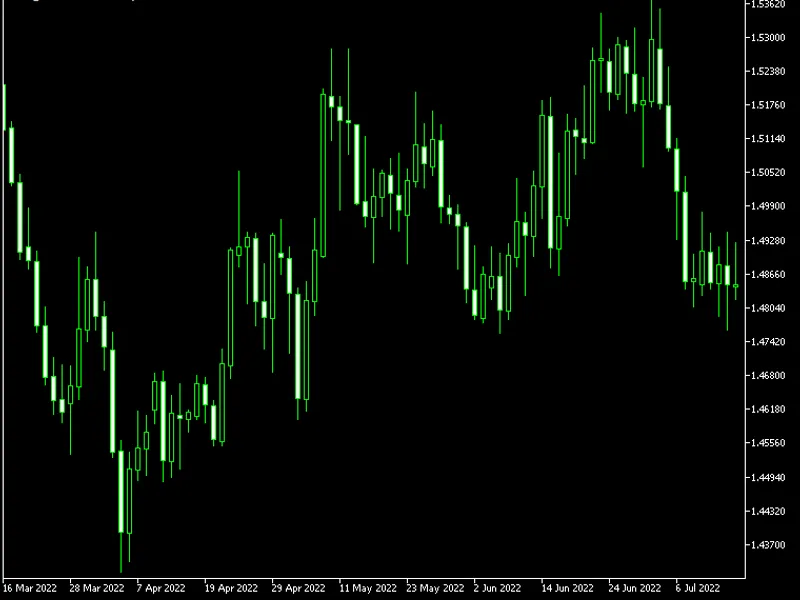
ultra - at r scalping tool
Info
The ultra - at r scalping tool is a Indicator for MetaTrader 4 that experimental indicator i wrote for myself. it's made to show some reference (it's more like a rifle scope, than a rifle).
Usage
This tool is typically used for scalping on lower timeframes (M1-M15).
Platform
This Indicator works exclusively on MetaTrader 4 (both build 600+ and newer versions).
Setup
Place the downloaded file in MQL4/Indicators folder via File ? Open Data Folder in MetaTrader 4.
How to Install and Use ultra - at r scalping tool
1. Installation: Place your file in the MQL/Indicators folder via "Open Data Folder" and restart your terminal.
2. Loading: Find the indicator in the Navigator, drag it onto your chart, and configure the input parameters in the popup window.
3. Customization: Press Ctrl+I to open the indicator list, select your tool, and click "Properties" to change colors, levels, or visual styles.
4. Updating: Replace the old file in the Indicators folder with the new version and restart the platform to apply changes.
Frequently Asked Questions
Q: Why is my indicator not showing? A: Verify the file is in the MQL/Indicators folder, or try right-clicking the "Indicators" tree in the Navigator and clicking "Refresh."
Q: Do custom indicators slow down the platform? A: Too many complex indicators can impact performance; remove unused ones via the "Indicator List" (Ctrl+I).
Q: Can I use MT4 indicators on MT5? A: No, MQL4 and MQL5 are distinct languages; ensure the indicator is compiled specifically for your platform version.
What this tool does
experimental indicator i wrote for myself.
Typical Use Case
This Indicator excels in automated trading and technical analysis on MetaTrader 4.
Compatible Platform & Setup
This Indicator works on MetaTrader 4. Place the file in the MQL4/Indicators folder and restart the terminal.
Description & Settings
Related: Simple Scalping System for MT4 - another powerful indicator for MetaTrader 4 traders.
experimental indicator i wrote for myself. it's made to show some reference (it's more like a rifle scope, than a rifle). main components are pip scale, atr/pivot, ma level, rsi, and spread alert. can be used on any timeframe, but since it's made for scalping it is somewhat adjusted for m1-m15.
Also recommended: ultra oscillator - similar indicator with strong performance on MetaTrader 4.
pips scalesettings: scale zero level shift.
this is simple scale. middle (zero level) is placed at the middle of the body of chosen candle. this can be adjusted so that you can differentiate reversal from pullbacks.
rule of thumb is: trend is up when price is above zero level, trend is down when price is below.
atr/pivots
settings: mode(standard,fibonacci), period (no of m5 bars), lines - style, color, width.
there's some math behind this one. weighted average of chosen number of m5 bars (for open/close/high/low price)
range is adjusted with atr from this range,
and all these are used to calculate pivot levels.
because of that these levels will be dynamic, depending on atr value, so chosen period makes big difference here. the lower number the more dynamic levels (they will expand and contract). for intraday trading/scalping period 12 - 288 is reasonable (1-24 hours).rule of thumb just like other pivot tools.
ma level
settings: period, method, applied price, timeframe, line color/style/width.
this is additional line that shows latest price of moving average from a chosen time-frame. if the level is "outside" the chart the line is drawn at the top/bottom of the chart (longer and thicker). i use ema(16) of typical price on h1, that shows the trend pretty well.
rule of thumb: trend is up then price is above the ma level, trend is down when price is below.
rsi indicator
settings: period
this one may seem confusing at first. (it's more like looking at rsi from the side, like a plan view). line shows current rsi, color fill shows plan view of last n bars (min/max value) (n is the same as rsi period).
rule of thumb: rsi > 50 trend is up, rsi < 50 trend is down. also when trending sideways the color fill is tight around 50.
spread alert
settings: ratio, color.
set the ratio of spread and atr to trigger alert. when it's triggered it changes color of bid/ask line, and some scale lines to draw your attention. enable debug mode to show some internal numbers, also spread, atr and %ratio to help you adjust this level.
You may also like: 5 minutes scalping system - excellent alternative for indicator users on MetaTrader 4.
Source Code
/*
   ultra by rkdius [jan 2017]
*/
#property version     "1.60"
#property strict
#property indicator_chart_window
enum mode
  {
   standard,
   fibonacci,
.......
⚠ Limitations & Risk Warning
- This tool is provided for educational and testing purposes only.
- Past performance does not guarantee future results.
- Trading involves substantial risk of loss. Use on a demo account first.
- Results may vary depending on market conditions, broker, and settings.
- We recommend thorough backtesting and forward testing before using with real funds.