






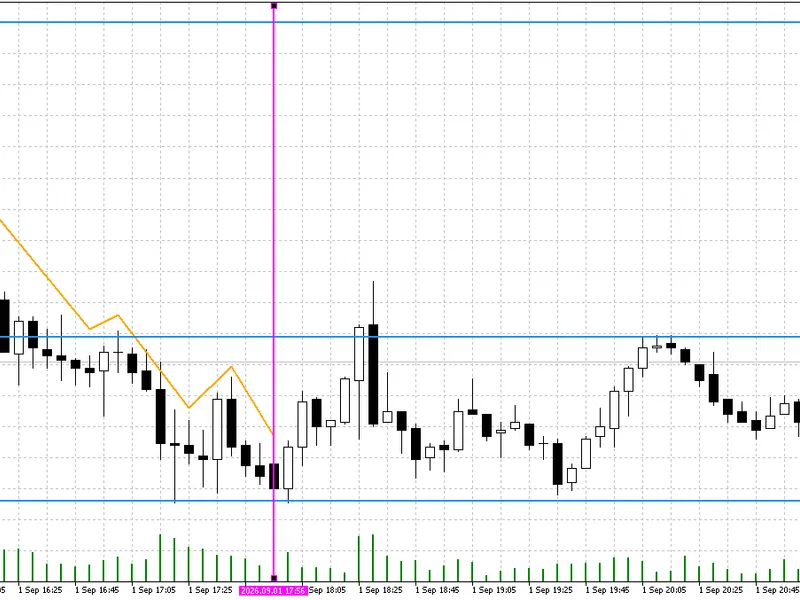


Chande's Quick Stick (Qstick) Indicator
Info
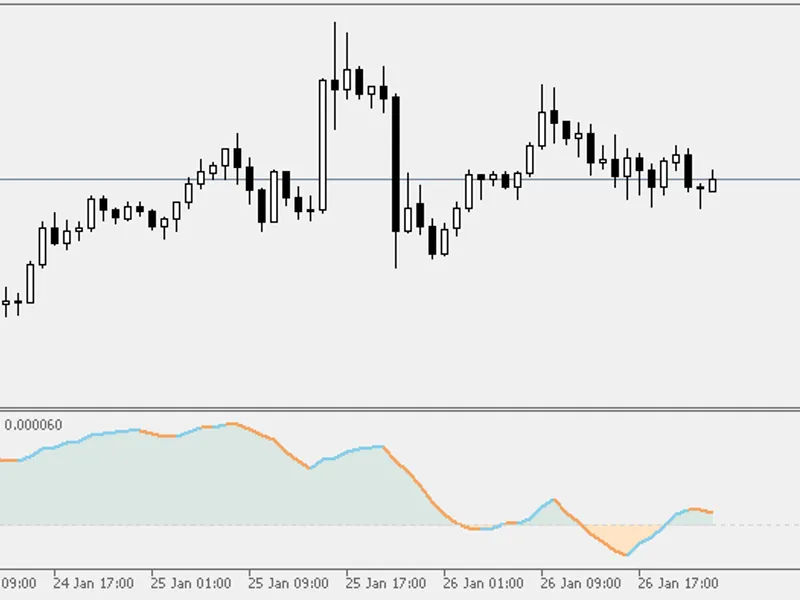
The Chande's Quick Stick (Qstick) Indicator is a Indicator for MetaTrader 5 that the qstick indicator is a powerful tool for analyzing market trends and generating trading signals. When the Qstick reading is below zero, it indicates that most candlesticks in the observed period are bearish, suggesting a bearish bias for the trading instrument.
Usage
This tool is typically used for enhancing chart analysis and decision making.
Platform
This Indicator works exclusively on MetaTrader 5 (both build 600+ and newer versions).
Setup
Place the downloaded file in MQL5/Indicators folder via File ? Open Data Folder in MetaTrader 5.
How to Install and Use Chande's Quick Stick (Qstick) Indicator
1. Installation: Place your file in the MQL/Indicators folder via "Open Data Folder" and restart your terminal.
2. Loading: Find the indicator in the Navigator, drag it onto your chart, and configure the input parameters in the popup window.
3. Customization: Press Ctrl+I to open the indicator list, select your tool, and click "Properties" to change colors, levels, or visual styles.
4. Updating: Replace the old file in the Indicators folder with the new version and restart the platform to apply changes.
Frequently Asked Questions
Q: Why is my indicator not showing? A: Verify the file is in the MQL/Indicators folder, or try right-clicking the "Indicators" tree in the Navigator and clicking "Refresh."
Q: Do custom indicators slow down the platform? A: Too many complex indicators can impact performance; remove unused ones via the "Indicator List" (Ctrl+I).
Q: Can I use MT4 indicators on MT5? A: No, MQL4 and MQL5 are distinct languages; ensure the indicator is compiled specifically for your platform version.
What this tool does
The Qstick indicator is a powerful tool for analyzing market trends and generating trading signals.
Typical Use Case
This Indicator excels in automated trading and technical analysis on MetaTrader 5.
Compatible Platform & Setup
This Indicator works on MetaTrader 5. Place the file in the MQL5/Indicators folder and restart the terminal.
Description & Settings
Related: Swift Draw Lite: MT5 Quick Chart Drawing and Hotkey Utility - another powerful indicator for MetaTrader 5 traders.
The Qstick indicator is a powerful tool for analyzing market trends and generating trading signals.Also recommended: Quick Zig Zag Plus Di Napoli - similar indicator with strong performance on MetaTrader 5.
When the Qstick reading is below zero, it indicates that most candlesticks in the observed period are bearish, suggesting a bearish bias for the trading instrument.
Conversely, a reading above zero signifies that the majority of candlesticks are bullish, implying a bullish bias.
Here are some ways to utilize the Qstick for trading signals:
- Crossings over the zero line: A cross above zero signals a buy, while a cross below zero indicates a sell.
- Extreme levels: If the Qstick is at a very low level and starts reversing upwards, it's a buy signal. If it's at a very high level and reverses downwards, it's a sell signal.
- Divergences: When the market forms lower lows and the Qstick forms higher lows, it's a bullish divergence, prompting a buy. Conversely, if the market forms higher highs and the Qstick forms lower highs, it's a bearish divergence, signaling a sell.
These techniques provide valuable insights for traders, helping them make informed decisions based on the Qstick indicator's behavior.
You may also like: chande's dm i - std adaptive with dsl signal lines - excellent alternative for indicator users on MetaTrader 5.
Source Code
/.......
⚠ Limitations & Risk Warning
- This tool is provided for educational and testing purposes only.
- Past performance does not guarantee future results.
- Trading involves substantial risk of loss. Use on a demo account first.
- Results may vary depending on market conditions, broker, and settings.
- We recommend thorough backtesting and forward testing before using with real funds.