Economic Calendar Monitor and Cache for Backtesting on History
This tool for MetaTrader 5 is specifically engineered to streamline your trading operations. This technical indicator acts as a specialized analysis tool designed to visualize market data. It helps traders identify emerging trends, momentum shifts, and key support or resistance levels by plotting statistical calculations directly onto price charts.
How to Setup and Use Economic Calendar Monitor and Cache for Backtesting on History
1. Installation: Place your file in the MQL/Indicators folder via "Open Data Folder" and restart your terminal.
2. Loading: Find the indicator in the Navigator, drag it onto your chart, and configure the input parameters in the popup window.
3. Customization: Press Ctrl+I to open the indicator list, select your tool, and click "Properties" to change colors, levels, or visual styles.
4. Updating: Replace the old file in the Indicators folder with the new version and restart the platform to apply changes.
Frequently Asked Questions
Q: Why is my indicator not showing? A: Verify the file is in the MQL/Indicators folder, or try right-clicking the "Indicators" tree in the Navigator and clicking "Refresh."
Q: Do custom indicators slow down the platform? A: Too many complex indicators can impact performance; remove unused ones via the "Indicator List" (Ctrl+I).
Q: Can I use MT4 indicators on MT5? A: No, MQL4 and MQL5 are distinct languages; ensure the indicator is compiled specifically for your platform version.
Description & Settings
Quotes are marked with timestamps in accordance with the time zones that were in effect on the server at the moment of formation of each corresponding bar.
Once the bars are formed they remain unchanged, including their timestamps. On the other hand, the economic calendar provides information about events (past, present, and future) tied to the current time zone of the server. Since many brokers adhere to a specific time zone schedule, including turning daylight saving mode on and off, the timestamps of the historical events may be shifted by 1 hour relative to associated bars, for about half of each year.
Moreother, brokers sometimes change time zones more radically than just switching DST. Historical quotes may then appear to be shifted several hours to the left or right relative to the time of the economic events that originally occurred on them, but are now reported by the calendar in the server's updated time zone.
Taking into account that news come from different countries with their own DST schedules and your server can be located in a region with other schedule, time of news releases can visually "jump" back and forth on charts even in more peculiar manner (for example, for several weeks in spring and in autumn).
All this doesn't seem so important online, but what if we want to test a news-based strategy?
Yes, you can say that the calendar is not supported in MetaTrader tester natively, but many traders like to trade news and everyone else who doesn't should follow the news to simply step aside from the market before it'll go wild during news. So backtesting with the calendar is important. That's why it's very logical to export the calendar to an external storage (file, database) and then import it to the tester. One of such archiving tools for calendar-in-tester experience was presented in .
All the job related to time correction is done behind the scenes - in the other public library . For better understanding how the time correction works one can use the script and compare CSV-files with and without correction side by side.
And here is how the lib is embedded into the source codes of both programs - the script and this indicator.
As in the original indicator, there is the string input
CalendarCacheFile
, where you can provide a name of cal-file for writing or reading.
When the indicator is attached to an online chart with empty
CalendarCacheFile
, it works with the built-in calendar on-the-fly.
When the indicator is executed with specific name in
CalendarCacheFile
and the file doesn't exist, the indicator exports the calendar records into the cache file (creates the file) and exits. This is the stage when the timestamps should/can be corrected (see
FixCachedTimesBySymbolHistory
below).
When the indicator is executed with a name of existing cache-file in
CalendarCacheFile
, it loads the cache and works with this copy in the same way as with built-in calendar. This is specifically useful for the tester.
Please, don't forget that the tester requires to specify additional files, in our case - the prepared online cal-file, in the directive #property tester_file OR you should place the cal-file into the common folder C:/Users/<User>/AppData/Roaming/MetaQuotes/Terminal/Common/.
Of course, the cache can be also loaded into an EA during backtests and optimizations.
The input string
FixCachedTimesBySymbolHistory
is processed in the following way.
If it's empty, the indicator saves the cache without time corrections.
The method adjustTZonHistory was specifically introduced into CalendarCache class for timestamps adjustments and its implementation uses internals of TimeServerDST.mqh.
The method should be called online only (not in the tester).
Normally the method should be called on cache objects filled from the built-in calendar, right after the filling. Otherwise, if the cache is loaded from a cal-file, or if the method was already called before, the cache contents could be already adjusted. Then you'll apply fix on fix and get wrong timestamps.
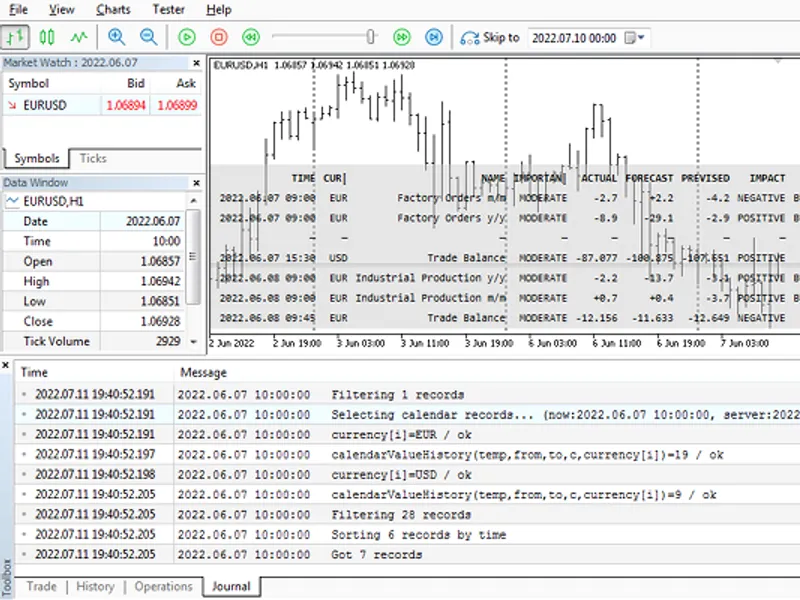
The second parameter (true) instructs the method to write boundaries of applied changes into the log. Something like this:
Each line contains a time and ID of an event where new discrepancy was detected, server time offset at the event, and what difference must be applied to all subsequent timestamps in order to eliminate the bias in server time at the moment of calendar caching.