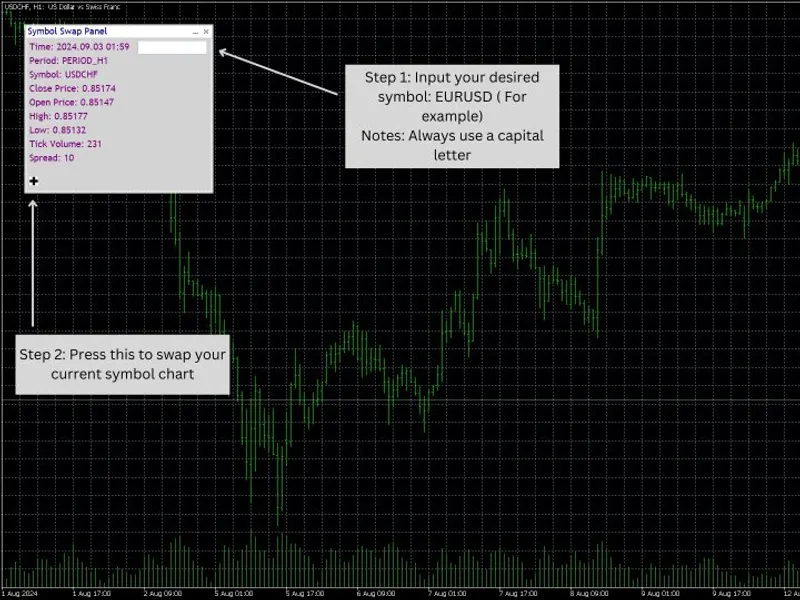
Symbol Swap Panel Utility
This tool for MetaTrader 5 is specifically engineered to streamline your trading operations. This Expert Advisor serves as automated trading software. It is utilized to monitor financial markets and execute trades based on predefined algorithmic rules, enabling precise position management without the need for constant manual oversight.
How to Setup and Use Symbol Swap Panel Utility
1. Installation: Open the "File" menu, select "Open Data Folder," navigate to MQL/Experts, paste your file, and restart the terminal.
2. Activation: Drag the EA from the Navigator onto a chart, ensure "Allow live trading" is checked in the Common tab, and verify the AutoTrading button is green.
3. Optimization: Right-click your chart, choose "Expert List," click "Properties" to adjust inputs, and save your preferred setup as a set file for future use.
4. Maintenance: Regularly check the "Experts" tab in the terminal window to monitor trade logs and potential execution errors.
Frequently Asked Questions
Q: Why is my EA not opening trades? A: Check the "AutoTrading" button, ensure "Allow live trading" is enabled, and verify your broker allows automated trading on your account type.
Q: Can I run multiple EAs on one chart? A: No, each chart can only host one active EA; however, you can open multiple charts for different currency pairs to run several EAs.
Q: What does the "smiley face" icon mean? A: A smiley face in the top-right corner of the chart indicates the EA is successfully running; a frowny face means it is disabled.
Description & Settings
Description: The "Symbol Swap Panel" is a versatile utility designed for traders seeking to manage their chart symbols and Market Watch more efficiently. This tool allows you to easily swap the current symbol on your chart while automatically adding the selected symbol to Market Watch. The panel is tailored for traders who require quick access to multiple symbols and real-time market data without disrupting their workflow.
Key Features:
1. Seamless Symbol Swapping:
- Instantly switch the active symbol on your chart with a single click. This feature allows for quick adjustments to your trading strategy without needing to manually navigate through multiple settings.
2. Automatic Market Watch Integration:
- Every time you swap a symbol on the chart, the new symbol is automatically added to Market Watch, ensuring you have immediate access to real-time data and market information.
3. Enhanced Trading Workflow:
- By integrating symbol management with Market Watch, the panel streamlines your trading process, reducing the time and effort required to monitor and analyze multiple symbols.
4. Historical Data Analysis:
- The panel supports symbol swaps based on historical data, allowing traders to review and analyze past market conditions for more informed decision-making.
5. Optimized for Accurate Data Loading:
- The tool is designed to handle data synchronization efficiently. However, when changing timeframes, it is recommended to switch back and forth to ensure all relevant data is loaded accurately for consistent performance.
Practical Use Case:
For a trader who frequently monitors multiple symbols, the Symbol Swap Panel offers a quick and efficient way to switch between charts and update Market Watch without interrupting the flow of market analysis. Whether you’re analyzing different currency pairs or stocks, this tool ensures that all relevant data is accessible in real-time, enhancing your ability to respond to market changes promptly.
This utility is ideal for active traders and analysts who require a streamlined approach to managing symbols and Market Watch entries, offering a practical solution for maintaining focus and efficiency in fast-paced trading environments.
***NOTE***:
To customize the button image in the
Symbol Swap Panel Utility
, follow these steps:
Place your own BMP image (24-bit format) in the
MQL5/Images
folder.
Modify the code to reference your custom image by changing the resource path to point to the new image file.
Ensure the image is correctly formatted and the path is accurate to avoid errors during compilation.
This allows users to personalize the panel by using their own button images.
Link to the product:
MT5:
MT4: